

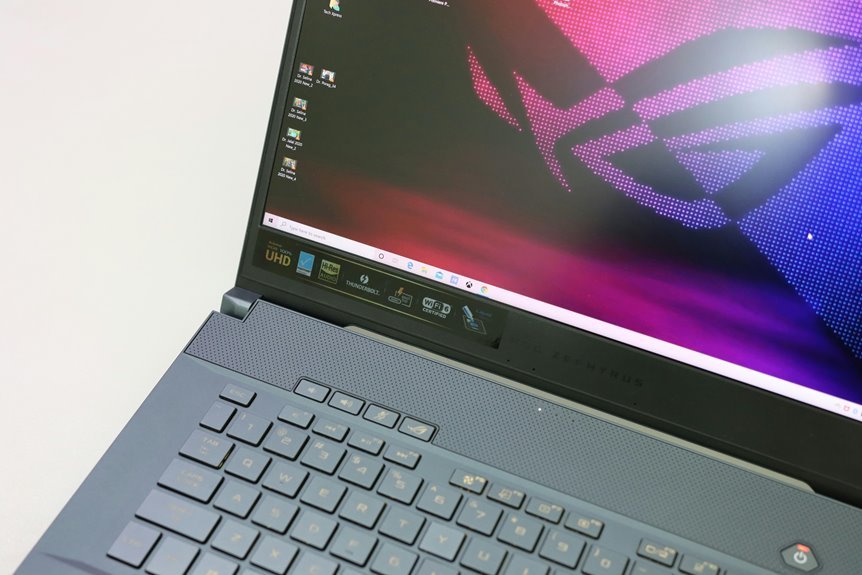

Laptop display resolution affects three big things: image sharpness, system performance, and battery life. Higher resolutions look cleaner, though they push your GPU harder and drain power faster. Lower resolutions usually run smoother and last longer on a charge. This guide compares 1080p, 1440p, and 4K in a simple way, so you can pick the screen that fits your work, games, and budget.
What Laptop Resolution Actually Changes
Why does laptop resolution matter so much? It changes what you see and how your laptop feels every day. As more pixels fit on the screen, text looks cleaner, photos show finer detail, and lines appear smoother. You also get more room to work, so your apps feel less cramped and your tasks flow better.
That visual change connects to the screen itself. Panel technology affects brightness, contrast, viewing angles, and color behavior, so resolution isn’t working alone. Display calibration matters too, because a sharp screen still needs accurate color to feel trustworthy.
At the same time, higher resolution asks your laptop to process more image data. Should your hardware can’t keep up, you might notice slower motion, extra heat, or shorter battery life. Choosing well helps your setup feel right for you.
1080P Vs 1440P Vs 4K on Laptops
Whenever you compare 1080p, 1440p, and 4K on a laptop, you’ll notice a clear tradeoff between frame rates, image sharpness, and battery life.
If you want smoother gaming and longer unplugged use, 1080p usually makes things easier on your system, while 1440p and 4K push your GPU harder for cleaner detail.
That means you need to match your resolution to how you use your laptop, so you don’t end up with pretty visuals and frustrating slowdowns.
Resolution And Frame Rates
Although resolution can make your laptop screen look much sharper, it also has a direct effect on frame rates because your GPU has to draw far more pixels at 1440p and especially at 4K than it does at 1080p. That means you’ll usually see the highest FPS at 1080p, steadier results at 1440p, and the biggest drops at 4K.
- 1080p gives you faster rendering, easier refresh rate pairing, and smoother competitive play.
- 1440p asks more from your GPU, so FPS often falls unless your laptop has strong graphics.
- 4K pushes laptops hardest, which can cause stutter when hardware can’t keep up.
- Lower FPS also hurts screen tear reduction, especially if your refresh rate and output don’t stay aligned.
Visual Sharpness Tradeoffs
Since screen sharpness changes how everything feels on a laptop, the jump from 1080p to 1440p to 4K isn’t just about bigger numbers, it’s about how clean text looks, how detailed photos appear, and how comfortable your screen feels during long use.
With 1080p, you get a familiar, balanced view that works well for school, streaming, and daily browsing.
Step up to 1440p, and you’ll notice stronger text rendering clarity, smoother edges, and more room for windows without everything feeling tiny.
Then 4K brings the crispest look, especially for photo editing details, fine textures, and ultra-clean fonts.
Still, sharper isn’t always easier. On smaller laptop screens, 4K can need scaling, which can make apps feel inconsistent.
For many people, 1440p feels like the sweet spot where you comfortably belong.
Battery Life Impact
While screen sharpness improves as you move from 1080p to 1440p and then 4K, battery life usually moves in the other direction, because your laptop has to power more pixels and push more graphics work at the same time. That means you’ll often get the longest unplugged time at 1080p, a middle ground at 1440p, and the shortest runtime at 4K, especially during gaming or video editing.
- 1080p uses less power, so your laptop stays cooler and lasts longer.
- 1440p gives you more detail, but you’ll notice a moderate battery drop.
- 4K looks stunning, yet it drains power fastest and taxes your GPU more.
- Battery optimization and smart charging habits help your whole laptop group stay productive, connected, and away from the outlet just a little longer together.
How Resolution Affects Laptop Performance
When you raise your laptop’s display resolution, your system has to draw many more pixels every second, and that extra work lands mostly on the GPU. As resolution climbs, frame rates usually fall, especially in games, 3D apps, and heavy multitasking. If your hardware is modest, you may notice stutter, lag, or thermal throttling under longer loads. In your shared tech circle, that balance matters.
| Resolution effect | Performance result |
|---|---|
| More pixels | Higher GPU load |
| Lower resolution | Faster rendering |
| Weak GPU | Stutter risk |
| Better match | Smoother use |
| External display setup | Lowering resolution can help |
That also changes how your laptop feels day to day. Lower resolutions can free resources, helping apps respond faster. With a strong GPU, higher resolutions stay smooth and keep your setup feeling capable and connected.
Why Higher Resolution Uses More Battery
When you raise your laptop’s resolution, your system has to push many more pixels every second.
That extra pixel work makes your graphics chip work harder, and that pulls more power from your battery.
Increased Pixel Workload
Because a higher resolution packs more pixels onto the screen, your laptop has to light up, refresh, and process far more tiny dots every second, and that extra work pulls more power from the battery. You notice it during longer sessions, especially whenever display refresh stays active and heat builds toward thermal throttling. That drain can make your device feel less steady.
- More pixels need more backlight control and constant updates.
- Each screen refresh pushes extra panel activity, even on simple pages.
- Extra heat forces cooling to work harder, which uses more energy too.
- Lower resolutions often run cooler, so your laptop stays comfortable with the group.
That’s why Full HD often feels like the sweet spot for many people. You still get clear visuals, but your battery usually lasts longer through work, study, and shared downtime.
Stronger Graphics Demand
Although the screen is what you see, the graphics chip does most of the extra work at higher resolutions, and that added effort is a big reason battery life drops. When you raise resolution, your laptop pushes many more pixels every second. Your GPU works harder, heats up faster, and pulls more power. That matters even more when you hit gaming GPU limits, because the chip can’t relax between frames.
| Setting | Battery Effect |
|---|---|
| Full HD | Lower drain |
| 4K | Higher drain |
That extra load also affects external monitor efficiency. If you lower resolution on a second display, you often save power and keep your system cooler. So, when you match resolution to your hardware, you stay in the sweet spot your laptop community cares about: smooth use, less fan noise, and longer unplugged time.
How Resolution Increases GPU Load
Pixels are the quiet workload behind every image on your screen, and the higher your resolution goes, the more work your GPU has to do every single second. When you move from 1080p to 1440p or 4K, you’re asking your laptop to process millions more pixels per frame, and that demand hits fast.
- More pixels raise GPU rasterization cost, so each frame takes longer.
- More data fills memory paths, which increases frame buffer bandwidth pressure.
- More shading, texture sampling, and anti-aliasing stack extra work onto every scene.
- More pixels per frame can lower FPS and trigger stutter if your hardware falls behind.
That matters because you’re not doing anything wrong.
Your system is simply carrying a heavier visual load, and your GPU feels it most when motion, effects, and detail all appear together.
Does Higher Resolution Always Look Sharper?
You may expect a higher resolution to always look sharper, but that depends on pixel density and how close you sit to the screen.
If your laptop packs more pixels into a small display, text and images can look cleaner, yet scaling can also make apps look awkward or soft.
Pixel Density Limits
In many cases, a higher resolution does look sharper, but only up to the point where your screen size and viewing distance can actually reveal the extra detail. That means you can hit a pixel density ceiling where added pixels stop feeling meaningful. You’re not missing out unless your eyes can’t spot the difference. That’s normal, and you’re in good company.
To make that clearer, consider these factors:
- A 14-inch laptop hides pixels well at Full HD.
- On small screens, 4K often beats viewing distance limits, not your expectations.
- Larger panels reveal more benefit from extra resolution.
- Your usual seat position matters as much as the spec sheet.
Scaling And Clarity
Screen sharpness doesn’t depend on resolution alone, because scaling changes how text, icons, and app windows actually appear on your laptop. Provided that you raise resolution too high on a small screen, everything can shrink until it feels unfriendly. That’s where font scaling helps, making words readable again without forcing you to squint.
Still, scaling can soften menus, blur older apps, or waste the extra detail you expected. In other words, more pixels don’t always mean better interface clarity. You get the best result provided that resolution and scaling work together for your screen size and your daily tasks. For many people, that sweet spot feels more comfortable than chasing the highest number.
Provided that your display looks clear and natural, you feel settled, productive, and right at home with every click each day.
How Screen Size Affects Sharpness
Although resolution gets most of the attention, screen size quietly decides how sharp that resolution actually looks. On a smaller laptop, you get higher pixel density, so text and images look tighter and cleaner. On a larger screen with the same resolution, pixels spread out more, so edges can look softer. That’s why your viewing distance matters too, because sitting farther back can hide that softness and help everything feel more natural.
- A 13-inch Full HD panel often looks sharper than a 17-inch Full HD panel.
- Higher pixel density makes fine details easier for you to enjoy.
- Larger screens can still feel clear when your viewing distance increases.
- The sweet spot depends on how close you sit and what feels comfortable.
You’re not picky, you’re noticing what your eyes truly prefer.
Best Laptop Resolution for Gaming?
The best laptop resolution for gaming depends on what you want to feel while you play, because sharper visuals always ask more from your GPU.
If you want smooth, responsive matches with your crew, Full HD usually gives you the strongest balance. It pushes fewer pixels, so your laptop can deliver higher frame rates, lower heat, and steadier battery life. That matters whenever your refresh rate choice is 144Hz or higher.
If your laptop has stronger graphics, Quad HD can make worlds look richer without the heavy hit of 4K.
It feels more immersive, yet still realistic for many gaming laptops. 4K looks impressive, but it often costs too many frames.
That’s why variable resolution support helps. You can stay in the game, lower resolution if needed, and still feel like you belong.
Best Laptop Resolution for Creative Work?
When you create photos, videos, or design work, resolution shapes both what you see and how comfortably you can work. For most creative tasks, you’ll feel most at home with Quad HD, because it gives you sharper detail than Full HD without the heavy strain that 4K can place on many laptops. That balance helps you stay in the zone.
- You get more workspace for timelines, layers, and tool panels.
- You see finer edges and textures, which supports color accuracy.
- You handle color grading with clearer previews and fewer visual compromises.
- You keep smoother performance, so edits feel steady and natural.
If you work with high-end photography or video, 4K can serve you well, especially when your laptop has strong graphics.
Still, Quad HD often feels like the creative sweet spot for many users.
When Lower Resolution Makes More Sense
If your laptop starts to feel hot, noisy, or slow, lowering the resolution can be a smart move that gives you quick relief. You’ll often see smoother motion, cooler temps, and better battery life, especially on legacy hardware or during remote desktop use. That choice can help you stay in step with what your system can handle.
| Situation | What you notice | Why it helps |
|---|---|---|
| Older laptop | Less stutter | Fewer pixels |
| Gaming | Higher FPS | Faster rendering |
| Battery mode | Longer unplugged time | Lower power draw |
| Video calls | Quieter fans | Reduced workload |
| External screen | Cooler system | Less strain |
How to Choose Laptop Resolution
Because your laptop’s resolution affects speed, battery life, and how clear everything looks, the right choice starts with how you actually use your screen each day. You don’t need the highest setting to feel confident in your setup. Instead, match resolution budget and portability balance to your real needs.
- Pick Full HD when you browse, stream, study, or work daily and want smoother speed.
- Choose Quad HD when you edit photos, design, or want more room for multitasking.
- Go 4K only assuming your laptop has strong graphics and you value detail over battery life.
- Test scaling, game performance, and heat before deciding, so your screen feels right for your community, habits, and workflow.
That way, your laptop fits you, not the other way around, every single day.
Frequently Asked Questions
Can Laptop Resolution Affect HDMI Output Quality on External Monitors?
Yes, your laptop’s resolution can affect HDMI output quality when HDMI bandwidth limits refresh rate or image clarity, and when scaling on the external monitor softens the picture. The sharpest result usually comes from using the monitor’s native resolution and compatible hardware.
Does Changing Resolution Impact Text Scaling in Older Applications?
Yes, changing resolution can affect text scaling in older applications. Many older programs do not handle legacy UI scaling properly, so text and interface elements may appear blurry or incorrectly sized. Adjusting display scaling can improve readability, but some applications may still not display clearly.
Is Laptop Display Resolution Upgradeable After Purchase?
In some laptops, a higher resolution screen can be installed after purchase, but the upgrade depends on strict hardware compatibility. The replacement panel must match the connector type, BIOS support, mounting points, and power requirements of your exact model, so verify those details before buying anything.
Do Touchscreen Laptops Benefit Differently From Higher Resolutions?
Higher resolution on a touchscreen laptop makes pen strokes, text, and fine interface details look cleaner, which is especially useful for drawing, note taking, and long reading sessions. The tradeoff is shorter battery life and more graphics workload, so the best choice depends on whether visual precision matters more to you than efficiency.
Can Higher Resolution Increase Laptop Fan Noise During Normal Use?
Yes. A higher resolution can increase fan noise during normal use because it makes the graphics system process more pixels, which can raise heat output. As the laptop gets warmer, the fans may spin faster and become more noticeable.




