
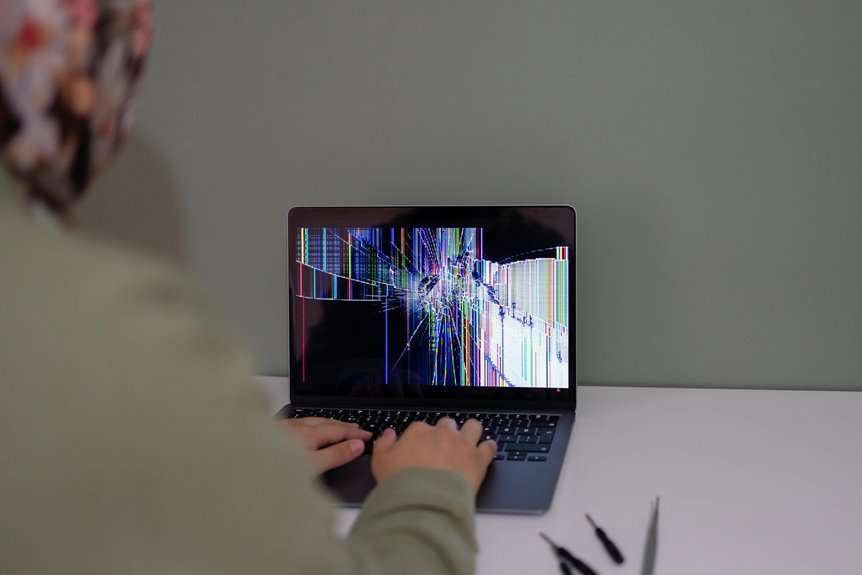

A laptop boot loop means the system keeps restarting instead of loading Windows. Common causes include failed updates, corrupted system files, BIOS problems, bad RAM, drive errors, or overheating. The fix usually starts with simple checks like unplugging devices and entering Safe Mode. From there, recovery tools, hardware tests, or a fresh install can help get the laptop running again.
Identify the Signs of a Boot Loop
When your laptop slips into a boot loop, it usually shows a clear pattern: it powers on, flashes the brand logo or loading screen, then restarts before you can reach the desktop or sign-in page. You might hear the fan spin up, see the keyboard lights blink, or notice the same screen repeating again and again.
These boot loop symptoms often feel alarming, but spotting them at an early stage helps you stay grounded and act with confidence. Other startup failure signs include error messages that vanish too fast to read, a frozen loading circle, or the laptop turning off right after powering on.
In some cases, it keeps trying but never fully loads Windows. Should this sound familiar, you’re not by yourself. Many people see this pattern, and identifying it’s the initial step toward getting your laptop back.
Start With a Hard Restart
A hard restart is the best initial move after you spot a boot loop, because it clears temporary power glitches that can trap your laptop in the same failed startup over and over. You’re not alone here, and this step often brings your system back into sync fast.
Initially, press and hold the power button until the laptop turns off completely. Good forced shutdown timing matters, so keep holding for about 10 to 15 seconds. Next, wait 30 seconds so leftover charge can drain.
Then press the power button again to start a clean power cycle sequence. When your laptop begins loading normally, you’ve likely cleared a minor electrical hang. When it loops again, don’t panic. You’ve ruled out a simple glitch, and that gives you a stronger starting point for the next fix.
Disconnect External Devices
Before you dig deeper, unplug every nonessential device connected to your laptop, because even a simple USB drive, dock, printer, mouse, SD card, or external hard drive can confuse the startup process and keep the system stuck in a loop.
Start simple, since you’re not alone and this step often helps fast. To remove peripherals, shut the laptop down fully, then unplug accessories one by one until only the charger stays connected.
- Remove USB drives, hubs, and memory cards initially
- Disconnect printers, docks, keyboards, and gaming controllers
- Leave only power, then restart and watch what changes
This matters because some laptops try to boot from connected devices instead of your internal drive.
Whenever startup works after you remove peripherals, reconnect each item slowly to find the troublemaker. Consider it as narrowing the crowd so your laptop can focus again.
Open Windows Recovery Options
If your laptop keeps looping, you can force Windows Recovery Environment to open through shutting it down during startup twice in a row.
Once you reach the recovery screen, choose Troubleshoot, then Advanced options, so you can access tools that target startup problems.
From there, you’ll see startup choices that help you repair Windows and get your laptop moving again.
Access Recovery Environment
When your laptop keeps restarting and won’t let Windows load, the fastest way to regain control is to open the Windows Recovery Environment. You’re not stuck, and you’re definitely not alone.
To reach this recovery environment, force your laptop to shut down during startup two times. On the third start, Windows should open advanced recovery tools automatically.
- Hold the power button until the laptop turns off
- Repeat during startup two times in a row
- Wait for Windows to load the recovery screen
If that doesn’t appear, boot from a Windows recovery USB and choose Repair your computer. This opens the same helpful space without sending you in circles. From here, you can safely move forward with repair steps and feel more confident, because you’ve reached the place built to help.
Choose Startup Options
Now that you’ve reached the Windows Recovery Environment, you can open Startup Options and choose the repair path that fits your boot loop problem. Select Troubleshoot, then Advanced options, and move into the startup options menu. From there, you’ll see tools that help your laptop rejoin the group of devices that start normally.
Next, pick recovery startup settings if you need Safe Mode, driver checks, or low resolution video. Choose Startup Repair when Windows can’t load on its own. If the loop began after an update, open Uninstall Updates. If you created a restore point earlier, use System Restore to roll back safely.
You can also use Command Prompt for deeper fixes, but only if you feel comfortable. Take it one screen at a time. You’ve got solid options here.
Boot Into Safe Mode
How can you break the loop without making things worse? Start with Safe Mode, because it loads only the basics your laptop needs. That gives you breathing room and helps you feel back in control.
Once Windows can reach Startup Settings, choose Safe Mode or Safe Mode with Networking. Then use safe mode movement to move calmly through the desktop and check whether the system stays stable.
- Press the right startup option for Safe Mode
- Wait for Windows to load only core drivers
- Use safe mode troubleshooting to test basic startup behavior
Whenever your laptop keeps restarting, return to Advanced Options and try again. You’re not alone here. Many people use Safe Mode as the initial steady step once normal startup feels impossible. It’s simple, low risk, and often the cleanest way to regain access fast.
Find What’s Causing the Boot Loop
Before you try another fix, it helps to spot the trigger behind the boot loop so you don’t change settings that were never broken. You’re not alone here, and a few clues can point you in the right direction fast. Observe at the moment the loop starts, what changed last, and whether the laptop reaches the logo screen.
| Clue | Likely cause |
|---|---|
| Loop after update | BIOS corruption |
| Boots with USB plugged in | boot order mismatch |
| Repeats at logo | BIOS settings issue |
| Reaches login sometimes | Windows startup loop |
| Starts after new device | Peripheral conflict |
Next, unplug extras, observe any recent updates, and enter BIOS if needed. Check whether your drive appears correctly and whether another device sits first in the boot list. Those details help you troubleshoot with confidence together.
Run Startup Repair
Whether the laptop keeps looping even after you’ve checked the likely cause, Startup Repair gives you a safe next step that can fix damaged boot files without touching your personal files. To reach it, force shutdown twice, then open Troubleshooting and Advanced Options. From there, choose Startup Repair and let startup repair diagnostics scan for problems.
- Opens repair tools built for boot issues
- Checks damaged system files automatically
- Feels less risky whenever you want a guided fix
As the scan runs, stay patient. Your laptop might restart several times during automatic repair recovery, and that’s normal. You’re not alone here. Many people in the same spot use this tool initially because it targets common startup damage with little effort. Whenever Startup Repair finds a fix, your laptop should return to the sign-in screen.
Uninstall Recent Windows Updates
When a boot loop starts right after a Windows update, removing that update can often break the cycle and get you back into your laptop. From Recovery Mode, open Advanced Options, choose Uninstall Updates, and remove the latest quality or feature update. This update rollback helps when a bad patch blocks startup.
| Option | Best Use |
|---|---|
| Quality update | Recent small fixes caused loop |
| Feature update | Major upgrade triggered issue |
Should the initial attempt fail, return and attempt the other option. Consider patch removal as giving your system room to breathe again. You’re not alone here. Many people in our laptop-loving crowd hit this snag after routine updates. Stay calm, follow each screen, and restart after the uninstall. Should Windows loads, pause updates briefly so your laptop can settle and stay stable.
Repair Corrupt System Files
Sometimes the update isn’t the real problem. Your laptop might loop because key Windows files got damaged, and that breaks system file integrity during startup. You’re not alone here, and you can take steady steps that often help your system feel like itself again.
- Open Recovery Mode, then use Command Prompt for built-in scan tools
- Run SFC and DISM to check damage and support corrupted file repair
- Restart after each scan so Windows can replace missing or broken files
These tools look for damaged system files and swap in clean versions.
When SFC finds errors, let it finish fully before you try anything else.
When DISM runs beforehand, it can repair the Windows image that SFC depends on. Work patiently, and trust the process. You’ve got this, and your laptop still has a good chance.
Check BIOS and Boot Order
If your laptop keeps looping, you should check the BIOS first because a wrong setting can stop Windows from loading.
You can enter BIOS with keys like Delete, F1, F2, or Esc, then make sure your hard drive is set as the first boot device.
If the settings look off, don’t worry, because fixing the boot order or resetting the BIOS can often get you moving again.
Access BIOS Settings
Before you try deeper fixes, open the BIOS and check the boot order, because a small setting here can trap your laptop in a frustrating restart loop. You’re not alone here, and this step helps you feel back in control fast.
To enter BIOS, restart and press common BIOS access keys like Delete, F1, F2, or Esc as soon as the logo appears.
- Watch the initial startup screen for the correct key.
- Tap the key repeatedly, not just once.
- Plug out extra USB devices before entering BIOS.
When BIOS won’t open or settings seem broken, a CMOS reset procedure can help. Power off, unplug the charger, remove the battery if possible, then take out the CMOS battery for a few minutes.
Put it back carefully, reconnect power, and start again. That often clears corrupted settings safely.
Verify Boot Priority
With BIOS open, your next job is to verify the boot priority, because the wrong device at the top of the list can keep your laptop trapped in a restart loop. You’re not alone here, and this step often fixes the issue faster than people expect. Open the Boot tab and check the BIOS priority settings carefully.
Next, look at the boot device sequence. When a USB drive, external device, or empty option sits above your main hard drive or SSD, your laptop could keep failing to load Windows. Move the drive with your operating system to the leading position. Then save the changes and exit BIOS.
After that, restart and watch what happens. When the loop stops, you’ve likely found the problem. When not, you’ve still ruled out one major cause together.
Test Your Drive and Hardware
Because a boot loop can feel endless, checking the drive and core hardware gives you a clear next step and helps you rule out a failing part instead of guessing.
You’re not alone here, and a few focused checks can reveal what’s wrong.
- Run drive health diagnostics from BIOS tools or a bootable utility
- Review memory test basics to catch faulty RAM sticks or slot issues
- Reseat your SSD, hard drive, and RAM so loose parts don’t keep you stuck
Start with the storage drive. Should diagnostics show errors, your laptop may restart because Windows can’t read key files. Next, test memory. Bad RAM often causes sudden restarts before startup finishes. Then power off, unplug, and carefully reseat internal parts. Should one piece be failing, these checks help your community of support narrow it down fast.
Check for Overheating Problems
If your laptop gets too hot, it can shut down and restart before Windows fully loads.
You should check its internal temperatures and watch for warning signs like loud fans, a hot keyboard, or sudden shutdowns.
From there, you can clean dust from the fans and vents so your laptop stays cooler and boots more reliably.
Monitor Internal Temperatures
Sometimes, a laptop that keeps restarting isn’t stuck because of Windows or BIOS settings at all. Heat can trigger shutdowns before startup finishes, which makes the problem feel confusing and lonely. You’re not the only one coping with it, and you can check it calmly.
- Watch CPU and GPU temperatures in BIOS or with a hardware monitor
- Look for thermal throttling during startup or heavy tasks
- Pay attention to fan performance, sudden silence, or nonstop spinning
Should temperatures rise fast, your laptop can protect itself through restarting. That safety response can mimic a boot loop. Start the laptop on a hard, flat surface and listen closely.
Then compare idle temperatures with your model’s normal range. Should heat spikes within minutes, you’ve found a crucial clue, and you’re already closer to getting your laptop back.
Clean Cooling Components
Heat clues point straight to the cooling system, so the next step is to check whether dust and blocked airflow are trapping hot air inside your laptop.
Should your system keeps restarting, you’re not on your own. Many people deal with dust buildup that chokes vents, slows fans, and pushes temperatures too high during startup.
Begin by powering off, unplugging, and removing the battery where possible.
Then inspect the vents, fan openings, and heatsink area with a light. Use short bursts of compressed air to clear lint and grime without forcing debris deeper inside.
Should you feel comfortable opening the case, careful fan maintenance helps even more. Hold the fan still while cleaning so it doesn’t spin too fast.
After that, place your laptop on a hard, flat surface so air can move freely around it.
Reset or Reinstall Windows
A Windows reset or reinstall can break a boot loop whenever repair tools can’t get your laptop back to the desktop. If nothing else has worked, you still have a path forward, and you’re not alone in this. Start in Recovery Mode, then choose Reset this PC. You can keep your files or do a factory reset for a clean start.
- Use Keep my files if you want a fresh Windows setup without losing personal documents.
- Choose Remove everything whenever corruption is severe and you need the deepest cleanup.
- Whenever reset fails, boot from a Windows USB and reinstall operating system completely.
This step fits after basic fixes because it replaces damaged system files and startup settings. It takes time, but it often brings your laptop, your files, and your routine back together.
Frequently Asked Questions
Can a Failed BIOS Update Cause a Laptop Boot Loop?
Yes. A failed BIOS update can corrupt firmware and cause a laptop boot loop. If that happens, reset the CMOS and use your laptop’s built in firmware recovery option to try restoring normal startup safely.
How Do I Reset the CMOS Battery on a Laptop?
To reset your laptop’s CMOS battery, shut down the laptop, unplug the charger, and remove the main battery if it is removable. Open the back panel, disconnect the CMOS battery for a few minutes, reconnect it, then reassemble the laptop and turn it on again.
Can a Boot Loop Happen After Changing Boot Priority Settings?
Yes, a boot loop can happen after changing boot priority if the system tries to start from the wrong device instead of your operating system drive. To fix it, open BIOS settings, set your main system drive as the first boot device, save the changes, and restart the computer.
How Do I Use a Windows Recovery USB to Fix Boot Loops?
Start the PC from the Windows recovery USB, select Repair your computer, then open Startup Repair. If Startup Repair does not fix the boot loop, use System Restore or System Image Recovery. When finished, remove the USB drive and restart the PC normally.
Does BIOS USB Recovery Work if the Laptop Won’T Boot?
Yes, USB BIOS recovery can still work when a laptop will not boot. If your model supports BIOS recovery from a USB drive, you may be able to restore the firmware and recover startup. After that, basic power cycling can help rule out temporary hardware lockups. Many users have brought unbootable laptops back this way.




