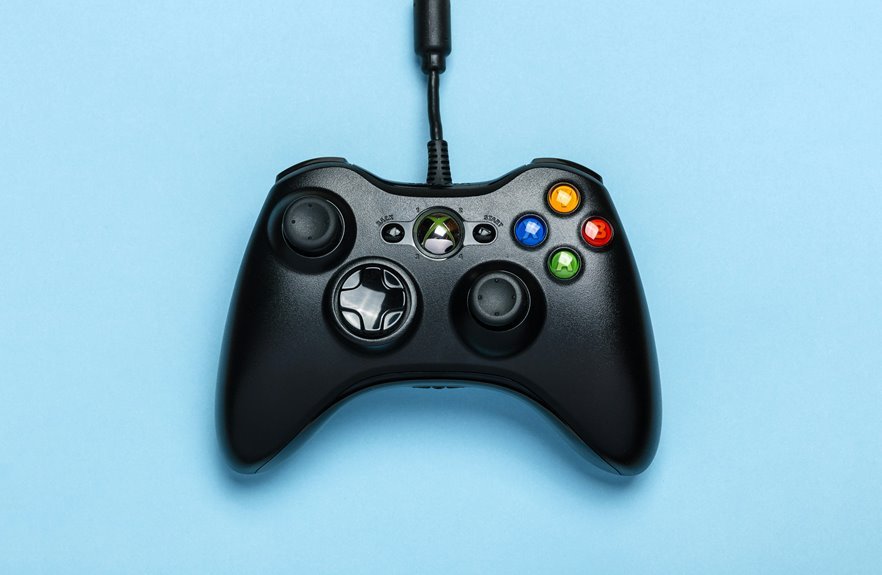

Controller latency comes from more than just the game itself. Your controller, wireless connection, console, and display can all add delay. That extra lag can throw off aim, movement, and timing even during smooth gameplay. A few quick setting changes and hardware tweaks can make your controls feel much faster.
What Is Controller Latency?
Controller latency is the tiny delay between the moment you press a button and the moment your game reacts on screen.
You notice it in the space between your action and the result, and that gap shapes how connected you feel to play. In simple terms, it measures input signal timing across your controller, system, and display.
That matters because even a small button response delay can make movement feel loose, aiming feel off, or timing feel less natural.
Whenever latency stays low, your inputs feel clean, quick, and trustworthy. You stay in sync with the game, and that helps you feel more confident and more at home with your setup.
How Much Latency Can You Feel?
How much latency can you actually feel? You can notice small delays, but only after they cross your reaction threshold. For most players, that starts around 30 to 50 milliseconds. Below that, human sensitivity varies, and your brain often blends the action into one smooth moment. Still, if you’ve ever felt like everyone else is locked in while your inputs seem late, you’re not imagining it.
That said, the kind of game matters a lot. In fighters, rhythm games, and fast shooters, even tiny delays can feel wrong because timing is everything. In slower games, you may not notice until latency climbs much higher. Your own skill, focus, and habits shape what feels normal too. Once you tune in, your hands usually know before you can explain it.
How to Test Controller Latency
Start through testing in a way you can trust, because controller latency often feels vague until you put a number beside it. You can begin with slow-motion phone video, then compare button press and on-screen action frame by frame. If you want cleaner results, use latency measurement tools built for input testing. They help you track button response timing without guesswork, so you feel confident, not left out.
| Method | What you check |
|---|---|
| Slow-motion video | Frames between press and action |
| Input testing software | Exact response timing data |
Next, test the same action several times in the same game scene. Keep your camera angle, display, and controller position consistent. Write down each result, then average them. That simple habit helps you join the conversation with real numbers, not just feelings.
What Causes Controller Latency?
You can feel controller latency whenever wireless signal interference slows the path between your button press and your game.
At the same time, display processing delay adds another hold-up, because your screen might take extra time to show the action you already triggered.
Whenever you understand these two causes, you can spot where the lag starts and fix it faster.
Wireless Signal Interference
Because wireless controllers depend on a clean radio link, nearby interference can delay the signal before your game even sees your input. If your room is crowded with Wi-Fi devices, Bluetooth gear, or smart home hubs, your controller has to fight through environmental noise just to stay heard. That can add stutters, missed presses, or uneven response.
This gets worse when router placement puts a strong signal right beside your console or PC. You can help by moving the router farther away, reducing wireless clutter, charging your controller, and keeping a clear path between controller and system. Even metal desks, crowded entertainment centers, and other players’ devices can weaken the connection.
When you clean up that space, your inputs feel more consistent, and you stay in sync with the game and your crew.
Display Processing Delay
Why can a controller feel slow even though the button press was fast? Often, your display adds delay after your system already received the input. You’re not imagining it, and plenty of players in your shoes notice the same thing.
That lag usually comes from monitor processing delay and slow display response time. Your screen might sharpen, smooth, scale, or add motion features before showing the frame. Each extra step costs time, so your action feels late.
To stay in sync with the game, enable Game Mode, set the highest refresh rate, and turn off extra image processing. Also, disable V-Sync if it adds delay, and use Reflex or Anti-Lag when supported.
Once your display reacts faster, your controller feels more connected, and you feel more at home in every match.
How to Reduce Wireless Controller Latency
You can cut wireless controller latency via strengthening your connection, reducing nearby signal noise, and keeping your controller firmware up to date.
Start by staying close to your system and moving routers, headsets, and other Bluetooth devices out of the way, because interference can quietly add delay.
Then update your controller software regularly, since those fixes often improve response time, stability, and overall feel.
Optimize Wireless Connection
While wireless play feels great on the couch, it often adds a small delay that you can trim with the right setup. Start by tightening your wireless pairing process. Re-pair your controller, then connect through a quality low-latency Bluetooth dongle if your system supports one. That gives your inputs a cleaner, faster path.
Next, stay aware of bluetooth range, because distance matters more than many players realize. Keep your controller and receiver close, and make sure your controller stays fully charged so it doesn’t throttle performance.
From there, update controller firmware and system drivers to improve connection speed and stability. If your controller software allows it, raise the polling rate for quicker input reports. These small fixes help your setup feel sharper, more reliable, and more in sync with the way your whole gaming crew wants to play.
Minimize Signal Interference
Because wireless signals have to compete with everything else in your room, interference can quietly add delay even when your controller seems connected just fine. You can cut that concealed lag by moving your console or PC closer, keeping routers a few feet away, and clearing metal objects that cause signal shielding. When your space feels crowded with gadgets, you’re not alone.
| Interference Source | What you should do |
|---|---|
| Wi-Fi router | Move it farther away |
| Metal desk or shelf | Reposition controller path |
| Phone, earbuds, tablet | Keep them off nearby |
| Crowded 2.4GHz devices | Reduce RF channel congestion |
| Walls or cabinets | Keep a clear line |
That cleaner path helps your controller stay in sync with the group, so your inputs feel steadier, faster, and more trustworthy during every match you play.
Update Controller Firmware
A cleaner wireless path helps, but your controller still relies on its firmware to send inputs fast and stay locked to your PC or console. If that software is old, you can feel small delays, random drops, or uneven response. Updating it gives your setup a better chance to perform like the rest of your squad’s.
Check the maker’s app or support page, then install the newest controller firmware and any related system drivers. This improves firmware compatibility, connection stability, and sometimes polling behavior too.
Pay attention to update frequency, because some brands quietly fix lag issues over time. While you’re there, update your console, Bluetooth dongle, or motherboard BIOS if needed. These pieces work together, and when they match well, your wireless controller feels more reliable, more responsive, and more ready as you are.
Use Wired Mode to Lower Controller Latency
If you want the fastest, most reliable controller response, switch to wired mode first. You’ll cut wireless overhead and feel inputs land quicker, often in the 1 to 4ms range. That’s why so many competitive players plug in and stay connected. You’re not overthinking it. You’re joining players who want every press to count.
- Direct USB removes Bluetooth delay and keeps signals steady
- wired usb benefits include lower lag, fewer dropouts, and consistent timing
- cable length considerations matter, so use a solid, reasonably short cable
This step also keeps your controller powered, which helps avoid slowdowns from low battery behavior. On PC, a wired connection can eliminate Bluetooth lag entirely. On Switch, wired controllers stay impressively responsive too. When you want dependable performance, a cable gives you that team-ready edge every match.
Reduce Display and Console Input Lag
While a fast controller helps, your screen and console settings can still slow down what you feel. To tighten that gap, switch on monitor game mode so your display skips extra image processing. Then set the screen to its highest refresh rate, because smoother motion helps your inputs look and feel quicker.
Next, reduce console lag by checking video options. Turn off heavy effects that add delay, and use low-latency settings whenever your system offers them. If your game supports it, lower deadzone settings so small stick movements register sooner. You should also match frame rate and refresh rate for steadier timing.
Whenever your setup responds the way your hands expect, you feel more connected, more confident, and more in sync with the community you play with every day online.
Update Firmware for Faster Response
Before you change anything else, check your controller maker’s site or app for the latest firmware update.
You can often cut input delay and fix shaky connections with one safe update, but you should install it carefully and keep the controller connected until it finishes.
If your inputs still feel off, this is a smart next step because outdated firmware can quietly slow you down.
Check Manufacturer Updates
Because your controller relies on its own software to talk to your system, checking the manufacturer’s updates can trim input delay faster than most people expect. When firmware gets old, response time can slip, even if your setup feels fine.
Staying current helps you game with the same confidence as everyone else chasing cleaner inputs.
Start with your brand’s support page, then make updates part of your routine:
- Check the manufacturer update schedule so you know when performance patches usually arrive.
- Turn on support portal notifications to catch latency fixes as soon as they’re posted.
- Review release notes for mentions of polling rate, stability, or connection improvements.
This step fits right into your regular setup habits.
You’re not overthinking it, you’re keeping your controller ready, responsive, and fully in sync with your play.
Install Firmware Safely
Since fresh firmware can lower input delay, improve polling behavior, and fix unstable connections, you’ll want to install it the right way so you gain speed without creating new problems. Before you update, charge your controller, use a direct USB cable, and close games or overlays so nothing interrupts the process.
| Do this | Why it helps |
|---|---|
| Save a firmware backup | Lets you restore settings fast |
| Use official updater tools | Cuts corruption risk |
| Keep power stable | Prevents failed installs |
Next, review the notes from the maker so you know what changed. Should your controller support a firmware backup, make one beforehand. Then install the update and wait patiently. Don’t unplug anything prematurely. Should latency get worse after updating, use a safe rollback and recheck drivers, power settings, and wired mode.
How to Choose a Low-Latency Controller
Whenever you’re choosing a low-latency controller, start with the connection type, because that single choice shapes how fast your inputs reach the game. Wired USB usually gives you the quickest path, which is why so many competitive players trust it. From there, look for strong build quality, low latency sensors, and software that lets you fine-tune response.
- Choose wired firstly, or use a quality wireless dongle whenever you need freedom.
- Look for 500Hz to 1000Hz polling support and easy firmware updates.
- Prioritize ergonomic button mapping so your hands stay comfortable and quick.
That combination helps you feel locked in with the same gear standards serious players respect. Also, check battery performance, stick consistency, and driver support on your platform. Whenever your controller fits your hands and your setup, you play with more confidence.
Why Your Controller Still Feels Delayed
Even though you bought a fast controller, delay can still creep in from the rest of your setup, and that’s what makes it so frustrating. Your controller may be quick, but your display, game settings, drivers, and wireless link can still slow everything down. Should Bluetooth adds overhead, your inputs arrive late. Should your monitor skips Game Mode or V-Sync stays on, your actions feel mushy.
Then there’s the concealed stuff you mightn’t expect. Outdated firmware can lower polling performance, and power-saving features can trigger battery throttling right when the match gets tense.
A large stick deadzone can also make movement feel delayed, while deadzone drift can trick you into chasing the wrong fix. You’re not imagining it. Many players deal with this, and small setup changes often bring your timing back.
Frequently Asked Questions
Can Controller Latency Affect Battery Life During Long Gaming Sessions?
Yes, controller latency can reduce battery life during long gaming sessions because wireless retransmissions, elevated polling rates, and unstable connections increase power use. Battery efficiency improves when firmware is current, power management settings do not interfere, and the controller maintains a stable connection.
Do Different Game Genres Require Different Controller Polling Rates?
Yes, different genres benefit from different polling rates because each one places its own demands on input timing. For your squad, polling rate optimization usually means 1000Hz for shooters, 500Hz for racers, and standard rates are often enough for many other genres.
Is Controller Latency Worse When Using Cloud Gaming Services?
Yes, cloud gaming usually increases controller latency. A wired controller may respond in 1 to 4 ms, but that does not cancel out the extra delay added by streaming over the internet. You will notice more input lag in cloud gaming, though a wired setup, fast internet, and Game Mode can still help keep it playable.
Can Custom Thumbsticks or Grips Change Perceived Controller Responsiveness?
Yes, custom thumbsticks or grips can make a controller feel more responsive by improving stick control and hand stability. Better texture, height, or shape can help with finer aim adjustments and more confident movement. They do not lower real input lag, but they can make inputs feel quicker and more precise.
Does Room Temperature Impact Wireless Controller Signal Performance?
Yes. Room temperature can slightly influence wireless controller performance, and even 1 to 4 ms of wired latency shows that very small delays can matter. In very hot or very cold conditions, signal stability can shift and interference may become more noticeable, while a moderate room temperature usually keeps performance more consistent.