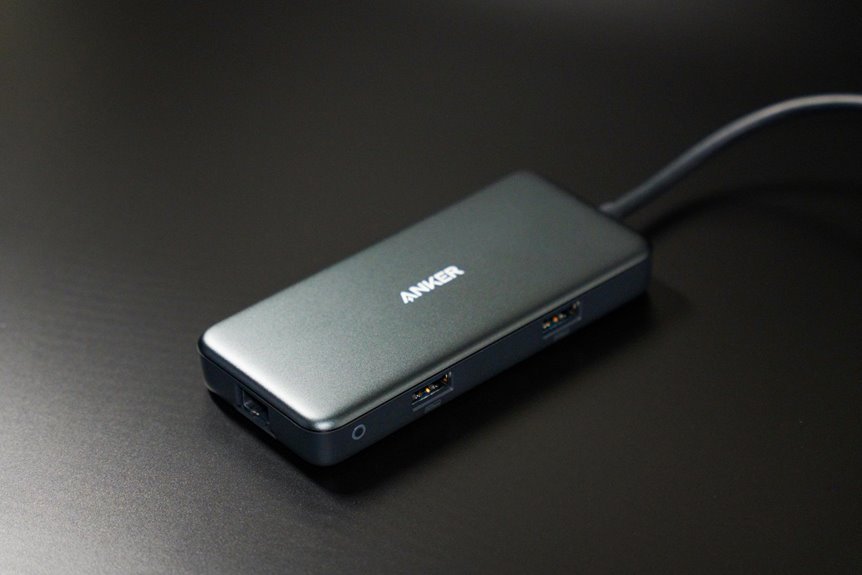

USB-C hub conflicts usually come from a bad port match, limited power, or too many devices sharing the same connection. A quick test with fewer accessories can show whether charging, display, or data is the real problem. Bandwidth limits and weak cables can also cause random disconnects. Once the failing task is clear, fixing the hub gets a lot easier.
Identify What Your USB-C Hub Is Doing Wrong
If your USB-C hub starts acting up, the initial step is to notice exactly what kind of problem you have, because each symptom points to a different cause. Should the hub isn’t recognized at all, check whether the plug sits firmly and test the hub on another computer. That helps you separate a loose connection from a device mismatch.
Next, watch what fails. Should every accessory drops at once, power may be the issue. Should only one item stops, inspect its cable, support, and settings.
Good port identification also matters, since some connections behave differently. Then look for patterns like random disconnects, charging failures, or heat. Those clues help you feel less stuck and more in control. You’re not the only one contending with this, and you’ve got a clear place to start.
Match Your USB-C Hub to Your USB-C Port
Before you blame the hub, check what your USB-C port can actually do, because not every port supports the same data, video, or charging features.
Next, make sure your hub matches the right protocol, so you don’t end up with a device that fits physically but fails technically.
Finally, confirm that your port can handle the power and bandwidth your hub needs, especially when you’re connecting high-draw devices, displays, or charging gear.
Identify Port Capabilities
Not all USB-C ports do the same job, and that’s often why a hub seems faulty even though the real issue is the port itself. To stay in the loop, check your device manual and port capability labels initially. They tell you whether a port supports charging, fast data, or video output.
- Look for icons near the port, like a battery, lightning bolt, or display symbol.
- Compare your hub’s needs with the port’s data and power tiers.
- Try another USB-C port, since one might charge while another handles data.
- In case your laptop limits power, use lower-draw devices first to confirm the match.
Once you know what your port can do, you stop guessing and start feeling confident.
You’re not doing anything wrong. You’re learning the system, and that puts you back in control.
Check Hub Protocol Support
Even if the plug fits perfectly, your hub still won’t work right unless its protocol matches what your USB-C port can actually handle. USB-C describes the shape, not the language your devices use together. That’s why you need to check the hub’s protocol version against your laptop, tablet, or phone.
Next, compare the specs on both sides. Some ports support only basic USB data, while others support newer standards with different data transfer rules. If your hub expects features your port doesn’t speak, devices may disconnect, fail to appear, or run at reduced speed. You’re not doing anything wrong. This mismatch happens to plenty of people, especially with lookalike ports.
When you match protocols first, your setup feels smoother, your devices cooperate, and you stay confidently connected to the tech around you daily.
Verify Power And Bandwidth
While protocol support tells you whether the hub and port can talk, power and bandwidth decide how well they can work together once you plug everything in. If your setup feels unreliable, you’re not alone. Many people miss power budgeting and data throughput limits, then wonder why drives lag or devices disconnect.
- Check your port’s wattage, especially if you charge a laptop.
- Add up each device’s power needs before filling every port.
- Match fast SSDs and displays to ports with higher data throughput.
- Use a powered hub when keyboards, drives, and phones share one connection.
This step connects protocol support to real-world performance. Your hub may fit, yet your port mightn’t supply enough power or lane speed. When you match both sides carefully, your whole setup feels stable, faster, and part of a system that truly works.
Test the Hub With Fewer Devices
Often, the fastest way to find the problem is to unplug everything from the hub and add devices back one at a time. This simple reset helps you spot conflicts without guessing. Start with one trusted device, like a keyboard or flash drive, and check whether the hub stays stable.
Next, use device overload testing to see when trouble begins. If the hub works with two devices but fails with three, you’ve found a clue. Follow a peripheral isolation checklist: swap cables, change port order, and remove any device that seems to trigger disconnects. Then test that device on another computer if you can.
This step-by-step approach helps you feel back in control, and it shows you’re not alone. Even stubborn hubs usually reveal the culprit with patience and a little teamwork.
Check USB-C Hub Power Delivery Limits
If your hub seems unreliable, the next thing to check is how much power it can actually deliver to your devices. Many people in our tech circle miss this, and that’s okay. Your hub might support data well but still hit strict power delivery limits, especially with SSDs, phones, and accessories connected together. That can create a charging wattage mismatch that causes drops, slow charging, or random disconnects.
- Check the hub’s rated wattage on its label or product page.
- Compare that number with what your laptop and devices need.
- Use the correct USB-C power adapter, not just any spare charger.
- Choose a powered hub whenever several high-draw devices run at once.
Once you match the numbers, your setup usually feels steadier, calmer, and far less frustrating for everyone around you.
Fix Bandwidth Problems on Your USB-C Hub
Power is only part of the story, because your hub can also struggle whenever too many devices fight for the same data lane. Whenever that happens, you may see lag, dropped drives, or choppy video. You’re not alone, and you can fix it by improving bandwidth allocation and using smart data prioritization.
| Device mix | Better move |
|---|---|
| 4K monitor + SSD | Put display on a separate port |
| Webcam + mic + drive | Pause large file transfers |
| Ethernet + backup drive | Run backups while you’re offline |
| Many fast devices | Spread them across direct ports |
Next, match each device to its real need. Keep keyboards and mice on the hub, but move storage, displays, and networking to higher-speed ports where possible. That simple shuffle helps your setup feel steady, shared, and frustration-free daily.
Check Cables and Adapters First
Before you dig into drivers or system settings, check the cables and adapters first, because a small connection problem can make your whole USB-C hub seem broken. You’re not the only one handling this, and the fix is often simple.
- Push the USB-C plug in fully, because a loose fit can stop hub detection.
- Do a quick cable wear inspection for bends, frays, or damaged tips that interrupt power or data.
- Try adapter compatibility testing, especially if you’re using HDMI, Ethernet, or older USB devices through extra dongles.
- Switch to another USB-C port or test the hub on another computer to spot a bad cable, weak adapter, or mismatched device.
These checks help you feel confident fast. Sometimes your hub isn’t failing. It’s just asking for a better connection today.
Update USB-C Hub Drivers and Firmware
Once you’ve ruled out loose cables, the next smart step is updating your USB-C hub drivers and firmware, because old or damaged software can stop the hub from showing up, make devices disconnect at random, or block charging and data transfer. Start with the hub maker’s website, because that’s where you’ll find the newest drivers, install steps, and firmware release notes.
Next, check driver compatibility with your computer’s operating system and version.
On Windows, open Device Manager, uninstall any broken hub driver, then reinstall the current one.
On a Mac, install system updates so USB-C support stays current.
In case the hub maker offers firmware, follow the instructions closely and don’t unplug the hub during the update.
These updates often fix glitches and help your setup feel reliable again, so you can stay connected with confidence.
Stop USB-C Hub Display Conflicts
When your monitor keeps cutting out or won’t show up, first make sure your laptop and hub support DisplayPort Alt Mode.
Then check monitor detection settings and cable quality, because one weak link can stop the whole setup.
When you’re using several devices at once, you’ll also want to prevent bandwidth sharing conflicts so your display doesn’t lose speed or signal.
Check DisplayPort Alt Mode
Why does your hub connect just fine, yet your monitor stays dark? You’re not alone. Many USB-C ports look the same, but not all include DisplayPort support. If your laptop or tablet lacks that feature, your hub can still handle data and power while video never appears. That’s where video output standards matter.
- Check your device specs for DisplayPort Alt Mode.
- Confirm your hub supports video through its USB-C input.
- Make sure the port you’re using carries video, not just charging.
- Match your cable to the hub’s video features.
Once you verify those basics, everything feels less confusing. You’re simply making sure your gear speaks the same visual language. When each piece supports video correctly, your setup works together, and you feel back in control again with confidence.
Resolve Monitor Detection Issues
Video support may check out on paper, yet your monitor can still refuse to appear whenever the hub, cable, port, or system loses the connection path somewhere along the way. Start by reseating every connection, then switch to another USB-C port because some ports don’t carry video reliably. Next, confirm the monitor is set to the correct source so the monitor input handshake can finish cleanly.
If the screen still stays dark, try a known-good cable and reconnect the hub after restarting your computer. On Windows, update graphics and hub drivers. On Mac, install system updates. You can also test the hub on another computer to spot whether the issue follows the hub or your setup. That process helps display signal negotiation complete, so your monitor joins the rest of your gear without drama.
Prevent Bandwidth Sharing Conflicts
Even whenever your hub seems powerful enough, bandwidth sharing can quietly choke display performance once too many demanding devices compete for the same USB-C connection. Whenever your monitor flickers or drops resolution, you aren’t alone. Your hub might be splitting data lanes between video, storage, Ethernet, and charging, so smart bandwidth allocation matters.
- Plug your display into the highest-spec port initially.
- Move fast SSDs or capture cards to another hub or port.
- Disconnect unused accessories to free lanes instantly.
- Choose hubs with clear traffic prioritization for video.
That balance keeps your setup feeling stable and welcoming, not frustrating. Whenever your laptop supports only one busy USB-C port, avoid pushing monitor, internet, file transfers, and charging through it at once. A powered hub or second direct connection often gives your whole desk room to breathe.
Fix USB-C Hub Charging Problems
Should your USB-C hub won’t charge your laptop or connected devices, start with the power path, because one weak link can stop the whole setup. Initially, confirm your hub supports power delivery, since some models only pass data. Next, check charging compatibility between the hub, laptop, and every attached device. Then verify power adapter matching, because low wattage leaves everyone in your setup underfed.
After that, inspect the wall outlet, adapter, and cable for heat, damage, or looseness. Try a stronger certified adapter if your hub powers drives, phones, or other hungry gear. When your laptop has more than one USB-C port, switch ports, since not all handle charging equally. Keep your setup simple while testing.
You’re not the only one facing this, and a steady power chain usually brings everything back together fast.
Fix USB-C Hub Disconnects and Dropouts
If your USB-C hub keeps disconnecting, start upon checking power delivery because weak or unstable power often causes sudden dropouts.
Next, update the hub’s firmware so you can fix bugs that trigger random disconnects.
Then reduce the bandwidth load by unplugging high-demand devices, because your hub can’t stay stable whenever you push too much data through one port.
Check Power Delivery
To start, check whether your hub is getting enough power, because weak power delivery is one of the most common reasons a USB-C hub disconnects, drops devices, or stops charging without warning. Whenever your setup feels unreliable, you’re not by yourself. Many hubs fail when the laptop, adapter, and hub don’t match on power delivery standards and charging wattage limits.
- Use the hub’s recommended power adapter.
- Unplug high-draw devices and test again.
- Try a different wall outlet or charger.
- Check whether your laptop’s USB-C port supports full power input.
Then, watch for overload signs like heat, flickering drives, or charging that starts and stops. Provided several peripherals run at once, your host device may not supply enough power. A powered hub often brings your whole setup back into the fold fast.
Update Hub Firmware
Even while your power setup looks fine, outdated hub firmware can still cause random disconnects, dropped USB devices, charging glitches, and ports that seem to work only while they feel like it. So, check your hub maker’s site and follow the firmware update process carefully. Use official manufacturer update tools, not random downloads from forums. Before you start, unplug extra devices, connect the hub directly, and keep your laptop powered.
| Step | What you do | Why it helps |
|---|---|---|
| 1 | Find your model | Gets the right file |
| 2 | Download official tool | Avoids bad installs |
| 3 | Run update directly | Reduces errors |
| 4 | Restart and retest | Loads fixes fully |
If your hub belongs in your daily setup, this small update can help everything feel reliable again, like your tech team finally got back in sync.
Reduce Bandwidth Load
Firmware updates can steady a flaky hub, but disconnects can still happen whenever the hub has to push too much data through one USB-C link.
Once several busy devices compete at once, your hub may trigger data throttling, freeze, or drop a connection. The fix is smarter bandwidth allocation, so every device gets enough room to work.
- Move high-speed drives to separate ports or your computer directly.
- Lower monitor refresh rate or resolution to free transfer capacity.
- Disconnect idle accessories like webcams, card readers, or backup drives.
- Use a powered hub, especially with storage, Ethernet, and display outputs.
You’re not doing anything wrong. Many people hit this wall with one crowded port. Through easing the load, you help your setup act like a team instead of a traffic jam for everyone.
Know When to Replace Your USB-C Hub
Whenever a USB-C hub keeps failing after you’ve checked the cable, switched ports, updated drivers, and verified it on another computer, it’s usually a sign the problem isn’t your setup anymore. At that point, you’re not missing something. You’re noticing real upgrade indicators.
Next, watch for patterns that keep your group of devices from working together. Provided ports feel loose, high-power gear disconnects, charging drops, or the hub overheats, wear may be winning. Random failures with known compatible devices also point to aging hardware, not user error.
That’s where smart replacement timing matters. Replace the hub whenever fixes stop lasting, whenever attached cables limit speed, or whenever your needs outgrow its power and data support. A newer powered model helps your setup feel reliable, connected, and ready for everyone you plug in.
Frequently Asked Questions
Can USB-C Hubs Work With Gaming Consoles Reliably?
Yes, USB C hubs can work reliably with gaming consoles if the hub matches the console’s power, video, and data requirements. For docking or controller passthrough, pick a powered hub verified for your console, check each port function, and avoid connecting more devices than the hub can handle to reduce disconnects.
Why Do Some Hubs Interfere With Wi-Fi or Bluetooth?
Some hubs disrupt Wi Fi or Bluetooth when their electronics leak radio frequency noise or their antenna shielding is weak. You can cut down on interference by repositioning the hub, using higher quality cables, and picking models with solid shielding that preserve a stable connection.
Are USB-C Hubs Safe to Use During Travel?
Yes, USB C hubs are generally safe for travel when you pick a solid, well made model. Look for proper power handling, keep the hub from getting too hot, use safe charging practices abroad, and stay alert to device security in airports so your equipment works reliably on the go.
Do USB-C Hubs Support Older USB Devices Properly?
Most USB C hubs work with older USB devices when the hub supports legacy USB standards and the connector or adapter fits correctly. Reliable operation depends on matching data and power requirements, using good quality cables, and picking a powered hub for devices that draw more current.
What Upcoming USB Standards Will Improve Hub Compatibility?
USB4 upgrades will make hubs work better by improving how devices identify themselves, dividing bandwidth more efficiently, and reducing connection conflicts, which leads to faster, more stable, and more dependable hub performance.