


Laptop overheating usually comes from dust, blocked vents, or settings that make it work too hard. A hot laptop can slow down, get noisy, or shut off out of nowhere. Simple cooling fixes often solve the problem faster than people expect. With a few easy changes, your laptop can run cooler and smoother.
What Causes Laptop Overheating?
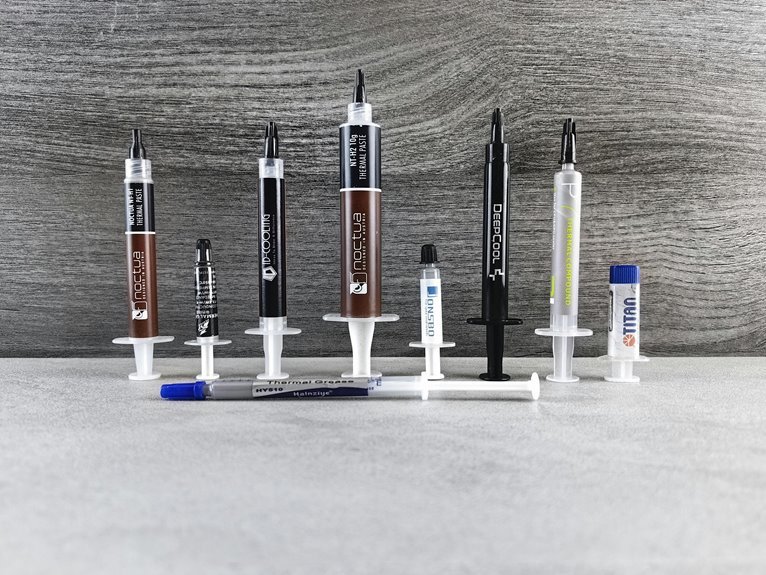
When your laptop starts running hot, it usually means heat is building up faster than the system can push it out. You’re not doing anything wrong. Often, dust blocks vents, fans slow down, or dried thermal paste stops moving heat away from key parts. That makes your laptop work harder just to stay part of your daily routine.
Then software adds pressure. Too many background apps, heavy browser tabs, and high performance settings push the CPU and GPU nonstop. In some systems, hardware bottlenecks make one part wait on another, which creates extra strain and wasted energy.
Battery aging can also raise heat because older batteries become less efficient over time. Even where you place your laptop matters, since soft surfaces trap warm air. Small causes can stack up fast, and you’re not alone here.
Signs Your Laptop Is Too Hot
If your laptop feels hotter than usual, it often sends clear warning signs before it reaches a shutdown point. You could notice the keyboard getting uncomfortably warm, the bottom panel feeling almost too hot to touch, or the fan running loudly even during simple tasks. Those are classic thermal warning signs, and you’re not imagining them.
As heat builds, your laptop might slow down, freeze, or stutter while you browse, stream, or join group chats. Games could lag, videos could buffer, and apps could crash out of nowhere.
You could also see shorter battery life, charging issues, or sudden battery drops, which can point to declining battery health. In some cases, the screen dims, the case gives off a warm smell, or the system restarts unexpectedly. Your laptop’s asking for attention, not judgment.
How to Improve Laptop Airflow
Because trapped heat needs somewhere to go, improving airflow is one of the fastest ways to help your laptop cool down and stay stable. Start with placement. Set your laptop on a hard, flat desk so the vents stay open. Soft beds, couches, and laps block airflow and make heat build fast.
Next, give your laptop more breathing room.
Use an elevated stand to lift the base and create better ventilation underneath. Should you want extra help, a cooling pad can push more air toward the hot spots. Also, keep the area around your laptop clear, since books, blankets, and clutter can trap warm air. Then check the vents for dust, because buildup chokes airflow over time.
With a few small changes, you help your laptop breathe easier, and that feels like a win.
Change Power Settings to Reduce Heat
You can lower heat fast by changing your laptop’s power plan to Power Saver and reducing processor performance.
This tells your system not to push the CPU so hard, which can cut heat before the fans start roaring.
If your laptop keeps running hot during simple tasks, these settings give you an easy way to cool things down without opening the case.
Adjust Processor Performance
As your laptop runs hot, one of the quickest ways to calm it down is to reduce how hard the processor works through Power Options. You don’t have to feel stuck with constant heat. Via lowering maximum processor state, you can reduce heat fast without changing everything else. This creates smart performance limits and helps prevent harsh processor throttling during everyday use.
- Open Power Options, choose your current plan, and click advanced settings.
- Find Processor power management, then lower Maximum processor state to 85 to 95 percent.
- Test your laptop while browsing, studying, or working, and adjust until it feels cooler.
This small change helps your laptop stay steady, quieter, and more comfortable on your lap. You’re giving your system room to breathe, and that often makes your whole setup feel more reliable and easier to trust daily.
Enable Power Saver
Often, the fastest way to cool a hot laptop is to switch its power mode to Power Saver or Balanced, since that cuts extra power use before heat has time to build up. You can do this in Windows Power Options or battery settings, and the change usually works right away. Your laptop uses less power, so the CPU runs calmer and the fans don’t have to fight as hard.
That matters because lower power draw means less heat during school, work, or streaming with friends. You also get energy savings, which helps when you’re away from an outlet. As a bonus, gentler power use can support battery lifespan over time.
Provided your screen still feels warm, lower brightness and turn on battery saver too. Small setting changes can make your laptop feel more comfortable, reliable, and ready for your routine.
How to Clean Laptop Dust Safely
Before you clean out dust, shut your laptop down, unplug it, and remove the battery in case you can so you don’t risk damage.
You’ll want a few safe tools, like compressed air, a soft brush, and a clean cloth, to clear vents and fans without hurting delicate parts.
Done the right way, this simple cleanup can restore airflow and help your laptop run cooler fast.
Safe Dust Removal
If your laptop runs hot and the fan sounds like it’s working overtime, safe dust removal is a smart place to start. You’re not alone here. Dust builds up slowly, blocks airflow, and makes your system struggle harder than it should. Before you begin, power it down, unplug it, and remove the battery if possible.
- Start with gentle vent cleaning, so you loosen dust without forcing it deeper inside.
- Follow compressed air safety with short bursts through vents and fan areas, not one long blast.
- Keep the laptop steady and avoid poking inside, because rough contact can damage delicate parts.
This quick care routine helps your laptop breathe again. Whenever you handle dust safely, you protect performance, lower heat, and keep your device feeling like part of your everyday team.
Cleaning Tools Needed
For safe and simple dust cleaning, you don’t need a big repair kit, but you do need the right tools. Start with compressed air to clear vents and fans in short bursts. That keeps dust moving out instead of deeper inside.
Keep a microfiber cloth nearby for the case, screen edges, and vent covers, so your laptop feels cared for, not scratched.
Next, add an anti static brush for stubborn buildup around grills and fan openings. It lifts dust gently without risking sensitive parts. You’ll also want a small flashlight to spot concealed lint, plus a clean workspace where everyone who loves their gear would feel at home.
Before you clean, power down, unplug, and remove the battery if you can. With these basics, you’re set to clean safely and confidently every time.
Do Laptop Cooling Pads Help?
Although a cooling pad won’t fix every overheating problem, it can help a lot via forcing more air under your laptop and giving its vents more room to breathe. If your system gets hot during gaming, streaming, or long study sessions, a pad can give you steadier temperatures and more comfort.
That said, results depend on your laptop design and the cooling pad types you choose. Many people in your situation also like portable stand options because lifting the base improves airflow.
- Fan-powered pads push cool air toward intake vents
- Raised stands improve airflow and typing comfort
- Slim pads travel easily for school, work, or gaming
You’re not imagining the heat, and you’re not alone. A good pad can be a simple, affordable upgrade that helps your laptop stay calmer under pressure each day.
When an Overheating Laptop Needs Repair
Should your laptop keeps running hot after you’ve cleaned the vents, lowered the workload, and tried a cooling pad, it might need a real repair instead of another quick fix. You’re not alone. Many people in our tech-loving crowd miss initial professional repair indicators because the signs seem small at first.
| Sign | What it could mean |
|---|---|
| Fan stays silent | Failed fan |
| Heat with light use | Dried thermal paste |
| Random shutdowns | Failing sensor or board |
| Burning smell | Power issue |
| One hot spot | Blocked heatsink or chip trouble |
These hardware fault symptoms matter. Whenever temperatures spike fast, the laptop throttles hard, or the battery swells, stop using it. A trusted repair shop can test fans, paste, sensors, and the motherboard safely for you.
Frequently Asked Questions
Can Overheating Damage My Laptop Battery Permanently?
Yes. Excess heat can permanently damage a laptop battery by accelerating chemical wear inside the cells and reducing its long term capacity. To limit the damage, shut the laptop down or move it to a cooler place, keep air vents clear, and avoid repeated overheating while saving your work first.
How Often Should I Monitor Laptop Temperatures?
Check your laptop temperatures once a week during regular use, once a day during gaming or other demanding tasks, and whenever the fans suddenly become louder than usual. Make temperature checks part of your routine, so you can spot heat problems early and reduce the risk of hardware damage.
Is It Safe to Use My Laptop on a Bed?
Using a laptop on a bed is not safe. Blankets and mattresses can cover the air vents and hold in heat, which can make the laptop overheat quickly. Place it on a desk, table, or laptop stand to help it stay cool and work properly.
Can Room Temperature Affect Laptop Cooling Performance?
Yes, ambient heat reduces your laptop’s cooling performance. When the room is warmer, the fans and heatsink have a harder time pushing heat away from internal components. This often leads to higher temperatures, louder fan noise, and more thermal throttling, so adjusting your cooling habits with the season can help.
Will Gaming Always Make a Laptop Run Hotter?
No, gaming does not always make a laptop run hotter. However, demanding games can drive the CPU and GPU harder and reveal the limits of the cooling system. You can keep temperatures under control by lowering graphics settings, capping frame rates, and improving airflow.




