

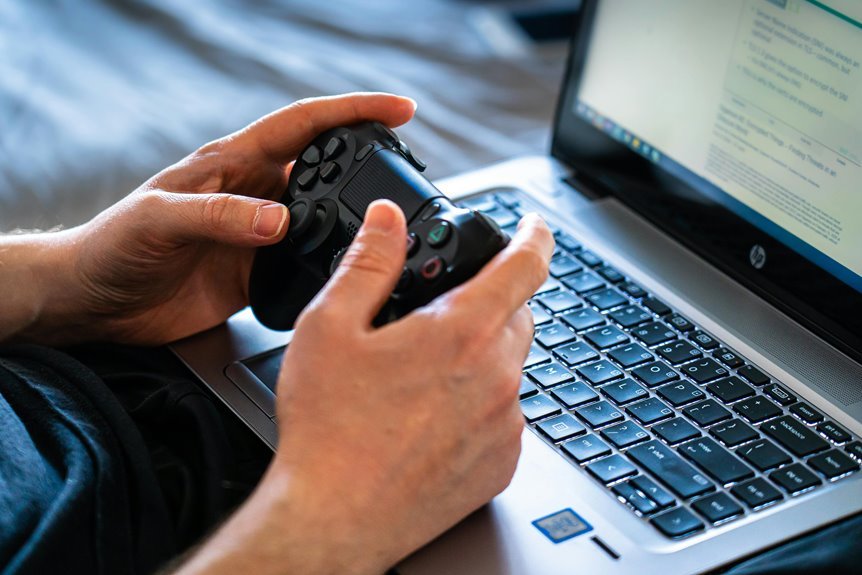

Gaming laptop performance drops usually come from heat, power limits, outdated drivers, or too many apps running in the background. The fastest way to find the cause is to check temperatures, clock speeds, storage condition, and game settings. Slowdowns can point to throttling, stutter, or worn-out hardware, and each one has a different fix. This guide shows what causes the drop and how to get smoother performance again.
Find What’s Causing the FPS Drop
Why does your gaming laptop run fine one minute, then crash from 100 FPS to 20 the next? You’re not imagining it, and you’re definitely not alone. Start by watching what changes when the drop hits. Check CPU and GPU usage, clock speeds, and power behavior during the exact stutter window. That tells you which part of your system stops pulling its weight.
Next, use frame pacing analysis to see whether the slowdown comes from uneven delivery, not just lower averages.
Then add hardware sensor logging so you can match each FPS dip with usage, frequency, and system limits. Should CPU usage fall hard during the drop, that points to a processor-side bottleneck. Should the GPU suddenly backs off, that signals GPU throttling. With clear data, you stop guessing and start fixing the real problem fast.
Check Your Gaming Laptop Temps
How hot does your laptop get right before the FPS drops hit? That question matters because heat often shows up before stutter, and you’re not alone when it feels frustrating. Start with temperature monitoring while you game, so you can spot spikes as performance dips.
- Use a trusted temp tool to watch CPU and GPU readings in real time.
- Check whether heat climbs fast during longer matches, raids, or ranked sessions.
- Compare temps before and during drops to see whether overheating matches the slowdown.
Next, look at airflow around your laptop. Dust, soft surfaces, and blocked vents can trap heat and make your system struggle. Smart cooling pad selection can also help through improving airflow under the chassis.
As you track temps carefully, you give yourself a clear path forward and feel more in control.
Stop CPU and GPU Throttling
If your gaming laptop gets too hot, your CPU and GPU can throttle hard and crush your FPS.
You can often stop that through lowering thermal pressure and fixing power settings, so your system stops fighting itself during games.
Next, you’ll see how a few smart tweaks can keep performance steady without making your laptop miserable to use.
Thermal Limit Prevention
As your gaming laptop hits its thermal limit, it starts protecting itself through cutting CPU and GPU speed, and that’s as soon as smooth gameplay turns into sudden FPS drops, stutter, and short bursts of lag. You’re not alone here. Many gamers run into the same thermal ceiling and concealed temperature caps during long sessions.
To stay ahead of throttling, you should watch temps while you play and react sooner:
- Use CoreTemp or a similar monitor to catch heat spikes before performance falls.
- Clean vents and fans so hot air escapes instead of building inside the chassis.
- Raise the rear slightly or use a cooling pad to improve airflow under load.
If utilization suddenly crashes while heat climbs, your laptop is signaling stress. Catching that pattern sooner helps you keep gameplay steady and stay in the fight.
Power Setting Tweaks
Heat isn’t the only reason your gaming laptop slows down, because Windows power settings can also hold back the CPU and GPU long before the hardware reaches its real limit.
Whenever you want steadier frames, open Edit Power Plan, switch to High Performance, and use power plan shortcuts so you can change modes fast before a match.
Next, dig into advanced acceleration controls under Processor Power Management.
Set Maximum Processor State to 99% whenever heat spikes trigger stutter, or disable Processor Performance Boost while plugged in.
That often stops sudden drops where CPU use crashes and your game feels broken.
Whenever your laptop still holds back, check concealed thermal settings in the registry and undo overly strict limits.
You’re not stuck with factory throttling.
With the right tweaks, your system can finally play like it belongs.
Fix Gaming Laptop Overheating Fast
Because sudden FPS drops usually come from thermal throttling, the fastest fix is to cool the CPU and GPU before they hit their limit and force your laptop to slow down.
Start with airflow, because your setup matters more than most gamers believe. You’re not stuck with stutter.
- Raise the rear slightly or use a cooling pad setup so fresh air reaches the vents.
- Do fan cleaning with compressed air, especially when dust blocks exhaust flow and traps heat.
- Check temps with a monitor tool, then cap the maximum processor state at 99% to cut heat fast.
- Move off blankets, laps, and soft desks that choke intake.
- Game in a cooler room whenever you can.
These quick steps help your laptop stay in the fight with you, instead of pulling back right when your squad needs you most.
Switch to the Best Power Mode
Even though your laptop runs cool enough to survive a long match, the wrong power mode can still choke performance and cause the same ugly FPS drops you’re trying to escape. If you want your system to play like part of the squad, switch Windows to high performance mode. That setting lets your CPU and GPU stay ready instead of holding back whenever the action spikes.
Next, open your power plan settings and check advanced options. Set the processor policy for plugged-in gaming to favor full output, not quiet behavior. This also helps you spot any concealed battery saver impact that may still linger from older settings.
Whenever stutter keeps showing up, lower maximum processor state to 99% or disable processor acceleration. You’ll often get steadier frames, fewer surprise dips, and a setup that finally feels on your side.
Avoid Performance Drops on Battery
While you game on battery, your laptop often cuts power to the CPU and GPU to save charge, and that can tank your FPS fast.
You can reduce those drops by turning off Battery Saver and choosing a power plan that allows stronger performance even while you’re unplugged.
Should your games feel smooth one minute and choppy the next, these settings are a smart place to check initially.
Battery Saver Settings
While gaming on battery feels convenient, Battery Saver and low-power laptop settings can quietly slash your FPS by cutting CPU and GPU performance the moment Windows tries to conserve energy. That battery saver impact often shows up as sudden lag, uneven frame times, and weaker graphics, even once your laptop should handle the game.
To stay in the zone with everyone else, check for concealed limits like battery conservation mode and other vendor battery tools. These settings often step in before you notice.
- Open Windows battery settings and turn off Battery Saver before you launch a game.
- Check your laptop app for battery conservation mode, quiet mode, or eco profiles.
- Watch for dimming, capped performance, or lower refresh behavior, because those clues point to battery limits.
If your game runs badly only unplugged, your battery settings are likely the reason.
Power Plan Optimization
Battery Saver is only part of the problem, because your power plan can still hold back your laptop the moment you unplug it. Should you want steady gaming, start with a power plan comparison between your battery profile and plugged-in profile. Many laptops quietly cut CPU and GPU power on battery, even whenever Battery Saver is off.
Next, open Edit Power Plan and check advanced settings. Use balanced mode tuning so the processor doesn’t swing too low under load. Raise the minimum processor state a bit, and test 99 percent as the maximum to reduce heat without killing speed.
Should stutter keep showing up, switch to High Performance or a maker gaming profile. Also review processor performance boost settings, because aggressive surge can trigger throttling. You’re not stuck with random drops. You can make your system feel dependable again.
Update GPU and Chipset Drivers
Because throttling often starts with how your laptop manages power and heat, updating your GPU and chipset drivers is a smart next step after checking temperatures and power settings. Whenever drivers fall behind, your system can misread power limits, thermal behavior, and game demands. That leaves you with stutters that feel unfair.
To keep your laptop running like it belongs in your gaming setup, focus on:
- downloading GPU drivers from NVIDIA, AMD, or Intel instead of random sites
- doing driver compatibility checks before installing anything new
- pairing graphics updates with chipset firmware updates from your laptop maker
This combo helps your CPU, GPU, and motherboard communicate better under load. You give your laptop a fair shot at stable clocks, smoother frames, and fewer sudden dips, especially during long sessions with demanding titles.
Close Background Apps and Overlays
After updating your drivers, check what else is running because concealed apps can quietly eat up CPU, RAM, and GPU power.
You should also turn off overlays from apps like Discord, Steam, and GeForce Experience, since they can trigger stutters and lower your FPS.
Should the problem keeps coming back, trim your startup programs so your laptop begins each gaming session with fewer resource hogs in the way.
Identify Resource Hogs
Why does your gaming laptop feel strong one minute and sluggish the next? Often, a concealed app steals CPU, RAM, or disk speed while you play. You’re not alone. Every gamer in your circle deals with this sooner or later. Start with task manager sorting so you can spot what spikes first. Then run a process explorer scan for stubborn tools that keep waking up in the background.
- Check CPU, memory, disk, and network use before launching a game.
- Watch for browser tabs, launchers, update services, chat apps, and recording tools.
- End only nonessential tasks, then test your frame rate again.
This step connects naturally with closing extras, because you’re finding the exact culprits first.
If you remove the right hogs, your laptop feels like part of the team again during every match.
Disable Game Overlays
Once you’ve spotted the apps that eat up your system, the next step is shutting down game overlays and other background tools that keep pulling power while you play. They might seem harmless, but Discord, Steam, GeForce Experience, Xbox Game Bar, and browser tabs can quietly steal CPU, GPU, and RAM resources your game needs.
That’s where smart cleanup helps your whole setup feel more in sync. Turn off overlays you don’t use, especially recording, chat popups, and live stat panels. Reducing overlay performance impact can smooth frame times and cut stutter during heavy scenes.
Should you still want key info, use light in game hud tuning instead of multiple layers stacked on screen. You’re not giving anything up. You’re clearing space so your laptop can play like it’s on your team again.
Stop Startup Programs
Start with trimming the apps that launch with Windows, because they don’t just slow boot time, they also keep stealing CPU time, RAM, and sometimes GPU power in the background while you game. Whenever your laptop already fights heat and throttling, those extra processes make stutters worse and can pull you out of the flow.
- Open Task Manager, check Startup, and disable anything you don’t need for school, chat, syncing, or updates.
- Do a startup folder review so concealed launchers and helpers don’t quietly join every session.
- Finish with login item cleanup, then close live overlays, RGB tools, and browser tabs before gaming.
This gives your system more room to breathe. You’ll often see steadier frame rates, faster response, and fewer random slowdowns, which helps your laptop feel like part of your team again.
Free Up Storage to Reduce Stutter
Although heat and power limits cause many gaming laptop slowdowns, low free storage can make stutter feel even worse through choking the system whenever a game needs room for updates, shader files, cached data, and the Windows page file. That’s why your storage cleanup and disk space management habits matter.
| Problem | What you notice | Quick fix |
|---|---|---|
| Drive nearly full | Longer loads | Delete big unused files |
| Game updates fail | Random hitching | Free 20 to 30 GB |
| Page file cramped | Frame pacing dips | Leave system drive headroom |
| Cache overload | Texture pop-in | Clear temp folders |
After trimming junk, uninstall games you’ve truly left behind, empty Recycle Bin, and move clips to external storage. You’re not alone though this gets messy. Every player’s library grows fast, and a cleaner drive helps your laptop breathe easier.
Scan for Malware Slowing Games
Clearing storage helps your laptop breathe, but concealed malware can still steal the power your games need. Assuming your frame rate dips for no clear reason, run a malware scan right away. Concealed miners, spyware, and bundled junk can eat CPU time, flood background tasks, and make your system feel unfairly slow.
- Start with Windows Security or your trusted antivirus for a full antivirus check.
- Remove anything suspicious, then restart so your laptop gets a clean reset.
- Check startup apps and browser add-ons, because pests often hide there too.
This step matters because you deserve a setup that plays fair with you. While your laptop stops fighting secret threats, your games feel smoother and more responsive.
Assuming you stay consistent with quick weekly scans, you protect both performance and peace of mind together.
Test Your RAM and SSD Health
Even though heat and power settings look fine, weak RAM or a failing SSD can still drag your gaming laptop down in ways that feel random and deeply annoying. You’re not imagining it, and you’re definitely not the only one experiencing weird stutters, slow loads, or sudden freezes.
Start with Windows memory diagnostics to check for RAM errors that can interrupt games and make performance feel unstable. Then move to a storage health check using tools like CrystalDiskInfo or your SSD brand’s utility. Look for bad sectors, low drive health, or firmware warnings.
Also check free space, because a nearly full SSD can slow game loading and background tasks. Should tests show problems, reseat or replace the RAM, back up your files, and swap the SSD before things get worse for your whole gaming setup.
Lower the Settings That Cost FPS
Provided your laptop starts choking during games, lower the graphics preset first and see whether your FPS steadies out.
You should also turn off costly effects like ray tracing, heavy shadows, motion blur, and extra anti-aliasing, because they hit performance hard.
That small change can take pressure off your CPU and GPU, cut heat, and help your game feel smooth again.
Adjust Graphics Presets
While heat and power limits often cause the worst slowdowns, your graphics settings still decide how hard your laptop has to work every second. If your FPS keeps dipping, start with presets. You don’t need ultra settings to feel like part of the action. In fact, balanced settings often make games smoother and more fun for everyone.
- Drop from Ultra to High or Medium first
- Lower texture quality if VRAM runs tight
- Use resolution scaling to ease GPU load cleanly
That shift matters because presets change several demanding options at once, which saves time and helps you find stability faster.
You can then test one match, one race, or one mission and see what feels right. You’re not settling. You’re tuning your laptop so it can keep up with you and your crew.
Disable Costly Effects
Once you’ve lowered the main preset, the next step is to turn down the effects that quietly drain FPS and push your laptop closer to thermal throttling. Start with the usual offenders. You should disable motion blur, turn off ambient occlusion, lower shadows, and reduce reflections. These settings often look nice, but they hit performance hard and raise heat fast. That extra heat can trigger throttling, which means stutters and sudden drops that make you feel stuck outside the smooth-play club.
| Setting | Why lower it |
|---|---|
| Motion Blur | Smears frames, adds little value |
| Ambient Occlusion | Heavy shading cost in busy scenes |
| Shadows | Big FPS hit, especially on laptops |
| Reflections | High load during movement and combat |
You’re not ruining the game. You’re tuning it so your laptop can keep up with you.
Rule Out Network Lag vs Low FPS
How can you tell whether your gaming laptop is fighting network lag or choking on low FPS? Start using watching what feels wrong. Provided your game freezes, rubber-bands, or players teleport, you’re likely seeing connection trouble. Provided motion looks choppy all the time, even offline, FPS is the issue. You’re not alone here, and a few quick checks can help you feel back in control fast.
- Run ping spike checks during a match and watch for sudden jumps.
- Look for packet loss symptoms like delayed hits, skipped movement, or voice chat cutting out.
- Lower graphics settings and test an offline game. Provided stutter stays, your laptop is likely the bottleneck.
Next, compare your frame counter with your network stats. Once ping stays stable but frames plunge, low FPS is your real enemy today.
Tell Software Problems From Hardware Failure
Should your gaming laptop keeps dropping from smooth play to a slideshow, you need to figure out whether Windows settings are holding it back or a part inside the laptop is starting to fail. Start with software diagnostics. Check temperatures, CPU use, power mode, and performance-boost settings.
| Sign | Likely Cause | What You Do |
|---|---|---|
| FPS drops after updates | Software | Roll back drivers |
| CPU hits 10% in games | Heat throttling | Monitor temps |
| Better at 99% CPU state | Power setting | Adjust plan |
| Fans roar, chassis burns | Hardware | Clean and test |
| Crashes with artifacts | GPU failure | Plan hardware replacement |
This step connects your network checks to deeper system clues. In case settings changes help, you’re still in the clear. In case heat, crashes, or artifacts stay, your gaming crew knows it’s time.
Frequently Asked Questions
Can a Cooling Pad Permanently Improve Gaming Laptop Performance?
A cooling pad can deliver consistent performance gains by improving airflow and cutting thermal throttling, but it cannot overcome power settings or hardware limits. You will see the strongest results when the pad is combined with proper tuning.
How Often Should I Replace Thermal Paste in a Gaming Laptop?
Replace thermal paste every 2 to 3 years, or earlier if temperatures rise sharply during normal use. The ideal timing depends on how heavily the laptop is used, so a yearly replacement can make sense for systems that spend long hours gaming.
Do BIOS Updates Help or Worsen Laptop Gaming Performance?
BIOS updates can improve or reduce laptop gaming performance because firmware changes can alter thermals, throttling behavior, and power limits. Review the update notes, test game performance before and after installation, and revert to an earlier version if results get worse.
Is Undervolting Safe for Gaming Laptops Long Term?
Yes. Undervolting can be safe for a gaming laptop over the long term if you test carefully, confirm stability, and make small adjustments. A well tuned undervolt can reduce heat, limit power draw, and help the system maintain more consistent performance during gaming sessions.
When Should I Consider External GPU Support for Better FPS?
Consider external GPU support when your laptop still drops performance after cooling upgrades and power setting changes, and you want more consistent frame rates. The gains are most noticeable when your CPU can still handle modern games well and your laptop has a high bandwidth port that works properly with an external GPU enclosure.




