

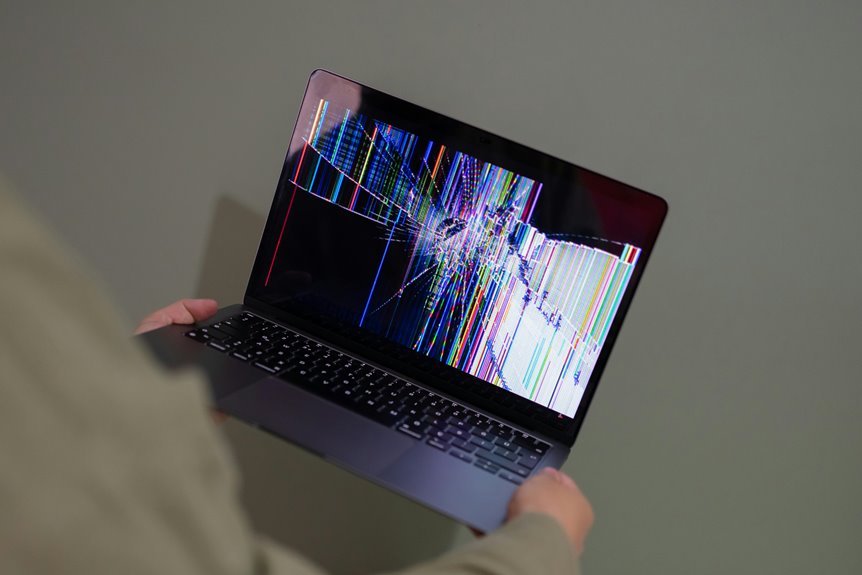

Laptop screen flickering usually comes from software glitches, display setting conflicts, loose internal cables, or a screen that’s starting to fail. Heat, outdated drivers, and power settings can also trigger the problem. A few quick checks, like Task Manager, Safe Mode, and display behavior, often point to the cause fast. This guide walks through the most common reasons in a clear, simple way.
How to Troubleshoot Laptop Screen Flickering
Though your laptop screen starts flickering, the best initial step is to figure out whether the problem comes from software or hardware, because that one clue can save you a lot of stress and wasted time. Open Task Manager and watch whether it flickers too. In case it stays steady, check startup apps, recent updates, and driver status.
Next, create a calm testing routine you can trust. Restart, then try Safe Mode to see whether the flicker changes. While you do that, run battery health checks and power adapter testing, because unstable power can confuse the display.
Then connect an external monitor. In case that screen looks normal, inspect the laptop lid movement and screen angle for changes. You’re not guessing here. You’re narrowing the issue step after step, and that helps you feel confident and in control.
Common Causes of Laptop Screen Flickering
After you test the problem step after step, the possible causes usually fall into a few clear groups: hardware faults, driver and software issues, display setting mismatches, and unstable power. You’re not alone here, and these causes show up in everyday laptops more often than you’d expect.
| Cause | What happens | Clue |
|---|---|---|
| GPU faults | Artifacts, blinking | Worse under load |
| Loose cables | Intermittent flicker | Changes when moved |
| Driver conflicts | Tearing, freezing | Started after update |
| Setting mismatch | Unstable image | Wrong refresh rate |
| Malware interference | Random display changes | Strange system behavior |
Heat can also push your GPU into unstable rendering, especially during games. Meanwhile, weak power or poor surge protection can make flickering appear and disappear, which feels frustrating but is common.
How to Check if Software Is Causing Flickering
Because screen flickering often feels random, the best way to stay calm and make real progress is to check whether software is behind it before you assume the laptop has a broken part. First, open Task Manager. If it flickers too, your graphics driver may be the problem. If Task Manager stays steady, another program may be causing trouble.
Next, try safe mode testing. Safe Mode loads only core Windows files, so you can see whether the flicker disappears when extra apps and services stay out of the way.
Then move into app conflict isolation by closing startup apps, uninstalling recent programs, and testing one change at a time. You should also check for driver updates, roll back a recent driver, and run a malware scan. You’re not guessing here. You’re narrowing it down together.
Which Display Settings Can Make a Screen Flicker?
Why can a simple setting make your laptop screen look like it’s giving up on you? You’re not imagining it. A few display choices can throw things off fast. If your refresh rate doesn’t match what your laptop screen or graphics system handles well, the image may blink or stutter. The same goes for a resolution that pushes the panel too hard.
Then there are settings that seem harmless but can still create trouble. Brightness scaling may cause rapid shifts in backlight levels, especially when adaptive options react to changing light. Color calibration can also make the display appear unstable if the profile is incorrect or corrupted. Even display options changed in BIOS can affect how your screen behaves.
You’re part of a big group of users who run into this, and most fixes start right here.
Signs of a Loose Display Cable or Bad Screen
You might notice intermittent image distortion, such as lines, flashing, or brief screen glitches, whenever a display cable starts to loosen or the screen begins to fail.
Should the flicker get worse whenever you open, close, or adjust the laptop screen, that often points to a movement-related hardware problem inside the display assembly.
While that can feel frustrating, these signs give you a strong clue that the issue likely isn’t just a simple settings problem.
Intermittent Image Distortion
As the image warps, flashes, or breaks into lines as you open, close, or tilt your laptop screen, the problem often points to a loose display cable or a screen that’s starting to fail. You might notice image warping near the hinges, sudden color shifts, or frame tearing across part of the display. These signs can feel frustrating, but you’re not alone. Many laptop users see this before a cable fully disconnects or a panel wears out.
As the connection weakens, your screen may show blocks, ghosting, or thin horizontal streaks for a moment, then look normal again. That stop-and-start distortion usually means the signal isn’t staying clean. If the issue keeps returning in the same areas, your display panel itself may be breaking down and needs professional repair soon.
Movement-Triggered Screen Flicker
A screen that flickers right as you open, close, or tilt the laptop usually points to a physical problem inside the display assembly. Whenever movement changes the image, you’re likely working with a loose display cable, flex cable wear, or a failing panel. In many laptops, the cable runs through the hinge area, so repeated lid hinge stress can slowly damage it.
That connection matters because even a tiny break can interrupt the signal for a split second. You might notice flashes, lines, color shifts, or a screen that cuts out at certain angles. You’re not imagining it, and you’re definitely not alone.
Whenever the flicker gets worse with movement, the screen assembly needs inspection. A technician can test the cable, hinge path, and panel together to find the real fault fast.
Can Overheating Cause Laptop Screen Flickering?
Yes, overheating can cause laptop screen flickering, and it often starts with the graphics chip. When your laptop gets too hot, the GPU can struggle to render images smoothly. That strain creates thermal throttling effects, which lower performance to control temperature. As a result, you might notice blinking, brief black flashes, or shaky visuals, especially during gaming, streaming, or multitasking.
As heat builds, heat induced component stress can affect nearby parts and weaken stable display output. You’re not imagining it whether flickering gets worse after long use or on warm days. Your laptop is basically asking for a breather, not trying to join a disco.
In many cases, high workloads, blocked vents, dust, and poor airflow all raise temperatures and make screen behavior less stable for everyday users like you.
When Laptop Screen Flickering Needs Repair
Should your laptop screen keeps flickering after driver fixes and setting checks, you might be facing a repair issue.
You should watch for warning signs like flickering that gets worse whenever you move the screen, strange lines or artifacts, dim backlighting, or problems that show up during heavy GPU use.
At that point, it’s smart to get professional service, because worn parts, loose cables, a failing panel, or a damaged graphics component usually won’t fix themselves.
Warning Signs To Repair
When your laptop screen keeps flickering after you update the graphics driver, lower the refresh rate, or close problem apps, it’s usually a sign the issue has moved past a simple setting and into repair territory. You’re not overreacting if it keeps happening. Watch for flicker warning patterns like sudden dimming, brief blackouts, screen tearing, or flashes that interrupt school, work, or game time.
Those urgent repair cues matter even more when the flicker spreads across apps, returns during startup, or shows up after basic troubleshooting. Should Task Manager flickers too, the problem likely runs deeper than one app.
Should your eyes feel strained, your focus breaks, or the screen becomes hard to trust, it’s time to get help. You deserve a laptop that feels steady, safe, and ready when you’re each day.
Hardware Failure Indicators
Trouble often leaves clues, and a flickering laptop screen can signal hardware failure as the pattern gets stronger instead of fading after basic fixes. You might notice flicker when you move the lid, which points to a worn display cable or loose internal connection. If bright patches, lines, or GPU artifacts appear, your graphics chip may be struggling under heat or age. When dimming joins the flicker, the screen backlight or inverter can be wearing out too. These signs help you feel less alone because they’re common and recognizable.
| Sign | Likely hardware issue |
|---|---|
| Flicker changes with lid movement | Loose cable |
| Colored blocks or GPU artifacts | GPU trouble |
| Random blackouts | Failing display panel |
| Spreading glitches across tasks | motherboard failure |
Professional Service Timing
Those warning signs matter because they tell you when home fixes should stop and a repair shop should step in. If flickering keeps returning after driver updates, refresh rate checks, and restarts, you’re likely facing deeper hardware trouble. A loose display cable, failing panel, overheating GPU, or worn motherboard part can worsen fast.
That’s where repair urgency becomes real. If the screen goes black, flashes during movement, shows artifacts, or gets worse under load, don’t wait and hope it settles down. You deserve a laptop that feels dependable in your daily circle, not one that keeps you guessing.
A technician can test internal connections, heat levels, and graphics hardware safely. Ask about service turnaround too, especially if you rely on your laptop for school, work, or staying connected with your people daily.
Frequently Asked Questions
Can a Laptop Screen Flicker Only When Charging?
Yes, a laptop screen can flicker only while charging because unstable voltage, charger mismatch, or electrical interference can affect display performance. Try the original charger, check the charging cable and adapter for damage, and review display and power settings to identify the cause.
Does Battery Saver Mode Cause Screen Flickering?
Yes, battery saver mode can cause screen flickering in some cases. It may happen when power saving settings adjust brightness, refresh rate, or display behavior.
Can Magnetic Accessories Interfere With Laptop Display Stability?
Yes, magnetic accessories can disrupt laptop display stability by interfering with internal sensors, particularly around the lid, hinge, or sleep detection area. A quick way to confirm the cause is to move the accessory farther away and see whether the flickering stops.
Why Does Flickering Worsen After Waking From Sleep?
Flickering often gets worse after waking because the system may hit a resume error that forces the display driver to reload. A laptop can appear normal before sleep, then show flicker after waking when driver issues, refresh rate conflicts, or hardware instability come into play.
Can Docking Stations or Adapters Trigger Laptop Screen Flickering?
Yes, docking stations or adapters can cause laptop screen flickering when compatibility issues, faulty hardware, damaged cables, or incorrect refresh rate settings are involved. You can identify the cause faster by testing a direct connection, updating graphics and display drivers, and confirming stable power delivery.




