

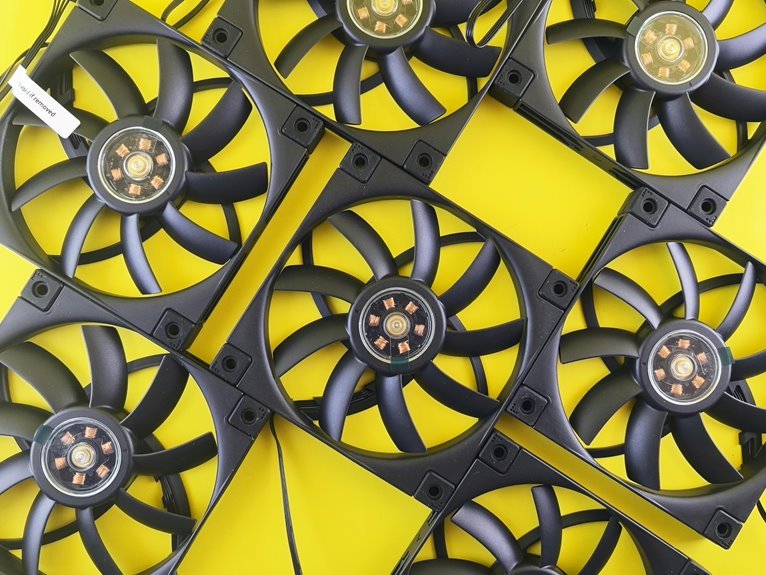

Yes, a loud laptop fan usually means your system is running hot or working too hard. Dust buildup, blocked vents, and heavy apps are common causes. A few quick checks and simple changes can often make your laptop much quieter. The trick is to spot what your fan noise is telling you before you spend money on repairs.
Why Is Your Laptop Fan So Loud?
Why does your laptop fan suddenly sound like it’s trying to take off? Usually, your system is working harder than usual, and you’re not alone provided that that feels frustrating. Once dust clogs vents, heat builds fast, so the fan spins harder to keep everyone inside safe.
That also happens once apps, games, or too many browser tabs push your CPU or GPU. In the same way, poor fan placement can trap heat provided that you use your laptop on a bed, couch, or crowded desk. Low airflow around the case makes cooling tougher.
Sometimes, worn fan parts create extra sound too. Even ambient noise can make the change feel more obvious, especially in a quiet room. Provided that your laptop suddenly sounds louder, it’s usually reacting to heat, blocked airflow, heavy workloads, or aging hardware inside.
What Counts as Normal Laptop Fan Noise?
Although a laptop fan should never sound silent all the time, some noise is completely normal as your system warms up during updates, streaming, video calls, gaming, or heavy multitasking. In those moments, you can hear a steady hum or a gentle increase in speed. That’s usually your laptop managing heat the way it should.
What matters is the pattern. Healthy fan acoustics sound smooth, consistent, and tied to what you’re doing. You could notice brief spin-ups, then a return to quieter operation once the workload eases. That’s a sign of normal airflow and balanced cooling. Most users hear this daily, so you’re not by yourself when your laptop speaks up now and then. Trouble starts when the sound becomes harsh, rattling, grinding, or unusually loud even during light tasks or idle periods.
Check CPU, GPU, and Temperature Usage
Before you assume the fan itself is failing, check how hard your laptop is working and how hot it gets, because loud fan noise often starts with heavy CPU or GPU use.
Open Task Manager on Windows or Activity Monitor on Mac and see which apps are pushing usage high. Games, video calls, browser tabs, and updates can all cause resource spikes.
Next, use temperature monitoring tools to see whether heat rises fast under normal tasks.
In the event your CPU or GPU stays hot even when you’re just browsing, something in the background may be stressing your system.
Close extra apps, pause downloads, and restart in case needed.
You aren’t by yourself here. Many people hear loud fans simply because their laptop is doing too much at once, and a quick check helps you feel back in control.
Clean Dust From Your Laptop Fan
Whenever your usage checks looked normal but the fan still sounds loud, dust is the next thing to inspect, because it often builds up in the vents and makes the cooling system work much harder than it should. Start with a safe shutdown, unplug your laptop, and use compressed air in short bursts at an angle. That clears loose debris without pushing it deeper inside.
Next, focus on vent hygiene around every opening, especially whenever you use your laptop daily. You’re not alone whenever this gets overlooked. It happens to almost everyone.
Wipe exterior dust gently, and listen for any change whenever you power back on. Whenever noise stays intense, heavy buildup may call for deep cleaning inside the case. At that point, it’s smart to ask a repair pro for help, so your laptop stays safe and trusted.
Improve Laptop Airflow and Cooling
Once you’ve cleared out the dust, the next step is making sure your laptop can actually breathe, because blocked airflow often keeps the fan working harder than it needs to. Put it on a hard, flat surface, not a bed or couch. Good vent placement matters, so leave space around each side and back. A simple stand can improve your airflow setup and help your whole setup feel more dialed in.
| What to do | Why it helps |
|---|---|
| Use a desk or lap desk | Keeps vents open |
| Raise the rear slightly | Improves air movement |
| Leave room around vents | Reduces trapped heat |
If you want a quick win, move cables, books, or walls away from exhaust areas. Small changes like these help your laptop stay cooler and quieter, just like the rest of us want.
Reduce Laptop Heat With Power Settings
You can often calm a loud laptop fan by changing your power plan to a more efficient setting.
Provided that you lower the maximum processor state, your laptop creates less heat, so the fan doesn’t have to work as hard.
This step gives you a simple way to cut noise while still keeping performance steady for everyday tasks.
Adjust Power Plan
Why does a laptop fan suddenly sound like it’s working overtime as soon as you’re barely doing anything? Often, your power plan is pushing for more speed than you need. You’re not alone, and a few quick setting changes can help your laptop feel calmer and quieter.
Start by opening your power settings and switching to battery saver mode whenever you’re browsing, writing, or streaming.
Should you need a middle ground, choose a balanced power plan. It gives you steady performance without making your system chase power it doesn’t need. On Windows, this change tells your laptop to favor efficiency, which lowers heat and gives the fan less reason to spin hard. Should you use your laptop daily for simple tasks, this small tweak can make your whole setup feel more comfortable and under control.
Limit Processor Performance
If your laptop still sounds busy after switching power plans, the next smart step is to limit how hard the processor can run. In Windows, open advanced power settings and lower the Maximum processor state to 80 to 95 percent. That small change cuts heat fast, so your fan doesn’t need to race to keep up.
You don’t have to feel stuck with loud cooling. By using gentle performance caps, you help your laptop stay calmer during everyday work, browsing, and streaming.
This isn’t harmful CPU throttling from overheating. It’s a controlled setting you choose to reduce strain before temperatures spike. You can also switch System cooling policy from Active to Passive, which lowers fan use first and slows the processor when needed. That’s a practical way to keep your setup quieter and more comfortable daily.
Close Background Apps That Overheat Laptops
Often, loud fan noise starts with apps running in the background and pushing your laptop’s CPU or GPU harder than it needs to work. Whenever you close them, your system breathes easier, and you feel more in control.
- Open Task Manager with Ctrl + Shift + Esc
- Sort according to CPU or GPU to spot hogs
- Quit extra launchers, sync tools, and chat apps
- Use task switching wisely during heavy work
- Try browser trimming while closing unused tabs
If you’re on a Mac, check Activity Monitor and review the CPU and Energy tabs. Keep only what supports your current task. That small cleanup can lower heat fast, calm the fan, and help your laptop feel like part of your team again. You’ve got this, and every closed app helps.
Update Drivers and BIOS
After you trim background apps, the next smart step is to update your drivers and BIOS, because old system software can make your laptop run hotter and push the fan harder than it should.
Start with your laptop maker’s support page, then install graphics, chipset, and thermal-related drivers. That improves driver compatibility, which helps your hardware talk to Windows or macOS the right way.
Next, check for BIOS or UEFI firmware updates. These updates often improve heat control, fan behavior, and power use, so your laptop feels more stable and less noisy.
You don’t need to guess your way through it. Stick to official downloads, follow the model number carefully, and restart after each update should you be asked. It’s a simple maintenance habit that helps your laptop stay cooler and lets you feel more in control.
Use Laptop Fan Control Software Safely
While fan control apps can help, you need to use them with care because the wrong settings can make your laptop run hotter instead of quieter. Start with software compatibility checks, since trusted tools work best with your laptop model and firmware. Then make small changes and watch temperatures closely, so you stay in the safe zone with the rest of us who want quiet and reliable performance.
- Pick software from your laptop maker or a well-known developer
- Use fan curve customization in small steps, not big jumps
- Save a default profile before changing anything
- Monitor CPU and GPU temperatures while testing
- Stop if your laptop feels hotter, throttles, or crashes
That careful approach helps you lower noise without risking comfort, stability, or the smooth everyday experience your laptop community counts on.
When Loud Laptop Fans Signal Hardware Problems
Should your laptop fan starts grinding, rattling, or whining, you might be hearing bearing wear instead of normal cooling. You should also pay attention whenever dust buildup traps heat, because that can push temperatures up and make the fan run loud all the time.
And should the noise comes with overheating, random shutdowns, or weak airflow, your cooling system might be failing and needs a closer look.
Bearing Wear Warning Signs
Although dust and heavy workloads often make a laptop fan louder, a harsh grinding, rattling, or buzzing sound can point to bearing wear inside the fan itself. If the noise keeps returning, you’re likely hearing key bearing noise symptoms, not a harmless quirk.
Watch for these signs:
- Noise starts at boot and stays steady
- Pitch changes when you tilt the laptop
- Short clicks turn into rough scraping
- Fan speed wobbles without a workload change
- Vibration spreads through the keyboard deck
These clues often suggest fan shaft wear or a failing bearing race. You’re not overreacting if the sound feels wrong. Trust that instinct. A worn fan can seize suddenly, so early repair matters.
If your laptop sounds angry enough to audition for a garage band, it’s time to get that fan checked soon.
Overheating From Dust
Dust buildup is one of the most common reasons a laptop fan gets loud, and it often turns a small airflow issue into a real heat problem. When dust settles inside the vents, it traps hot air and makes your system work harder just to stay cool. You might notice dust buildup patterns near the exhaust, a warmer keyboard, or sudden fan surges during light tasks.
As heat rises, your laptop may feel sluggish, and that can feel frustrating when you just want things to run normally. Look for vent blockage signs like weak airflow, hotter surfaces, and lint around openings. If you place your laptop on soft fabric, the problem can grow faster. A careful cleaning routine helps your laptop breathe again, lowers stress on key parts, and keeps your everyday setup feeling dependable and comfortable for you.
Failing Cooling System
Whenever cleaning the vents and closing heavy apps no longer calm the noise, the fan itself could be wearing out or another cooling part could be starting to fail.
You’re not imagining it. A failing cooling system often gets louder before a real cooling failure appears. Watch for signs like these:
- grinding, rattling, or clicking sounds
- heat rising fast during light tasks
- random shutdowns or lag spikes
- air blowing weakly from the vents
- fan speed changing wildly for no reason
These clues mean your laptop might need service, not more guesswork.
Whenever the bearings wear down or the heatsink loosens, airflow drops and heat builds. That’s where fan replacement can protect your device and help you stay productive.
Getting help sooner keeps your laptop, and your routine, part of the team.
Stop Laptop Fan Noise From Returning
To keep laptop fan noise from coming back, you’ll need a few simple habits that lower heat before it builds up. Set upkeep alerts so cleaning never slips through the cracks. Use compressed air on the vents every six months, and keep your laptop on a hard, flat surface so air can move freely.
Just as vital, watch what your system is doing each day. Close extra tabs, pause heavy apps, and check Task Manager or Activity Monitor whenever things feel warm. If you’re on Windows, choose power saver settings or lower the maximum processor state. Those small changes help your laptop stay calm, and you stay part of the group that fixes problems sooner.
Add seasonal checkups too, especially before summer, because warmer rooms can push a quiet fan back into overtime again.
Frequently Asked Questions
Can a Cooling Pad Make Laptop Fans Quieter Long-Term?
Yes, a cooling pad can make laptop fans quieter over time by improving airflow and reducing heat buildup, but fan noise also depends on clean vents, dust control, and how heavily the laptop is used.
Does Laptop Fan Noise Worsen Faster in Humid Environments?
Humidity can make laptop fan noise increase sooner by promoting dust buildup, corrosion, and less efficient cooling. Keeping the laptop in a dry space helps reduce strain on the fan and slows wear.
Are Gaming Laptops Always Louder Than Ultrabooks?
No, gaming laptops are not always louder than ultrabooks. They are often noisier because they handle more demanding hardware, but stronger power efficiency and careful cooling design can keep noise levels surprisingly low.
Can Antivirus Scans Temporarily Make Laptop Fans Louder?
Yes. Antivirus scans often make laptop fans louder because scanning files raises CPU activity, particularly during background or full system scans. That extra processing creates more heat, so the cooling system spins faster. If the fan noise continues after the scan ends, open Task Manager and see whether the antivirus or another process is still using system resources.
How Often Should Thermal Paste Be Replaced in a Laptop?
Replace thermal paste about every 3 to 5 years. In many laptops, dust is responsible for about 70% of cooling issues as well. New thermal paste improves heat transfer, which can lower temperatures and reduce fan noise.




