

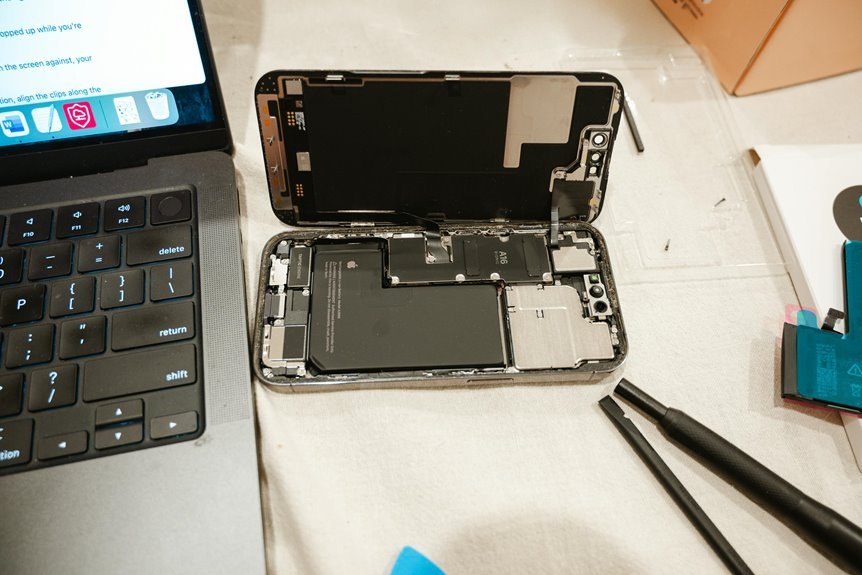

Laptop batteries last longer with a few simple habits. Keep the charge between 20% and 80%, reduce heat, and avoid draining it to 0%. Lower screen brightness, turn on Battery Saver, and use the correct charger. Small daily choices can add up and help your battery stay healthy for much longer.
Keep Your Battery Between 20% and 80
Because laptop batteries wear down a little every time they swing from empty to full, the safest daily habit is to keep yours between 20% and 80% whenever you can. That middle zone lowers strain on lithium-ion cells, so your laptop stays dependable for school, work, and everything in between.
To make that easier, build simple charge range habits into your routine. Plug in when power dips near 20%, then unplug around 80% instead of chasing a perfect full bar. Whenever your laptop offers battery care or conservation mode, turn it on and let it help. Just as crucial, practice battery percentage awareness during long study sessions, gaming, or streaming.
You don’t have to be perfect. Small, steady choices help your battery last longer, and they help you feel confidently in control every day.
Charge Before the Battery Hits 0
You protect your laptop battery whenever you plug it in before it drops to 0%. Deep discharge puts extra stress on the battery, so it’s better to recharge once it gets close to 20%.
That small habit can help your battery last longer, and your laptop won’t leave you stranded at the worst time.
Prevent Deep Discharge
Even though it’s tempting to squeeze out the last 1% of power, letting your laptop battery hit 0% too often puts extra strain on it and can shorten its life. When power drops that low, your system might force an emergency shutdown, and that hard stop can stress both your work and your battery. You’ll help your laptop stay reliable by avoiding deep discharge as part of your everyday routine.
This matters during battery storage, too. Should you tuck your laptop away with little charge left, the battery can drain further and lose capacity. Instead, build the habit of checking your battery level regularly and keeping it safely above empty. That small step helps you stay ready, protects long-term battery health, and keeps your laptop dependable for school, work, and everything that connects you.
Plug In Earlier
When the battery drops into the low teens, it’s smart to plug in instead of waiting for a dramatic 1% finish. That habit protects your laptop’s lithium-ion cells from deep stress and helps them last longer. Consider of charging timing as steady care, not a last-second rescue. You’re giving your battery the kind of support that keeps the whole team going.
In everyday use, sooner top ups are usually better than letting the battery crash. Try to recharge around 20% and aim for partial charges instead of full empty-to-full cycles. This keeps wear lower and heat more manageable too. Should you’re working, gaming, or streaming with friends, plugging in sooner helps you stay connected without pushing the battery so hard. It’s a simple move, but it helps your laptop feel dependable.
Don’t Leave Your Laptop Plugged In Constantly
When you leave your laptop plugged in all the time, you can keep the battery sitting at 100%, and that adds extra stress over time.
You’ll help it last longer if you unplug now and then and use partial charge cycles, like keeping it between 20% and 80%.
That simple habit cuts heat, eases battery strain, and gives your laptop a better shot at staying strong.
Prevent Overcharging Stress
Because your laptop battery ages faster under constant heat and high charge, it’s smart to avoid leaving it plugged in all the time. When you keep it at full power for hours, extra heat builds up and wears the battery down faster. That’s why smart charging habits matter if you want your laptop to stay reliable for the long haul.
To make this easier, use your laptop maker’s battery care mode or conservation setting when available. These tools help reduce stress from sitting at full charge. If you need safe overnight charging, place your laptop on a hard surface so heat can escape, and unplug it once your day begins.
You’re not being picky by doing this. You’re taking care of your device in a way that helps it stay ready for your work, school, and everyday life.
Use Partial Charge Cycles
A good next step is to let your battery work in shorter, gentler charge ranges instead of keeping it locked to the charger all day. You’ll help the cells stay healthier once you unplug and recharge within a smart charging window, ideally around 20% to 80%. That habit lowers heat, reduces stress, and helps your laptop feel like part of your daily rhythm, not a machine stuck at 100%.
From there, aim for partial top ups instead of waiting for a full drain. You don’t need dramatic 0% to 100% cycles to belong to the battery care club. Short sessions, like 40% to 80%, are easier on lithium-ion cells and fit real life better.
Should your laptop offer a battery conservation mode, turn it on and let it support your routine alongside you.
Use Battery Saver to Extend Runtime
Battery Saver is one of the easiest tools you can use to make your laptop last longer between charges. If you turn it on, your system limits background activity, reduces unnecessary syncing, and helps your battery work smarter. That means you stay productive and connected longer, even if an outlet isn’t nearby.
To get the most from it, check your battery saver settings and choose if the feature turns on automatically. Many laptops let you start it at 20% or 30%, which helps you avoid deep drains. This simple habit supports runtime extension without changing how you work.
It also pairs well with sleep timers, shorter display timeout settings, and efficient power plans. You don’t have to do everything perfectly. Small choices add up, and you’re already taking the right steps for better battery health.
Lower Screen Brightness to Reduce Drain
While your laptop handles many power tasks in the background, the screen still uses a big share of your battery, so lowering brightness gives you one of the fastest wins. Whenever you ease it down, you help your battery work less and stay healthier through the day. You don’t need to make the screen gloomy, either. Start with dim display settings that still feel comfortable for reading, streaming, and classwork.
Then match brightness to your space. In a bright room, raise it only as needed. In softer spaces, lower it again. That simple ambient lighting adjustment keeps power use in check without making you strain your eyes.
Should your laptop offers auto-brightness, test it and see whether it fits your routine. Small screen changes add up, and you’re part of the group that makes smart habits stick.
Close Power-Hungry Apps
Lowering screen brightness helps right away, and the next easy fix is checking what apps are running in the background. When too many programs stay open, your laptop works harder and your battery drains faster. You can feel more in control with a quick task manager cleanup, especially after startup or long work sessions.
Then look for the biggest power users. Streaming apps, game launchers, cloud sync tools, and video editors often keep pulling energy even when you’re not using them. Close what you don’t need, and pause extras until later.
Browser tab trimming matters too, because dozens of tabs can quietly eat memory and battery. If you make this a small daily habit, you’ll help your laptop last longer and keep your whole digital routine feeling lighter, calmer, and more manageable.
Keep Your Laptop Cool While Charging
Because charging already creates heat, keeping your laptop cool during that time can make a real difference in how well the battery holds up over time.
You help your device, and your future self, whenever you give heat a chance to escape instead of building up.
A few simple habits keep your laptop in the safe zone:
- Place it on a hard, flat desk so vents stay open
- Clean dust from vents often for stronger airflow solutions
- Try cooling accessories during long charging sessions or heavy tasks
That extra airflow matters because trapped heat adds stress while power is flowing in.
Whenever you usually charge on a couch or bed, switch to a solid surface.
You’re not being picky, you’re taking care of your laptop like someone who wants it to last and stay part of your daily routine.
Avoid Extreme Heat and Cold
Even though your charging habits are solid, extreme heat and cold can still wear your battery down faster than you expect. When your laptop gets too hot, the battery’s chemicals age faster, so capacity drops sooner. Keep it in spaces between 50°F and 86°F when you can, and stay mindful of temperature storage limits during travel or long breaks.
Cold matters too, especially if your group studies, works, or games on the go. With smart cold weather battery handling, you’ll avoid sudden shutdowns and sluggish performance. Let a chilled laptop warm up before charging or pushing heavy tasks. Similarly, never leave it in a parked car, near heaters, or in freezing garages. You’re not being picky, you’re protecting a device that helps you stay connected, productive, and part of the action daily.
Update Software for Battery Optimization
After protecting your laptop from harsh temperatures, you should also keep its software current so the battery can work smarter, not harder.
Install system updates and driver updates because they often improve power management and fix battery-draining issues you may not even notice.
You should also turn on your laptop’s battery management tools, since they can limit overcharging, reduce heat, and help your battery last longer.
Install System Updates
While battery care often starts with charging habits, keeping your system updated plays a quiet but powerful role in battery health too. When you install operating system updates, you give your laptop better power efficiency, smoother performance, and fewer background glitches that waste energy. You also improve driver compatibility, which helps hardware and software work together without draining power.
- Update your operating system to get battery-related fixes.
- Install the latest drivers to support stable, efficient performance.
- Patch security flaws because concealed threats can increase battery drain.
Just as good airflow protects your battery from heat, current software protects it from unnecessary strain. You stay part of the group that keeps devices running well, not fighting preventable issues alone. Set updates to install automatically when possible, and restart promptly so improvements actually take effect.
Enable Battery Management
Because your laptop already gets help from system updates, the next step is to turn on battery management tools that actively protect the battery each day. These features work quietly in the background, so you don’t have to guess what your battery needs.
Open your battery management settings and look for charge limits, battery saver, and adaptive charging. These options help keep your battery from sitting at 100% too often, which lowers heat and stress.
Should your laptop brand offer manufacturer battery utilities, install them and check for health reports, charging modes, and power profiles. That way, your device feels easier to trust and easier to care for.
You’re not doing this alone. Built-in tools and brand apps help your laptop stay part of your daily routine longer, with fewer battery worries and more confidence.
Use the Right Charger
Even though your laptop can charge with many adapters, using the right charger protects your battery from extra heat and long-term stress.
Whenever you match voltage, wattage, and charger compatibility to your model, you help your battery charge safely and steadily. That means fewer heat spikes and less wear over time, which keeps your laptop feeling dependable for your daily routine.
To make that easier, stick with trusted power options:
- Use the original charger whenever you can.
- Choose certified adapters made for your laptop brand or exact specs.
- Check wattage and connector type before plugging in.
- Replace frayed or damaged cables right away.
You deserve gear that works with you, not against you. The right charger helps your laptop stay reliable, so you can stay connected, productive, and part of the flow every day.
Calibrate the Battery Only When Needed
Although battery calibration can help your laptop report charge levels more accurately, you don’t need to do it often, and doing it too much can add extra wear instead of helping. Consider of battery calibration timing as a tune-up, not a weekly habit. Most of us only need it every few months, or whenever the battery meter acts strangely.
| Whenever you notice | What you should do |
|---|---|
| Battery drops fast from 30% to 5% | Run recalibration once |
| Laptop shuts down early | Start recalibration symptoms detection |
| Battery reading seems stuck | Check software first |
That balance helps you care for your laptop like the rest of us who want it to last. So, before you recalibrate, update drivers, restart, and watch for patterns. You’ll protect battery health and avoid needless strain.
Frequently Asked Questions
How Long Do Laptop Batteries Usually Last Before Replacement?
A laptop battery usually lasts 2 to 5 years, or about 300 to 500 charge cycles. Common signs that it needs replacement include faster battery drain, overheating, and unexpected shutdowns.
Is Overnight Charging Harmful for Laptop Battery Health?
Leaving a laptop plugged in overnight usually does not damage the battery, but battery charge limits can improve long term battery health. Many laptop support communities advise keeping the battery from sitting at 100% all the time and reducing heat whenever possible.
Should I Remove the Battery During Long Plugged-In Use?
No. For long periods on AC power, leave the battery installed. Use a charge limit or conservation setting, keep temperatures low, and let the battery cycle occasionally. That approach supports battery health and matches current manufacturer guidance.
How Should I Store a Laptop I Won’T Use for Months?
Before putting it away, charge the battery to about 50%, shut it down fully, and place it somewhere cool and dry. To help preserve battery health, turn it on every few months and recharge it if the level has dropped too low.
Can Gaming While Charging Damage the Laptop Battery?
Yes, gaming while charging can speed up battery wear because extra heat puts stress on the battery. You can reduce that strain by keeping the vents open, placing the laptop on a solid flat surface, and unplugging from time to time if you notice power throttling or unusual heat.




