
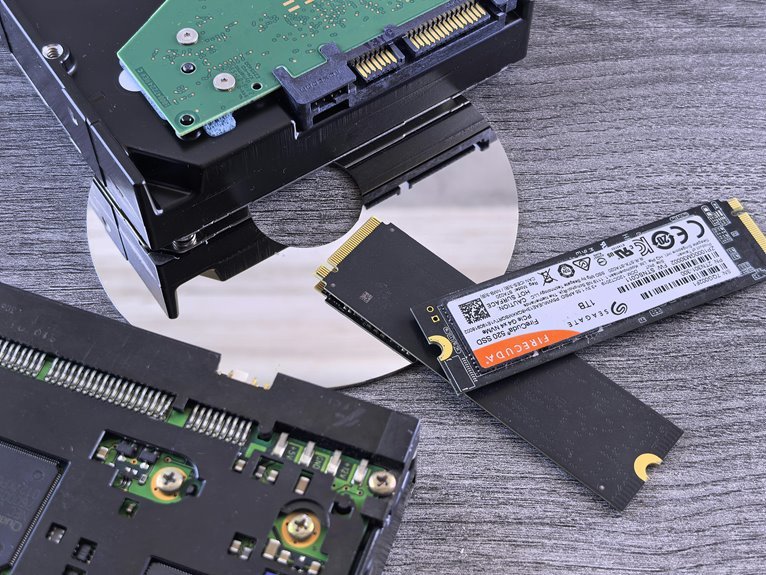

An SSD wears out through use, mainly from writes, erases, heat, and power problems. Its lifespan depends on endurance ratings, NAND type, free space, and how hard it works each day. Heavy file transfers, constant syncing, and a nearly full drive can wear it faster. A quick look at these factors makes SSD durability much easier to judge.
What SSD Lifespan Actually Means
When you hear about SSD lifespan, it doesn’t mean the drive will suddenly die on a certain date. Instead, you’re looking at a practical lifespan definition: how long your SSD can keep storing and rewriting data before wear gradually affects reliability. In storage basics, that matters because flash memory wears down bit by bit, not all at once.
That’s why lifespan is really about endurance, stability, and trust in your daily setup.
If you use your drive for school, work, games, or creative projects, you want to know it will stay with you through the routine. Different flash types last for different amounts of writing, and good controllers help spread wear evenly. So when people talk about SSD life, they mean expected durability under real use, not a mysterious expiration day for you.
What TBW and DWPD Tell You
To make sense of SSD endurance, you should start with two numbers: TBW and DWPD.
Together, they help you feel confident that you’re choosing a drive that fits your real-world routine, not just a flashy label.
TBW meaning is simple: it tells you how much data you can write over the SSD’s life.
DWPD basics are about daily use. This number shows how many times you can write the full drive capacity each day during the warranty period.
For example, a 1TB SSD rated at 0.5 DWPD supports about 500GB of writes per day.
So, TBW gives you the big-picture limit, while DWPD connects endurance to your everyday habits.
Whenever you read both together, you can compare drives like a savvy member of the tech crowd.
How Write Cycles Wear Out SSDs
Although TBW and DWPD tell you how much writing an SSD can handle overall, write cycles explain why that limit exists in the first place. Each time you save, erase, and rewrite data, tiny memory cells work hard. Over time, write cycle limits catch up, and nand cell fatigue makes those cells less reliable for your files.
You can imagine it like a notebook page that gets erased until it won’t hold clear words anymore. That’s why steady, heavy writing wears an SSD faster than normal daily use.
- You want your drive to stay dependable when your work matters most.
- You don’t want silent wear building up while you’re creating, gaming, or studying.
- You can feel more confident being aware this aging is normal, expected, and managed by smart design.
How NAND Type Affects SSD Life
Whenever you compare NAND types, you’ll see that SLC lasts much longer because it can handle far more write cycles than QLC.
That means whenever you write data often, your SSD’s flash type can strongly shape how long it stays reliable.
SLC Vs QLC
Because NAND type sets the basic limits of an SSD’s endurance, SLC and QLC can feel like they live in two very different worlds.
Should you want strong SLC durability, you’re choosing a design that stores less per cell but stays steadier under pressure. Should you choose QLC, you accept QLC tradeoffs for lower cost and higher capacity.
- You feel safer with SLC whenever reliability matters most.
- You feel included with QLC whenever budget and space matter too.
- You feel smarter whenever you match the drive to your real needs.
That difference shapes your experience every day. SLC often fits demanding, mission-critical work where trust matters. QLC fits everyday storage, game libraries, and large personal files. You don’t need the most rugged option to belong in the SSD crowd. You need the right fit.
Write Endurance Differences
While every SSD wears out a little each time you save, update, or move data, NAND type decides how many write cycles its cells can handle before that wear starts to matter. When you want longer life, SLC gives you the most durability, while QLC wears faster under heavier writing. TLC sits in the middle, and many 1TB TLC drives reach about 3,000 cycles.
That difference shapes the drive’s workload rating, including TBW and DWPD. So when your day includes editing, backups, or game installs, your writing adds up quickly.
A 1TB SSD rated at 0.5 DWPD can handle about 500GB each day across its planned life. Even so, good controllers, wear leveling, and TRIM help your SSD stay reliable. That’s why higher-end models often promise stronger enterprise endurance for busy, shared digital lives.
Why Overprovisioning Matters
Although most people focus on write speeds and total capacity, overprovisioning quietly does one of the most significant jobs in your SSD: it sets aside extra space so the controller can move data, replace worn cells, and keep writes spread evenly across the drive.
That concealed buffer delivers real reservation space benefits through smarter spare area management.
You want your SSD to stay reliable, especially while your files and projects matter to your daily life.
Overprovisioning helps you feel confident because it gives the controller room to work cleanly and efficiently.
- It lowers write stress, so your drive doesn’t wear out as fast.
- It gives worn-out cells backup support, which helps protect your data.
- It keeps performance steadier, so your system feels dependable while you need it most, every day, with fewer slowdowns and less surprise.
Why Free Space Helps SSD Life
When you keep free space on your SSD, you give wear leveling and overprovisioning more room to spread writes across healthy cells. That extra room also cuts write amplification, so your drive doesn’t waste endurance moving data around more than it has to.
As a result, garbage collection works more smoothly, which helps your SSD stay faster and last longer.
Overprovisioning And Wear Leveling
Because every SSD has a limited number of write cycles, free space does much more than hold extra files. It gives your drive room for spare area management, so the controller can move data smartly and protect stressed cells. With adaptive block balancing, writes spread across more memory cells instead of hammering the same spots again and again.
When you leave healthy free space, your SSD can care for itself in ways that feel almost reassuring:
- It rotates writes more evenly, helping every cell share the workload.
- It swaps out tired blocks before they become a problem, which helps you feel secure.
- It keeps performance steadier during busy days, so your system stays ready for the group, the game, or the work you count on.
That extra room helps your SSD age with more grace.
Reduced Write Amplification
As your SSD starts to fill up, it has to work harder to place new data, clean old blocks, and move files around behind the scenes.
That extra shuffling means your drive can write more data internally than you actually save.
Once that happens, wear adds up faster, and you feel the slowdown too.
Better Garbage Collection
Even though you don’t consider about it, your SSD is always cleaning up old data in the background, and that job gets much easier whenever you leave free space open. With more room, garbage collection efficiency improves, so your drive moves valid data less often and avoids extra wear. That also supports smoother background block consolidation, which helps your SSD stay responsive and healthy.
- You give your SSD breathing room, and that means fewer stressful write cycles.
- You help your whole system feel faster, which makes daily work feel easier and more reliable.
- You join smart users who protect their storage with simple habits that truly matter.
How SSD Controllers Affect Durability
While the NAND memory stores your data, the SSD controller decides how gently or harshly that memory gets used each day. It acts like the drive’s traffic guide, and you benefit whenever its controller algorithms spread writes evenly across cells. That lowers hot spots, reduces uneven wear, and helps your SSD age as a team player in your system.
Just as better garbage collection keeps free space usable, the controller also handles TRIM commands, overprovisioning, and S.M.A.R.T. checks in the background. These tasks cut extra writes, preserve spare blocks, and warn you whenever trouble is building. Strong firmware optimization also improves how data moves, so your drive avoids unnecessary strain. Whenever you choose an SSD with a smart controller, you’re giving your whole setup a steadier, longer-lasting foundation for daily work and play together.
How Firmware Extends SSD Life
Good controller hardware sets the rules, but firmware decides how well your SSD follows them over time. It quietly manages wear leveling, TRIM, overprovisioning, and S.M.A.R.T. checks so your drive stays reliable and feels like part of a system you can trust.
You gain real firmware update benefits as makers refine background tasks and reduce unnecessary writes. That means fewer wasted program and erase cycles, steadier speed, and a longer useful life. With controller algorithm improvements, your SSD can place data smarter and balance cell use more evenly.
- You feel safer understanding your files have stronger protection.
- You stay confident because your drive works with your habits, not against them.
- You belong with informed users who keep storage healthy through timely updates.
Firmware is the quiet teammate helping your SSD endure daily.
How Heat Reduces SSD Endurance
If your SSD gets too hot, it can throttle its speed to protect itself, and that extra stress can slow your system right when you need it most.
At the same time, high heat pushes NAND cells to wear out faster, which cuts into the drive’s endurance over time.
Thermal Throttling Effects
Because heat builds fast inside a busy PC or laptop, your SSD can throttle its speed to protect itself, and that slowdown matters for endurance as much as performance. As temperatures approach thermal throttling thresholds, the controller cuts transfer rates, which can stretch tasks and trap more heat around nearby parts. That creates a frustrating cycle you can feel during gaming, editing, or large file moves.
- You wait longer, and your whole system feels less responsive.
- You can worry something’s failing, even as the SSD is just defending itself.
- You feel more confident as smart heatsink placement and clear airflow keep temperatures steady.
In your setup, cooling isn’t just for speed.
It’s part of caring for your hardware like the rest of us who want reliable, smooth systems that stay ready as you are.
Accelerated Cell Wear
Why does heat hurt an SSD so much?
Where your drive runs hot, each memory cell struggles to hold charge. That stress speeds up cell wear patterns, so the NAND reaches its write limit sooner. You’re not doing anything wrong. It happens more often in gaming rigs, editing setups, and cramped laptops where airflow feels like an afterthought.
As temperature rises, retention loss patterns get worse. In simple terms, your SSD has a harder time keeping data stable between writes.
That forces more correction work, more internal movement, and more strain on already used cells. Over time, you could see endurance drop faster, especially with TLC or QLC flash.
To protect your drive and stay in the safe zone, keep vents clear, use a heatsink if possible, and avoid long sessions in hot spaces.
How Heavy Workloads Wear SSDs Faster
Although SSDs feel fast and tough, heavy workloads wear them down faster through using up the flash cells’ limited program and erase cycles. Once you run benchmark stress patterns, render video, or move huge files daily, you force sustained write bursts that eat into endurance. TBW and DWPD show how much writing your drive can handle before wear becomes serious.
- You might feel confident now, but nonstop writes quietly shorten your drive’s healthy years.
- You’re not alone whether gaming, editing, or backups push your SSD harder than expected.
- You can protect your setup and stay in the know through watching write loads and drive health.
As writes pile up, write amplification adds extra internal work, so your SSD ages faster even while everything still feels smooth today.
Why Power Loss Can Damage SSDs
Heavy write loads wear an SSD over time, and unstable power can hurt it in a very different way.
Once your system loses power mid-task, the SSD might stop writing before it finishes. That can corrupt active files, trigger sudden shutdown data loss, and even scramble mapping tables the controller needs.
Because of that, power interruption risks go beyond one missing document. Your drive’s firmware can get caught in an incomplete update, and stored data may no longer line up with the right memory cells. Then your SSD could slow down, act strangely, or fail to boot whenever you need it most.
You aren’t alone in this. Many people protect their setups with stable power, clean shutdowns, and a UPS, so their drives stay reliable and ready for shared work every day.
Habits That Wear Out an SSD Faster
When you use your SSD in ways that trigger nonstop writing, it wears out faster than most people expect. If you download, delete, move, and rewrite large files all day, you create unnecessary file churn. That constant activity burns through write cycles quicker. Also, background sync habits from cloud apps, photo backups, and game launchers keep writing data even when you feel off duty.
- You could think small saves don’t matter, but they add up and quietly shorten your drive’s life.
- You deserve gear that keeps up with your world, not habits that slowly drain it behind the scenes.
- You can protect your SSD through cutting duplicate downloads, temp files, and nonstop cache writes.
You’re not alone here. Many people wear out SSDs sooner without realizing those daily routines are the reason.
Signs Your SSD Is Wearing Out
As those daily write habits build up over time, your SSD often sends quiet warning signs before it fails. You might notice performance slowdowns as files open late, apps freeze, or boot times stretch. Shortly after, read/write error alerts can appear during saves, updates, or transfers, making your setup feel less dependable and leaving you uneasy.
| Sign | What you notice | Why it matters |
|---|---|---|
| Slower speed | Longer boots, laggy apps | Cells might be wearing down |
| File issues | Corrupt files, failed saves | Data blocks can weaken |
| System warnings | S.M.A.R.T. notices, read/write error alerts | Failure risk is rising |
You’re not overreacting though random disconnects, missing files, or repeated crashes show up too. Those signs often mean your drive needs a backup plan, and you’re smart to act promptly.
Frequently Asked Questions
Can an SSD Retain Data Safely When Left Unplugged for Years?
Yes, an unplugged SSD can often preserve data for years, but it is not a reliable long term archive. Stored charge fades over time, and loss of power can increase the risk of corruption. For important files, keep multiple backups and reconnect the drive from time to time to verify and refresh the data.
Is SSD Lifespan Different for Laptops Versus Desktop Computers?
Yes, SSD lifespan often differs between laptops and desktops because laptops usually operate in tighter thermal conditions and go through more frequent power cycles. Desktops typically provide stronger airflow and steadier power delivery, which can help limit wear over time.
Do SSD Brands Differ Significantly in Long-Term Reliability?
SSD brands do show some long term reliability differences, but the gap is usually modest. Look at warranty support, controller design, NAND type, and real world failure rates to make a confident choice.
Should I Use a Heatsink on My SSD for Everyday Use?
Use a heatsink if your SSD gets hot during gaming, video editing, or in a case with limited airflow. For everyday tasks, most SSDs work fine without one, but good cooling can still help maintain steady performance and long term reliability.
Is SSD Failure Recovery Possible After a Sudden Crash?
Recovery from an SSD after a sudden crash is sometimes possible, particularly through professional data recovery services. Stop using the drive right away, because electrical damage can get worse with continued power or activity. Backups and diagnostic testing can significantly improve the chances of retrieving your data.




