Nearly 70% of remote and hybrid workers now use two external displays, and you may need more than a basic hub to keep up. In 2026, the best laptop docking stations for dual monitors blend stable video output, strong charging, and enough ports for your whole setup. You will want to know which models handle Windows, macOS, and travel well, because the wrong choice can limit everything before you notice it.
| USB-C Laptop Docking Station with Dual HDMI DisplayPort | 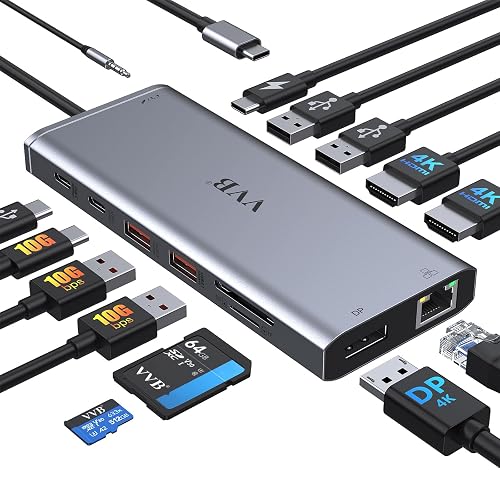 | Most Versatile | Video Ports: 2 HDMI + 1 DisplayPort | USB Ports: 2 USB-A 3.1 + 2 USB-A 2.0 + 1 USB-C | Ethernet: Gigabit LAN | VIEW LATEST PRICE | Read Our Analysis |
| Dell WD19S Docking Station (180W USB-C HDMI DisplayPort) | 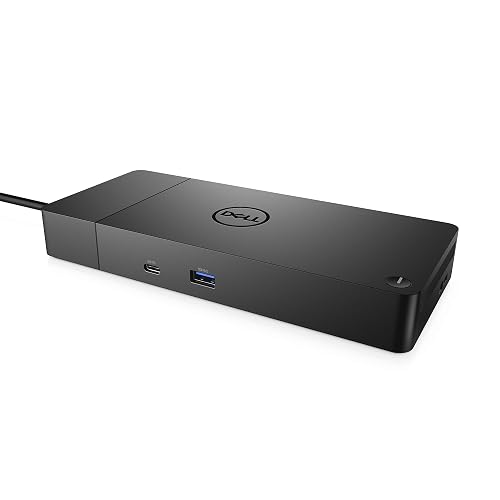 | Best for Dell | Video Ports: 2 HDMI + 2 DisplayPort | USB Ports: 6 USB ports total | Ethernet: Gigabit Ethernet | VIEW LATEST PRICE | Read Our Analysis |
| Baseus Spacemate 11-in-1 USB-C Docking Station |  | Best Travel Dock | Video Ports: 2 HDMI + 2 DisplayPort | USB Ports: 2 USB-A 10Gbps + 1 USB-A 2.0 + 1 USB-C | Ethernet: Gigabit Ethernet | VIEW LATEST PRICE | Read Our Analysis |
| Anker Prime 14-Port Docking Station with Dual 4K Displays | 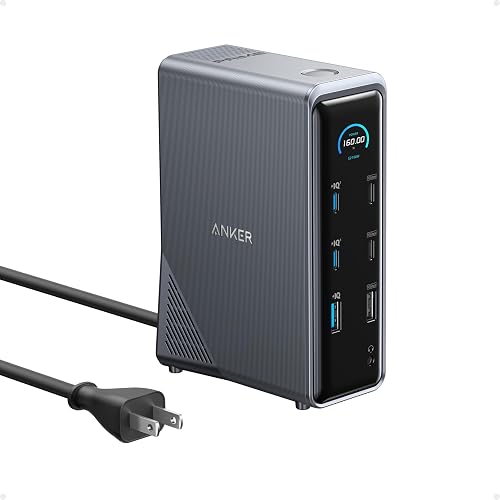 | Premium Pick | Video Ports: 2 HDMI | USB Ports: 9 USB ports total | Ethernet: Ethernet port | VIEW LATEST PRICE | Read Our Analysis |
| Lenovo USB-C Dual Display Travel Dock | 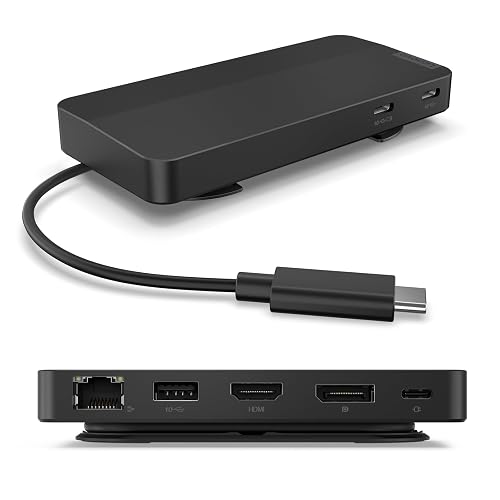 | Best for Mobility | Video Ports: 1 HDMI + 1 DisplayPort | USB Ports: 1 USB-A + 2 USB-C | Ethernet: Gigabit Ethernet | VIEW LATEST PRICE | Read Our Analysis |
| USB-C Dual Monitor Docking Station with Dual HDMI | 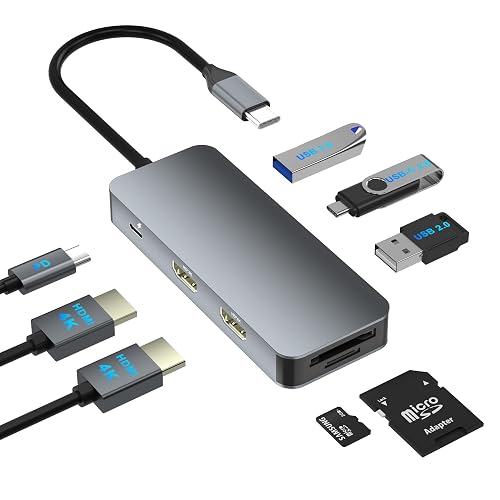 | Budget-Friendly Pick | Video Ports: 2 HDMI | USB Ports: 1 USB-A 3.0 + 1 USB-A 2.0 + 1 USB-C | Ethernet: Ethernet support | VIEW LATEST PRICE | Read Our Analysis |
More Details on Our Top Picks
USB-C Laptop Docking Station with Dual HDMI DisplayPort
If you need a compact way to turn one USB-C or Thunderbolt 3/4 port into a full dual-monitor workstation, this USB-C laptop docking station is a strong fit. It includes two HDMI ports, a DisplayPort, gigabit Ethernet, SD and microSD slots, a 3.5 mm audio jack, and multiple USB-A and USB-C ports in a slim aluminum gray body. It supports up to 4K on a single display, and dual-screen setups for supported Windows laptops from Dell, HP, Lenovo, and Surface. It is plug-and-play, charges up to 87W, and works best with video-enabled USB-C ports.
- Video Ports:2 HDMI + 1 DisplayPort
- USB Ports:2 USB-A 3.1 + 2 USB-A 2.0 + 1 USB-C
- Ethernet:Gigabit LAN
- Power Delivery:100W input
- OS Compatibility:Windows/Mac
- Warranty:1 year
- Additional Feature:Triple-display support
- Additional Feature:SD/MicroSD card slots
- Additional Feature:3.5mm audio jack
Dell WD19S Docking Station (180W USB-C HDMI DisplayPort)
The Dell WD19S Docking Station is a strong pick if you need a reliable dual-monitor setup for a USB-C laptop, especially a Dell system. You get 130W power delivery through USB-C, so you can charge while running two displays. Its HDMI and dual DisplayPort outputs give you flexible monitor options, and the six USB ports let you connect your keyboard, mouse, and accessories. The dock runs on a 180W power brick, comes in black, and measures 8.07 x 8.1 x 1.1 inches; it fits neatly on your desk without taking much space.
- Video Ports:2 HDMI + 2 DisplayPort
- USB Ports:6 USB ports total
- Ethernet:Gigabit Ethernet
- Power Delivery:130W PD
- OS Compatibility:Windows
- Warranty:Manufacturer warranty
- Additional Feature:130W laptop charging
- Additional Feature:Dual DisplayPort outputs
- Additional Feature:Dell enterprise design
Baseus Spacemate 11-in-1 USB-C Docking Station
Baseus Spacemate 11-in-1 USB-C Docking Station stands out if you want a compact, vertical hub that can really pull its weight on a dual or even triple monitor setup. You get two HDMI ports, two DisplayPorts, fast USB-C and USB-A connections, Gigabit Ethernet, and a 3.5 mm audio jack in a space-saving aluminum body. On Windows, you can extend to three displays; on macOS, you are limited to one external screen. Its LED status screen and lock button add convenience, and 85W pass-through charging keeps your laptop powered. Use a 65W to 100W adapter.
- Video Ports:2 HDMI + 2 DisplayPort
- USB Ports:2 USB-A 10Gbps + 1 USB-A 2.0 + 1 USB-C
- Ethernet:Gigabit Ethernet
- Power Delivery:85W pass-through
- OS Compatibility:Windows/Mac
- Warranty:1 year
- Additional Feature:Vertical magnetic base
- Additional Feature:LED status screen
- Additional Feature:Screen-lock button
Anker Prime 14-Port Docking Station with Dual 4K Displays
Anker’s Prime 14-Port Docking Station is a solid choice if you need a well connected desktop hub with dual HDMI outputs, fast charging, and broad Windows and Chromebook support. It provides 14 ports, 11 for data, plus Ethernet, audio, and a smart status display. With a DP 1.4 laptop you can drive two displays at up to 2K at 60 Hz; DP 1.2 limits you to 1080p at 60 Hz. The dock delivers 160 W total and can charge four devices at once. Note that macOS mirrors displays, and Linux is not supported.
- Video Ports:2 HDMI
- USB Ports:9 USB ports total
- Ethernet:Ethernet port
- Power Delivery:160W total output
- OS Compatibility:Windows/ChromeOS/Mac
- Warranty:24 months
- Additional Feature:Smart interface display
- Additional Feature:Charges four devices
- Additional Feature:USB-C upstream cable
Lenovo USB-C Dual Display Travel Dock
Lenovo’s USB-C Dual Display Travel Dock is a smart pick if you need a compact, travel-friendly way to run two 4K monitors from a USB-C laptop without sacrificing portability. You get seven ports, including DisplayPort 1.4, HDMI 2.0, USB-A 10 Gbps, two USB-C 10 Gbps ports, and Gigabit Ethernet. It supports USB-C Alt Mode and Thunderbolt laptops, and can deliver up to 100W PD with the right adapter. At just 0.3 pounds, it is easy to carry, and its Eclipse Black chassis uses 66% recycled content.
- Video Ports:1 HDMI + 1 DisplayPort
- USB Ports:1 USB-A + 2 USB-C
- Ethernet:Gigabit Ethernet
- Power Delivery:100W PD
- OS Compatibility:Windows/Mac
- Warranty:3 years
- Additional Feature:Integrated USB-C cable
- Additional Feature:66% recycled content
- Additional Feature:Always-on USB-C port
USB-C Dual Monitor Docking Station with Dual HDMI
If you need a compact USB-C dock that can drive two external displays from a single port, this dual HDMI model is a strong fit. You get an 8-in-1 adapter with two HDMI outputs, USB-A and USB-C data ports, and SD/TF card access in a tiny 3.4 x 1.6 x 0.6 inch gray shell. It supports dual 4K displays at 30 Hz on Windows with SST or MST; on macOS it mirrors only. You can charge your laptop with up to 85 W via PD 3.0, but it will not deliver data. It is a practical pick for Dell, HP, Lenovo, and Mac users.
- Video Ports:2 HDMI
- USB Ports:1 USB-A 3.0 + 1 USB-A 2.0 + 1 USB-C
- Ethernet:Ethernet support
- Power Delivery:85W PD
- OS Compatibility:Windows/Mac
- Warranty:1 year
- Additional Feature:Compact travel size
- Additional Feature:SD/TF card reader
- Additional Feature:SST/MST display modes
Factors to Consider When Choosing Laptop Docking Stations For Dual Monitors
When choosing a laptop docking station for dual monitors, ensure its display outputs match your screens and support the resolution you need. Confirm the dock provides sufficient power delivery to charge your laptop, and that it offers the right mix of ports for your peripherals. Also check your operating system limits, because they can affect how well the dock functions.
Display Output Compatibility
Before you buy a dock, make sure your laptop can actually send video through its USB-C or Thunderbolt port. Without DisplayPort Alt Mode or Thunderbolt video support, the dock’s HDMI or DisplayPort outputs will not drive your monitors. Next, match the dock’s outputs and protocol to your displays: HDMI 2.0 or 2.1, DisplayPort 1.2 or 1.4, and Thunderbolt 3 or 4 each cap resolution and refresh differently, so 4K at 60 Hz requires the right host support. Confirm MST support if you want two independent screens; otherwise some systems only mirror or limit extension. Check the dock’s per-port and total bandwidth so dual 4K at 30 Hz does not exceed capacity. Finally, verify your operating system’s external display rules, because macOS often restricts multi-monitor extension.
Power Delivery Needs
Power delivery matters because a dock has to charge your laptop and support your dual-monitor setup at the same time. Check the dock’s Power Delivery wattage against your laptop’s peak charging need. Ultraportables often want about 45 W, while performance machines may need 85 to 100 W. Make sure the dock can pass power through fully when your monitors and USB devices are connected, because the dock itself may use 10 to 30 W. Verify the PD version and supported voltage and current profiles so it matches your laptop’s charger and avoids slow charging or failed negotiation. If you run heavy workloads or charge extra peripherals, choose a dock with 15 to 30 percent more headroom than your adapter rating. Also confirm whether USB-C or Thunderbolt monitors need their own power supplies.
Monitor Resolution Support
Monitor resolution support is the bandwidth test that decides whether your dock can handle dual monitors at the quality you want. Check each port’s standard and the dock’s total video bandwidth. DP 1.4 or HDMI 2.0 can handle 4K at 60 Hz, while DP 1.2 or HDMI 1.4 often tops out at 4K at 30 Hz or 1080p at 60 Hz. If you want dual 4K, make sure the dock and host both support enough bandwidth, often through DP 1.4 or MST. Also verify your laptop’s USB-C, Thunderbolt 3 or 4, or USB4 video output. Your OS and GPU may limit extended displays, and mirrored setups can force lower refresh rates. Passive cables and weak power adapters can also reduce video performance.
Port Variety Count
A dock’s port variety matters just as much as its display specs, because you need enough connections for both monitors and everything else. You should look for at least two video outputs, HDMI, DisplayPort, or USB-C with DP Alt Mode, so you can run dual screens without compromise. Next, check the USB mix: fast USB-A 3.1 or 3.2 and USB-C data ports let you connect drives and accessories without stealing display connections. If you want passthrough charging, make certain the dock includes a dedicated 100W PD input. It also helps to have Ethernet, an audio jack, and SD or microSD slots for networking, headsets, and file access. Finally, count every port to confirm you can plug in your keyboard, mouse, and external drives at once.
Operating System Limits
Even if a dock has the right ports, your operating system can still limit what you see on dual monitors. On Windows, you will usually get the best chance at two independent screens over USB-C or Thunderbolt, especially with DP Alt Mode or MST support. macOS is stricter. Many USB-C docks only mirror displays or drive one extended monitor unless you use Thunderbolt 3 or 4, or a dock with vendor drivers, DisplayLink, or MST support. Linux can work well, but your kernel, graphics driver, and compositor matter; you may need DisplayLink drivers or manual setup. ChromeOS often handles dual displays, yet resolution and refresh limits can still apply. Also check sleep and wake behavior, because OS updates and drivers affect how reliably your monitors reconnect after hibernation or standby.
Data Transfer Speeds
When you are choosing a docking station for dual monitors, data speed matters just as much as video support. Look for USB 3.2 Gen 2 or USB 3.1 Gen 2 ports if you move large files or use fast external SSDs, because they can reach 10 Gbps. Older USB 3.0, Gen 1 ports top out around 5 Gbps, and USB 2.0 crawls at 480 Mbps, which can slow card readers and storage. Check the upstream USB-C or power delivery cable spec too. The dock may prioritize charging, so the cable’s rated bandwidth decides real throughput. If you need networking, Ethernet gives you separate Gigabit service. When you run multiple displays and peripherals together, review the dock’s total bus bandwidth so shared connections do not bottleneck performance.
Form Factor Design
Form factor matters because the dock has to fit your workspace and your routine, not just your ports. If you travel often, pick a slim rectangular or small brick design under about 5 x 3 x 1 inches, so you can carry it without losing port density. If your desk stays crowded, choose an upright or vertical stand to save space and clean up cable runs. You should also check the enclosure material; aluminum or other metal helps shed heat and usually lasts longer in dense dual-monitor builds. Do not ignore weight or cable length. Integrated cables around 0.8 to 1.0 m, or detachable ones, make placement easier. Features like built-in power bricks, status displays, or magnetic bases can add bulk, but they may improve stability and everyday usability.
Frequently Asked Questions
Can a Docking Station Charge My Laptop While Running Dual Monitors?
Yes, if you choose a dock with power delivery, it can charge your laptop while you run dual monitors. You will need enough wattage for your laptop, and video support for both displays.
Do Dual-Monitor Docks Work With Macbook Laptops?
Yes, they usually do, but your MacBook may limit how many external displays you can run. Check the dock’s chipset and your Mac model; some require DisplayLink software, while others support native dual monitor output.
Will My Dock Support Two 4K Monitors at 60HZ?
You need to check your dock’s specifications. It will support two 4K monitors at 60 Hz only if it provides sufficient bandwidth, has compatible ports, and your laptop supports that output. USB-C, Thunderbolt, and DisplayPort versions are important.
Do I Need Displaylink for Dual External Monitors?
Not always. You only need DisplayLink if your laptop cannot natively drive both external displays. If it supports two outputs through USB-C, Thunderbolt, or HDMI, you do not need DisplayLink.
Can I Use Different Monitor Brands With One Docking Station?
Yes, you can mix monitor brands, but your dock must have compatible ports, support the needed resolutions and refresh rates, and provide enough total bandwidth. Check each monitor’s input types and confirm the dock’s bandwidth and output capabilities for best results.