


If you want a budget Intel Celeron laptop in 2026, you can still get a solid daily machine without spending too much.
A good Chromebook like the HP 14 inch model works well for browsing, Docs, and streaming.
The ASUS Chromebook CX1 gives you a larger 15.6 inch screen and useful ports.
If you need Windows 11, a renewed HP 14 inch Celeron can handle basic tasks.
Next, it helps to know which specs truly matter.
| HP 2023 Chromebook Laptop 14 Inch Display | 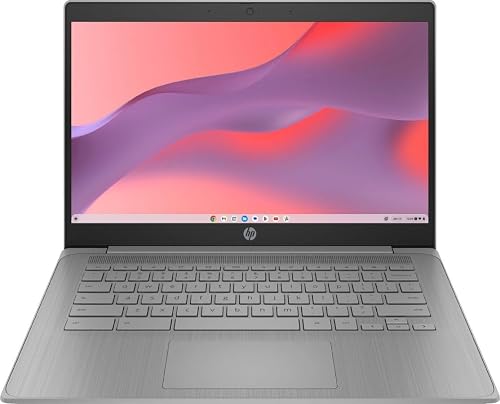 | Best Budget Chromebook | Screen Size: 14-inch | Display Resolution: 1366 x 768 | RAM: 4 GB | VIEW LATEST PRICE | Read Our Analysis |
| ASUS Chromebook CX1 15.6″ FHD Intel Celeron (CX1500CKA-SS48F) | 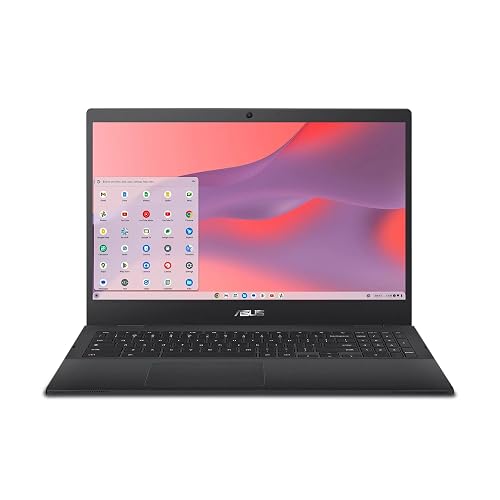 | Best Big Screen Pick | Screen Size: 15.6-inch | Display Resolution: 1920 x 1080 | RAM: 4 GB | VIEW LATEST PRICE | Read Our Analysis |
| HP 14″ HD Laptop Windows 11 (Renewed) | 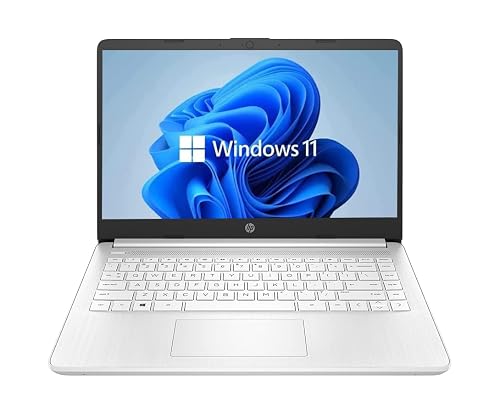 | Best Windows Budget | Screen Size: 14-inch | Display Resolution: 1366 x 768 | RAM: 4 GB | VIEW LATEST PRICE | Read Our Analysis |
| Acer Chromebook 315 Laptop (CB315-4H-C8XU) | 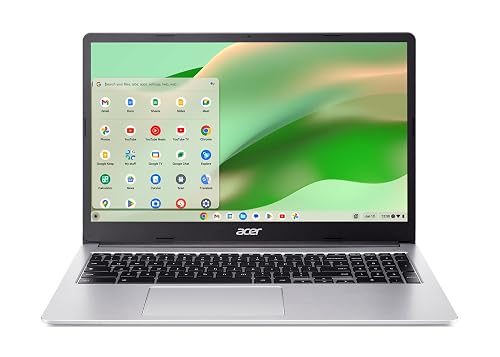 | Best for Students | Screen Size: 15.6-inch | Display Resolution: 1920 x 1080 | RAM: 4 GB | VIEW LATEST PRICE | Read Our Analysis |
| HP 14 Laptop with Intel Celeron N4020 (14-dq0010nr) | 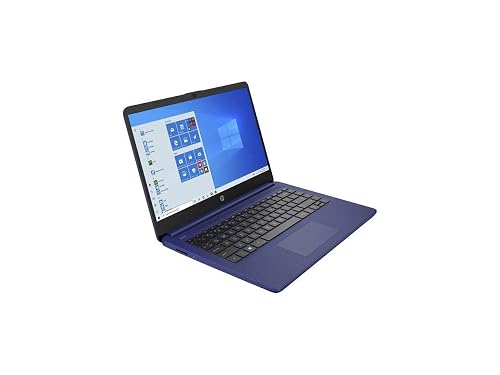 | Best Value Laptop | Screen Size: 14-inch | Display Resolution: 1366 x 768 | RAM: 4 GB | VIEW LATEST PRICE | Read Our Analysis |
More Details on Our Top Picks
HP 2023 Chromebook Laptop 14 Inch Display
If you want a budget laptop that keeps things simple without feeling bare-bones, the HP 2023 Chromebook with a 14-inch display is a smart pick for you. Its Intel Celeron N4120 chip, 4 GB RAM, and Chrome OS handle docs, browsing, streaming, and light gaming with ease. You get a lightweight 3.4-pound body, a backlit keyboard, WiFi 5, Bluetooth 5.0, USB-C, HDMI, and two USB-A ports. The 64 GB eMMC storage keeps files moving fast, and the 35 Wh battery helps you stay productive on the go.
- Screen Size:14-inch
- Display Resolution:1366 x 768
- RAM:4 GB
- Storage:64 GB eMMC
- Operating System:Chrome OS
- Wi-Fi:WiFi 5
- Additional Feature:Backlit QWERTY keyboard
- Additional Feature:Bluetooth 5.0
- Additional Feature:HDMI port
ASUS Chromebook CX1 15.6″ FHD Intel Celeron (CX1500CKA-SS48F)
The ASUS Chromebook CX1 15.6″ FHD Intel Celeron (CX1500CKA-SS48F) is a smart pick when you want a large screen, straightforward ChromeOS use, and a price that will not sting. It features a 15.6-inch FHD NanoEdge display with slim bezels, so videos and tabs feel roomy. The Intel Celeron N4500, 4 GB of RAM, and 128 GB eMMC handle everyday browsing, documents, and streaming without drama. Wi-Fi 6, Bluetooth 5.2, and four USB ports make setup easy. The 180-degree hinge, MIL-STD 810H build, and up to 11 hours of battery life help you stay relaxed all day.
- Screen Size:15.6-inch
- Display Resolution:1920 x 1080
- RAM:4 GB
- Storage:128 GB eMMC
- Operating System:ChromeOS
- Wi-Fi:Wi-Fi 6
- Additional Feature:Military Grade durability
- Additional Feature:180° lay-flat hinge
- Additional Feature:Chat with Gemini
HP 14″ HD Laptop Windows 11 (Renewed)
HP’s 14-inch renewed laptop is a practical, low-cost Windows 11 option for everyday use. It features a 14-inch HD BrightView screen, so emails, classes, and streaming look clear enough. The Intel Celeron dual-core processor, 4 GB of RAM, and 64 GB SSD handle web browsing and simple productivity tasks without much fuss. You can connect peripherals via USB Type-C, USB Type-A, and an SD card reader. Wi-Fi, Bluetooth, and the HP webcam keep you connected, while Intel integrated graphics provide basic display performance.
- Screen Size:14-inch
- Display Resolution:1366 x 768
- RAM:4 GB
- Storage:64 GB SSD
- Operating System:Windows 11
- Wi-Fi:802.11ac
- Additional Feature:SD card reader
- Additional Feature:Windows 11
- Additional Feature:Integrated webcam
Acer Chromebook 315 Laptop (CB315-4H-C8XU)
Acer’s Chromebook 315 is a smart pick when budget matters most. It offers a roomy 15.6-inch Full HD screen, a simple Chrome OS setup, and enough everyday speed for schoolwork, web browsing, email, and streaming without making your wallet wince. The Intel Celeron N4500, 4 GB of RAM, and 64 GB of storage handle light tasks well. You also get Wi-Fi 6, two USB-C ports, HDMI, and a comfortable OceanGlass touchpad. Plus, the 10-hour battery helps you stay unplugged longer.
- Screen Size:15.6-inch
- Display Resolution:1920 x 1080
- RAM:4 GB
- Storage:64 GB eMMC
- Operating System:Chrome OS
- Wi-Fi:Wi-Fi 6
- Additional Feature:10-hour battery life
- Additional Feature:Dual built-in microphones
- Additional Feature:OceanGlass touchpad
HP 14 Laptop with Intel Celeron N4020 (14-dq0010nr)
With its low price, light 3.2-pound build, and straightforward Windows 11 setup, the HP 14 Laptop with Intel Celeron N4020 is a practical choice for school, email, web browsing, and streaming. It includes 4 GB of RAM, 64 GB of eMMC storage, and Intel UHD Graphics 600, so everyday tasks run smoothly but not exceptionally. The 14-inch HD screen, full-size keyboard, and responsive touchpad make daily use comfortable. Wi-Fi 5, Bluetooth 4.2, three USB ports, an HDMI output, and long battery life help you stay connected throughout the day.
- Screen Size:14-inch
- Display Resolution:1366 x 768
- RAM:4 GB
- Storage:64 GB eMMC
- Operating System:Windows 11 Home
- Wi-Fi:Wi-Fi 5
- Additional Feature:11.5-hour battery life
- Additional Feature:Microsoft 365 included
- Additional Feature:HP True Vision camera
Factors to Consider When Choosing Intel Celeron Laptops
When choosing an Intel Celeron laptop, start with processor performance because it determines how smoothly your apps run. Next, check RAM and storage, display quality, battery life, and port selection so the laptop fits your daily routine without unexpected tradeoffs. A smart choice here can prevent ending up with a slow machine that looks cheap and becomes frustrating quickly.
Processor Performance
Processor performance is one of the biggest things to check, because it shapes how smooth your Celeron laptop feels day to day. You will notice the biggest gap between dual-core and four-core chips. Dual-core models work fine for browsing, email, and documents, while four-core versions usually keep things calmer when you switch between apps. Base speeds near 1.1 GHz are common, so do not expect speed magic. Turbo boosts around 2.6 GHz to 2.8 GHz can help quick tasks feel snappier. Newer Celeron designs also tend to run more efficiently than older ones at similar speeds. The integrated graphics are best for streaming, light games, and simple media, not heavy creative work.
RAM and Storage
Storage matters just as much. Many budget models offer 64 GB eMMC or 128 GB eMMC, so check how much room you need for files, apps, and offline content. eMMC is smaller and less expandable than SSD storage, so it can fill up quickly. If you save photos, downloads, or media, 128 GB will feel far less cramped.
Display Quality
Display quality can make or break your daily experience, even on a budget Intel Celeron laptop. Look for Full HD 1920 × 1080 if you read, stream, or work with lots of text, because 1366 × 768 screens can feel cramped and blurry. Size matters too; a 14-inch screen can feel sharper and is easier to carry, while a 15.6-inch panel gives you more room to spread out. IPS panels usually provide better color and wider viewing angles than basic LED screens. Also check color range, because a limited 45% gamut can make photos and videos look dull. Finally, choose an anti-glare or brighter display, since glossy screens reflect light and can become annoying quickly.
Battery Life
Battery life matters just as much as screen quality when you pick an Intel Celeron laptop, because a bright, nice-looking panel will not help much if you are hunting for a charger by midafternoon. You will usually see runtimes around 10 to 11.5 hours, and that range gives a solid clue about all-day portability. Look for batteries around 41 Wh, 42 Wh, or 48 Wh, since bigger packs often last longer between charges. Still, real results depend on brightness and workload. If you mostly browse, write documents, or stream, you will drain power more slowly than with heavy multitasking. Compact laptops with efficient parts and low-power displays can stretch every charge further, so compare both the watt-hour rating and the claimed runtime before you decide.
Port Selection
A smart port mix can save you a lot of hassle, especially when you use your laptop every day for class, work, or travel. Check for the ports you actually need, like USB Type-C, USB Type-A, HDMI, and a headphone jack, so you can plug in gear without hunting for adapters. Aim for at least two USB ports plus video output; that helps you connect a monitor, keyboard, mouse, printer, or storage drive with less fuss. If you want to use external displays, make sure the laptop has HDMI or DisplayPort, and verify whether USB-C can send video too. More USB ports also help when one port handles charging. Finally, strong Wi-Fi and Bluetooth can cut down on cable use.
Portability and Weight
Once you’ve checked the ports, consider how easy the laptop is to carry every day. If you commute, move between classes, or travel often, aim for a model around 3.2 to 3.5 pounds. That range feels much kinder on your shoulder and your backpack. A slim body about 12.8 x 8.9 x 0.7 inches also slips into smaller bags without a fight. If you want a larger 15.6-inch screen, expect more bulk and a weight closer to 4 pounds. That extra size can be fine at a desk, but less convenient on the move. A thinner build under 0.8 inches, and a lighter 35 Wh to 48 Wh battery, can also help keep the laptop easy to carry.
Operating System
The operating system shapes what you can do with a Celeron laptop, so match it to your real day-to-day needs. If you mostly browse, stream, or take online classes, Chrome OS can feel fast and easy. It boots quickly, updates on its own, and leans on cloud storage, which keeps things simple. Windows 11, by contrast, gives you wider access to desktop apps, office tools, and many peripherals, but it requires more power. That matters on a modest Celeron chip. Think about what you will use most. If you need long-term flexibility, check update support and the apps you expect to use later, because a smart OS choice prevents feeling boxed in down the line.
Frequently Asked Questions
Do Intel Celeron Laptops Support Light Gaming Well?
Not really; you will get only light gaming on Intel Celeron laptops. Even then it will be mostly older titles, indie games, and browser games. Expect low settings, modest frame rates, and limited multitasking.
How Long Do Celeron Laptop Batteries Usually Last?
You can usually expect 5 to 10 hours from a Celeron laptop battery, and power-saving settings can extend that. I have seen models reach about 8 hours in web browsing tests, though screen brightness and workload reduce that.
Can I Upgrade RAM on Budget Celeron Laptops?
Yes, you can sometimes upgrade the RAM on budget Celeron laptops, but you must check the specific model first. Many have RAM soldered onboard, while others provide a single removable slot. Always verify the specifications before purchasing.
Are Intel Celeron Laptops Good for Video Streaming?
You can test the idea, and yes, Intel Celeron laptops can stream video adequately for casual use. You will get smooth playback on basic HD, but do not expect strong performance with multiple tabs open or with 4K content.
Which Celeron Laptop Is Best for Students?
You’ll usually do best with a Celeron laptop that has 8 GB of RAM, a fast SSD, and a 14-inch screen. Choose Acer Aspire or Lenovo IdeaPad models, as they will handle note taking, web browsing, and online classes well.




