


If your laptop slows down at the worst time, the right network adapter can fix the problem quickly.
In 2026, you have strong choices, from the Wavlink USB-C to 2.5G Ethernet Adapter for fast wired performance, to the OWC Thunderbolt 4 10G model for serious bandwidth.
You should also consider hubs, splitters, and WiFi 6 options that match your ports and setup, because the best pick is not always the fastest one.
| Wavlink USB-C to 2.5G Ethernet Adapter | 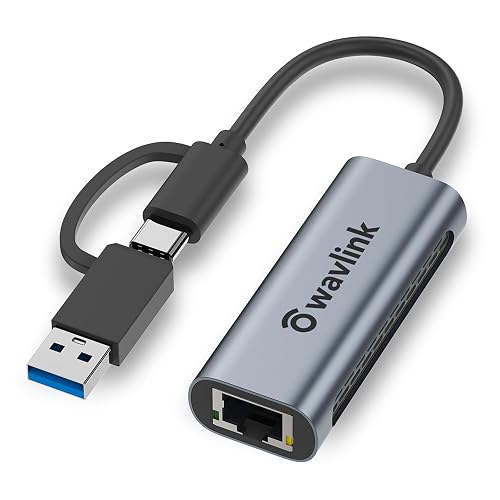 | Best 2.5GbE | Connection Type: USB-C to RJ45 | Network Speed: 2.5Gbps | Port Count: 1 port | VIEW LATEST PRICE | Read Our Analysis |
| Acer USB-C Ethernet Adapter with 3 USB 3.0 Ports |  | Best USB Hub | Connection Type: USB-C/USB-A to RJ45 | Network Speed: 1Gbps | Port Count: 4 ports | VIEW LATEST PRICE | Read Our Analysis |
| ALL-LUCKY USB-C to Ethernet Adapter Hub | 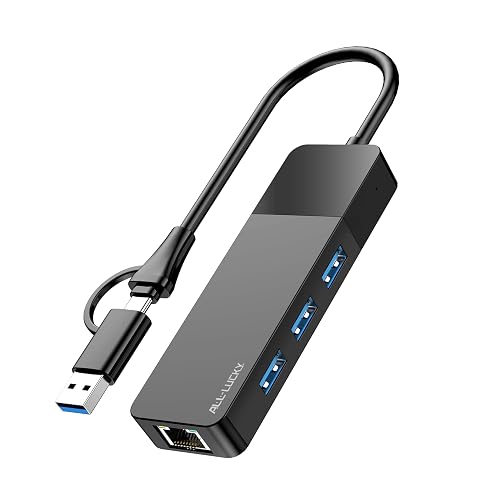 | Budget-Friendly Hub | Connection Type: USB-C/USB-A to RJ45 | Network Speed: 1Gbps | Port Count: 4 ports | VIEW LATEST PRICE | Read Our Analysis |
| VCELINK 1-to-2 Ethernet Splitter with USB Power | 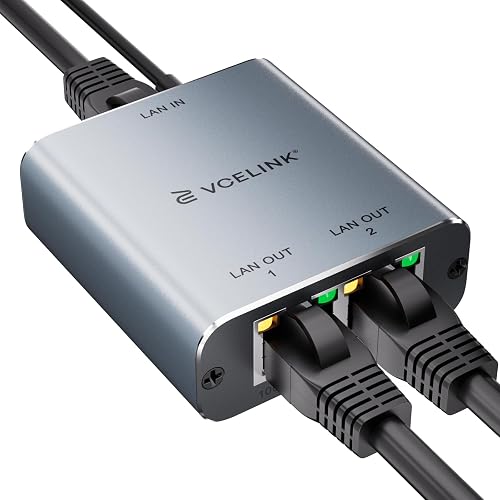 | Best Ethernet Splitter | Connection Type: RJ45 splitter | Network Speed: 1Gbps | Port Count: 2 ports | VIEW LATEST PRICE | Read Our Analysis |
| Ankky RJ45 Ethernet Splitter 1 to 3 | 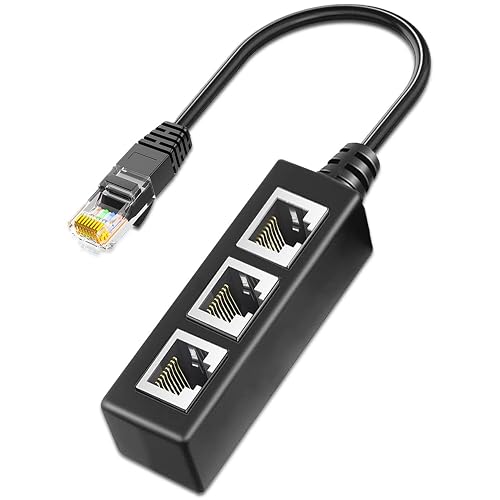 | Best Splitter Cable | Connection Type: RJ45 splitter | Network Speed: 1Gbps | Port Count: 3 ports | VIEW LATEST PRICE | Read Our Analysis |
| WiFi 6 USB Adapter for Desktop PC | 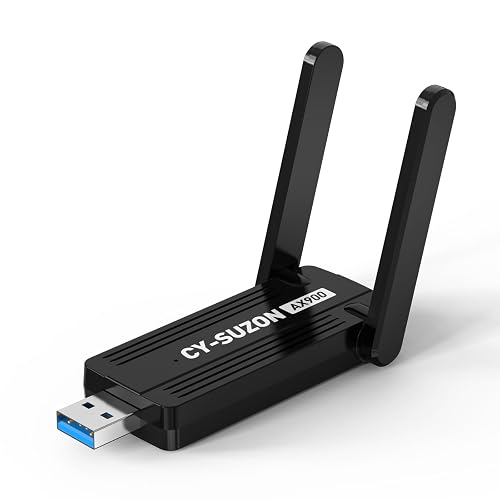 | Best WiFi Option | Connection Type: USB WiFi | Network Speed: 900Mbps | Port Count: 1 port | VIEW LATEST PRICE | Read Our Analysis |
| OWC Thunderbolt 4 10G Ethernet Adapter | 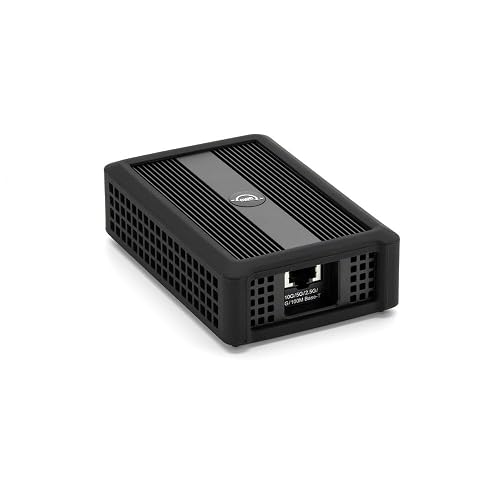 | Professional Grade | Connection Type: Thunderbolt 4 to RJ45 | Network Speed: 10Gbps | Port Count: 1 port | VIEW LATEST PRICE | Read Our Analysis |
More Details on Our Top Picks
Wavlink USB-C to 2.5G Ethernet Adapter
The Wavlink USB-C to 2.5G Ethernet Adapter is a smart choice if you want faster, steadier wired internet without making your setup messy. It delivers up to 2.5 Gbps speeds, so downloads, video calls, and streaming feel smooth. It works with USB-C and USB-A and fits many laptops, tablets, and desktops. Because it is compatible with Thunderbolt 4 and Thunderbolt 3, you can plug in with confidence. The aluminum shell feels solid, stays cool, and resists fingerprints. LEDs provide clear activity and connection status.
- Connection Type:USB-C to RJ45
- Network Speed:2.5Gbps
- Port Count:1 port
- Wireless Support:No
- OS Compatibility:Windows/macOS/Linux/Chrome OS/iPadOS
- Plug-and-Play:Driver may be needed
- Additional Feature:2.5Gbps Ethernet
- Additional Feature:Aluminum anti-fingerprint shell
- Additional Feature:Ventilation heat dissipation
Acer USB-C Ethernet Adapter with 3 USB 3.0 Ports
Acer’s USB-C Ethernet Adapter with 3 USB 3.0 Ports is a compact hub that reduces clutter on a crowded laptop setup while maintaining a stable connection. It includes a Gigabit Ethernet port and three USB-A 3.0 ports, all of which can be used simultaneously. You can connect a keyboard, mouse, and flash drive while remaining on a wired network. The adapter supports USB-C and USB-A devices, and setup is plug and play on Windows, macOS, Linux, Chrome OS, and Android. Its slim aluminum body also aids heat dissipation.
- Connection Type:USB-C/USB-A to RJ45
- Network Speed:1Gbps
- Port Count:4 ports
- Wireless Support:No
- OS Compatibility:Windows/macOS/Linux/Chrome OS/Android
- Plug-and-Play:Yes
- Additional Feature:3 USB 3.0 ports
- Additional Feature:Dual USB connectors
- Additional Feature:No PD charging
ALL-LUCKY USB-C to Ethernet Adapter Hub
Built for users who want a simple wired boost, the ALL-LUCKY USB-C to Ethernet Adapter Hub is ideal when you need a compact hub that keeps your laptop connected while leaving room for other gear. It offers three USB 3.0 ports and one Gigabit Ethernet port in a small black ABS body. The hub works with USB-C and USB-A, so you can switch between devices quickly. You get up to 5 Gbps data transfer and 1000 Mbps networking. It is plug and play and supports Windows, Mac, iPad OS, and Chrome OS. It does not support device charging.
- Connection Type:USB-C/USB-A to RJ45
- Network Speed:1Gbps
- Port Count:4 ports
- Wireless Support:No
- OS Compatibility:Windows/macOS/iPadOS/Chrome OS
- Plug-and-Play:Yes
- Additional Feature:4-in-1 hub
- Additional Feature:900mA max output
- Additional Feature:ABS enclosure
VCELINK 1-to-2 Ethernet Splitter with USB Power
VCELINK’s 1-to-2 Ethernet Splitter with USB power is a practical choice when you need to share one wired connection between two devices without creating a cable tangle. Plug it in, connect USB power, and you are ready quickly. It expands a single RJ45 port into two, so you can run a laptop and a printer, or a PS5 and a smart TV, simultaneously. Each line supports up to 1000 Mbps, and the aluminum housing reduces EMI and RFI. Six LEDs display status clearly, keeping you informed.
- Connection Type:RJ45 splitter
- Network Speed:1Gbps
- Port Count:2 ports
- Wireless Support:No
- OS Compatibility:Universal
- Plug-and-Play:Yes
- Additional Feature:2-device simultaneous use
- Additional Feature:EMI/RFI blocking
- Additional Feature:6 status lights
Ankky RJ45 Ethernet Splitter 1 to 3
The Ankky RJ45 Ethernet Splitter 1 to 3 is a practical choice if you frequently run out of LAN ports and want to reduce cable swapping in a laptop setup. It provides one RJ45 plug and three sockets, so you can switch between three devices without rewiring each time. The splitter uses an 8P8C, 8-pin design, is compatible with Cat5 through Cat8, and supports speeds up to 1 Gbps. Use it in pairs, with only one device active at a time. The 7-inch black cable has a tidy appearance, and the adapter-only construction keeps setup simple.
- Connection Type:RJ45 splitter
- Network Speed:1Gbps
- Port Count:3 ports
- Wireless Support:No
- OS Compatibility:Universal
- Plug-and-Play:No driver
- Additional Feature:Alternating 3-device use
- Additional Feature:7-inch cable
- Additional Feature:PCB board inside
WiFi 6 USB Adapter for Desktop PC
If you need an easy way to add fast WiFi 6 to a desktop PC, the CY-SUZON AX900 USB WiFi Adapter is a good choice, especially when your computer is too far from the router for a weak built-in card to keep up. Plug it into a USB 2.0 port, install the included driver, and get online quickly on Windows 11, 10, or 7. It supports the 5 GHz and 2.4 GHz bands, with up to 600 Mbps and 286 Mbps speeds. OFDMA and MU-MIMO help smooth streaming, gaming, and calls. Two antennas improve range, and WPA3 keeps your connection more secure.
- Connection Type:USB WiFi
- Network Speed:900Mbps
- Port Count:1 port
- Wireless Support:Yes, WiFi 6
- OS Compatibility:Windows only
- Plug-and-Play:Built-in driver
- Additional Feature:Dual high-gain antennas
- Additional Feature:WPA3 security
- Additional Feature:Built-in driver
OWC Thunderbolt 4 10G Ethernet Adapter
OWC’s Thunderbolt 4 10G Ethernet Adapter is a strong choice for laptop users who need reliable, high-speed wired networking, especially when moving large files, editing video, or streaming. It supports Thunderbolt 4, so you can connect it to a Mac or Windows laptop with a Thunderbolt port and get a stable 10Gb/s Ethernet connection. It also negotiates down to 5G, 2.5G, 1G, and 100Mb/s. In real use you can see sustained transfers above 900 MB/s, and it supports Wake-on-LAN and AVB. The included 0.3 m cable keeps your setup tidy.
- Connection Type:Thunderbolt 4 to RJ45
- Network Speed:10Gbps
- Port Count:1 port
- Wireless Support:No
- OS Compatibility:Windows 11/macOS
- Plug-and-Play:Yes
- Additional Feature:10Gbps Ethernet
- Additional Feature:Wake-on-LAN ready
- Additional Feature:AVB ready
Factors to Consider When Choosing Laptop Network Adapters
When choosing a laptop network adapter, start with the speed you actually need, because a fast adapter will not help much if your setup cannot use it. Also check port type compatibility, device and operating system support, and decide whether you want wired stability or wireless freedom. Finally, consider build quality and portability, so you get an adapter that feels sturdy, travels well, and fits your daily routine.
Connection Speed Needs
Connection speed needs should guide your choice immediately, because the best adapter is the one that matches your actual network use. If you mostly browse, stream, or join video calls, a 1 Gbps adapter usually works well and keeps things simple. If you transfer large files, edit video, or run fast backups, stepping up to 2.5 Gbps or 10 Gbps can save significant time. Remember that speed only helps when your router, switch, and cables can match it. A 1 Gbps network will cap a faster adapter at 1 Gbps. For higher speeds, Cat5e often supports 2.5 Gbps, Cat6 supports 5 Gbps, and Cat6a handles 10 Gbps. That way you buy once and save yourself future upgrades.
Port Type Compatibility
Port type compatibility can make or break your choice, even if the speed looks perfect on paper. First, match the adapter’s host connector to your laptop’s port, such as USB-C, USB-A, or Thunderbolt. If you move between new and older laptops, look for adapters that support both USB-C and USB-A hosts. Next, check the network jack on the adapter. Most laptop network adapters use an RJ45 Ethernet port, and that is the part that actually meets your cable. Also confirm the design fits your goal. Some adapters plug straight into your laptop, while others expand an existing Ethernet port; those layouts are not swappable. If you use a Thunderbolt laptop, make sure Thunderbolt is listed, or you may miss full support.
Device and OS Support
Even with the right speed and cable type, a laptop network adapter can still fall short if your device or operating system does not match it. Check the port first, because USB-C, USB-A, and Thunderbolt models do not all fit the same gear. Then confirm OS support. Some adapters work with Windows 7, 10, and 11, while others also support macOS, Linux, Chrome OS, iPadOS, or Android. If you use older systems, look for driver needs, since plug-and-play is not always the rule. Also verify the stated minimum version, like Windows 10 or 11, so setup will not get awkward later. If you want one adapter for laptops and a tablet too, make sure it supports both. That small check can save you a lot of setup stress.
Wired Versus Wireless
Now that you know your laptop supports the adapter type, the next big choice is whether you want wired or wireless. Wired Ethernet gives you a direct RJ45 link, so you get steadier speed and lower lag. That matters when you move big files, join video calls, game, or stream without hiccups. Many wired models deliver 1 Gbps or 2.5 Gbps, and some reach 10 Gbps, so you can feel the difference fast. Wireless adapters, on the other hand, free you from cables and make travel easier. Still, their speed can swing with signal strength, distance, interference, and router quality. If you want the most dependable connection, pick wired. If you value mobility and a cleaner setup, wireless fits better.
Build Quality And Portability
What should you check first when you want a laptop network adapter that can keep up with real life? Start with the shell. Aluminum alloy or anti-fingerprint metal feels solid, resists wear, and helps move heat away during long sessions. Then consider size and weight; a compact adapter around 60 g or less slips into your bag without drama. Slim, low-profile bodies also sit neatly on tight desks, in airports, and on mobile workstations, so they will not elbow your other gear. Next, check for ventilation holes or other cooling details, since they help prevent heat buildup and support steadier performance. Finally, built-in status LEDs give you quick activity checks at a glance, which is useful when you are moving fast and do not want extra fuss.
Driver And Setup Requirements
Before you buy a laptop network adapter, check the setup path first, because a fast connection can still turn into a headache if the device does not match your system. Look for plug-and-play support first, since built-in drivers save time when you move between computers. Next, check the operating system list, because Windows, macOS, Linux, Chrome OS, and iPadOS can all behave differently, and older systems may need manual driver installs. Also match the port type to your laptop, whether it uses USB 2.0, USB 3.0, USB-C, or Thunderbolt, so you do not bottleneck speed or block use. If the adapter adds Ethernet or extra USB ports, confirm those features work without extra software. This simple check keeps setup smooth and preserves your peace of mind.
Frequently Asked Questions
Which Adapter Works Best for Gaming Latency?
You will get the lowest gaming latency with a wired Ethernet adapter, ideally USB-C to gigabit or 2.5GbE. If you need Wi-Fi, choose Wi-Fi 6E or Wi-Fi 7, and use strong drivers with explicit low-latency support.
Do These Adapters Support macOS and Windows?
Yes. Many adapters support both macOS and Windows, but you should always verify the specific model’s driver compatibility first, because some adapters perform better on one system than the other.
Can I Use One Adapter With a USB-C Hub?
Yes. You can use a single adapter with a USB-C hub if the hub supports data passthrough and provides sufficient power. For best results, plug the adapter directly into the hub’s USB-C port.
How Do I Know if My Laptop Supports 2.5g Speeds?
You can confirm 2.5G support by checking the labeling on your laptop Ethernet port, network adapter, or USB-C hub for 2.5GbE, and ensuring your router also supports 2.5G. Check Device Manager or system information for the adapter model and supported link speeds. Finally, connect to the 2.5G network and run a speed test to verify throughput.
Are Network Adapters Compatible With Older Laptops?
Yes, you can usually use network adapters with older laptops if they match your ports or have compatible drivers. You will need USB, Ethernet, or Wi Fi support, and you may encounter slower speeds or require extra setup.




