


If you’ve ever felt lost in a sea of monitor specs, 2026 may be your lucky year, because the best IPS LCD picks now make sharp visuals, rich color, and easy setup feel almost unfairly simple.
You can lean toward the Acer Nitro 27″ for fast gaming, the Dell 27 Plus 4K for crisp work, or a solid 24-inch budget model for daily use.
Compact 7-inch touch screens keep small projects neat and flexible.
| Acer Nitro 27″ QHD IPS Gaming Monitor (KG271U) | 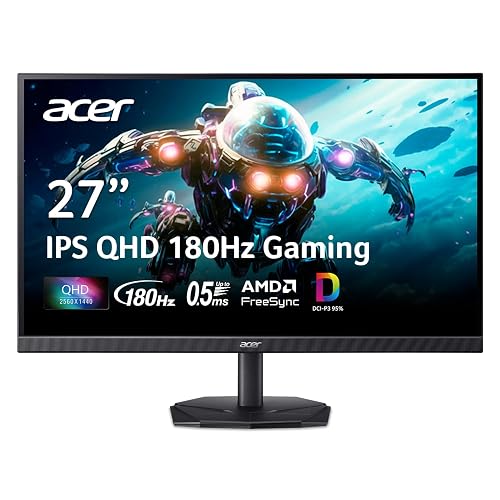 | Best Gaming Pick | Screen Size: 27-inch | Resolution: QHD 2560 x 1440 | Refresh Rate: 180Hz | VIEW LATEST PRICE | Read Our Analysis |
| Dell 27 Plus 4K Monitor (S2725QS) | 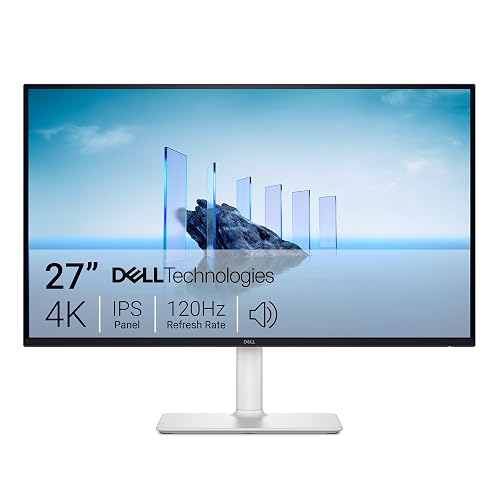 | Best 4K Option | Screen Size: 27-inch | Resolution: 4K 3840 x 2160 | Refresh Rate: 120Hz | VIEW LATEST PRICE | Read Our Analysis |
| Amazon Basics 24-inch Full HD IPS Monitor | 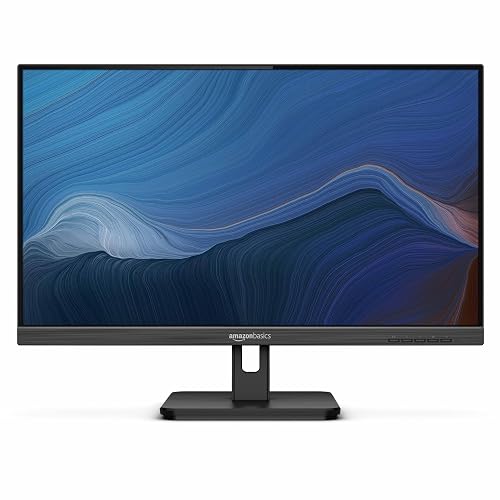 | Best Budget Pick | Screen Size: 24-inch | Resolution: Full HD 1920 x 1080 | Refresh Rate: 75Hz | VIEW LATEST PRICE | Read Our Analysis |
| Hosyond 7 Inch IPS LCD Touch Screen Monitor | 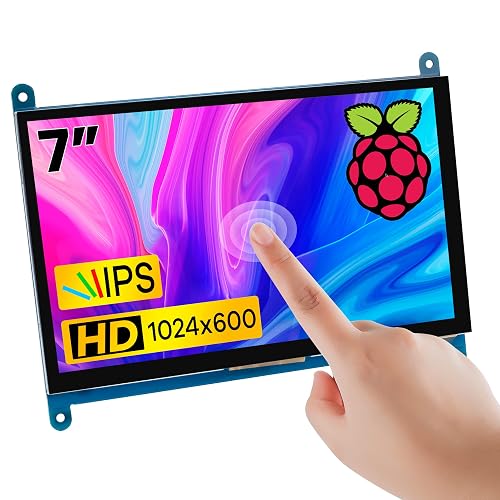 | Best Portable Display | Screen Size: 7-inch | Resolution: 1024 x 600 | Refresh Rate: 60Hz | VIEW LATEST PRICE | Read Our Analysis |
| Hosyond 7 Inch IPS Touchscreen Raspberry Pi Monitor | 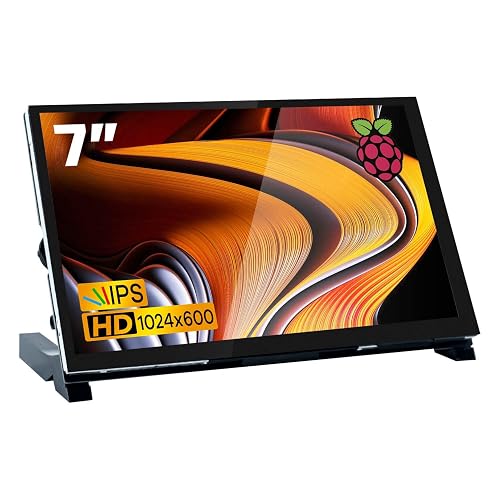 | Best Pi Monitor | Screen Size: 7-inch | Resolution: 1024 x 600 | Refresh Rate: 60Hz | VIEW LATEST PRICE | Read Our Analysis |
| ELECROW 7 Inch Touchscreen Monitor for Raspberry Pi |  | Best DIY Screen | Screen Size: 7-inch | Resolution: 1024 x 600 | Refresh Rate: 60Hz | VIEW LATEST PRICE | Read Our Analysis |
| ASUS VP229Q 21.5″ Full HD IPS Monitor | 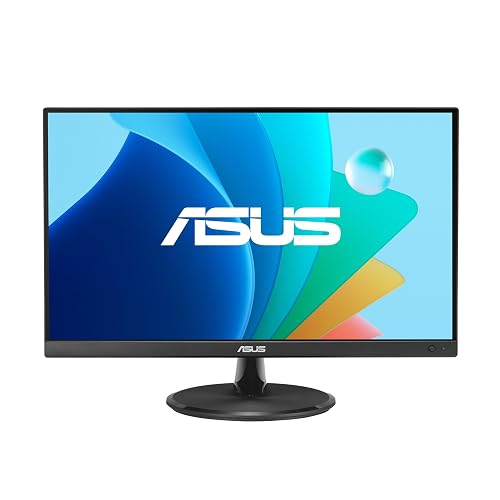 | Best Eye Care | Screen Size: 21.5-inch | Resolution: Full HD 1920 x 1080 | Refresh Rate: 75Hz | VIEW LATEST PRICE | Read Our Analysis |
More Details on Our Top Picks
Acer Nitro 27″ QHD IPS Gaming Monitor (KG271U)
The Acer Nitro 27″ QHD IPS Gaming Monitor (KG271U) is a strong choice for both work and play. Its 27-inch IPS panel delivers sharp QHD 2560 x 1440 detail, wide 178° viewing angles, and rich DCI-P3 95% color coverage. You also get HDR10 support, a matte finish, and a zero-frame design that keeps the focus on the image. For gaming, AMD FreeSync, up to 180 Hz, and 0.5 ms GTG help provide smoother motion with less tearing and lag. The DisplayPort, two HDMI ports, built-in speakers, tilt adjustment, and wall-mount option make setup straightforward.
- Screen Size:27-inch
- Resolution:QHD 2560 x 1440
- Refresh Rate:180Hz
- Touchscreen:No
- Built-in Audio:Yes
- VESA Mount:Yes
- Additional Feature:AMD FreeSync
- Additional Feature:180Hz overclocked refresh
- Additional Feature:HDR 10 support
Dell 27 Plus 4K Monitor (S2725QS)
If you want a sharp screen that works well for both work and play, the Dell 27 Plus 4K Monitor (S2725QS) is a strong pick. It pairs a 27-inch IPS panel with 4K resolution and a 120 Hz refresh rate, so you get crisp detail and smooth motion in one clean package. You will also get 99% sRGB color, HDR readiness, FreeSync Premium, and Adaptive Sync for calmer, richer visuals. ComfortView Plus and an anti-glare coating help during long sessions. The slim Ash White design, integrated speakers, and HDMI and DisplayPort inputs keep your desk tidy and easy to use.
- Screen Size:27-inch
- Resolution:4K 3840 x 2160
- Refresh Rate:120Hz
- Touchscreen:No
- Built-in Audio:Yes
- VESA Mount:Yes
- Additional Feature:4K UHD resolution
- Additional Feature:1500:1 contrast
- Additional Feature:ComfortView Plus
Amazon Basics 24-inch Full HD IPS Monitor
Amazon Basics 24-inch Full HD IPS Monitor is a solid choice for users who want a sharp, spacious screen without a high price. It offers 1920 x 1080 resolution, wide 178° viewing angles, and a 75 Hz refresh rate that delivers smooth performance for gaming and everyday tasks. Because it uses IPS LCD technology, colors remain accurate when you change viewing position. Connectivity includes HDMI, VGA, DisplayPort, USB, and an audio jack, so setup is straightforward. The adjustable stand, VESA compatibility, and built-in speakers help get your workspace ready quickly.
- Screen Size:24-inch
- Resolution:Full HD 1920 x 1080
- Refresh Rate:75Hz
- Touchscreen:No
- Built-in Audio:Yes
- VESA Mount:Yes
- Additional Feature:4 USB 3.2 ports
- Additional Feature:Adjustable stand
- Additional Feature:Energy Star certified
Hosyond 7 Inch IPS LCD Touch Screen Monitor
Hosyond’s 7 Inch IPS LCD Touch Screen Monitor is a practical choice for anyone who wants a compact display that is easy to use immediately, especially if you work with a Raspberry Pi, need a portable second screen, or want simple touch control without complex setup. The 1024 × 600 IPS panel offers 178° viewing angles, accurate color, and 5-point capacitive touch. It connects via HDMI and USB, supports Windows and Linux, and runs on 5 V power. Backlight control lets you reduce power use when needed.
- Screen Size:7-inch
- Resolution:1024 x 600
- Refresh Rate:60Hz
- Touchscreen:Yes
- Built-in Audio:No
- VESA Mount:Yes
- Additional Feature:5-point capacitive touch
- Additional Feature:Raspberry Pi compatible
- Additional Feature:Plug-and-play setup
Hosyond 7 Inch IPS Touchscreen Raspberry Pi Monitor
The Hosyond 7 Inch IPS Touchscreen Raspberry Pi Monitor is a practical choice when you need a compact display that is easy to use immediately. It features a 7-inch IPS panel with 1024×600 resolution, 178 degree viewing, and a glossy finish that keeps images clear. Because it is compatible with Raspberry Pi 5, 4B, 3B+ and other boards, setup is straightforward. The capacitive five-point touch panel responds well and requires no drivers. HDMI, dual speakers, and a headphone jack provide flexible audio and display options for desk projects or tight spaces.
- Screen Size:7-inch
- Resolution:1024 x 600
- Refresh Rate:60Hz
- Touchscreen:Yes
- Built-in Audio:Yes
- VESA Mount:Yes
- Additional Feature:Tempered glass panel
- Additional Feature:Built-in stereo speakers
- Additional Feature:Brightness dial switch
ELECROW 7 Inch Touchscreen Monitor for Raspberry Pi
ELECROW’s 7-inch touchscreen monitor is a smart fit if you want a compact IPS LCD display that feels easy to use and still looks sharp. You get 1024×600 resolution, vivid color, and a 178° viewing angle, so images stay clear from most positions. It also uses tempered glass, which helps it handle daily wear.
Touch input feels smooth and responsive. You get 5-point capacitive touch on Windows, and reliable single-touch support on Raspberry Pi and Linux boards. HDMI and USB make setup simple, and dual speakers, a headphone jack, and adjustable volume add comfort.
- Screen Size:7-inch
- Resolution:1024 x 600
- Refresh Rate:60Hz
- Touchscreen:Yes
- Built-in Audio:Yes
- VESA Mount:Yes
- Additional Feature:Tempered glass panel
- Additional Feature:Adjustable backlight
- Additional Feature:Jetson Nano support
ASUS VP229Q 21.5″ Full HD IPS Monitor
Built for users who want a sharp everyday screen without paying for extras they may never use, the ASUS VP229Q 21.5-inch Full HD IPS monitor delivers a clean mix of comfort, clarity, and practical design. It offers 1920 x 1080 detail, wide 178-degree viewing, and a frameless look that keeps any desk tidy. A 75Hz refresh rate and Adaptive-Sync help motion stay smooth, so video and light gaming appear steadier. TÜV-certified flicker-free and low blue light features reduce eye strain, while HDMI, VGA, DisplayPort, and built-in speakers keep setup straightforward. VESA mounting and FreeSync support provide additional flexibility.
- Screen Size:21.5-inch
- Resolution:Full HD 1920 x 1080
- Refresh Rate:75Hz
- Touchscreen:No
- Built-in Audio:Yes
- VESA Mount:Yes
- Additional Feature:TÜV Rheinland certified
- Additional Feature:Low blue light
- Additional Feature:Rest reminder feature
Factors to Consider When Choosing IPS LCD Monitors
When choosing an IPS LCD monitor, begin with the screen size and resolution that suit your space and the way you work or play. Next, consider refresh rate and response time, so motion appears smooth. Also check color accuracy if accurate, lifelike images matter to you. These factors interact, so selecting the right combination will make your display more comfortable and more useful every day.
Screen Size Needs
Choosing the right screen size can make your IPS LCD monitor feel easy to use instead of crowded or awkward. Start by matching the display to your desk space and how far you sit from it. If you work close up or need a portable setup, a 7-inch screen can feel just right. For everyday use, gaming, or multitasking, 21.5-inch to 27-inch models provide more room to work. A 24-inch monitor often hits the sweet spot, it feels roomy without overpowering your desk. If you want more visible content and a more open feel, 27-inch screens can help a lot. Your choice also affects how comfortable the screen feels, so pick the size that fits your routine.
Resolution Clarity
A higher resolution has a major impact on the clarity of an IPS LCD monitor, especially on a 27-inch screen. Choosing 3840 × 2160 provides finer detail than 2560 × 1440 or 1920 × 1080 because more pixels fit into the same area. That greater density helps text, photos, and small icons appear clean instead of fuzzy. If you use the monitor for editing or multitasking, 2560 × 1440 is a practical middle ground. It delivers a significant improvement over 1080p while placing less demand on your system than 4K. Also compare resolution with screen size, since the same image looks crisper on a smaller panel. Always use the monitor’s native resolution, because software scaling cannot match the sharpness of the native hardware setting.
Refresh Rate
Refresh rate indicates how many times per second your IPS LCD monitor updates the image, and that number affects how smooth motion appears. Basic screens typically use 60 Hz, which is adequate for web browsing, office work, and video. A 75 Hz panel can provide slightly smoother scrolling and a more pleasant feel. For gaming, higher rates such as 120 Hz or 180 Hz make fast action look cleaner and feel more responsive. The difference is most noticeable in competitive games, action scenes, and rapid window movement. Ensure your monitor, cable, and device all support the chosen setting, otherwise you will not get the full benefit. Choose the rate that matches your typical daily use.
Response Time
Sharp motion starts with response time, and this is one spec you really do not want to skim past. It tells you how fast each pixel shifts color, and lower numbers usually mean less blur, trailing, and ghosting. If you game, watch videos, or move windows around a lot, aim for very low figures like 0.5 ms GTG, 0.03 ms, or at least around 10 ms, depending on how hard you push the screen. Faster response times also keep cursor movement and action scenes looking cleaner, especially with 120 Hz, 180 Hz, or even 75 Hz. IPS panels can still differ a lot here, so check the gray to gray spec, not just the panel label. If smooth motion matters, pick the lowest stated response time you can get.
Color Accuracy
After you check how fast an IPS monitor moves from one frame to the next, the next thing to evaluate is how accurately it reproduces color. Favor models with wide gamut coverage, such as 95% DCI-P3 or 99% sRGB, since they deliver richer, more precise tones. IPS panels also help because their 178° viewing angles keep colors steadier when you shift your seat or lean back. Next, look for a stronger contrast ratio; 1500:1 can separate shades better than 1000:1. A matte finish can preserve subtle detail in bright rooms by reducing glare. HDR can add brighter highlights and deeper shadows, but it will not compensate for weak gamut coverage or poor calibration.
Connectivity Options
Connectivity is the monitor’s handshake with your gear, so check it closely before you buy. First, match the ports to your devices. HDMI, DisplayPort, VGA or USB-C should cover most PCs, laptops and consoles, and the right match helps you avoid adapter clutter. Next, look at port variety. If you switch between work and play, extra inputs can save time and keep your setup tidy instead of messy. Then confirm the connection standard supports your target resolution and refresh rate, because some ports handle 1440p or 4K better than others. If you want sound through the display, check for built-in speakers or a 3.5 mm jack. Finally, USB ports and USB-B upstream can turn the monitor into a useful dock.
Ergonomic Adjustments
Ergonomic adjustments matter more than many people expect, because a monitor that feels wrong can wear you down fast. Start with tilt and a stable stand, so you can angle the screen without hunching forward. A wider tilt range, such as minus 5 degrees to 23 degrees, gives you better control over glare and neck strain. If you use two screens or share a desk, a space-saving or zero-frame design helps you place monitors closer together, which reduces neck turns. VESA support is useful too, because it lets you wall-mount the display and free up desk space. Finally, flicker reduction and low-blue-light modes can ease long sessions, especially when paired with smart screen placement.
Frequently Asked Questions
Which IPS LCD Monitor Has the Best Color Accuracy for Photo Editing?
For the best color accuracy, choose a wide-gamut IPS monitor with factory calibration, 99% Adobe RGB, and hardware calibration support. Aim for a Delta E under 2, then create a custom profile to match your workflow.
Are IPS LCD Monitors Better Than OLED for Long Office Use?
Like a marathon runner, IPS LCDs are often better for long office use because they are easier on the eyes, cost less, and avoid burn-in. OLED, however, offers richer contrast and deeper blacks.
Do IPS LCD Monitors Support Adaptive Sync for Smoother Gaming?
Yes, many IPS LCD monitors support Adaptive-Sync, including FreeSync and G-Sync Compatible, so you will get smoother gaming with less tearing and stutter. Check the exact model’s supported refresh range and port compatibility.
What Panel Size Is Ideal for Dual-Monitor Productivity Setups?
For dual-monitor productivity, choose 24 to 27 inches per screen; this balances text clarity, workspace, and desk space. If you sit farther back, consider 32 inches for better visibility.
How Often Should IPS LCD Monitors Be Calibrated for Accurate Colors?
Calibrate your IPS LCD monitor every month, or before any critical color work. If you print, edit photos, or notice color shifts, recalibrate sooner. Like a compass, your display drifts over time and needs periodic correction.




