


If your desk feels like a tangle of cables, a good dock can feel like a deep breath.
In 2026, you have strong choices for dual 4K screens, extra ports, and fast charging, from the reliable Dell WD19S to the powerful Plugable Thunderbolt 4 dock.
Some fit small setups, while others can handle a full workstation with ease.
The real question is simple: which one matches your laptop, your monitor setup, and your daily routine best?
| USB-C Laptop Docking Station Dual Monitor Adapter | 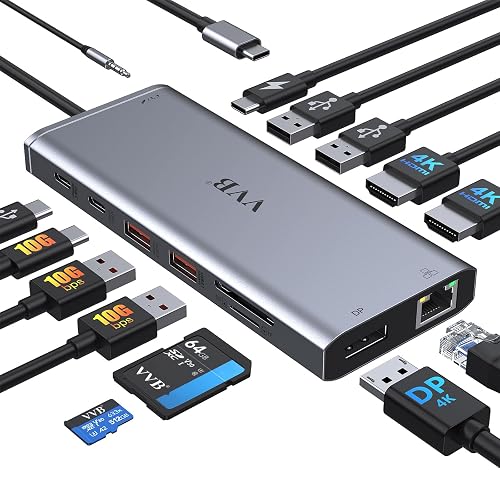 | Best Budget | USB-C Input: USB-C / Thunderbolt 3/4 | Display Support: Dual/triple display | HDMI Ports: 2 HDMI | VIEW LATEST PRICE | Read Our Analysis |
| Dell WD19S 180W USB-C Docking Station | 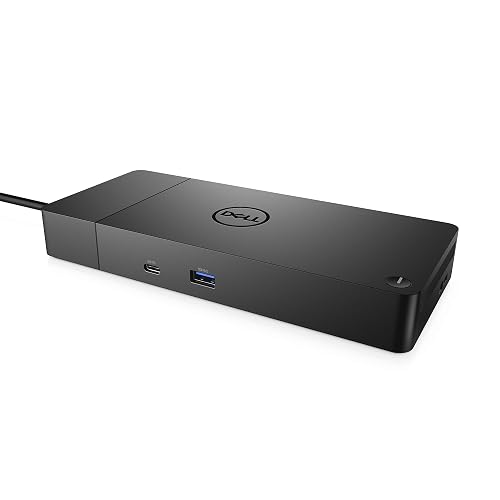 | Best For Dell | USB-C Input: USB-C | Display Support: Dual display | HDMI Ports: 2 HDMI | VIEW LATEST PRICE | Read Our Analysis |
| Baseus Spacemate 11-in-1 USB-C Docking Station |  | Best For Multitasking | USB-C Input: USB-C | Display Support: Triple display | HDMI Ports: 2 HDMI | VIEW LATEST PRICE | Read Our Analysis |
| Anker Prime 14-Port Docking Station with Dual 4K Displays | 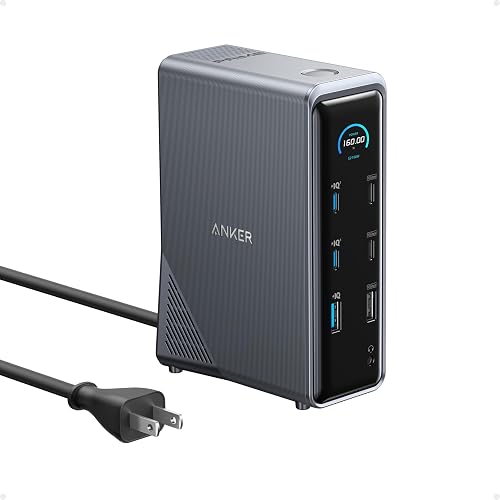 | Best Premium | USB-C Input: USB-C / USB4 / Thunderbolt | Display Support: Dual display | HDMI Ports: 2 HDMI | VIEW LATEST PRICE | Read Our Analysis |
| Plugable Thunderbolt 4 Dock with 100W Charging (TBT4-UD5) |  | Best Thunderbolt | USB-C Input: Thunderbolt 4 / USB4 | Display Support: Dual display | HDMI Ports: 2 HDMI | VIEW LATEST PRICE | Read Our Analysis |
| Dell Universal Dock D6000S for Three 4K Displays | 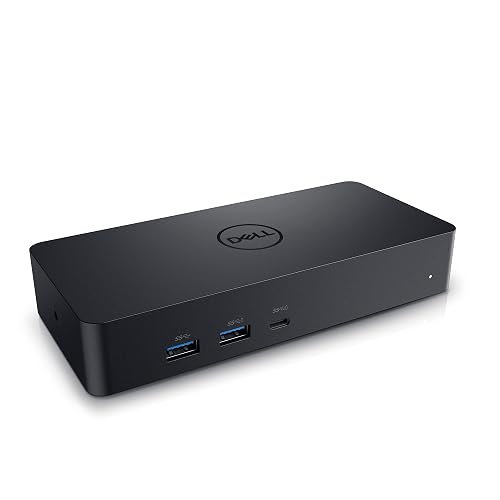 | Best Universal | USB-C Input: USB-C / USB-A | Display Support: Three 4K displays | HDMI Ports: 1 HDMI | VIEW LATEST PRICE | Read Our Analysis |
| Laptop Docking Station Stand with 8-in-1 USB-C Hub |  | Best Portable | USB-C Input: USB-C | Display Support: Single 4K display | HDMI Ports: 1 HDMI | VIEW LATEST PRICE | Read Our Analysis |
More Details on Our Top Picks
USB-C Laptop Docking Station Dual Monitor Adapter
If you work from a laptop that has only one USB-C port, the VVB 14-in-1 USB-C docking station can be a real lifesaver. Plug one cable into your USB-C or Thunderbolt 3 or 4 laptop and you quickly gain two HDMI ports, a DisplayPort, Ethernet, card readers, and five USB ports. On Windows, you can drive dual or triple monitors, with sharp 4K support on the main outputs. It also passes up to 87W of safe charging, so your desk stays cleaner and more organized.
- USB-C Input:USB-C / Thunderbolt 3/4
- Display Support:Dual/triple display
- HDMI Ports:2 HDMI
- Ethernet:Gigabit Ethernet
- Card Reader:SD / microSD
- Power Delivery:100W input / 87W output
- Additional Feature:Dual 4K monitor support
- Additional Feature:10Gbps data transfer
- Additional Feature:3.5mm audio jack
Dell WD19S 180W USB-C Docking Station
The Dell WD19S 180W USB-C Docking Station is a practical choice for users who want a clean setup for work, study, or home use, especially when connecting multiple displays without cable clutter. It supports USB-C, dual DisplayPort, and two HDMI ports, so your desk becomes more organized quickly. With 130W power delivery, it can keep compatible Dell laptops charged during use. It also provides six USB ports for accessories. The compact black design fits neatly, and the 1.28-pound weight makes it easy to move.
- USB-C Input:USB-C
- Display Support:Dual display
- HDMI Ports:2 HDMI
- Ethernet:Ethernet
- Card Reader:Not listed
- Power Delivery:130W PD
- Additional Feature:130W power delivery
- Additional Feature:Dual DisplayPort support
- Additional Feature:Dell-focused compatibility
Baseus Spacemate 11-in-1 USB-C Docking Station
Baseus Spacemate 11-in-1 USB-C Docking Station is a strong pick when you need one compact hub to run a busy desk without the usual cable mess. It includes 2 HDMI ports, 2 DisplayPort connectors, a USB-C port, 2 USB-A 3.2 Gen 2 ports, a USB-A 2.0 port, Gigabit Ethernet, and a 3.5 mm AUX jack. On Windows, you can drive three displays in 4K for smoother multitasking. The dock delivers 10 Gbps transfers and up to 85 W pass-through charging. It has a vertical aluminum body, an LED status screen, and a lock button.
- USB-C Input:USB-C
- Display Support:Triple display
- HDMI Ports:2 HDMI
- Ethernet:Gigabit Ethernet
- Card Reader:Not listed
- Power Delivery:100W input / 85W pass-through
- Additional Feature:Vertical compact design
- Additional Feature:Magnetic base stability
- Additional Feature:LED port display
Anker Prime 14-Port Docking Station with Dual 4K Displays
Anker Prime 14-Port Docking Station with Dual 4K Displays is a smart pick when you want one hub to handle work, charging, and screen setup without turning your desk into a cable jungle. It offers 14 ports, including nine USB ports, dual HDMI, Ethernet, and audio, so you can plug in quickly and stay organized. It supports USB-C, USB4, and Thunderbolt laptops from Lenovo, HP, Dell, MacBook, and iMac. It can charge four devices at once with up to 160W, and data transfers reach 10 Gbps.
- USB-C Input:USB-C / USB4 / Thunderbolt
- Display Support:Dual display
- HDMI Ports:2 HDMI
- Ethernet:Ethernet
- Card Reader:Not listed
- Power Delivery:160W max total output
- Additional Feature:Smart interface display
- Additional Feature:160W total output
- Additional Feature:24-month warranty
Plugable Thunderbolt 4 Dock with 100W Charging (TBT4-UD5)
If you need a dock that can turn a Thunderbolt 4 laptop into a full desk setup without slowing you down, the Plugable Thunderbolt 4 Dock with 100W Charging (TBT4-UD5) is built for you. You get 40 Gbps speed, 13 ports, and Intel Evo certified reliability. It handles dual 4K 60 Hz HDMI displays, or one 8K screen with Thunderbolt 4, Thunderbolt 5, or USB4 laptops. It also provides 100 W Power Delivery, plus 96 W certified charging. The dock includes Ethernet, SD slots, USB ports, and a downstream Thunderbolt 4 port with 15 W charging.
- USB-C Input:Thunderbolt 4 / USB4
- Display Support:Dual display
- HDMI Ports:2 HDMI
- Ethernet:Gigabit Ethernet
- Card Reader:SD / microSD
- Power Delivery:100W PD / 96W certified
- Additional Feature:Thunderbolt 4 certified
- Additional Feature:40Gbps transfer speed
- Additional Feature:K-lock slot
Dell Universal Dock D6000S for Three 4K Displays
Dell’s Universal Dock D6000S is a strong pick when you want one compact dock to handle a busy desk with three 4K displays, a keyboard, a mouse, and other daily gear without turning your setup into cable chaos. You can plug in through USB-C or USB-A, so it works well with many Dell laptops. It provides five USB ports, HDMI, and connections for audio devices. The black body is neat and compact, measuring 3.1 inches square. With PowerShare and 65 watts of power delivery, it keeps your setup practical. A 1-year warranty provides extra peace of mind.
- USB-C Input:USB-C / USB-A
- Display Support:Three 4K displays
- HDMI Ports:1 HDMI
- Ethernet:Ethernet
- Card Reader:Not listed
- Power Delivery:65W
- Additional Feature:Three 4K displays
- Additional Feature:USB-A compatibility
- Additional Feature:LED indicator
Laptop Docking Station Stand with 8-in-1 USB-C Hub
The Laptop Docking Station Stand with 8-in-1 USB-C Hub is a smart pick for anyone who wants a cleaner desk and a more flexible laptop setup at the same time. You get a sturdy stand, plug-and-play ease, and a hub that connects your gear without a mess. It supports 4K HDMI at 30Hz, USB-A and USB-C 3.0, plus SD and TF card transfers. With 100W Power Delivery, you can charge while you work, though 85W goes to the laptop. It fits 10 to 17 inch laptops, folds small, and includes a travel bag.
- USB-C Input:USB-C
- Display Support:Single 4K display
- HDMI Ports:1 HDMI
- Ethernet:Not listed
- Card Reader:SD / TF
- Power Delivery:100W PD / 85W charging
- Additional Feature:9-level height adjustment
- Additional Feature:Triangular support structure
- Additional Feature:Portable storage bag
Factors to Consider When Choosing Laptop Docking Stations
When choosing a laptop docking station, start by matching the ports to the devices you use every day. Check display support, power delivery, device compatibility, and data transfer speed to ensure your setup feels smooth rather than frustrating. A good dock should make your desk easier to use, not add another item to troubleshoot.
Port Selection Needs
At a glance, port selection can feel like a small detail, but it quickly becomes the heart of a good docking station choice. Count every port you will use, from video outputs and USB-A to USB-C, Ethernet, audio, and card readers, because docks usually provide about 8 to 14 ports. Next, check the USB mix, since 5 Gbps, 10 Gbps, and 480 Mbps lanes can change how fast your drives and accessories work. Then make sure the dock includes the network and media ports you rely on, so you do not end up juggling extra adapters. Also match the power input and charging output to your laptop, because USB-C PD can range from 85 W to 130 W or more.
Display Support
A good dock should make your screen setup feel easy, not tricky, so start by checking how many external displays it can support. Some docks handle one monitor, while others drive two or even three. Next, look at the maximum resolution and refresh rate for each port. A dock may promise 4K, but only at 30 Hz on one output. Another can do 4K at 60 Hz or 1080p across several screens. Confirm your laptop supports the required mode, such as DisplayPort Alt Mode, Thunderbolt, or USB4, or the video ports may sit silent. Also check whether your system allows extended desktops, not just mirrored ones. If you use an ultrawide monitor, verify the dock supports sizes like 5120 by 1440 as well.
Power Delivery
Power delivery is the part of a dock that can save you from battery drama, so it is worth checking first. Match the dock’s wattage to your laptop’s needs, since common outputs run from 65 W to 160 W. Also watch for docks that split input power and give less to your machine, for example providing 87 W from a 100 W feed. Next, confirm your laptop’s USB-C port supports Power Delivery, otherwise the dock cannot charge it at all. Then consider shared power if you plug in several devices, because each port may receive less. For busy work setups, choose a certified dock with higher PD support, since it handles full-load charging more reliably and prevents your desk from becoming a low-power panic zone.
Device Compatibility
Now that you have checked charging power, the next step is making sure the dock actually works with your laptop, because the wrong match can turn an easy setup into a frustrating one. First, check the port type. Your laptop may need USB-C, Thunderbolt 3, Thunderbolt 4, USB4, or even USB-A. Then verify video support. If you want HDMI or DisplayPort output, your USB-C port must support DisplayPort Alt Mode or Thunderbolt video. Next, confirm your operating system. Windows often supports more monitors, while macOS, ChromeOS, and Linux can behave differently. Also match the dock’s power delivery range to your laptop’s needs. Finally, compare your screen plan with the dock’s limits, since some setups support one, two, or three displays, and some Macs only mirror them.
Data Transfer Speed
Speed matters more than many people expect when you pick a laptop docking station. Check the dock’s top data rate for its USB ports, because 480 Mbps, 5 Gbps, 10 Gbps, and even 40 Gbps options all exist. If you move large files, a 10 Gbps port can copy 20 GB in about 20 seconds under ideal conditions. A 5 Gbps port takes about twice as long. You’ll also want enough high speed ports for your gear. Some docks mix fast ports with slower ones for basic devices. If you use external drives, card readers, or other heavy accessories, choose USB 3.1, USB 3.2, USB4, or Thunderbolt. Also remember that displays, Ethernet, and charging share bandwidth, so active devices can slow transfers.
Build And Size
A well-built docking station should feel sturdy in your hand, not flimsy or hollow. You will generally get better durability with aluminum or metal, and those materials also help move heat away from the components inside. Check the size before you buy. Compact docks can be about 3 inches wide and less than 1 inch thick, which makes them useful on tight desks. Larger desktop models may be more than 8 inches long and over 1 inch tall, so they require more room. If you carry the dock often, weight matters as well; a unit under 1 pound is easier to move than a heavier one. Also match the shape to your workspace, and pay attention to cable length and port placement so your desk stays neat.
Frequently Asked Questions
Which Docking Stations Work With Gaming Laptops in 2026?
Choose USB-C or Thunderbolt docks that provide sufficient power delivery, include HDMI 2.1 or DisplayPort 1.4, and support GPU passthrough. These docks are compatible with most gaming laptops. Verify your laptop’s port specifications, power requirements, and external display limits before purchasing.
Can I Use a Dock With Both Windows and Mac Laptops?
Yes, you can use one dock with both Windows and Mac laptops, but you should choose a USB-C or Thunderbolt model. It works like a universal key, opening both ecosystems, although some ports may behave differently.
Do Docking Stations Reduce Laptop Charging Speed?
Yes. If the dock supplies less power than the laptop requires, charging will be slower. You will get normal charging speed only when the dock and charger meet or exceed the laptop’s specified wattage.
Are Docking Stations Compatible With Older USB-A Devices?
Yes, most docking stations support older USB-A devices. About 60% of peripherals still use USB-A, so you can often plug in keyboards, mice, and drives directly, or you will need a simple adapter if your dock lacks ports.
How Do I Update Docking Station Firmware Safely?
Update your dock firmware by downloading the manufacturer’s tool. Connect the dock to power and to the host directly, close all running applications, and do not unplug the dock during the update. Back up your settings before starting, then restart the host and the dock after the update completes.




