

If your laptop misses even one pixel, your design work can feel off by a mile.
You need a screen that stays sharp, a chip that keeps up, and enough memory to juggle layouts, testing, and feedback without the machine wheezing.
That is why these seven picks matter, because each one solves a different part of the UX puzzle, and the best match for you may be the one hiding in plain sight.
| Microsoft Surface Laptop (2024) 15″ Copilot+ PC | 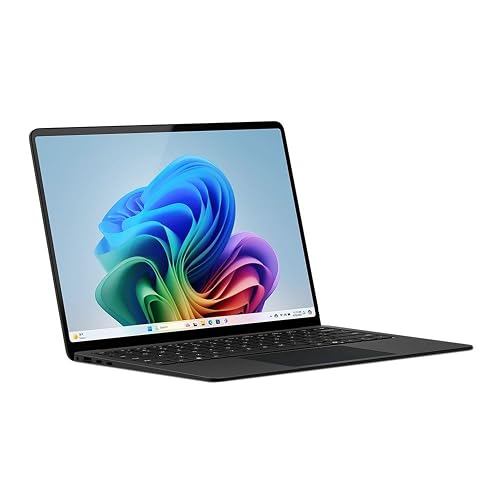 | Best Overall | Operating System: Windows 11 Home | Screen Size: 15″ | RAM: 32 GB | VIEW LATEST PRICE | Read Our Analysis |
| Auusda Business Laptop with 15.6″ FHD Display |  | Best Value | Operating System: Windows 11 Pro | Screen Size: 15.6″ | RAM: 32 GB | VIEW LATEST PRICE | Read Our Analysis |
| Dell 15 Laptop DC15250 with i5 16GB RAM | 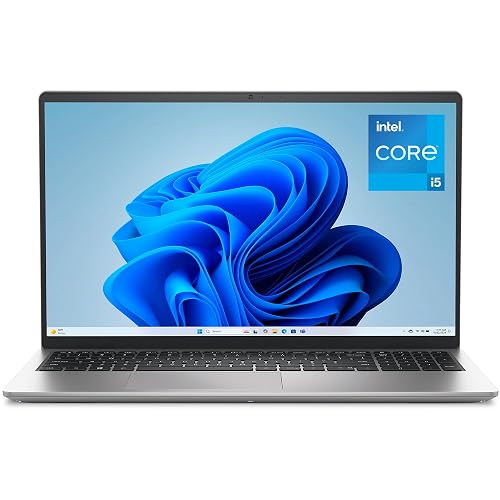 | Best for Productivity | Operating System: Windows 11 Home | Screen Size: 15.6″ | RAM: 16 GB | VIEW LATEST PRICE | Read Our Analysis |
| Dell Inspiron 16 Plus 7640 Laptop | 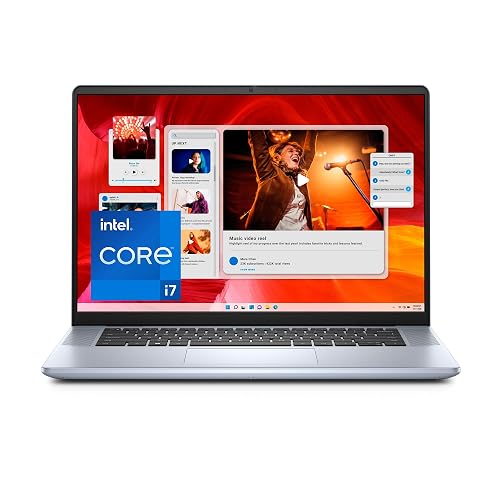 | Best Display | Operating System: Windows 11 | Screen Size: 16.0″ | RAM: 16 GB | VIEW LATEST PRICE | Read Our Analysis |
| Lenovo Yoga 7i 2-in-1 Laptop 16″ 2K Touchscreen | 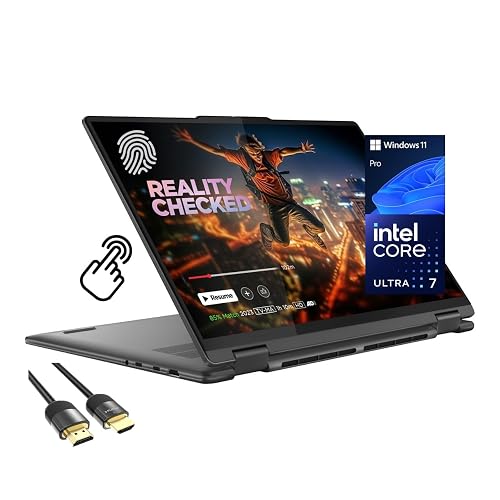 | Best 2-in-1 | Operating System: Windows 11 Pro | Screen Size: 16″ | RAM: 16 GB | VIEW LATEST PRICE | Read Our Analysis |
| Acer Aspire 14 AI Copilot+ PC (A14-52M-51S1) |  | Best AI Laptop | Operating System: Windows 11 Home | Screen Size: 14″ | RAM: 16 GB | VIEW LATEST PRICE | Read Our Analysis |
| Acer Aspire 16 AI Copilot+ PC (A16-11MT-X669) | 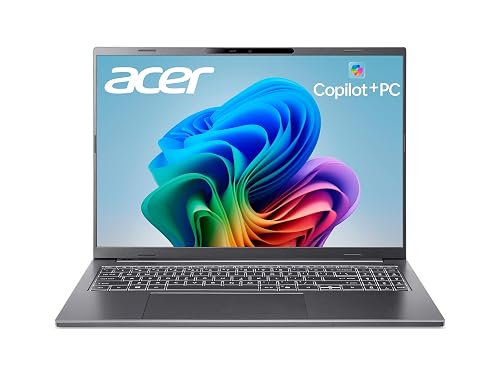 | Best Portable Pick | Operating System: Windows 11 Home | Screen Size: 16″ | RAM: 16 GB | VIEW LATEST PRICE | Read Our Analysis |
More Details on Our Top Picks
Microsoft Surface Laptop (2024) 15″ Copilot+ PC
If you want a laptop that feels smooth under pressure, the Microsoft Surface Laptop (2024) 15″ Copilot+ PC is a strong pick for UX designers who split their time between wireframes, research notes, video calls, and large design files. You get a bright 15-inch PixelSense touchscreen, 32 GB of memory, and a Snapdragon X Elite chip that keeps multitasking calm. The 1 TB SSD gives your projects room to breathe. Its 20-hour battery claim, Wi-Fi 7, and light 3.7-pound build help you move easily. Plus, the webcam, Dolby Atmos speakers, and USB-C support keep reviews and presentations tidy.
- Operating System:Windows 11 Home
- Screen Size:15″
- RAM:32 GB
- Storage:1 TB SSD
- Wireless:Wi‑Fi 7, Bluetooth
- Webcam:Built-in webcam
- Additional Feature:600-nit HDR display
- Additional Feature:Snapdragon X Elite
- Additional Feature:Wi-Fi 7 support
Auusda Business Laptop with 15.6″ FHD Display
The Auusda Business Laptop with a 15.6″ FHD display is a smart pick for UX designers who want a roomy screen, ample memory, and a laptop that keeps up with long design sessions without feeling sluggish. It includes 32 GB of RAM, a 1 TB SSD, and a quad-core Intel processor that reaches 3.4 GHz. The matte IPS screen reduces glare, and the 180 degree hinge adds comfort. You get two usable USB ports, HDMI, Wi-Fi 5, and fingerprint login. At 3.7 pounds, it feels solid, not fragile.
- Operating System:Windows 11 Pro
- Screen Size:15.6″
- RAM:32 GB
- Storage:1 TB SSD
- Wireless:Wi‑Fi 5, Bluetooth
- Webcam:300K front webcam
- Additional Feature:Fingerprint reader
- Additional Feature:180-degree hinge
- Additional Feature:Supports triple 4K displays
Dell 15 Laptop DC15250 with i5 16GB RAM
Dell 15 Laptop DC15250 with i5 and 16GB RAM is a smart pick for UX designers who want a roomy 15.6-inch FHD screen, smooth everyday speed, and a keyboard that feels comfortable during long design sessions. You get a 120Hz matte display with anti-glare treatment, so your layouts stay clear indoors. The Intel Core i5-1334U and 512GB SSD keep apps opening fast, and the 16GB RAM handles multitasking with ease. The backlit keyboard, numeric keypad, and lifted hinge support steady work. Wi-Fi 6, HDMI, USB ports, and Express Charge round out a dependable, easy-to-carry 3.6-pound design partner.
- Operating System:Windows 11 Home
- Screen Size:15.6″
- RAM:16 GB
- Storage:512 GB SSD
- Wireless:Wi‑Fi 6, Bluetooth
- Webcam:FHD front webcam
- Additional Feature:120Hz display
- Additional Feature:Numeric keypad
- Additional Feature:ComfortView blue-light reduction
Dell Inspiron 16 Plus 7640 Laptop
With its 16-inch 16:10 display and optional 2.5K resolution, the Inspiron 16 Plus 7640 gives UX designers more room to compare layouts, check spacing, and keep tool panels open without feeling cramped. The 120 Hz refresh rate makes scrolling smooth, and Dell ComfortView Plus helps ease eye strain while keeping colors accurate. Inside, the Intel Core i7-13620H, 16 GB of LPDDR5 RAM, and a 1 TB SSD keep design files moving fast. Built-in TPM, military-grade testing, a variety of ports, onsite service, and Dell Migrate add extra peace of mind.
- Operating System:Windows 11
- Screen Size:16.0″
- RAM:16 GB
- Storage:1 TB SSD
- Wireless:Wi‑Fi
- Webcam:Built-in webcam
- Additional Feature:16:10 aspect ratio
- Additional Feature:ComfortView Plus
- Additional Feature:Military-grade testing
Lenovo Yoga 7i 2-in-1 Laptop 16″ 2K Touchscreen
Lenovo Yoga 7i 2-in-1 Laptop 16″ 2K Touchscreen is ideal for UX designers who need one device that feels flexible, fast, and reliable during long creative sessions. You can sketch, test layouts, and review flows on its 16-inch 2K touchscreen. The 360-degree hinge lets you switch from laptop to tablet with ease. The Intel Core Ultra 7 chip, 16 GB RAM, and 1 TB SSD keep your work moving smoothly. Thunderbolt 4, Wi-Fi 6E, fingerprint login, and a backlit keyboard make daily design work calm and efficient.
- Operating System:Windows 11 Pro
- Screen Size:16″
- RAM:16 GB
- Storage:1 TB SSD
- Wireless:Wi‑Fi 6E, Bluetooth
- Webcam:Front webcam
- Additional Feature:360-degree convertible
- Additional Feature:Thunderbolt 4 ports
- Additional Feature:Fingerprint reader
Acer Aspire 14 AI Copilot+ PC (A14-52M-51S1)
The Acer Aspire 14 AI Copilot+ PC (A14-52M-51S1) is a smart fit for UX designers who want a light laptop that still feels fast and capable during long design sessions. It is powered by an Intel Core Ultra 5 chip, includes 16 GB of RAM and a 512 GB SSD, so files open quickly and workflow stays smooth. The 14-inch WUXGA screen, backlit keyboard, and 180° hinge help you sketch, review, and share ideas with ease. Weighing 3.1 pounds, it is easy to carry, and the battery can last up to 22 hours.
- Operating System:Windows 11 Home
- Screen Size:14″
- RAM:16 GB
- Storage:512 GB SSD
- Wireless:Wi‑Fi 6E, Bluetooth
- Webcam:Webcam
- Additional Feature:Intel Arc 130V
- Additional Feature:22-hour battery life
- Additional Feature:Thunderbolt 4 ports
Acer Aspire 16 AI Copilot+ PC (A16-11MT-X669)
Acer’s Aspire 16 AI Copilot+ PC (A16-11MT-X669) is well suited for UX designers who want a roomy, responsive canvas without carrying a heavy machine all day. It has a 16-inch 1920 x 1200 touchscreen with 120 Hz motion, 100 percent sRGB, and 350 nits, so layouts look crisp and colors stay true. The Snapdragon X chip, 16 GB of memory, and a 512 GB SSD keep your tools moving. Wi-Fi 7, seven ports, HDMI, and an 18-hour battery help you sketch, test, and present without panic.
- Operating System:Windows 11 Home
- Screen Size:16″
- RAM:16 GB
- Storage:512 GB SSD
- Wireless:Wi‑Fi 7, Bluetooth
- Webcam:Front-facing camera
- Additional Feature:120Hz touchscreen
- Additional Feature:Wi-Fi 7
- Additional Feature:Numeric keypad
Factors to Consider When Choosing Laptops for UX Designers
When choosing a laptop for UX design, begin with the display because you need sharp detail, reliable color accuracy, and a screen that is easy on the eyes. Consider touch support as well; it can make sketching and testing ideas feel more natural. Also evaluate performance and memory so your apps stay smooth when you juggle wireframes, design files, and an excessive number of browser tabs.
Display Quality
Display quality can make or break your UX workflow because you spend hours staring at interfaces, tiny icons, spacing, and text. Choose a high-resolution screen, at least 1920 by 1080; 2K or higher is better because it provides more room and sharper detail. Look for an IPS, LCD, or OLED panel with wide viewing angles so your layout stays clear from different positions. Aim for 300 nits or more and a matte or anti-reflective finish, because bright rooms can be brutal. If you test interactions or sketch ideas, touch and stylus support can help a lot. Finally, pick a panel with strong calibration options, and 60 Hz or 120 Hz refresh so everything feels smooth.
Color Accuracy
Color accuracy matters because you need to trust what you see on screen, and that trust saves you from second-guessing every shade, gradient, and brand color in your UX work. Aim for at least 100% sRGB. If you handle print or premium visuals, look for strong Adobe RGB or DCI-P3 coverage as well. Next, check Delta E; under 2 keeps colors close to the source, and 1.5 feels even safer. Prefer IPS or OLED panels with 10-bit color or 8-bit plus FRC support, because they reduce banding and keep gradations smooth. Also, choose a factory-calibrated display or one that supports ICC profiles and colorimeters. Finally, verify brightness, contrast, and uniformity, since 300 nits or more helps you judge color reliably in different lighting.
Touch Support
A good touchscreen can make your UX work feel far more real, because you are not just looking at a mockup anymore, you are testing how people actually tap, swipe, and pinch. Look for capacitive multi-touch with at least 10 touch points so gestures register correctly. Check for low latency, ideally under 50 ms, because lag can quickly make a smooth flow feel awkward. Also consider the screen surface. Matte and anti-glare panels help when you test in bright rooms, while glossy glass can feel nicer for careful gesture checks. A 15-inch or larger display with high native resolution gives you room to work. If you use a pen, make sure it supports active stylus input, strong pressure sensitivity, and palm rejection.
Performance Needs
Performance matters just as much as a great screen when you’re choosing a laptop for UX work, because slow hardware can turn a simple design session into a frustrating wait. You will feel the difference when you open Figma, Adobe apps, and multiple browser tabs at once. Pick a modern CPU with 6 to 12 strong cores and fast turbo speeds so your tools stay snappy. Next, choose 16 to 32 GB of fast RAM for smooth multitasking and fewer stalls. A speedy NVMe SSD helps your projects load and save quickly, while keeping large files close at hand. If you use real time previews or drive high resolution displays, a capable GPU will help as well. Good cooling matters, so your laptop maintains performance without overheating or throttling.
Memory Capacity
When you choose a laptop for UX design, memory capacity can make the difference between a smooth workday and one full of waiting. Aim for 16 GB of RAM if you juggle Figma, Adobe XD, or Sketch through virtualization, and many browser tabs. That provides enough room for everyday multitasking without constant slowdowns. If you run heavy apps together, local devices, emulators, or huge asset libraries, move up to 32 GB. Faster RAM such as DDR4 3200 MHz or LPDDR5 also helps reduce lag when you edit large images and test real time previews. If you handle complex prototypes, virtual machines, or local servers, 32 GB plus expandable memory is preferable. Check for upgrade options now so your laptop can grow with you later.
Battery Life
Battery life quietly shapes how easy your workday feels, and it matters even more when you move between meetings, cafés, and design reviews. Aim for 10 to 12 hours of real use with Figma, Sketch, Slack, and light prototyping so you can finish the day without hunting for an outlet. Laptops with 60 to 70 Wh batteries, or larger, often last longer, especially when paired with efficient modern processors. Still, do not trust flashy claims alone. Check independent tests, because video playback numbers can look better than your real workflow. After that, look at fast charging. A good charger can bring you from 5% to 80% in about 30 to 60 minutes. Also, brighter, sharper, and faster screens usually drain power sooner.
Port Selection
Long battery life makes your day feel lighter, but the right ports make your workflow smoother once you plug in. Start with at least one USB-C port that supports DisplayPort or Thunderbolt, so you can drive a sharp external monitor and dock quickly. Then check for three or more total USB-A and USB-C ports, because your drive, tablet, mouse and keyboard should not fight for one spot. Next, look for HDMI or full-size DisplayPort, since client rooms do not always match your cables. Also confirm USB-C power output if you plan to charge accessories. Finally, a card reader and a 3.5 mm jack save you from hunting adapters when deadlines hit and your headphones or assets need a quick, clean connection.
Portability Balance
Portability balance matters because you carry a UX laptop through real life, not a showroom. Aim for under 4 pounds and a slim 0.7 to 0.8 inch body, so your shoulders stay happier during meetings and coworking days. Choose a 14 to 16 inch screen, since it gives you room for layouts and panels without turning your bag into a brick. Battery matters just as much, so look for 50 to 70 Wh and strong efficiency for long sketching sessions away from outlets. Also check the chassis and hinge, because sturdy metal or smart polycarbonate can survive daily opening, closing, and travel bumps. Finally, keep some room for ports, since a few fast USB-C ports and one USB-A or HDMI will save you from dongle chaos.
Frequently Asked Questions
How Much Screen Accuracy Do UX Designers Really Need?
You need good, not perfect, screen accuracy. It should be sufficient to judge spacing, contrast, and hierarchy confidently. If you design interfaces, validate your work on multiple displays, devices, and calibrated screens before shipping.
Is a Touchscreen Useful for UX Design Workflows?
Yes, if you do not mind smudging your work like a caffeinated toddler, a touchscreen can be helpful for sketching, annotating, and quick reviews. You will still rely on a keyboard, trackpad, and stylus for serious UX work.
Do UX Designers Need Dedicated Graphics Cards?
You usually do not need a dedicated graphics card for UX design. You can work smoothly with integrated graphics unless you handle heavy motion, 3D, or very large prototyping files; in those cases a GPU helps.
How Important Is Color Accuracy for UI and UX Work?
Color accuracy is important for UI and UX work because it helps you detect subtle contrast, branding, and accessibility issues earlier. You do not always need perfect calibration, but you do need a reliable display.
Can a Lightweight Laptop Still Handle Design Software Well?
Yes, you can use a lightweight laptop for design software, provided it has enough RAM, a strong processor, and a fast SSD. You will get portability without sacrificing smooth performance for most UX tasks.




