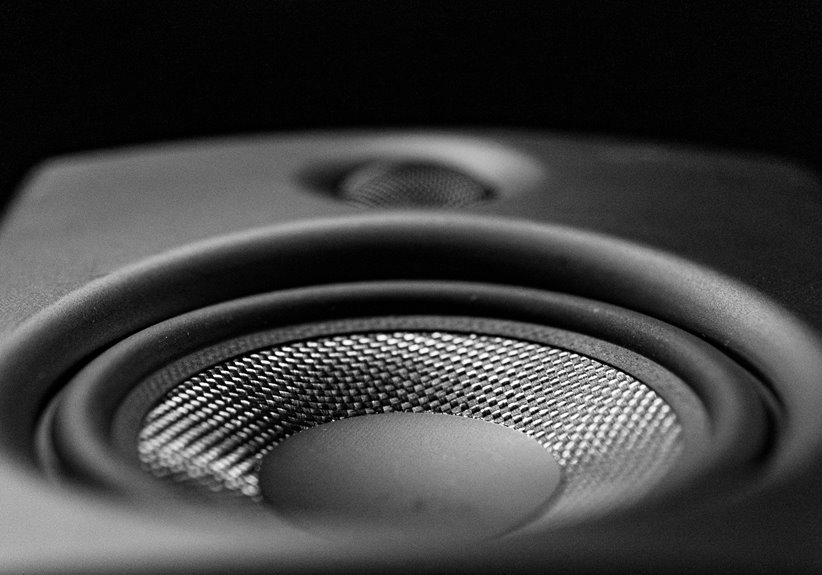

A Bluetooth speaker can sound a lot better with a few quick tweaks. Better placement, cleaner audio files, lower volume, and simple EQ changes often make a big difference. A stable connection and a healthy battery help keep the sound clear and balanced. With the right setup, your speaker can go from flat and muddy to full and enjoyable.
Place Your Bluetooth Speaker Properly
Provided you place your Bluetooth speaker in the right spot, you can make it sound louder, fuller, and cleaner without touching the volume button. Start with setting it on a hard surface, like a table or shelf, so sound can travel with more energy.
Then move it closer to a wall to use wall reflections, which help the room feel more alive and connected.
Should you want richer bass, try the speaker near a corner. Corner effects can add weight and warmth, especially in small rooms where everyone wants music that fills the space. You can also raise the speaker off the floor and tilt it toward your group, so the sound reaches people instead of getting lost.
Avoid placing it in the middle of the room, where audio can feel thin and distant to listeners nearby.
Use a Higher-Quality Audio Source
Good placement helps your speaker project sound, but the audio file you send to it matters just as much. In case your music starts out compressed, your speaker can only do so much.
You deserve sound that feels fuller, cleaner, and more alive, especially whenever you’re sharing playlists with friends.
Choose better source quality so every detail comes through:
- Pick lossless streaming in the event your app and speaker support it for richer detail.
- Use high bitrate files or streams, since low-quality tracks flatten vocals and blur instruments.
- Download songs instead of relying on weak mobile data, which can force lower audio quality.
This connects directly to placement: once your speaker sits in the right spot, a stronger source lets it reveal more texture, warmth, and clarity. It helps your whole setup feel more premium and inviting.
Set Volume for Cleaner Sound
While turning the volume all the way up seems like the fastest fix, it often makes your Bluetooth speaker sound harsher, thinner, and less clear. Instead, aim for volume calibration through setting your phone around 70 to 80 percent and then raising the speaker gradually. That sweet spot usually gives you cleaner output without pushing the drivers too hard.
This approach helps you keep more vibrant range, so quiet details stay present and louder parts don’t turn into a rough blur. Should music start sounding sharp, compressed, or strained, back it down a little. You’re not missing out on avoiding max volume. You’re actually giving everyone around you a fuller, smoother listening experience.
Once your speaker sounds balanced, the whole room feels more inviting, and you get audio that fits the moment and the group.
Adjust EQ for Better Sound
Once your volume is set in a clean range, EQ gives you the next layer of control through shaping how your speaker handles bass, mids, and highs. Whenever you tune EQ, you help your speaker sound more like it belongs in your space and with your music.
Start with small changes, then listen for clarity, punch, and balance.
- Raise bass slightly should your speaker sounds thin, especially outdoors or with a small woofer.
- Enhance mids for vocals and podcasts so voices feel present, warm, and easy to follow.
- Trim harsh highs in case cymbals or sharp notes feel tiring during longer listening sessions.
This is where frequency balancing matters. You don’t need perfect ears, just patience.
Try built-in options, streaming service settings, or custom presets until your sound feels right for you and your people.
Use a Device With Better Bluetooth Support
Because Bluetooth sound depends on both the speaker and the device sending the audio, your phone, tablet, or laptop can shape sound quality more than you could anticipate. In case your device uses newer Bluetooth versions, it can hold a steadier connection, manage audio more smoothly, and reduce little dropouts that make music feel flat or weak.
That matters because you want your setup to feel easy, reliable, and part of your everyday rhythm. A newer device often improves signal compatibility with modern speakers, so you hear cleaner detail and more consistent volume.
Should your current phone be older, try another tablet or laptop you already trust. You may notice fuller sound right away. Even whenever your speaker is solid, the source device still acts like the team captain, helping everything play together with fewer hiccups and less frustration.
Make Sure Both Devices Share a Codec
You’ll get better sound once your phone and speaker support the same Bluetooth codec. In case they don’t match, your devices might fall back to a lower-quality option, and you can hear the difference right away.
Match Bluetooth Codecs
Even though your speaker sits close near and the volume is turned up, sound quality can still drop in case your phone and speaker don’t share the best Bluetooth codec.
Whenever codec negotiation picks a lower option, you might hear flatter detail, softer bass, or more audio buffering. You deserve better, and a matched codec helps your setup feel in sync, like your devices are finally on the same team.
- Better codec matching keeps music clearer and more natural
- Stable codec negotiation reduces skips, lag, and harsh compression
- Less audio buffering helps voices and beats stay smooth together
This matters because Bluetooth sends sound as compressed data. Provided both devices align well, your speaker can play more of what you love, with fewer distractions.
That small match can make your listening feel fuller, warmer, and more connected every day.
Check Codec Compatibility
Why does your speaker sometimes sound great one day and dull the next, even though the volume looks the same?
Often, your phone and speaker aren’t using the same Bluetooth codec. During codec negotiation, they choose the best format both devices support. In case one device falls back to a basic codec, you hear flatter sound, less detail, and weaker bass.
Reduce Wireless Interference
To reduce wireless interference, keep your speaker and phone close and clear away walls, furniture, or other objects that can block the signal.
You should also limit nearby devices like Wi-Fi gear, smart gadgets, and other Bluetooth products, since they can crowd the connection and cause dropouts. Then place your speaker in a spot that supports both strong signal and better sound, so you get clearer audio without the frustrating cuts.
Minimize Signal Obstacles
Once your Bluetooth speaker sounds weak or starts cutting out, signal obstacles are often the concealed cause. You don’t need fancy fixes. You just need a clearer path between your phone and speaker.
Better signal strength helps your music feel steady, full, and shared, like everyone gets the same vibe.
To make that happen, remove physical obstructions and tighten the connection path:
- Move your phone and speaker into the same room whenever possible, so walls and furniture don’t block the signal.
- Set both devices higher up, such as on a table or shelf, to help the connection travel more freely.
- Keep the speaker closer to your device, because shorter distance improves stability, volume, and clarity.
Small placement changes can make your setup feel instantly more reliable, so your listening time stays smooth and welcoming for everyone nearby.
Limit Competing Devices
Even though your speaker sits close nearby, nearby wireless traffic can still crowd the Bluetooth signal and make your music sound thin, jumpy, or uneven. Should you want cleaner sound, start from lowering device congestion around your listening space. Pause downloads, disconnect unused tablets, and move smart home gear off busy connections whenever possible.
That matters because Bluetooth shares airspace with Wi-Fi, watches, earbuds, and game controllers. Whenever too many gadgets talk at once, signal competition rises and your speaker has to fight for a clear path. You can ease that pressure through turning off Bluetooth on devices you aren’t using, limiting active accessories, and stopping background syncing.
In case friends are nearby, ask them to pause extra wireless gear for a bit. Small changes help your setup feel steady, clear, and part of a smoother listening experience together.
Optimize Speaker Placement
Why does speaker placement matter so much as wireless interference gets in the way? Your Bluetooth signal needs a clear path, and your room shape affects that path.
Whenever you place your speaker too far away or behind furniture, you invite dropouts, thinner sound, and frustrating volume dips. You deserve better listening.
Try these placement habits to help your setup feel solid and connected:
- Keep the speaker within 30 feet of your paired device, with fewer obstacles between them.
- Use speaker elevation on a hard surface, like a table or shelf, to improve clarity and signal reach.
- Test corner placement or near-wall spots in small rooms for fuller bass, but avoid blocking the signal.
As you adjust position, you create a space whereby your music feels closer, warmer, and more shared with everyone around you.
Keep Your Speaker Battery Charged
Should your Bluetooth speaker suddenly sounds weaker or less full, the battery could be the real problem. Whenever power drops, your speaker might limit output to protect itself, so your music feels flatter. To keep sound strong, charge before long sessions and avoid letting the battery hit zero too often. Those steady charging habits support battery lifespan and help your speaker stay part of every hangout.
| Battery Level | What You Notice | What You Should Do |
|---|---|---|
| High | Full, clear sound | Keep enjoying |
| Medium | Slight dip in punch | Charge soon |
| Low | Thin, weaker audio | Plug in now |
If you want reliable sound your group can count on, make charging part of your routine. A ready speaker helps everyone stay in the moment together.
Update Firmware for Better Stability
In case your speaker starts acting glitchy, a quick firmware update can often bring the sound back to steady, clear playback. Brands release updates to improve stability, refine codecs, and smooth out performance, so your listening feels reliable again.
Using the maker’s app helps you stay in the loop and feel supported, not stuck guessing.
- Turn on update notifications so you don’t miss crucial fixes that protect audio consistency.
- Use the official app to install updates safely, and check release notes before you tap install.
- Should a new version behave oddly, see whether the brand offers a firmware rollback option.
That simple routine keeps your speaker feeling current and dependable. It also helps you stay connected with the wider user community, where shared tips make setup easier and listening more enjoyable for everyone.
Fix Common Bluetooth Speaker Sound Problems
Should your Bluetooth speaker sounds distorted or keeps cutting out, you can often fix it with a few quick changes. Move your device closer, clear away obstacles, and place the speaker on a solid surface so you get a stronger signal and cleaner sound.
Then check your EQ settings, app controls, and firmware, because the right adjustments can stop dropouts and smooth out harsh audio fast.
Reduce Audio Distortion
While distortion can make your speaker sound harsh, crackly, or oddly thin, you can often fix it with a few smart changes to setup and sound settings. Start through lowering volume on both your phone and speaker, since max levels often push small drivers too hard. Then adjust EQ gently, especially bass, because amplified lows can muddy detail fast.
- Move your speaker onto a hard surface and test different angles to reduce vibrating buzz.
- Clear physical obstructions and use room acoustics to your advantage, since walls and furniture shape how clean sound feels.
- Update the speaker app or firmware, and reset sound settings should audio suddenly turns rough.
You’re not chasing perfection alone. With a few tweaks, your setup can sound fuller, cleaner, and more like the listening experience your group expects.
Fix Connection Dropouts
Because dropouts usually start with a weak or unstable signal, your initial fix is to tighten the connection between your phone and speaker. Keep them within 30 feet, clear walls or furniture, and try device relocation whenever music skips. You’re not doing anything wrong. Bluetooth can be picky, and small moves often restore signal strength fast.
| Fix | Why it helps |
|---|---|
| Move closer | Improves signal strength |
| Remove obstacles | Reduces interference |
| Raise the speaker | Clears the path |
| Update firmware | Fixes connection bugs |
Next, restart Bluetooth on both devices and reconnect cleanly. In case your speaker app offers resets or codec settings, use them. You’ll feel the difference right away, and your setup will sound steady, strong, and ready for everyone in the room.
Frequently Asked Questions
Can Two Bluetooth Speakers Be Paired for Wider Stereo Sound?
Yes, two Bluetooth speakers can be paired for a wider stereo effect. This setup creates clearer left and right channel separation and a more spacious sound. It usually works best with matching speaker models and brand supported pairing features.
Does Room Size Affect How Loud a Bluetooth Speaker Sounds?
Yes, room size affects how loud a Bluetooth speaker seems because sound reflects differently in each space. In a small, enclosed room, the speaker often sounds louder and fuller, especially when it is placed where the sound can spread evenly.
Should I Place a Bluetooth Speaker Near a Wall?
Yes, placing a Bluetooth speaker near a wall can make it sound louder because reflected sound may add up to 3 dB. It can also strengthen bass and add more body to the audio, which often works well in smaller rooms and can make playback feel more room filling.
Do Manufacturer Apps Improve Bluetooth Speaker Audio Performance?
Yes, manufacturer apps can improve a Bluetooth speaker’s audio performance. They often give you access to EQ settings, codec options, and firmware updates that can sharpen clarity, refine tonal balance, and strengthen playback based on your listening preferences.
How Does Distance From My Phone Affect Speaker Sound Quality?
Keeping your phone within 30 feet helps maintain clearer sound by reducing signal interference. Shorter distance and fewer obstacles support more stable volume and can lower battery use on both devices.