

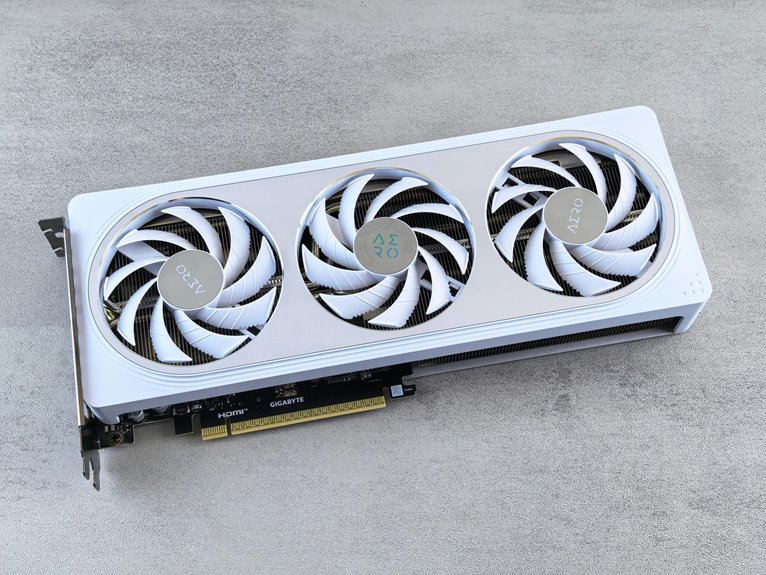

A hot GPU usually means poor airflow, dust buildup, or cooling parts that need attention. High temps can lead to stutter, loud fans, crashes, and sudden shutdowns. Start with the basics: check temperatures, clean out dust, and improve airflow inside the case. Fan curve tweaks, fresh thermal paste, or a better cooler can bring temperatures back under control.
Signs Your GPU Is Overheating
As your GPU starts to overheat, the warning signs usually show up fast, especially during gaming or other heavy tasks. You could notice fps drops after only a couple minutes, with smooth play turning into stutter, lag, or brief freezes.
Soon after, your game could lock up, textures could glitch, or your system could feel oddly sluggish.
As the heat builds, the warning signs often get louder. You could hear fans racing while performance sinks. In some cases, you’ll get sudden shutdowns that kick you out of a match and leave you asking what happened.
You could also see your computer struggle to keep up, even in scenes it usually handles well. Should this sound familiar, you’re not alone. These signs often show your GPU needs attention right away.
What Temperatures Are Safe for a GPU?
You need to know what temperatures are normal, because your GPU will always run warmer under load than it does at idle.
In most cases, you’ll see lower temps while your system is resting and much higher temps while gaming or using other heavy apps.
Once you understand that difference, you can spot if heat is still safe and if your GPU is starting to run too hot.
Safe GPU Temperature Ranges
A safe GPU temperature during gaming usually sits well below the danger zone, and for most cards, staying under the mid-80s°C is a healthy target. You’ll feel more confident whenever you know your numbers, especially since ambient room temperature can push readings higher. That’s also where GPU warranty basics matter, because repeated overheating could affect coverage.
| Range | What it means | What you should do |
|---|---|---|
| 30 to 50°C | Cool and comfortable | Keep airflow steady |
| 60 to 75°C | Normal gaming range | You’re in a good spot |
| 76 to 85°C | Warm but usually safe | Check fans and dust |
If you see temps moving past 85°C often, treat it as your system asking for help. You’re not alone here. A cooler card usually means smoother play, less stress, and better long-term health in general.
Load Vs Idle Temps
Idle and load temperatures tell two different stories about your GPU, and reading both helps you spot trouble before a game turns into a slideshow.
At idle, your card should stay cool and steady. Healthy idle thermals often sit around 30°C to 50°C, depending on your room and airflow. Should they climb higher, background heat, dust, or weak fans might already be working against you.
Under load, higher numbers are normal because your GPU is doing real work. Most cards handle 65°C to 85°C safely, but pushing into the 90s means your system needs attention fast.
- You deserve smooth play, not stutter and stress.
- You shouldn’t feel alone when temps spike.
- You can catch problems beforehand and protect your setup.
Watching both readings helps you feel confident and in control.
What Causes GPU Overheating?
Your GPU can overheat as dust clogs the heatsink, poor case airflow traps hot air, or heavy gaming and overclocking push the card too hard.
When you ignore those issues, you’ll often see heat build fast, performance drop, and games start to stutter or freeze.
The positive news is that once you know what’s causing the heat, you can fix it before it turns into bigger damage.
Dust Buildup Effects
When dust builds up inside your PC, it doesn’t just make things look dirty. It clings to your GPU heatsink fins and fans, so heat can’t escape the way it should. Then your card runs hotter, louder, and less reliably, which can make you feel like your setup is letting you down.
You can stay ahead of that stress with consistent air filter maintenance and smart ventilation blockage prevention around vents and exhaust areas. That keeps your system feeling like part of the team, ready whenever you are.
- You notice game performance dip right whenever you’re getting into the zone.
- You hear fans spin harder, and it feels frustratingly unfair.
- You worry repeated heat might shorten your GPU’s life.
A simple dust cleaning routine helps you protect your rig and keep gaming confidently together.
Poor Case Airflow
Because heat needs a clear path out of the case, poor airflow can turn a hard-working GPU into a heat trap fast. If warm air can’t leave and cool air can’t enter, your graphics card keeps recycling heat. Then temperatures climb, fans work harder, and your whole system feels stressed.
You can often trace this to weak case vent placement or blocked intake and exhaust areas. Whenever your airflow channel design is messy, air swirls instead of moving smoothly across the GPU and out of the case. Cables, drive cages, and cramped layouts make that worse.
In a community of PC builders, this is a common fix, not a personal failure. Whenever you open space, guide air front to back, and support steady ventilation, your GPU finally gets room to breathe and stay cooler.
Overclocking And Load
Whenever you push your GPU with heavy gaming, high frame rates, or an overclock, heat can rise fast and get out of control. As soon as you raise clocks, you also raise power draw, and that extra energy turns into heat your cooler must remove. Should you try manual overclocking without testing limits, temperatures can spike fast during long matches or creative work.
You’re not alone whenever this feels frustrating. Many gamers in your shoes see:
- sudden FPS drops that ruin the fun
- loud fans that make your setup sound stressed
- shutdowns that break your rhythm and confidence
As load climbs, your GPU works harder every second. That constant strain can overwhelm cooling, especially as airflow or fan speed can’t keep up. So even a stable card can overheat as demand stays high for too long.
Clean Dust Out of Your GPU and Case
Even a powerful GPU can run too hot fast once dust starts clogging the case vents, exhaust fans, and the heatsink fin stack, so cleaning it out is often the initial fix you should try. You’re not alone here. Many gamers in the same boat see heat drop after a careful cleanup.
Begin by shutting down, unplugging, and moving your PC to a clear space. Use safe dust removal tools like compressed air, a soft brush, and microfiber cloths. Hold fans still while you clean, and target vents, blades, filters, and the GPU cooler fins.
Then follow simple cleaning routine tips: check buildup monthly, especially whether you game often or have pets. A cleaner system helps your card breathe easier, stay stable longer, and feel ready for your next session with the team.
Improve Case Airflow for GPU Cooling
Cleaning out dust gives your GPU a better chance to cool itself, and the next step is making sure fresh air can actually move through the case.
Start with case ventilation improvements like adding a front intake fan and a rear exhaust fan. Then use airflow direction planning so cool air enters low and leaves high. Tidy cables, remove unused drive cages, and give the case a little space from walls.
- You’ll feel relief once hot air stops circling around your GPU.
- You’ll feel confident aware your setup works with you, not against you.
- You’ll feel part of the PC crowd that protects hardware the smart way.
If your case has fan mounts, use them. Balanced intake and exhaust helps your whole system breathe and keeps gaming sessions steady, cooler, and more comfortable.
Adjust GPU Fan Curves for Lower Temps
Once your case airflow improves, you can fine-tune how your GPU cools itself by adjusting the fan curve. You’re giving the card a smarter temperature response, so fans ramp up sooner and keep heat from building during gaming. Most tuning apps include fan curve presets, but you’ll get better results through shaping your own.
| Temp | Fan Speed |
|---|---|
| 40°C | 25% |
| 55°C | 40% |
| 65°C | 55% |
| 75°C | 70% |
Start gently, then raise speeds more sharply after 65°C. That keeps noise reasonable while protecting performance. Should your games stutter after two minutes, a stronger curve can help stop heat spikes before they tank FPS. You’re not guessing here. You’re joining PC users who tune, test, and dial in cooling like a team.
Replace GPU Thermal Paste and Pads
Your GPU still runs hot after you’ve cleaned it and tuned the fan curve, the next part to check is the thermal paste and pads. Old thermal interface materials dry out, crack, and stop moving heat into the heatsink. Worn pads also hurt memory chip cooling, especially during long gaming sessions.
- You feel frustrated whenever temps spike and games stutter.
- You want your system to feel reliable again.
- You’re not alone because many builders fix this same issue.
Carefully remove the cooler, clean off old paste with isopropyl alcohol, and apply a small fresh drop. Match pad thickness exactly, or contact pressure can suffer.
Whenever you refresh both, you help your GPU transfer heat better, run steadier, and feel like part of the well-tuned PC crowd again.
When to Upgrade Your GPU Cooling
Fresh paste and proper pad contact can help a lot, but they won’t fix a cooler that’s simply too weak for the heat your GPU now makes.
If temps still climb into the 90s, fans scream, FPS tanks, or games shut down after cleaning, tuning, and paste work, you’re likely ready for a cooling upgrade.
That step makes sense when your card handles heavier games, higher resolutions, or long sessions that push it harder than before. You’re not failing your setup. You’re helping it keep up with the way you play.
Start by checking case airflow, then look at stronger fans, larger shrouds, or aftermarket heatsinks built for better heat transfer. If your current cooler can’t stay ahead, upgrading gives your GPU room to breathe and helps your whole system feel dependable again.
Frequently Asked Questions
Can Overheating Damage My Monitor or Other Connected Peripherals?
Usually, no. GPU overheating does not directly put your monitor at risk. At around 96°C, the more common signs are crashes, visual artifacts, or shutdowns rather than damage to connected peripherals. The best way to protect your setup is to improve cooling, remove dust buildup, and repair or replace faulty fans quickly.
How Often Should I Clean My GPU to Prevent Overheating?
Clean your GPU every 3 to 6 months based on how much dust builds up and how often you use your PC. A consistent cleaning schedule helps maintain airflow, control temperatures, and reduce the risk of overheating.
Will GPU Overheating Void My Graphics Card Warranty?
GPU overheating by itself usually does not cancel a warranty, but the exact terms depend on the card maker. Warranty coverage can be denied if the damage came from poor maintenance, physical changes to the card, or repair attempts that were not approved. It is smart to keep records of temperature readings before problems get worse.
Can a Weak Power Supply Cause GPU Overheating Issues?
A weak PSU can contribute to GPU overheating if unstable voltage delivery forces the card to operate inefficiently under load. In many cases, system crashes or shutdowns appear before temperature spikes, so inspect dust buildup, fan operation, case airflow, and thermal paste condition as well.
Should I Repair an Overheating GPU or Replace It?
Repair first when the issue is likely limited to fans, thermal paste, or dust buildup and the cost stays well below a replacement. Replace the GPU when recurring shutdowns, severe throttling, or temperatures stuck around 96°C point to a failing card and make an upgrade the smarter choice.




