

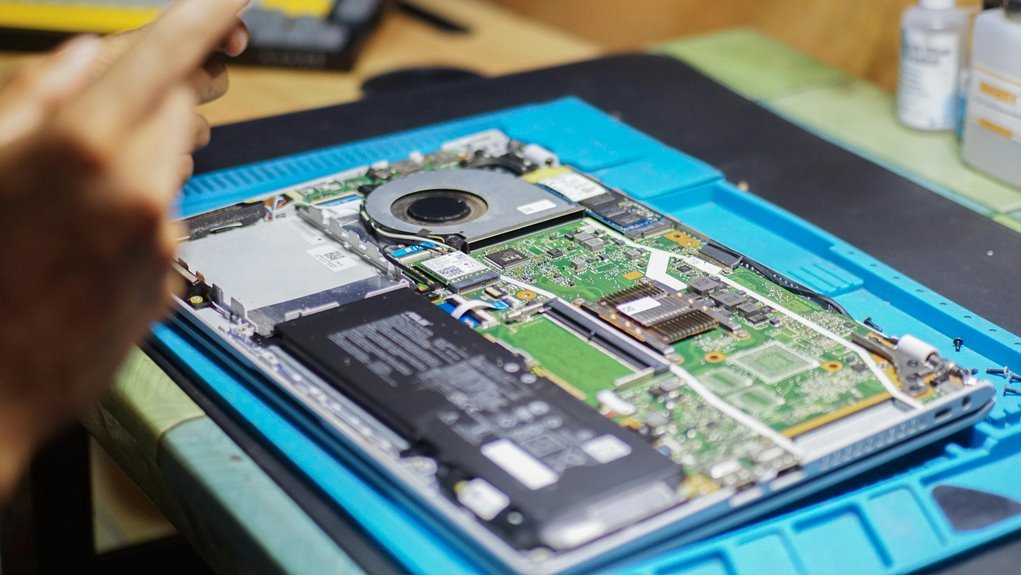

Laptop battery drain often comes from bright screens, background apps, wireless features, heat, and aging cells. You can improve power efficiency by lowering display brightness, trimming startup programs, and turning off features you do not use. Battery life also gets better with cooler temperatures and updated power settings. With a few quick tweaks, your laptop can stay unplugged much longer.
Find What’s Draining Your Laptop Battery
Before you change settings at random, it helps to find out what’s actually draining your laptop battery, because the real cause is often concealed in the background. Start with Windows battery usage tracker so you can see which apps and services use the most power. You’re not alone whenever a chat app, browser tab, or startup program keeps sipping energy all day.
Next, unplug devices you don’t need, like USB drives, printers, or wireless receivers. Then check Task Manager for background apps that stay active when you aren’t using them.
After that, install Windows updates and driver updates, because better power management often comes quietly through system fixes. Whenever battery drain feels sudden, watch your laptop’s temperature too. Heat often points to concealed work, and once you spot the pattern, you can make smarter changes confidently.
Adjust Power Settings to Save Battery
Once you know what’s using power, you can start shaping how your laptop uses it, and this is where a few smart setting changes can make a real difference.
Start with battery saver settings in Windows, then choose when Energy Saver turns on so your laptop helps you before the battery gets too low.
From there, check Energy Recommendations to find easy wins your system already suggests. You can also lower processor power limits by reducing the maximum processor state, which cuts extra battery use during light work without making your laptop feel left out of the team.
If Windows offers automatic power adjustments, let it help. These settings work together, so you’re not fighting battery drain alone. You’re building a setup that supports how you study, work, and stay connected every day.
Reduce Screen Brightness and Display Drain
Power settings help in the background, but your display often drains battery right in front of you. Start with brightness control and lower the screen until it still feels comfortable. You don’t need a blazing display to stay productive. If your laptop allows automatic screen dimming, turn it on so the screen uses less power when full brightness isn’t needed.
Then check your refresh rate. A lower setting, like 60Hz, usually saves more battery than higher options. You can also shorten the screen-off timer, so your display sleeps sooner when you step away. These small changes help you feel in control, not stuck hunting for an outlet.
- You get more unplugged freedom during busy days.
- You feel less stress when battery drops slowly.
- You stay connected without carrying your charger everywhere.
- You join smart users who make every percent count.
Turn Off Background Apps and Startup Programs
Even though your screen settings are dialed in, concealed apps can still drain your battery behind the scenes. You’re not doing anything wrong. Many laptops load extra tools at startup, then keep them running all day, quietly using power.
To fix that, start with app cleanup. Open your battery usage view and see which apps sip power and which ones gulp it. Close what you don’t need, especially chat tools, launchers, and sync apps.
Then move to startup control. Disable programs that open upon your laptop boots, because they keep drawing power long after you’ve forgotten them.
This step helps your laptop feel lighter, faster, and more dependable. You’ll also feel more in control, like you and your device are finally working on the same team every day.
Limit Wi-Fi, Bluetooth, and Connected Devices
After trimming background apps, look at the wireless features and accessories your laptop keeps supporting in the background. Wi-Fi, Bluetooth, and plugged-in gear quietly sip power all day. When you turn off Bluetooth, disconnect idle USB drives, or remove an unused mouse or printer, you create real peripheral power savings. Unless you don’t need constant internet, switch off Wi-Fi briefly or use airplane mode during offline work. These small habits set smart wireless device limits and help your laptop stay ready provided that your group, class, or team needs you.
- You feel more in control when concealed battery drain stops.
- You stay connected longer when only needed devices remain active.
- You avoid that left-out feeling when your laptop dies initially.
- You build simple habits that make your setup feel dependable, shared, and ready together.
Spot Overheating and Other Hidden Power Drains
If your laptop feels hot in one spot, that heat might point to a part that’s draining your battery faster than it should. You should also check what’s running in the background, because concealed apps and startup programs can keep pulling power all day. Once you spot both the heat source and those quiet power hogs, you can fix battery drain with a lot less guesswork.
Identify Overheating Sources
Because heat quietly steals battery life, one of the smartest things you can do is look for overheating before you chase other fixes.
Check for thermal hotspots on the keyboard, underside, and near the vents. If one area feels unusually warm, your laptop may be burning extra power just to stay stable. Also inspect for ventilation blockage from dust, blankets, couches, or even your bag after travel.
- You deserve a laptop that feels reliable, not stressful.
- A cool system helps you stay confident and connected.
- Clear airflow means fewer fan surges and less frustration.
- Small heat checks can make you feel back in control.
Next, place your laptop on a hard, flat surface and listen to the fans.
If they run hard during light tasks, monitor temperatures and airflow so you can catch concealed heat soon.
Detect Background Power Hogs
Start starting with checking what’s quietly draining power while you’re not doing much at all.
Your laptop can feel fine, yet concealed apps, startup tools, and plugged-in accessories might keep sipping energy in the background. You’re not alone here, and a few quick checks can reveal the culprits.
First, use battery usage tracking in Windows to see which apps drain power fastest.
Then do task manager analysis to spot programs using too much CPU, memory, or disk activity.
Next, unplug devices you don’t need, like USB drives, printers, or mice.
Also, look for heat. When your laptop feels warm during light use, fans can be working overtime because vents are blocked or an app won’t settle down.
Keep it on a hard surface, close unused apps, and disable unnecessary startup items too.
Signs Your Laptop Battery Is Failing
If your laptop battery drops fast even after a full charge, that’s often the initial sign something’s wrong.
You might also notice sudden shutdowns, which can leave you stuck at the worst possible moment.
And whenever the battery looks swollen or pushes against the case, you shouldn’t ignore it because that’s a serious warning sign.
Rapid Charge Loss
While some battery drain comes from brightness, background apps, or high refresh rates, rapid charge loss often points to a battery that’s wearing out instead of a simple settings problem. If your charge drops fast during light tasks, your battery might no longer hold power well. Before you feel stuck, check battery calibration and power adapter health, since both can affect what you see.
- You unplug, and the percentage falls so fast it feels discouraging.
- You start planning around outlets instead of enjoying your laptop.
- You might feel left out when everyone else can work freely anywhere.
- You deserve a laptop that keeps up with your day.
As wear builds, the battery stores less energy and drains unevenly. That’s a strong sign you’re not imagining the problem, and you’re not alone here.
Unexpected Power Shutdowns
Because a weak battery can’t deliver steady power, your laptop might shut off without warning even while the screen still shows charge left. You’re not imagining it. sudden power loss often means the battery can’t support normal tasks, especially when your system needs a quick burst of energy.
| Sign | What you notice | Why it matters |
|---|---|---|
| Random shutdowns | Power cuts off fast | Battery output drops |
| Charge mismatch | 20% becomes 0% | Readings aren’t reliable |
| Plugged-in stability | Works only on charger | Battery protection may trigger |
| Sleep problems | Won’t wake properly | Power flow is unstable |
| Light workloads fail | Shuts down during browsing | Cells are wearing out |
As you track these signs, you’ll feel more confident spotting trouble early and protecting your device, your work, and your routine.
Swollen Battery Warning
Although battery problems often start quietly, a swollen battery usually shows up through physical changes you can see or feel. Your laptop base may lift, the trackpad may feel tight, or the keyboard may rise. That’s where battery bulge detection matters, because swelling can damage parts and create safety risks.
- You might feel worried when the case won’t sit flat anymore.
- You’re not overreacting if clicks feel stiff or strange.
- You deserve peace of mind when your device starts looking wrong.
- You’re part of a smart crowd when you act early.
Next, stop using the laptop on your lap or in a bag, since heat can worsen pressure. Power it down, unplug it, and arrange a safe battery replacement through your manufacturer or a trusted repair shop as soon as possible.
Build Better Charging Habits for Longer Battery Life
When you build better charging habits, you don’t just make each charge last longer, you also help your battery stay healthier over time. You’re not aiming for perfection. You’re building a steady charging routine that fits real life and keeps your laptop ready for school, work, and everything between.
Instead of leaving your laptop plugged in all day, let the battery move through moderate charge levels when you can. Try to keep it between 20 and 80 percent most days. That reduces stress and heat, which wear batteries down faster.
Also, avoid deep drains unless you’re doing battery calibration every few months to keep readings accurate. If your laptop gets warm while charging, move it to a hard surface so it can breathe. Small habits like these help you stay powered up with confidence daily.
Frequently Asked Questions
How Often Should I Update BIOS for Better Battery Efficiency?
Review BIOS updates every three to six months rather than every week. That schedule supports battery efficiency without risking unnecessary instability from excessive firmware changes.
Can Antivirus Software Significantly Affect Laptop Battery Performance?
Yes, antivirus software can noticeably reduce laptop battery life, especially when real time scanning and background protection stay active for long periods. Battery use often rises during full system scans, frequent file checks, and updates running in the background. You can reduce the impact by scheduling scans for charging periods, limiting unnecessary background activity, and adjusting the antivirus settings for better power efficiency.
Does RAM Size Influence Laptop Battery Drain During Everyday Use?
A larger amount of RAM usually does not cause much extra battery drain in everyday laptop use. What affects battery life more is how much memory is actively being used and which apps are running. If you want better battery life during multitasking, closing background apps and avoiding demanding tasks will help more.
Should I Replace the Charger if Battery Drain Seems Abnormal?
If battery drain seems abnormal, inspect the charger before deciding to replace it. Check that the charger matches your device’s required specifications, look for signs of cable or adapter damage, and compare charging performance with a compatible charger that is known to work properly before buying a new one.
Can Battery Calibration Improve Inaccurate Battery Percentage Readings?
Yes, battery calibration can improve inaccurate readings by restoring percentage accuracy when your laptop’s battery estimates drift. A full charge and discharge cycle often makes the reading more reliable, but it will not reverse the effects of an aging battery.




