

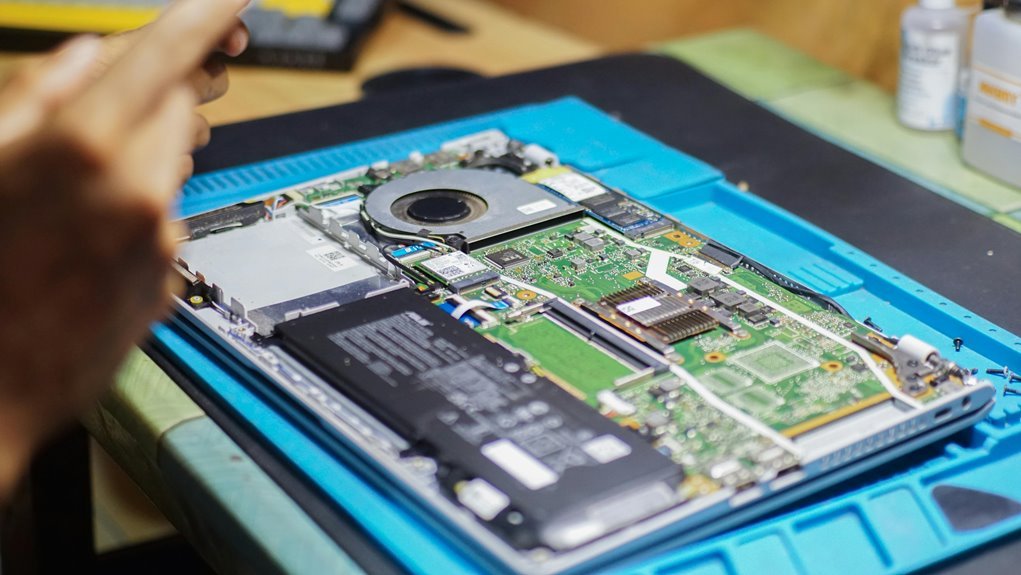

Laptop overheating usually comes from blocked airflow, dust buildup, heavy background activity, or power settings that push the system too hard. You can cool it by cleaning vents and fans, setting it on a hard surface, and improving airflow underneath. A cooling pad and a few smarter performance settings can help lower heat fast. Small fixes like these can keep your laptop running smoother, quieter, and longer.
Clean Your Laptop Vents and Fans
Before you buy any extra gear, clean your laptop’s vents and fans, because dust is often the concealed reason it runs hot. You’re not alone unless this gets overlooked. Many people in the same boat find that simple vent dust removal helps right away. Check the vent areas every three to four months, especially once the system feels unusually warm.
Next, power down the laptop and inspect the fan openings. Use gentle air bursts and a soft brush for fan blade cleaning, so you don’t push grime deeper inside.
Once you can safely open the case, clear interior buildup with care. Should that feel stressful, a repair shop can help, and that’s perfectly okay.
Keeping airflow paths clear helps your laptop stay calmer, quieter, and more reliable, so you can keep up with your group.
Use Your Laptop on Hard Surfaces
Once your vents and fans are clean, the surface under your laptop becomes the next thing to fix. You help your system breathe whenever you set it on a desk, table, or tray instead of a bed, blanket, or your lap. Soft materials press against intake areas and trap warmth, so heat builds fast.
That’s why hard surface benefits matter so much for everyday use. You give your laptop a firmer base, better balance, and a clearer path for air to move around the bottom. In shared spaces like school, work, or home, stable airflow placement keeps your setup reliable and comfortable.
You also reduce wobbling, sliding, and that awkward sinking feeling soft surfaces cause. It’s a simple habit, but it helps you protect your laptop and stay confidently in the flow daily.
Raise Your Laptop for Better Airflow
Even though your laptop is already on a hard desk, lifting the back a little can help it cool down faster. That small change gives the bottom vents more room to pull in air, so heat escapes instead of building up under the case. You don’t need fancy gear to fit in with smart laptop care habits.
A slim metal stand, a sturdy book, a riser, or even a lap desk with rubber feet can create safer airflow clearance options. These desk elevation benefits can lower GPU and CPU temperatures during demanding tasks, especially during times your system works hard. Keep the lift gentle and stable so the vents stay open and your typing still feels natural. During times you raise your laptop the right way, you’re giving it the breathing room it needs every day.
Try a Laptop Cooling Pad
Lifting your laptop helps, and a cooling pad builds on that, pushing more air right where heat collects most. When you use your laptop for gaming, editing, or long study sessions, a pad can help you stay in the zone without worrying about rising temperatures.
Most cooling pads use usb power, so setup feels easy and familiar. You just plug one in and let the built-in fans support your laptop’s own airflow. Good fan placement matters here, because fans should line up with the vents underneath your machine.
For stronger cooling, choose a pad with three or more fans and a surface slightly larger than your laptop. That extra space improves circulation around the base. It’s a simple upgrade that helps your laptop feel supported, and honestly, so do you every day.
Adjust Power Settings to Reduce Heat
After improving airflow with a cooling pad, you can cut heat even more by changing how hard your laptop works.
You should lower the maximum processor state and switch to a balanced or optimized performance mode, so your CPU doesn’t run hotter than it needs to.
That small change can help your laptop stay cooler, quieter, and less stressed while you work or play.
Lower Maximum Processor State
One simple power change can cool your laptop faster than you might expect: lower the Maximum Processor State in your power plan. This setting tells your CPU not to run at full speed all the time, so it creates less heat. You can consider it as a maximum processor cap that helps your system stay calmer under pressure.
To change it, open Power Options, choose your current plan, then edit Advanced settings. Under Processor power management, reduce the CPU performance limit from 100 percent to 95 or even 90.
You’ll still handle everyday tasks well, but your laptop won’t push as hard or get as hot. Should your fans sound like they’re training for a marathon, this tweak can bring welcome relief. It’s a small step that helps your laptop, and you, feel more comfortable together.
Optimize Performance Mode
While lowering your processor cap helps a lot, your laptop can still run hot whenever it stays in High Performance mode all day. Switch to Balanced or Power Saver, and you’ll ease the load on your CPU right away. That small change helps your system feel calmer and more stable, like it’s finally working with you, not against you.
Next, check your performance profiles and pick one that matches what you’re doing. You don’t need full speed for web browsing, schoolwork, or streaming. Lowering screen brightness also cuts power use and extra heat. If your laptop offers battery saver, CPU throttling, or simple thermal tuning options, turn them on.
These settings help your laptop stay cooler without making you feel left out of the fast, smooth experience everyone wants daily.
Close Apps That Spike CPU Usage
Because overheating often starts with concealed workload, closing apps that spike CPU usage can cool your laptop faster than you’d expect. You’re not alone should your system feels hot while doing simple work. Open Task Manager and check which apps keep the CPU pinned high. That kind of task manager usage helps you spot concealed drains fast.
Next, tighten browser tab control, because dozens of open tabs can quietly push heat upward. Close duplicate tabs, pause noisy websites, and quit programs you aren’t using.
Also stop unnecessary background tools, update stuck apps, and watch for runaway processes after startup. Upon you trim that extra load, your laptop works with less strain, the fans settle down, and you feel more in control. That small reset helps your whole setup feel steadier.
Lower Gaming and Streaming Heat Settings
When you lower in-game graphics settings, your laptop doesn’t have to work as hard, so it runs cooler during long sessions.
You can also cap your frame rate to cut extra heat without ruining smooth gameplay.
Since you stream, lowering your bitrate helps ease the load, which keeps temperatures more manageable while you play and broadcast.
Reduce In-Game Graphics
Often, the fastest way to cool a hot laptop during gaming or streaming is to lower the in-game graphics settings so your GPU and CPU don’t have to work so hard. Start with graphic quality presets, then reduce shadows, reflections, and game textures. You’ll still stay in the action, but your laptop won’t feel like it’s training for launch.
| Setting | Cooler choice |
|---|---|
| Graphic quality | Medium or Low |
| Game textures | Medium |
| Shadows | Low |
| Reflections | Off or Low |
As you tune settings, watch for smoother play and less fan noise. That balance helps you keep gaming with your group instead of stepping away to cool down. Should you stream, lowering visual extras also eases system strain, so your laptop stays steadier and you stay connected to the fun longer on the whole.
Cap Frame Rates
Should your laptop still run hot after lowering graphics, cap the frame rate so it stops pushing out more frames than your screen can show.
Whenever you match FPS to your display, your GPU works less, power draw drops, and heat eases. That means quieter fans and steadier play.
You can use in-game settings, your graphics driver, or tools like RTSS for frame rate limiting.
Start with matching your screen refresh rate, then test slightly lower caps whenever temperatures stay high.
This often helps with performance smoothing too, because your system stops swinging between very high and very low frame counts.
You don’t need to chase giant numbers to feel like a real gamer. A stable 60 or 90 FPS can keep your laptop cooler while helping your whole setup feel more comfortable and consistent every session.
Optimize Streaming Bitrate
Sometimes, your laptop heats up not just from the game itself, but from trying to encode and upload a high stream at the same time. Should you lower your streaming quality a little, you ease the load on your CPU and GPU, so your system runs cooler and steadier. That means fewer sudden fan spikes and less chance of your session feeling rough.
To make that work, reduce your bitrate step by step instead of slashing everything at once. A moderate setting often keeps your image clear while cutting heat. You can also use bitrate compression to shrink upload demands without making your stream look messy. Should your platform supports hardware encoding, turn it on, because it helps your laptop share the workload. Small changes like these help you stay in the game and with your community.
Update BIOS, Drivers, and Fan Controls
Because heat problems don’t always come from dust alone, keeping your BIOS, drivers, and fan controls up to date can make a real difference in how cool your laptop runs. You’ll often see BIOS update benefits through smarter thermal limits, steadier fan behavior, and fewer surprise spikes.
| What to check | Why it helps |
|---|---|
| BIOS version | Improves heat management |
| GPU driver | Fixes power draw issues |
| Chipset driver | Supports stable performance |
| Fan utility | Lets you tune airflow |
| Driver compatibility checks | Prevents conflicts |
As you work through updates, stick with files from your laptop maker or trusted component brands. That helps you avoid mismatched software that can make temperatures climb. If your fan app allows custom curves, raise speeds gradually so your system stays cool without sounding like it’s auditioning for a wind tunnel.
Replace Thermal Paste or a Failing Battery
While software fixes and better airflow help a lot, old thermal paste or a weak battery can keep your laptop running hot no matter how clean the vents are. If your system feels hotter than your usual setup, it could need hands-on care.
- Dry paste can stop heat from moving off the CPU
- A swollen or aging battery can add heat and risk
- A quick battery health check can reveal concealed trouble
If you’re comfortable opening your laptop, a thermal paste replacement can lower temperatures and help fans work less. If not, you’re still part of the smart crowd via taking it to a repair shop.
Next, check battery health in your system tools or with a trusted app. Once the battery degrades, your laptop could charge poorly, run hot, or even bulge. Catching it early protects your device.
Frequently Asked Questions
How Do I Know if Overheating Is Damaging My Laptop?
If your laptop is overheating, you may notice slower performance, sudden shutdowns, constantly loud fans, a burning smell, screen flickering, or a case that feels unusually hot. These symptoms often point to heat stress that can shorten the lifespan of internal parts, so it is important to address the issue promptly.
What Laptop Temperature Range Is Considered Normal During Gaming?
During gaming, most laptops run with CPU temperatures around 70 to 85°C and GPU temperatures around 65 to 85°C. If your system stays in these ranges, it is generally operating within normal thermal limits.
Can Overheating Shorten My Laptop Battery’s Overall Lifespan?
Yes, overheating can shorten your laptop battery’s lifespan because high temperatures speed up chemical aging and wear down battery cells more quickly. Keeping your laptop cool, clean, raised for airflow, and used in a well ventilated space can help preserve battery health over time.
When Should I Seek Professional Repair for Laptop Overheating?
Seek professional repair as soon as clear warning signs appear. If you have already cleaned the vents, elevated the laptop, and adjusted performance settings but it still runs too hot, pay attention to specific symptoms such as unexpected shutdowns, a burning smell, or fans that stay unusually loud. These are direct signs that the overheating has moved beyond basic fixes and needs expert attention.
Are Some Laptop Models More Prone to Overheating Than Others?
Yes, certain laptop models are more likely to overheat because of limited cooling capacity, restricted airflow, and high performance parts packed into slim chassis. Gaming laptops, very thin models, and lower cost systems often reach higher temperatures during long periods of heavy use.




