

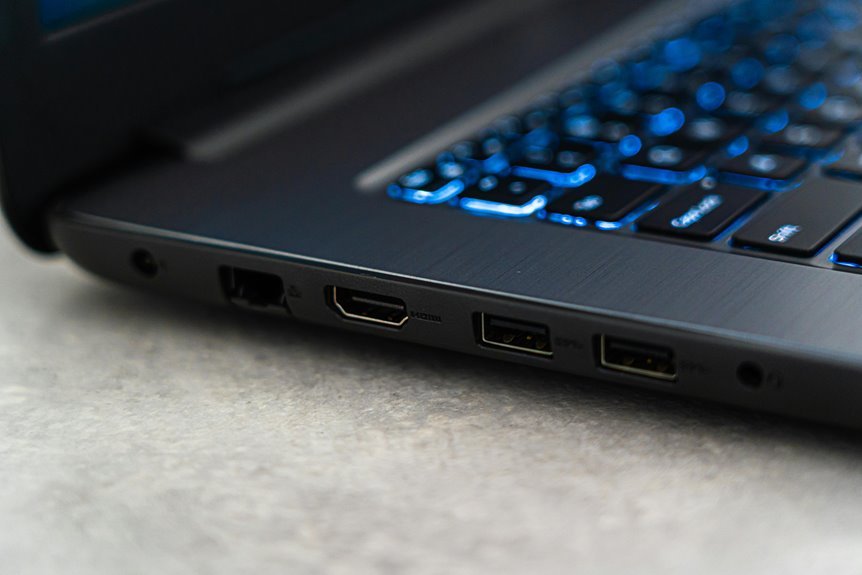

USB ports stop working for a few common reasons: dust, bad drivers, power settings, or a faulty device. A quick check of the cable, port, and connected accessory usually points to the cause. From there, cleaning the port, restarting drivers, and changing a few system settings can often bring it back. This guide walks through the simple fixes that solve most laptop USB problems fast.
Check Whether the Device or Port Is Faulty
Before you change settings or reinstall drivers, make sure the problem is really the laptop port and not the USB device itself. Start with device isolation. Plug the same USB device into another computer or another known-good port. Then try a different device in the suspect laptop port. This simple swap helps you see where the fault follows.
Next, move into careful port diagnostics. Look inside the port for bent pins, debris, or damage from a rough insert. Check whether the connection feels loose or cuts in and out. If one port fails but others work, you’re likely having to do with a port-specific issue.
Should every device fail in every port, the problem could run deeper. You’re not overreacting while checking this foremost. It’s how you narrow the issue with confidence.
Try These Quick USB Port Checks
Start with a few quick checks, because the fix may be simpler than you believe.
Look closely at the USB port for bent pins or damage, then try a different device to see whether the problem follows the port or the accessory.
If the hardware looks fine, check your laptop’s power settings, because Windows can sometimes turn USB ports off to save battery.
Check Physical Damage
When your laptop’s USB ports suddenly stopped working, don’t panic, because a quick physical check can often reveal the problem fast. Start with shining a light into each port. You’re looking for physical damage signs like cracks, looseness, dust buildup, or bent connector pins. Should a pin look mashed down or touch the side, the port could short out and stop working.
Next, gently wiggle the port housing. It shouldn’t feel loose or sink inward. Also check for scorch marks, rust, or debris stuck deep inside.
These clues help you feel more confident, because you’re not guessing anymore. Should you spot damage, avoid forcing anything into the port. That can make things worse. Instead, keep that port unused and plan for repair. You’ve got this, and you’re not the only one coping with it.
Test Different Devices
Even though a port looks fine on the outside, testing a few different USB devices can quickly show whether the issue is the port itself or the item you plugged in.
To narrow it down, try a mix of devices and watch peripheral behavior closely. That helps you feel confident instead of guessing.
- Plug in a simple flash drive initially, since it needs little setup and quickly reveals basic cross device compatibility.
- Try a mouse or keyboard next, because steady input shows whether the port keeps a reliable connection.
- Test a phone cable or external drive, and notice whether charging or data transfer starts, stops, or acts oddly.
- Move the same device to another USB port on your laptop to compare results and spot a port-specific problem.
You’re not alone; these quick checks often uncover the real cause fast.
Inspect Power Settings
In case your USB ports seem to work one minute and quit the next, your laptop’s power settings could be shutting them down to save battery without making it obvious. That’s frustrating, but you’re not stuck with it.
Start in Device Manager. Open Universal Serial Bus controllers, right-click each USB Root Hub, choose Properties, then clear “Allow the computer to turn off this device to save power.”
Next, head to power and sleep settings, open additional power settings, and check your power options. In advanced settings, find USB settings and turn off usb selective suspend for both battery and plugged-in modes.
This helps your laptop keep ports awake whenever you need them. After that, restart your laptop so the changes fully apply. You’ll give your ports a fair chance to stay connected consistently.
Clean and Inspect the USB Port
Next, check the USB port for dust, lint, or other debris that can block a solid connection.
You should clean it gently with compressed air or a soft brush, because a rough tool can make the problem worse.
While you’re looking closely, inspect the pins for damage, bending, or contact points that seem out of place.
Check For Debris
Before you change settings or reinstall drivers, take a close look inside the USB port because dust, lint, or a bent pin can block the connection and make a good port seem dead. You’re not the only one this happens to, and a careful check often reveals debris buildup or foreign particles that stop solid contact.
- Shine a flashlight into the port so you can spot packed lint, crooked pins, or grime.
- Compare the problem port with a working one to notice anything that looks out of place.
- Check whether the USB plug slides in evenly. Should it feel blocked, something inside may be interfering.
- Look for signs of damage around the port opening, since loose metal or wear can mimic a software issue.
That quick inspection helps you feel confident before moving to the next fix.
Clean Ports Safely
Once you’ve checked for lint or bent pins, clean the port gently so you don’t turn a small blockage into real damage. First, shut down your laptop and unplug it. Then use proper cleaning tools, like a wooden toothpick, a soft brush, or compressed air held at an angle. These safe cleaning methods help you clear dust without scraping the contacts inside.
Next, work slowly and stay light with every pass. You’re not alone whenever this feels nerve-racking. Many people worry about making things worse, but patience keeps you in control. Avoid metal objects, wet wipes, and heavy blasts of air, since they can cause problems fast. Whenever needed, shine a flashlight into the port as you clean so you can see what’s loosening and remove it carefully and confidently.
Inspect For Damage
Should the port still doesn’t work after cleaning, look closely for physical damage inside it. You’re checking for clues that help your laptop, and your devices, work together again. Use a flashlight and inspect the opening carefully.
- Look for visible port wear, like a loose metal shell, cracks, or parts that sit unevenly.
- Check for bent connector pins or pins touching each other, which can block connection or cause grounding.
- Wiggle a USB plug gently. Should it feels unusually loose or shifts too much, the port may be damaged.
- Compare that port with a working one, so you can spot anything that seems off.
Should you notice damage, stop using that port. You’re not stuck. A repair shop can help you get back to normal safely.
Update or Reinstall USB Drivers
Because bad or corrupted drivers often break USB ports without warning, updating or reinstalling the USB drivers is one of the most effective fixes you can try. Open Device Manager, expand Universal Serial Bus controllers, and look for warning icons. When you see errors, update the affected driver before anything else. When that doesn’t help, uninstall the USB Root Hub or host controller, then restart your laptop so Windows reinstalls fresh drivers automatically.
Next, check Windows Update, because system patches often include a helpful firmware update or USB fix. Should your ports failed after a recent change, try a driver rollback to return to a stable version your laptop already trusted. You can also scan for hardware changes in Device Manager after reinstalling. With a few careful steps, you’ll feel back in control and connected again with confidence.
Change Laptop USB Power Settings
While driver fixes solve many USB problems, your laptop’s power settings can quietly shut ports off to save battery, even whenever you still need them. If that happens, you’re not alone, and you can usually fix it fast through adjusting a few options.
- Open Power Options, then review your laptop power plan settings.
- Click Change advanced power settings, expand USB settings, and disable USB selective suspend for battery and plugged-in modes.
- Open Device Manager, find USB Root Hub entries, and uncheck Allow the computer to turn off this device to save power.
- Restart your laptop so Windows applies the changes cleanly.
These steps help your ports stay ready whenever your mouse, drive, or phone needs a steady connection. Small setting changes can bring your everyday setup back together again.
Enable or Reset USB Controllers
Even after you fix power settings, your USB ports could still stay silent whenever the USB controllers in Windows get stuck, disabled, or confused. You’re not alone here, and the fix often starts in Device Manager. Open Universal Serial Bus controllers, then look for any disabled entries or warning icons. Should you see one, enable it initially.
Next, try a USB controller reset. Right-click each USB Root Hub or host controller, uninstall it, and restart your laptop. Windows usually reloads the needed drivers automatically, which triggers controller reinitialization.
Should uninstalling feel bold, you can disable a controller, then enable it again, or scan for hardware changes. These steps help your laptop reconnect with the ports it already has, like giving your system a calm nudge instead of a full-blown pep talk.
Test USB Ports Outside Windows
Unless Windows still won’t respond, the next step is to test your USB ports outside Windows so you can tell whether the problem comes from software or the laptop itself. This gives you a calm, clear path forward, and you’re not guessing alone.
- Enter BIOS or UEFI and plug in a USB keyboard or drive. If it works there, your ports likely have power and basic hardware support.
- Run an external boot test with a bootable USB. If your laptop starts from it, the port can read data before Windows loads.
- Try a live environment check, such as a Linux USB. If devices work there, Windows is the likely trouble spot.
- Repeat with another known-good device and another port. That helps your troubleshooting feel more certain, not random or frustrating anymore.
Know When to Get USB Ports Repaired
If your USB ports still fail after you’ve verified them outside Windows, it’s time to look at repair as a real next step, not a last-ditch guess. Whenever ports stay dead, feel loose, or show bent pins, your laptop likely needs hands-on help. You’re not overreacting by asking for support. You’re protecting a device you rely on every day.
At this stage, professional repair makes sense because software fixes won’t solve cracked solder joints, damaged port housings, or power faults. A shop can perform motherboard diagnosis to check whether the USB controller, charging circuit, or board traces have failed. That matters whenever several ports quit at once or your laptop also struggles to charge devices.
Getting help at an early stage can save your laptop, your files, and your peace of mind too.
Frequently Asked Questions
Can a BIOS Update Fix Laptop USB Ports Not Working?
Yes, a BIOS update may restore laptop USB ports when the problem comes from firmware bugs or hardware compatibility issues. It is also worth checking power management settings, reinstalling USB drivers, and testing for physical port damage.
Why Do USB Ports Stop Working After Waking From Sleep?
USB ports can stop working after waking because sleep mode can interfere with power management and leave USB controllers disabled or unpowered. In many cases, the issue can be resolved by changing USB power settings, reinstalling USB controllers, and restarting the computer.
Do USB-C Ports Fail Differently Than Standard USB-A Ports?
Yes, USB C ports often fail in different ways. They carry power, data, and video, which makes problems harder to trace, especially when adapters are involved. Check for bent pins, packed debris, loose connections, and driver or firmware problems.
Can a Faulty Charger Affect Laptop USB Port Performance?
Yes. If your laptop is charging but a USB drive keeps disconnecting, the charger may not be supplying the right power. An incompatible or underpowered adapter can lead to unstable USB connections, weak device performance, or charging problems.
Will a Powered USB Hub Help if Laptop Ports Lack Power?
A powered USB hub helps when a laptop port cannot provide enough current for connected devices. It can improve stability for power hungry accessories if the hub supports them correctly, but it will not repair a broken port or restore one that is disabled.




