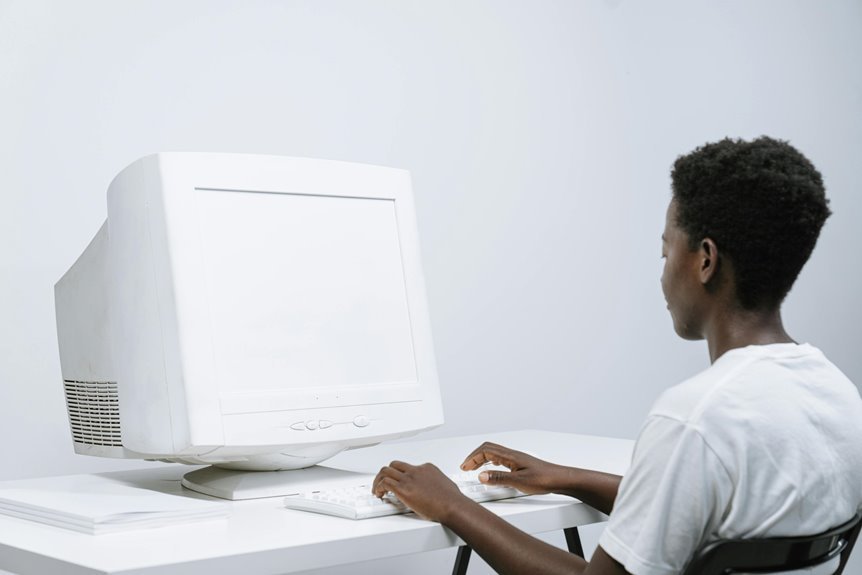

A tight neck after desk time often points to a monitor that sits too high or too low. The fix is simple: place the screen so your eyes meet the top third without lifting or dropping your chin. Keep it about an arm’s length away and give it a slight tilt for a more natural view. A few small setup changes can help your neck and shoulders feel far less tense by the end of the day.
What’s the Ideal Monitor Height?
When you set your monitor at the right height, your neck and shoulders can relax instead of working overtime.
For solid monitor ergonomics, aim for the top of the screen at or just below eye level.
Then your eyes can land near the upper third of the display without strain, which enhances screen comfort fast.
Should you wear bifocals, a slightly lower screen often feels better, because you won’t tip your head back.
You should also keep the screen far enough away to avoid leaning in, but close enough to read easily.
This balance helps you stay with your group, stay focused, and feel less stiff after long hours.
A good setup isn’t fancy.
It just lets your body settle in and do less.
How to Set Your Monitor Height
To set your monitor height the right way, start with your body, not the screen. Sit where you feel balanced, then raise or lower the monitor until the top edge sits at eye level or just below. Your eyes should land on the upper third without forcing your neck up or down. Should you wear bifocals, lower it a bit more so you can read naturally.
Next, check monitor stability so the screen stays steady when you type or nudge the desk. After that, tilt it slightly back for glare reduction from lights or windows. Keep the screen about arm’s length away, and use a stand or adjustable arm should you need a cleaner fit. That small setup can feel like a quiet win.
Monitor Height for Sitting Posture
Once you sit down, your monitor should meet you at eye level so your neck can stay relaxed instead of reaching up or curling down.
You’ll feel the difference fast once your chair and screen work together, because a steady, neutral neck position makes your whole setup easier on your body.
Start there, and you can fine-tune the height until your eyes land on the upper part of the screen without effort.
Eye-Level Screen Placement
A screen that sits at the right height can make sitting work feel a lot easier on your neck and back. You’ll fit in better with your setup whenever the top of the screen meets your eyes or rests just below them.
Then your gaze can land on the upper third without strain. Should you wear glasses, try a bifocal screen adjustment so you don’t lift your chin to read.
Next, tilt the screen back a little to support monitor glare control from lights or windows. Keep the monitor centered in front of you, and sit far enough away to read without leaning in.
Small changes like these help your workspace feel calmer, more comfortable, and more like it was built for you.
Neutral Neck Alignment
Your neck stays happiest whenever your monitor meets it halfway, and that starts with a setup that keeps your head in a natural line with your spine.
You want posture awareness, so notice whenever your chin drifts forward or your shoulders creep up. Then adjust the screen until your eyes rest near the upper third, and your cervical alignment feels easy, not forced.
Whenever you catch yourself tilting back, lower the display a touch. Whenever you’re leaning in, bring it closer so your gaze stays relaxed.
Small changes matter because your neck works with your body, not against it. Friends at your desk don’t get a vote here, but your muscles do.
Whenever you stay balanced, you’ll feel steadier, calmer, and less worn down during the day.
Chair And Monitor Sync
Start with the chair, because it sets the stage for everything else at your desk. You want chair support coordination initially: set your feet flat, keep your hips steady, and let your backrest hold you up without slouching.
Then match the monitor to that seat height so your eyes meet the top third of the screen. That’s how you build workstation ergonomics balance without fuss.
Whenever the chair rises, lower the monitor. Whenever the chair drops, raise the screen.
Keep the display about an arm’s length away, and tilt it a little back so your neck stays calm. Small shifts matter, because your body likes teamwork.
As soon as your chair and monitor sync, you can settle in, stay focused, and feel like your desk finally gets you.
How to Set Monitor Height for Standing Desks
When you use a standing desk, monitor height matters just as much as desk height, because the screen should meet your eyes without making you crane your neck or hunch your shoulders. For solid standing desk ergonomics, start with your eyes level with the top inch of the screen, then fine-tune from there. Good monitor arm placement helps you keep that position with less fuss, so your setup feels like it belongs to you.
- Stand tall with your feet flat and shoulders relaxed.
- Keep the screen about an arm’s length away.
- Lower or raise the monitor until your gaze lands on the upper third.
If you wear bifocals, drop it a bit lower. Then your body can stay calm, and your workspace can feel friendly.
Monitor Setup Tips to Reduce Neck Strain
You can cut neck strain fast when your monitor meets your eyes, not your chin or forehead. Keep the screen about arm’s length away and tilt it just enough so you can look down slightly without lifting your head.
Then match your chair and desk so your feet stay flat, your back stays tall, and your screen feels easy to face.
Proper Eye-Level Alignment
- Sit tall with your feet flat and your shoulders loose.
- Raise or lower the screen until your eyes meet the top third.
- Check that you can look straight ahead without tipping your chin.
This setup helps you feel steady, focused, and part of a more comfortable workday.
Small changes like this matter, because your body notices them right away.
Whenever your screen meets you at eye level, you don’t have to fight it all day.
Screen Distance And Angle
Even a small shift in screen distance or angle can change how your neck feels at the end of the day. You’ll fit in better with your setup whenever the screen sits about an arm’s length away, or 20 to 30 inches from your eyes. That screen distance helps you avoid leaning forward like you’re spying on a secret.
Then, set the viewing angle so the top of the screen tilts back about 10 to 20 degrees. This keeps your gaze natural and cuts glare from lights or windows.
Whenever you use a larger monitor, move it a bit farther back. Check the screen by looking straight ahead; your neck should stay relaxed, and your head shouldn’t tip up or down.
Chair And Desk Position
A well-set chair and desk can make your monitor feel easier on your neck almost right away. Initially, sit so your feet rest flat and your knees stay near hip level. Then check chair depth so you can use the backrest without pressing behind your knees. Next, keep desk clearance high enough for your thighs and arms, because squeezing in makes you slump.
- Slide in close, but leave room to breathe and move.
- Match chair height to your screen so you don’t crane up or down.
- Keep your elbows relaxed near the desk edge, not lifted.
When your setup fits you, you feel steadier, and your group of screen users knows that comfort isn’t luck. It’s smart positioning, one small tweak at a time.
Common Monitor Height Mistakes
Many monitor height problems start once you guess instead of checking your body position, and that small mistake can snowball into neck strain, shoulder tension, and a screen that just feels “off.” You could raise the monitor too high and end up looking up like you’re waiting for a parade, or drop it too low and find yourself hunching forward like your desk owes you money.
You might also ignore glare reduction, then keep tilting your head to fight reflections. In an ergonomic workspace, the top of your screen should meet your eyes, not chase them. Don’t copy a coworker’s setup, because your body, chair, and screen size are yours. Also, avoid placing the monitor off center, since that can twist your neck and leave you feeling out of sync.
How to Fine-Tune Monitor Height and Angle
Once you’ve got the rough monitor height in place, fine-tuning the angle is what makes the setup feel natural instead of forced. Sit back, relax your shoulders, and check that your eyes meet the upper third of the screen. Then tilt the monitor back 10 to 20 degrees. That small change supports your neck and helps with monitor glare reduction from lamps or windows.
- Use the two-finger rule to confirm the top edge stays near eye level.
- Keep the screen 20 to 30 inches away, so you don’t lean in.
- Should you wear bifocals, try bifocal friendly positioning by lowering the screen a bit.
When your setup fits your body, you feel less strain and more like you belong at your desk.
Frequently Asked Questions
How Do I Set Monitor Height With Bifocals?
Place your monitor so the top edge sits slightly below eye level, which helps align the screen with the reading area of your bifocals. If needed, lower the screen further until you can view it clearly while keeping your feet flat on the floor and your head in a neutral position, without leaning back.
Does Screen Size Change the Ideal Viewing Distance?
Yes. Larger screens affect the ideal viewing distance. A practical setup keeps the display about an arm’s length away. As screen size increases, moving a bit farther back usually helps reduce eye strain and maintain a comfortable field of view.
How Should Dual Monitors Be Arranged to Reduce Neck Turning?
Place your main monitor directly in front of you and position the second monitor immediately next to it at the same height and viewing distance. This setup reduces repeated neck turning and helps keep your head and shoulders in a more neutral position.
What Monitor Tilt Reduces Glare From Overhead Lighting?
A 10 to 20 degree backward tilt helps reduce glare from overhead lighting. This position limits reflections on the screen and keeps the display comfortable to view without forcing your neck or eyes to work harder.
Can Monitor Height Cause Headaches or Back Pain?
Yes, monitor height can contribute to headaches or back pain. If your screen sits too high or too low, your neck, shoulders, and upper back may tense up, and that strain can lead to discomfort or headaches. A properly positioned monitor helps reduce muscle tension and supports a more comfortable posture.