

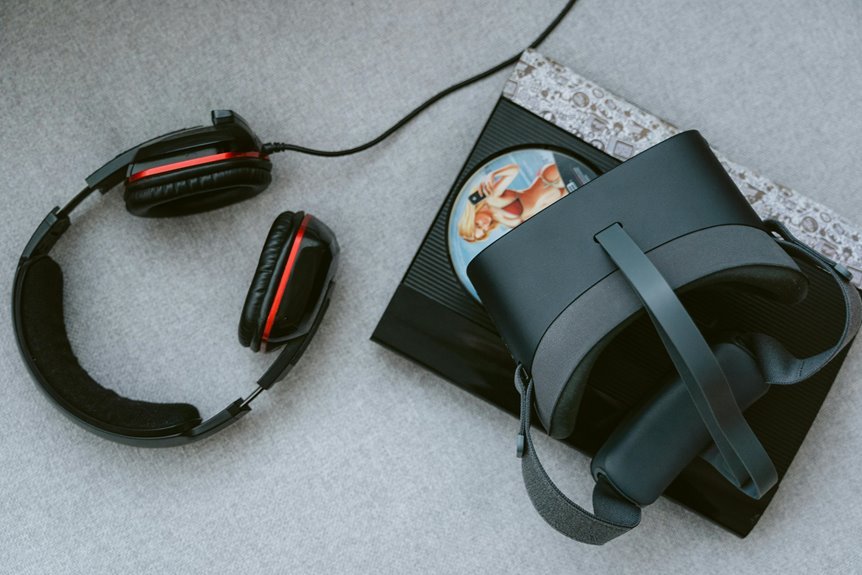

VR headset setup problems are usually fixable with a few basic checks. Tracking errors, blurry visuals, and weak controller signals often come from power, cables, software, room setup, or headset fit. Going through those parts in a clear order can solve a lot faster. A small setup problem can cause bigger ones, so fixing the basics often gets everything working smoothly again.
Check Power, Cables, and Ports First
Why start with power, cables, and ports? Because when your headset won’t wake up, you want a fix that brings you back in fast. Begin with the battery or charge level, since power issues often hide behind simple low power. Should your model use replaceable batteries, swap them initially.
Next, move to cable inspection. Check each connection at the headset, PC, and power adapter. Push plugs in firmly, then look for bends, frays, or loose ends. Should you use USB-C, unplug it, flip it, and reconnect both sides. After that, inspect ports for dust or damage, because a blocked port can break the link.
Should everything look good, restart the headset. Still stuck? Try a power flush. You’re not behind here. Many VR users start with these same fixes initially.
Clear Your VR Headset Play Area
Before you investigate software settings or sensor tweaks, clear your play area so your headset can track you without confusion.
When cameras or sensors see clutter, they can lose your position and turn simple moves into frustrating stutters.
Start with obstacle removal. Move chairs, cords, shoes, pets’ toys, and small tables out of reach.
Then check your floor for rugs that slide or edges that catch your feet.
Good play area safety also means giving yourself enough space to turn, crouch, and swing without bumping walls or friends.
Whenever sunlight hits the room, close curtains because bright glare can confuse tracking.
Keep the area evenly lit, and wipe away anything blocking external sensors.
Once your space feels open and predictable, you’ll feel more confident, more comfortable, and more part of the VR fun.
Update VR Software and Drivers
Before you try bigger fixes, make sure your headset firmware is current because outdated software can trigger setup errors fast.
You should also update your graphics drivers, since old GPU software often causes crashes, lag, or a black screen.
Then install the latest VR platform patches so your headset, PC, and apps can work together without those maddening glitches.
Check Headset Firmware
Whenever your VR headset keeps acting up, checking the firmware and software is a smart next step because outdated files often cause power, connection, and tracking issues. Open your headset app, find the firmware version, and compare it with the newest release from the brand.
Provided it’s behind, plug the headset in, keep Wi-Fi stable, and let the update cycle finish without interruptions. That gives your device the fixes it needs to work like the rest of the community expects.
Next, restart the headset so the new firmware loads cleanly. Then check the companion app for any pending VR software updates tied to setup, pairing, or stability.
Provided an update stalls, cancel it, reboot, and try again. You’re not falling behind. Small updates often bring your headset back into sync.
Update Graphics Drivers
If your headset firmware is current and problems still show up, the next place to look is your graphics drivers and VR software. Old files can cause stutter, black screens, or poor graphics performance, even when the headset seems fine. You’re not alone here, and this step often gets people back into the game fast.
Start by opening your GPU app, like NVIDIA GeForce Experience, AMD Software, or Intel Graphics Command Center. Check for the newest driver, then install it cleanly if that option appears.
After that, open your VR app and make sure it’s fully updated too. This improves driver compatibility between your headset, PC, and games. Restart your computer when you’re done. That simple reset helps everything reconnect properly, so your setup feels stable, smooth, and ready for your next session.
Install VR Platform Patches
Since driver updates handle only part of the VR chain, you should also install the latest patches for your VR platform, such as Oculus, SteamVR, or Vive software. These updates often fix launch bugs, improve tracking, and tighten software compatibility between your headset, controllers, and PC. As everyone in your gaming circle runs current builds, setup feels less lonely and much easier.
Next, open your platform app and check for patch installation notices. Let the update finish fully, then restart your headset and computer so changes stick. In case a patch fails, repair the app, disable beta channels, and try again on a stable internet connection. Also match your headset firmware with the platform version, because mixed versions can cause crashes, pairing issues, or odd menus. Staying patched helps you join sessions smoothly and enjoy VR the way your community does.
Fix VR Headset Tracking Issues
If your VR tracking feels jumpy, start with checking your room lighting, because spaces that are too dark or too bright can confuse the headset.
Next, reposition your base stations so they can see your play area clearly and track your movement without blind spots.
Also, make sure the headset cameras aren’t blocked through dust, stickers, or nearby objects, so you can get back to smooth play fast.
Check Room Lighting
Although tracking glitches can feel random, your room lighting often causes them more than the headset itself. If you want your VR space to feel reliable, start by checking brightness, shadows, and reflections around you. Cameras and sensors work best when they can clearly read your movement.
First, reduce ambient room glare from windows, mirrors, glossy tables, and bright lamps. Direct sunlight can confuse tracking fast.
Next, aim for a soft lighting balance across the room instead of one harsh light source. Even light helps the headset read your hands and position more consistently. Also, avoid very dark rooms, because low light makes tracking drift. If lights flicker, swap bulbs or turn dimmers off.
As you fine tune your space, you’ll feel more confident, more connected, and much more ready to play with everyone.
Reposition Base Stations
If tracking still feels jumpy after you fix the lighting, repositioning your base stations can make a big difference. Start with checking height and angle. Mount each station high, tilt it slightly downward, and aim it toward the center of your play space. Good base station alignment helps your headset read movement more smoothly, so you feel more connected and in control.
If one corner feels weak, try sensor relocation instead of forcing your setup to work as is. Move a station a little wider, reduce steep angles, and keep both units facing each other with a clear view of your movement zone.
Then test slow turns, crouches, and side steps. Small changes often solve big tracking headaches, and you’ll feel back in sync with your virtual world and your gaming crew again.
Clear Camera Obstructions
Because tracking cameras need a clear view to read your movement, even small obstructions can throw off your position and make the headset feel unreliable. Check your play space initially. Move chairs, lamps, boxes, or hanging cables that block the camera lens. Then wipe each camera lens with a soft cloth, because dust can confuse tracking just as much as clutter.
Next, look at your headset’s view angle while you play. Whenever your hands or furniture keep leaving that zone, tracking will drift. Shift your setup so your body stays visible during normal moves. That small change helps you feel more connected and confident in every session.
- You stay in control instead of fighting random jumps
- You feel included whenever games respond the way they should
- You can relax, trust your setup, and enjoy the moment
Adjust IPD for Clearer VR Vision
Start with your IPD, or interpupillary distance, since it has a huge effect on how clear your VR view looks.
Whenever that spacing matches your eyes, text sharpens, objects feel steadier, and your sessions feel more natural. You want the lenses centered with your pupils, so use the headset’s slider or knob for precise lens alignment.
As you fine tune it, move slowly and pause between adjustments. A few millimeters can change everything. Whenever one eye looks sharper than the other, your interpupillary distance probably still needs work.
Then check headset fit, because loose straps can shift the lenses off center. You deserve a setup that feels right, not frustrating.
Once the image snaps into focus, you’ll feel more present, more comfortable, and more connected to the world you’re stepping into there.
Fix VR Controller Pairing Problems
Whenever your VR controllers won’t pair, don’t panic, because this issue usually comes down to power, signal, or a simple settings hiccup. Initially, check each controller’s battery level and reseat the batteries so contact stays firm. Next, restart the headset, then open the controller sync menu and pair one controller at a time.
Whenever that fails, remove the controllers from saved devices and try a pairing reset. Hold the correct buttons until the lights flash, then keep the controllers close to the headset during setup.
- You’re not behind, and this fix trips up plenty of VR fans.
- A quick reset can get you back with your group fast.
- Small steps here often bring a big wave of relief.
Whenever one controller still resists, inspect buttons for sticking and update headset software if prompted.
Fix VR Wi-Fi and Bluetooth Issues
If your headset keeps dropping Wi-Fi or Bluetooth, you can usually fix it through checking signal strength and cutting out nearby interference initially. Stay within 6 to 10 feet of your router, and review router placement so walls, TVs, and metal shelves don’t weaken the connection. When possible, move other wireless gear away to reduce signal interference.
Next, turn off unused Bluetooth accessories, since crowded signals can confuse pairing and cause lag. You should also restart your router, headset, and connected device to refresh the link cleanly. For wired add-ons, check ports and cables so loose connections don’t mimic wireless faults.
Should you be using PC VR, re-enable the link option and pair again. You’re not the only one coping with this, and these small fixes often get your setup feeling reliable again fast.
Reset Your VR Headset Settings
You can reset your VR headset settings to clear stubborn glitches that normal restarts don’t fix. First, back up saved data if your device allows it. Then open settings and choose restore defaults for minor software issues. This often fixes tracking errors, pairing trouble, and odd display behavior without wiping everything.
If problems keep blocking your fun, a factory reset may help. Use it as a last step after updates, cable checks, and restarts. It removes custom settings and returns the headset to a clean state, so setup feels fresh again.
- You’ll feel relief when menus respond the way they should.
- You’ll regain confidence when tracking feels steady and natural.
- You’ll get back to shared worlds faster, so you don’t miss out with friends.
Afterward, reconnect devices and redo setup carefully.
Frequently Asked Questions
Can Glasses Cause Discomfort or Blur While Using a VR Headset?
Yes, glasses can cause discomfort or blur in a VR headset when the frames press against your face or the headset lenses do not line up with your eyes. A better fit often comes from adjusting the straps, centering the headset carefully, and adding soft padding where needed.
How Often Should I Take Breaks During Long VR Sessions?
Take a break every 30 to 60 minutes. A short pause helps your eyes recover, lets your balance settle, and reduces fatigue so you can return feeling comfortable, focused, and ready to keep playing.
Do Aftermarket Straps Improve Comfort for Extended VR Gameplay?
Yes, aftermarket straps can make extended VR sessions more comfortable. They spread weight more evenly, reduce pressure on the face, and help the headset stay stable during movement. A well made strap with supportive materials can make longer play feel less tiring and more natural.
How Can I Prevent Lens Fogging During VR Use?
To prevent lens fogging, let the headset warm to room temperature before use, improve airflow around the face area, and apply an anti fog treatment made for lenses. Extra face padding can reduce heat buildup, and a clean microfiber cloth helps keep the lenses clear and comfortable during longer sessions.
When Should I Consider a Factory Reset for My VR Headset?
Consider a factory reset only after trying a restart, software updates, cable checks, and app reinstalls, especially if corrupted software or account sync problems continue. A reset clears the headset completely and can restore access when other fixes have not worked.




