


Nearly 70% of stream stutter complaints trace back to GPU limits or encoder strain.
If you want smooth broadcasts, you need more than raw frame rates; you need the right mix of VRAM, cooling, and encoding support.
Cards like the RX 9060 XT, RTX 5070, and Arc B580 each handle that balance differently, and one of them may fit your setup better than you expect.



More Details on Our Top Picks
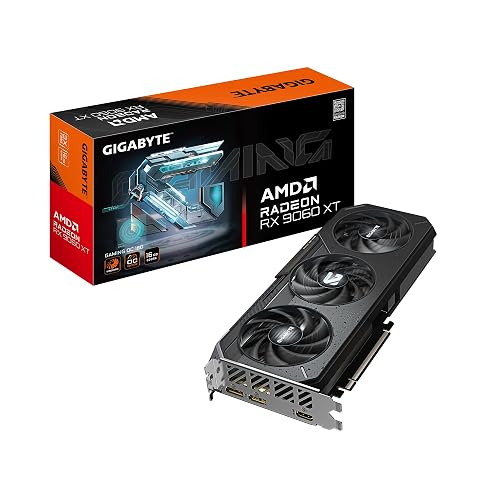
GIGABYTE Radeon RX 9060 XT Gaming OC 16G Graphics Card
If you want a streaming-ready GPU that also handles gaming and creative work, the GIGABYTE Radeon RX 9060 XT Gaming OC 16G is a strong choice. It delivers AMD RDNA 4 performance, 16GB of GDDR6, and a 2700 MHz boost clock for smooth gameplay and reliable encoding. The card uses a PCIe 5.0 x16 interface and supports DisplayPort and HDMI outputs, with up to 8K resolution. GIGABYTE’s WINDFORCE cooling, Hawk fan, and server-grade thermal conductive gel help keep temperatures under control. RGB lighting and AI acceleration add further appeal.
- GPU Brand:AMD Radeon
- VRAM:16 GB GDDR6
- PCIe Version:PCIe 5.0
- Max Resolution:7680 x 4320
- Output Ports:DisplayPort/HDMI
- Cooling:WINDFORCE
- Additional Feature:RDNA 4 architecture
- Additional Feature:RGB lighting
- Additional Feature:Hawk fan
GIGABYTE Radeon RX 7600 XT Gaming OC 16G Graphics Card
The GIGABYTE Radeon RX 7600 XT Gaming OC 16G is a strong pick for streamers who want 16GB of GDDR6 memory without jumping to a much pricier card. It uses AMD’s RX 7600 XT GPU, a 128-bit bus, and 18,000 MHz memory for steady 1080p and light 1440p workflows. The triple WINDFORCE fan cooler helps keep temperatures in check, and the metal backplate adds durability. You also get RGB Fusion and four outputs, two DisplayPort 2.1 and two HDMI 2.1a. It supports desktop builds, carries a 3-year warranty, and has earned strong user ratings.
- GPU Brand:AMD Radeon
- VRAM:16 GB GDDR6
- PCIe Version:PCIe 4.0
- Max Resolution:7680 x 4320
- Output Ports:2x DP, 2x HDMI
- Cooling:3X WINDFORCE
- Additional Feature:3X WINDFORCE fans
- Additional Feature:RGB Fusion
- Additional Feature:Metal backplate
PNY GeForce RTX 5070 Epic-X ARGB OC Graphics Card
PNY’s GeForce RTX 5070 Epic-X ARGB OC Triple Fan is a strong pick for streamers who want modern encoding support, fast 12GB GDDR7 memory, and NVIDIA’s streaming-friendly extras like DLSS 4, Reflex, and Studio drivers in one card. It includes 6,144 CUDA cores, a 2.685 GHz boost clock, and Blackwell’s fifth-gen Tensor and fourth-gen ray tracing cores, so games and scenes stay sharp. The triple-fan 2.4-slot cooler and PCIe 5.0 support simplify installation, and the card ships with a 16-pin adapter. Stream in 4K, then multitask across four displays without slowing down.
- GPU Brand:NVIDIA GeForce
- VRAM:12 GB GDDR7
- PCIe Version:PCIe 5.0
- Max Resolution:7680 x 4320
- Output Ports:3x DP, 1x HDMI
- Cooling:Triple-fan ARGB
- Additional Feature:DLSS 4 support
- Additional Feature:NVIDIA Reflex
- Additional Feature:SFF-ready
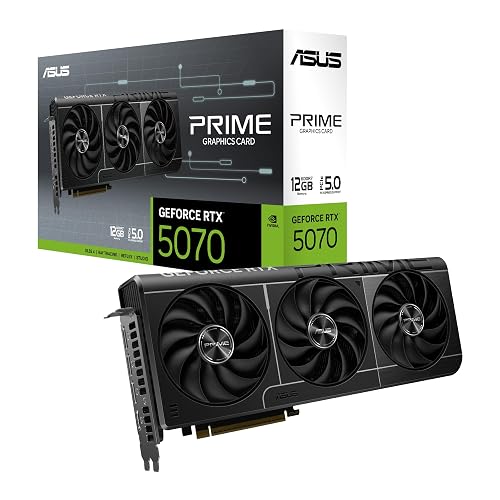
ASUS Prime GeForce RTX 5070 Graphics Card
ASUS Prime GeForce RTX 5070 is a strong pick for streamers who want modern performance in a compact build, thanks to its NVIDIA Blackwell architecture, DLSS 4 support, and small form factor design. You get 12GB of GDDR7 memory, PCIe 5.0 support, and HDMI plus DisplayPort 2.1 outputs for flexible setups. Its 2.5 slot layout keeps compatibility broad, while Axial-tech fans push more air downward to help cooling. The phase change GPU thermal pad lowers temperatures, and boosts reliability. Dual BIOS lets you choose operating modes, so you can balance noise, power, and performance confidently.
- GPU Brand:NVIDIA GeForce
- VRAM:12 GB GDDR7
- PCIe Version:PCIe 5.0
- Max Resolution:Not listed
- Output Ports:HDMI/DisplayPort
- Cooling:Axial-tech fans
- Additional Feature:Dual BIOS
- Additional Feature:Phase-change thermal pad
- Additional Feature:SFF-ready
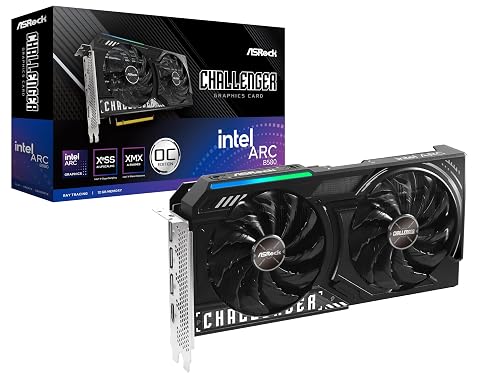
ASRock Intel Arc B580 Challenger 12GB OC Graphics Card
If you want a streaming-friendly GPU that also gives you room for 1440p gaming, the ASRock Intel Arc B580 Challenger 12GB OC stands out with 12GB of GDDR6 memory, Intel XeSS 2 support, and strong media-focused Arc features. It uses an Intel Arc B580 chip built on Xe2-HPG, and it includes 160 XMX engines plus 20 compute units for AI-tuned workloads. A 2740 MHz boost helps keep gameplay smooth. Dual axial fans and 0 dB cooling reduce noise at idle. You also get three DisplayPort 2.1 outputs, HDMI 2.1a, and a single 8-pin power connector.
- GPU Brand:Intel Arc
- VRAM:12 GB GDDR6
- PCIe Version:PCIe 4.0
- Max Resolution:7680 x 4320
- Output Ports:3x DP, 1x HDMI
- Cooling:Dual axial fans
- Additional Feature:Xe2-HPG architecture
- Additional Feature:Intel XeSS 2
- Additional Feature:0 dB Silent Cooling
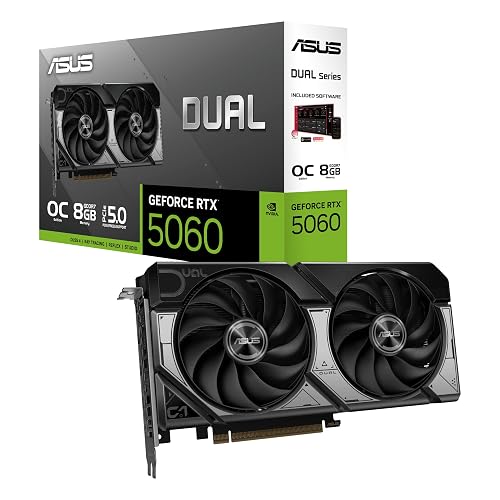
ASUS Dual GeForce RTX 5060 8GB OC Edition
Built for compact streaming rigs, the ASUS Dual GeForce RTX 5060 8GB OC Edition is a strong pick if you want modern Blackwell performance in a smaller 2.5-slot card that still leaves room for airflow. You get 8GB of GDDR7 memory, 623 AI TOPS, and DLSS 4 for smoother streams and sharper gameplay. In OC mode it boosts to 2565 MHz, while the dual Axial-tech fans and 0 dB idle mode keep noise down. You also get three DisplayPort 2.1b outputs, one HDMI 2.1b port, PCIe 5.0 support, and a 3 year warranty.
- GPU Brand:NVIDIA GeForce
- VRAM:8 GB GDDR7
- PCIe Version:PCIe 5.0
- Max Resolution:7680 x 4320
- Output Ports:3x DP, 1x HDMI
- Cooling:Dual Axial-tech fans
- Additional Feature:623 AI TOPS
- Additional Feature:DLSS 4
- Additional Feature:0dB technology
ASUS Prime Radeon RX 9070 XT OC Graphics Card
With its OC Edition tuning, strong cooling setup, and dual BIOS, the ASUS Prime Radeon RX 9070 XT OC is a solid pick if you want a streaming GPU that stays quiet and steady under load. It uses Axial-tech fans with a smaller hub and longer blades for stronger airflow, plus a 0dB mode for near-silent light use. The 2.5-slot cooler fits more systems, and the phase-change thermal pad helps keep temperatures down. Dual-ball bearings boost durability. PCIe 5.0, HDMI 2.1, and DisplayPort 2.1 keep you ready for modern setups, and GPU Guard adds extra protection.
- GPU Brand:AMD Radeon
- VRAM:Not listed
- PCIe Version:PCIe 5.0
- Max Resolution:Not listed
- Output Ports:HDMI/DisplayPort
- Cooling:Axial-tech fans
- Additional Feature:Dual-ball bearings
- Additional Feature:GPU Guard
- Additional Feature:Dual BIOS
Factors to Consider When Choosing Graphics Cards GPUs for Streaming Video
When choosing a GPU for streaming video, make sure you have enough VRAM to handle games, overlays, and background apps without slowdowns. Check encoder support, power efficiency, output connectivity, and cooling performance so your streams remain smooth and your setup stays reliable. Balancing these features lets you deliver high quality video without overtaxing your system.
VRAM Capacity
VRAM capacity matters because it directly affects how smoothly your stream runs once you start juggling gameplay, OBS, browser tabs, and GPU-based encoding. For 1080p streaming, 6 to 8 GB usually gives you enough room for decoded frames, textures, and frame buffers. If you push 4K, run multiple high-resolution captures, or stack heavy OBS filters and plugins, aim for 10 to 16 GB or more. When VRAM runs short, you can see stuttering, dropped frames, or forced downscaling as the card struggles to hold game, capture, and browser data at once. If you stream and record simultaneously, add extra headroom. Multi-monitor setups, large canvas sizes, and higher texture quality also raise usage, so target about 20 to 30 percent more VRAM than your baseline needs.
Encoder Support
Encoder support is one of the biggest factors in choosing a streaming GPU, because it determines how much work the card can take off your CPU. Look for a modern hardware encoder such as NVENC, AMD VCE/VCN, or Intel Quick Sync, since it can reduce CPU load and streaming lag. Check which codecs it handles, including H.264, H.265/HEVC, and AV1, because newer options can deliver better quality at lower bitrates. Make sure the encoder can sustain your target resolution and frame rate, for example 1080p60, 1440p60, or 4K60, and supports VBR and CBR. Low latency presets, B-frame handling, and solid OBS or Streamlabs support also matter.
Power Efficiency
Power efficiency matters because a streaming GPU should not waste wattage on the job. You will get better results if you choose a card with a hardware video encoder, since NVENC, VCE, or AV1 engines handle realtime encoding with far less power than shader cores or your CPU. Check TDP and typical board power too; lower numbers usually mean less heat, a smaller PSU requirement, and easier cooling while you stream. Newer architectures and process nodes often deliver more encoding performance per watt, so they are worth prioritizing. Also match encoder efficiency to your codec and resolution: AV1 or HEVC can keep quality high at lower bitrates and power than older H.264. Finally, consider PCIe draw, auxiliary connectors, and idle modes, like 0 dB fan stop, for lighter sessions.
Output Connectivity
For streaming, make sure the GPU’s output ports fit your monitor and capture setup, because the right connectivity can matter as much as the encoder itself. Choose models with the connections you actually need, such as DisplayPort 1.4 or 2.1, and HDMI 2.0 or 2.1. If you want 4K at 120 Hz, HDMI 2.1 is essential. Check that the card offers enough physical outputs for your game monitor, OBS display, and any capture device; most streamers need at least two. Confirm the supported resolutions and refresh rates so you do not downscale your preview. Also verify whether the GPU supports hardware passthrough or dedicated encoders over those outputs, since that can cut latency and ease CPU load. Match cable types and adapters to your capture card or TV.
Cooling Performance
Cooling matters just as much as port selection when you are picking a GPU for streaming. You want strong airflow, because it keeps junction temperatures well below throttling limits and helps the encoder hold steady during long sessions. A card with dual or triple fans can dump heat better, so you will see fewer RPM spikes and less noise when you are encoding 1080p or 4K video. Look for big heatsinks, heat pipes, or a vapor chamber, since they move heat off the die faster and support stable clocks. Your case matters too. Use front intake and top or rear exhaust, and keep dust out. At low load, 0 dB mode is ideal, but cooling should ramp smoothly as GPU use rises so your audio stays clean.
Frequently Asked Questions
Which Streaming Encoder Offers the Best Quality-To-Performance Balance?
You will usually get the best quality-to-performance balance with NVENC on modern NVIDIA GPUs, since it delivers crisp streams with low CPU load. If you have AV1 support, you will often see even better efficiency and quality.
How Much VRAM Is Ideal for Long Streaming Sessions?
You should have 8 GB of VRAM for long streaming sessions, and 12 GB or more if you play demanding games or multitask heavily. Extra headroom keeps performance smooth, helps prevent stutters, and aids in future-proofing your setup.
Do Streaming GPUS Need Extra Cooling for Quiet Operation?
Yes, you will often need better cooling for quiet operation. Use a larger heatsink, add more fans, or choose an open-air case so the GPU runs cooler and its fans stay slower and quieter during streams.
Is AV1 Encoding Important for Live Streaming Today?
Yes, if you want your stream to look sharper while using less bandwidth, you will value AV1. You will not need it everywhere yet, but you will appreciate its efficiency when platforms and viewers support it.
Can a Midrange GPU Handle Streaming and Gaming Simultaneously?
Yes, you can stream and game on a midrange GPU if you choose sensible settings, use hardware encoding, and keep resolutions moderate. You will get smoother performance by limiting in-game demands and optimizing your stream quality.




