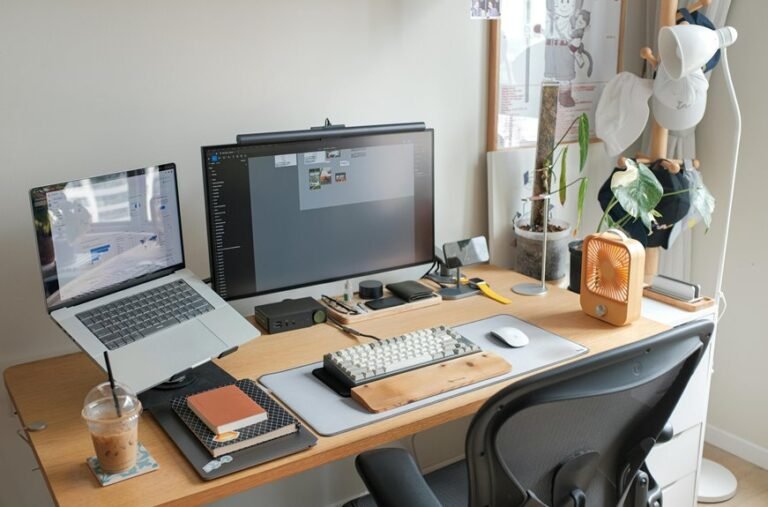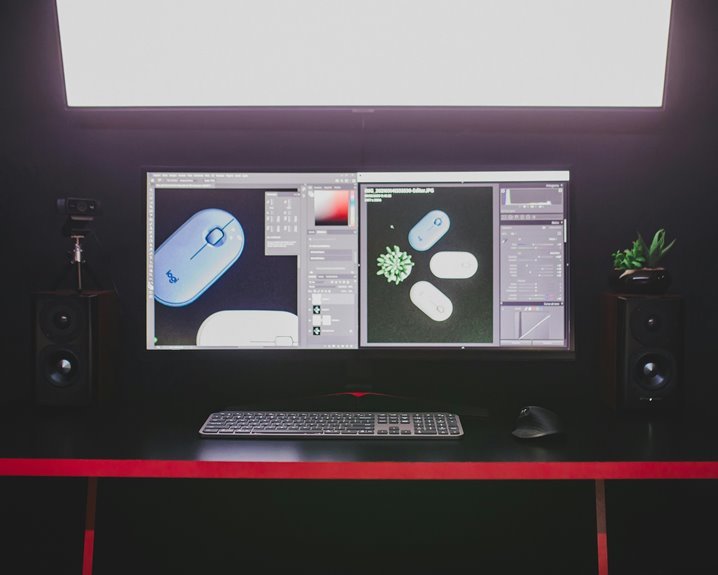

A well-aligned monitor helps your neck, shoulders, and eyes feel better throughout the day. Set the top of the screen at or slightly below eye level for a more natural view. Place it far enough away so your arms stay relaxed and your eyes don’t strain. A small tilt and less glare can make your desk feel much more comfortable.
What Proper Monitor Alignment Looks Like
A well-aligned monitor feels almost invisible, because it lets your eyes stay relaxed and your posture stay natural. You know it’s right when the screen sits in your viewing zone, so you don’t need to crane, squint, or twist to read it.
The image should stay even from edge to edge, with steady color consistency instead of washed-out patches or odd shifts. That matters most when you work, game, or share the screen with others. If you see the image change as you move a little, the setup likely needs adjustment.
Good alignment also helps you feel included in the task, not stuck fighting your gear. In other words, the monitor should meet you where you are, not make you chase it around.
Set the Right Monitor Height
Once you know your monitor is lined up in front of you, the next step is getting the height right so your neck can relax instead of doing unpaid overtime. You want the top of the screen at or just below eye level placement, which supports monitor height ergonomics and keeps your posture steady. When you sit tall and still feel chin lift, raise the screen a bit. When you look down too much, lower it.
- Use books or a stand for quick lifts.
- Keep your shoulders loose, not hunched.
- Check that your eyes meet the upper third of the screen.
- Make small changes, then notice how your body feels.
When your setup fits you, you feel more settled, and your desk starts to feel like your space.
Find the Best Viewing Distance
You’ll want your screen far enough away to see the full display without leaning in or squinting, because that keeps your neck, eyes, and shoulders more relaxed. A good rule is to match the distance to your display size so the text feels clear and the whole screen stays easy to scan.
When you sit too close, you might notice more strain and less comfort, so small adjustments can make a big difference.
Optimal Screen Distance
When you sit down to set up your monitor, distance matters just as much as height and tilt. You want your eyes to rest, not work overtime, so aim for eye strain reduction with a setup that feels natural.
A simple rule helps: keep the screen at arm’s length, then fine-tune based on screen size matching. Bigger displays usually sit a bit farther back, while smaller ones can stay closer.
- Lean back and see whether text still feels easy to read.
- Should you squint, move the screen out a little.
- Should you keep nodding forward, bring it closer.
- Trust comfort; your body usually notices earliest.
When your setup fits you, you feel calmer, more focused, and a lot more at home at your desk.
Match Distance To Display
Once you match distance to your display, you make the screen work with your eyes instead of against them. You should sit about an arm’s length away, then nudge closer or farther until text feels calm and clear. That sweet spot supports viewing comfort and helps cut eye strain during long tasks. Whenever your monitor is large, step back a little so your whole team of pixels stays in view. When it’s small, move in just enough to read without leaning.
| Distance cue | What you feel |
|---|---|
| Arm’s length | Easy focus |
| Too close | Tight eyes |
| Too far | Small text |
| Just right | Smooth viewing |
You belong in a setup that fits you, so trust your body whenever it says, “That’s better.” Use it.
Set Your Monitor for Better Posture
You can ease neck strain by setting your screen so the top sits at or just below eye level.
Then adjust your chair so you sit back with relaxed shoulders and your feet flat, which helps your body stay supported instead of reaching forward.
Whenever your monitor and seat work together, you keep your neck neutral and make long screen time feel a lot less taxing.
Optimal Screen Height
How high should your screen sit for the best posture? You want the top edge near eye level, so your neck stays calm and your focus feels natural. With careful monitor height calibration, you can avoid looking up or hunching down. Consider eye level placement as your screen’s home base.
- Keep the top bezel just below your eyes.
- Angle the screen up 10 to 20 degrees.
- Match the height to your seated view.
- Check comfort after a few minutes.
When you adjust it, your face stays relaxed, and your shoulders don’t chase the screen. That little change helps you feel like you belong at your desk, not trapped by it.
Whenever the text still feels off, raise or lower the display a bit and test again. Tiny tweaks can make your whole setup feel kinder.
Proper Chair Position
Your chair sets the stage for everything else, because a good seat helps your monitor line up with your eyes instead of forcing your body to fight the desk. When you adjust chair ergonomics, you join a setup that feels natural, steady, and shared by people who value comfort too. Keep your feet flat, your hips back, and your seating posture relaxed but alert. Then your screen can stay at a friendly height without extra strain.
| Check | What to do | Why it helps |
|---|---|---|
| Seat height | Set knees level | Keeps you stable |
| Back support | Use the backrest | Reduces slouching |
| Arm position | Relax shoulders | Frees your setup |
Should your chair be too low, raise it. Should it be too high, lower it. Small moves create better screen alignment and a calmer workday.
Neutral Neck Alignment
A neutral neck starts with where your monitor sits, because even a small screen adjustment can save you from that slow, annoying tug in your shoulders.
As soon as you set the top of the screen at eye level, your neck posture stays relaxed and your head doesn’t creep forward. That helps your ergonomic alignment feel natural, not forced.
- Keep the screen an arm’s length away.
- Tilt it slightly upward, about 10 to 20 degrees.
- Center it so you’re not twisting to look.
- Check that your chin stays level, not lifted.
If you share a desk or use two screens, aim the main one straight ahead. Then your body can stay in sync with your workspace, and you’ll fit right in with a setup that feels good all day.
Adjust Monitor Tilt and Angle
Set the tilt first, because that small move can make a big difference in how calm your eyes feel by the end of the day. You’re not just aiming for comfort; you’re doing tilt calibration and viewing angle optimization so your setup feels like it fits you. Keep the top edge near eye level, then tip the screen up 10 to 20 degrees. If you share a desk or use two screens, angle the main monitor toward you and keep both displays even.
| Check | What to do |
|---|---|
| Height | Top near eye level |
| Tilt | 10 to 20 degrees up |
That way, you stay part of the same clear, easy-to-see space. For wide-view panels, a gentle turn helps colors stay steady.
Reduce Glare With Better Screen Positioning
The original text rewritten with only those replacements is:
As glare keeps bouncing off your screen, it can wear you down fast, but better monitor placement can calm that problem right away. You can help your eyes because turning the screen away from windows and lamps, so light hits the side instead of the glass. That simple shift improves window reflection control and keeps your space more comfortable. Next, watch your ambient light placement so overhead bulbs don’t land right on the display.
- Slide your desk a little whether sun hits the panel.
- Use blinds or curtains during bright hours.
- Angle the monitor so reflections move off center.
- Check for shiny spots before you settle in.
You’ll feel more settled as your setup works with the room, not against it, and your focus can stay on the task.
Fine-Tune Dual Monitor Alignment
Fine-tuning a dual monitor setup starts with getting both screens to feel like one smooth workspace instead of two competing islands.
You can do that by matching height, tilt, and distance, then using dual monitor calibration to align color and brightness. Next, angle the secondary screen slightly toward your dominant eye so your neck stays relaxed and your view stays clear. Keep both tops near eye level, and let the screens form a gentle arc.
For bezel gap management, push the displays close enough to reduce the split without crowding your desk. When one screen looks brighter, adjust it until both feel balanced. Small changes matter, and they help you settle into a setup that feels made for you, not borrowed from somewhere else.
Frequently Asked Questions
What Viewing Angle Is Ideal for IPS Monitors?
For IPS monitors, a viewing angle near 178° both horizontally and vertically works best, especially when the screen is positioned at eye level. This helps maintain color accuracy and image consistency from different seats, making it a strong choice for shared viewing, gaming, and creative work.
How Do Curved Monitors Affect Alignment Angles?
Curved monitors shift how you set alignment angles. Instead of following a flat screen layout, you position them so your eyes line up with the center of the curve. This screen shape can reduce edge distortion in your field of view and create a more natural, comfortable viewing position.
When Should I Adjust Vertical Viewing Angles?
Adjust the vertical viewing angle if your monitor sits above or below eye level, or when using a standing desk or portrait orientation. Tilt the screen so the top edge stays close to eye level for a clearer, more comfortable view.
Does Monitor Panel Type Change Color Accuracy at Angles?
Yes, your monitor’s panel technology directly affects how accurate colors look from different viewing angles. IPS panels usually maintain color consistency much better, while TN panels often show noticeable color shifting. If you view the screen from the side or share it with someone nearby, the difference becomes easy to see.
How Do I Align Monitors for Standing Desks?
Position each monitor so the top edge is at or slightly below eye level. Raise or lower the desk until your elbows rest comfortably. Keep screens about an arm’s length away, tilt them upward 10 to 20 degrees, and turn side monitors inward so they face you directly.