


If you edit video often, the GPU you choose can cut export times, smooth playback, and make color work far less frustrating. With 4K timelines, AI-assisted effects, and demanding codecs, not every card keeps up the same way.
Some models deliver more VRAM, better cooling, and stronger hardware acceleration than others, and the difference can be bigger than you would expect. Here is how the top options stack up, and which one might fit your workflow best.


More Details on Our Top Picks
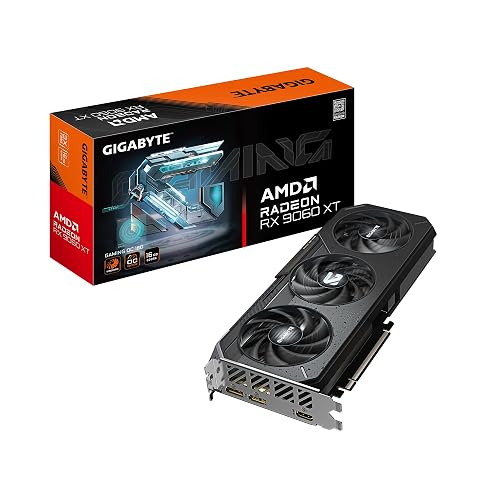
GIGABYTE Radeon RX 9060 XT Gaming OC 16G Graphics Card
If you are editing in 4K and need a card that can handle demanding timelines without slowing you down, the GIGABYTE Radeon RX 9060 XT Gaming OC 16G is a strong fit. It offers 16 GB of GDDR6 memory, a 2,700 MHz GPU clock, and PCIe 5.0 support, so you can push large projects with confidence. Its AMD RDNA 4 architecture adds AI acceleration, which can help speed up creative workflows. The WINDFORCE cooling system, with Hawk Fan and server-grade thermal gel, keeps temperatures in check. DisplayPort and HDMI outputs support up to 7680 x 4320 resolution.
- GPU Brand:AMD Radeon RX 9060 XT
- VRAM:16 GB GDDR6
- PCIe 5.0:Yes
- Display Outputs:DisplayPort, HDMI
- Max Resolution:7680 x 4320
- Video Card Type:Dedicated graphics card
- Additional Feature:WINDFORCE Hawk Fan
- Additional Feature:Server-grade thermal gel
- Additional Feature:RGB lighting
PNY NVIDIA GeForce RTX 5070 Epic-X ARGB OC Graphics Card
The PNY NVIDIA GeForce RTX 5070 Epic-X ARGB OC is a smart pick for video editors who want strong AI-accelerated performance without moving into high-end workstation pricing. It uses NVIDIA’s Blackwell GPU with 6,144 CUDA cores, DLSS 4, fifth-generation Tensor Cores, and fourth-generation ray tracing for faster effects, playback, and exports. Its 12 GB of GDDR7 memory and 672 GB/s bandwidth, together with a PCIe 5.0 interface, help with demanding timelines. The triple-fan ARGB cooler, a small-form-factor ready 2.4-slot design, and the included 16-pin to dual 8-pin cable make installation easier.
- GPU Brand:NVIDIA GeForce RTX 5070
- VRAM:12 GB GDDR7
- PCIe 5.0:Yes
- Display Outputs:3x DP 2.1b, HDMI 2.1b
- Max Resolution:7680 x 4320
- Video Card Type:Gaming/content creation card
- Additional Feature:Triple-fan ARGB
- Additional Feature:Factory overclocked
- Additional Feature:16-pin adapter cable
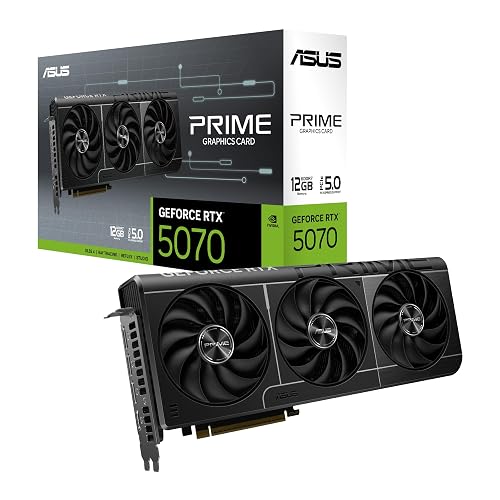
ASUS Prime GeForce RTX 5070 Graphics Card
ASUS Prime GeForce RTX 5070 (SFF-Ready) is a strong pick for editors who need high-end performance in a compact build, thanks to its NVIDIA Blackwell architecture, 12GB GDDR7 memory, and 2.5 slot design that fits small form factor systems. You also get DLSS 4, PCIe 5.0 support, and three DisplayPort 2.1b outputs plus HDMI 2.1b for flexible monitor setups. Its three Axial-tech fans, phase change thermal pad, and optimized heatsink help keep temperatures steady during long renders. With Dual BIOS and a 3 year warranty, it balances speed, cooling, and reliability.
- GPU Brand:NVIDIA GeForce RTX 5070
- VRAM:12 GB GDDR7
- PCIe 5.0:Yes
- Display Outputs:3x DP 2.1b, HDMI 2.1b
- Max Resolution:7680 x 4320
- Video Card Type:Gaming/office/professional card
- Additional Feature:Dual BIOS
- Additional Feature:Phase-change thermal pad
- Additional Feature:Axial-tech fans
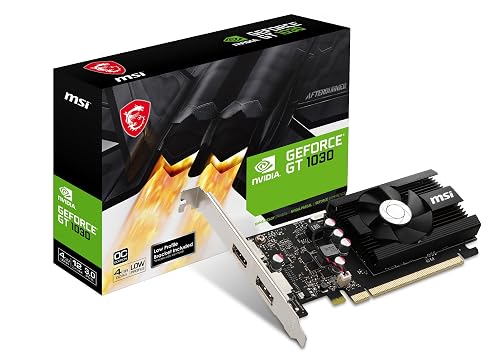
MSI GeForce GT 1030 4GB Graphics Card (GT 1030 4GD4 LP OC)
MSI’s GeForce GT 1030 4GB LP OC is a compact, low-profile card that fits best if you need a budget-friendly upgrade for light video editing, HD playback, and basic creative work. You get a Pascal-based NVIDIA GPU, 4GB DDR4 memory, and a 64-bit interface for smoother everyday tasks. Its single fan, PCIe x16 design and slim profile make installation easy in smaller systems. You can connect a DisplayPort or HDMI display, and it supports 4K output, DirectX 12, HDCP and GeForce Experience updates. It is not for heavy effects, but it will handle simple projects reliably.
- GPU Brand:NVIDIA GeForce GT 1030
- VRAM:4 GB DDR4
- PCIe 5.0:No
- Display Outputs:DP 1.4a, HDMI 2.0b
- Max Resolution:3840 x 2160
- Video Card Type:Low-profile graphics card
- Additional Feature:Low-profile design
- Additional Feature:GeForce Experience support
- Additional Feature:Single-fan cooling
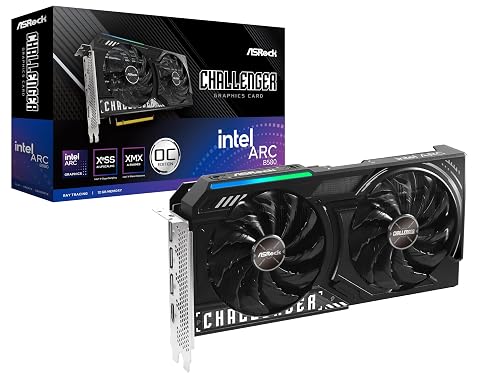
ASRock Intel Arc B580 Challenger 12GB Graphics Card
If you edit 4K timelines, stack effects, or use AI-assisted tools, the ASRock Intel Arc B580 Challenger 12GB can hit a sweet spot for you. You get 12GB of GDDR6 on a 192-bit bus, 20 Xe2-HPG compute units, and 160 XMX engines for AI-accelerated work. Its 2740 MHz boost clock and Intel XeSS 2 support help you stay responsive. The dual-fan cooler, metal backplate, and 0 dB mode keep noise down. You also get three DisplayPort 2.1 outputs, one HDMI 2.1a port, and support for up to four displays.
- GPU Brand:Intel Arc B580
- VRAM:12 GB GDDR6
- PCIe 5.0:No
- Display Outputs:3x DP 2.1, HDMI 2.1a
- Max Resolution:7680 x 4320
- Video Card Type:Gaming graphics card
- Additional Feature:XeSS 2 support
- Additional Feature:0dB silent technology
- Additional Feature:Metal backplate
ChromLives White Balance Grey Card Set for Photography
ChromLives White Balance Grey Card Set is a smart pick for photographers and videographers who want faster, more consistent color and exposure control on location or in the studio. The set includes three 5 x 4 inch cards: 18% gray, white, and black, plus a premium clip-release lanyard. Use the gray card to nail exposure, the white card to set white balance, and the black card to block stray light or shape contrast. It works with DSLR, mirrorless, video, film, and digital cameras, and its compact, sturdy build travels easily.
- GPU Brand:N/A
- VRAM:N/A
- PCIe 5.0:N/A
- Display Outputs:N/A
- Max Resolution:N/A
- Video Card Type:N/A
- Additional Feature:18% grey card
- Additional Feature:Premium lanyard included
- Additional Feature:Black light-blocking card
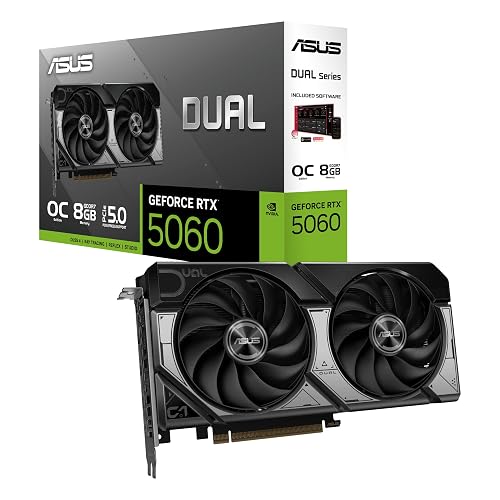
ASUS Dual GeForce RTX 5060 8GB OC Edition
The ASUS Dual GeForce RTX 5060 8GB OC Edition is a strong pick if you want a compact, SFF-ready video editing card with modern AI acceleration and fast memory. You get NVIDIA’s Blackwell architecture, DLSS 4 support, and 623 AI TOPS for faster effects, upscaling, and improved timeline responsiveness. Its 8GB of GDDR7 memory and PCIe 5.0 interface help move data efficiently. Boost clocks reach 2565 MHz in OC mode, allowing you to squeeze out extra speed. The 2.5-slot cooler uses Axial-tech fans and 0 dB technology to keep it quiet. HDMI 2.1b and DisplayPort 2.1b simplify multi-display workflows.
- GPU Brand:NVIDIA GeForce RTX 5060
- VRAM:8 GB GDDR7
- PCIe 5.0:Yes
- Display Outputs:HDMI 2.1b, DP 2.1b
- Max Resolution:N/A
- Video Card Type:Gaming graphics card
- Additional Feature:DLSS 4 support
- Additional Feature:0 dB technology
- Additional Feature:Axial-tech fan design
Factors to Consider When Choosing Graphics Cards For Video Editing
When choosing a graphics card for video editing, match VRAM capacity to your timeline, resolution, and effects workload. Also verify GPU architecture support, display output options, cooling and thermals, and whether your power supply can handle the card’s power draw. These factors affect editing speed and long term system stability.
VRAM Capacity Needs
VRAM capacity matters because it directly affects how smoothly your editing software can handle footage, effects, and previews. If you mostly edit 1080p footage and do basic color grading, 4 to 8 GB usually covers your timelines and effects. For 4K projects, multi-cam edits, or RAW and 10-bit footage, you should target 12 to 16 GB so you can cache frames and preview high-resolution media without slowdown. If you stack heavy effects, noise reduction, optical flow, or large node-based grades, you may need more than 16 GB. Extra VRAM also helps when you run multiple high-resolution monitors or GPU-backed LUTs and textures. Since demands grow with resolution, bit depth, codec, and layers, choose at least 20 to 30 percent more VRAM than your worst-case project.
GPU Architecture Support
Beyond raw specs, pay close attention to GPU architecture support, because modern generations bring dedicated hardware for tasks like denoising, upscaling, encoding, and decoding that can speed up editing software noticeably. You want an architecture that exposes tensor, ray tracing, or similar accelerators to your editor, since they can slash render times and improve preview quality. Check that the generation supports hardware HEVC and AV1 encode and decode, motion estimation, and other video instructions your software uses for smooth playback and faster exports. Also favor mature APIs like CUDA, ROCm, Vulkan, DirectX Video Acceleration, or Metal, matching your suite’s needs. Finally, look for strong memory design, efficient power use, and thermal headroom so the card sustains high clocks during long exports and heavy effects work.
Display Output Options
Display output options matter just as much as raw GPU power, because your editing setup needs to drive one or more monitors cleanly and at the right bandwidth. For multi-monitor 4K editing, choose a card with DisplayPort 2.1 or HDMI 2.1b so you can push up to 7680×4320 and keep timeline scrubbing smooth at high refresh rates. Make sure the GPU has enough ports, ideally three or more, if you will run dual monitors plus a reference display. If you grade HDR, verify HDR-capable outputs and metadata support so luminance and color stay accurate on your HDR monitor. For ultra-high bandwidth workflows, use UHBR or 48 Gbps or HDMI 2.1b cables. Also check native connectors and whether you will need passive or active adapters for legacy displays.
Cooling And Thermals
Cooling can make or break a video editing GPU, because long timeline renders and GPU accelerated effects keep the card under heavy load for extended periods. You should favor cards with strong cooling that can move 200 to 300 plus watts of continuous heat without throttling. Multi fan coolers, large heatsinks, heat pipes, vapor chambers and phase change pads help keep junction temperatures down during long exports. Check the card’s thickness too; a two to three slot design needs enough clearance and case airflow to breathe. In a cramped SFF build, temperatures can climb fast, so a lower TDP model may suit you better. Single fan or passive cards can stay quieter, but they often struggle on long renders. Use zero RPM modes, dual BIOS and fan curve controls to balance noise and cooling.
Power And PSU Requirements
Power matters as much as performance. A video editing GPU can push your system hard during exports, effects playback, and renders. Check the card’s TDP, and make sure your PSU delivers enough continuous wattage with 20 to 30 percent headroom above total system load. That buffer helps prevent brownouts when renders spike. Verify you have the right PCIe power plugs, such as a single 8-pin, dual 8-pin, or 16-pin, and that the connectors meet the card maker’s amperage guidance. Also confirm your motherboard, case, and cable lengths fit the power setup cleanly so you do not need awkward adapters or strain the wiring. If you are running multiple GPUs, add 75 to 150 W per extra high-end card, and keep airflow strong. Choose a quality PSU with stable rails.
Resolve And AI Acceleration
When you edit in DaVinci Resolve, GPU compute performance and AI acceleration can make a huge difference in how fast node-heavy grades, Fusion effects, and exports finish. Look for high TFLOPS or AI TOPS, because stronger compute can cut render times and keep complex grades responsive. Dedicated AI cores or tensor units speed up Super Scale, AI upscaling, noise reduction, and facial recognition, so you can preview demanding timelines in real time. You will also want enough VRAM and bandwidth, 4K and 8K AI workflows can need 12 to 16 GB or more to avoid slowdowns. Check that Resolve supports the card’s CUDA, OptiX, ROCm, or vendor ML APIs, and choose a cooler that sustains boost clocks during long exports.
Form Factor Compatibility
Before you buy a GPU for video editing, make sure it physically fits your build and can run safely in your case. Measure the card’s length, height, and slot width against your case clearance; many modern models are 2 to 2.5 slots thick and nearly 12 inches long. If you’re using a compact or SFF build, choose a shorter, low profile card. Check that your motherboard offers an unobstructed PCIe x16 slot and enough room for proper seating and airflow. Also verify PSU connectors, whether that is a single 8-pin, dual 8-pin, or 16-pin adapter, and leave space for cable routing. Finally, confirm your case’s airflow and fan clearance, especially with triple fan designs, so your GPU stays cool under editing loads.
Frequently Asked Questions
Which Graphics Cards Work Best With Adobe Premiere Pro?
You will get great results with NVIDIA GeForce RTX cards, especially the RTX 4070, RTX 4080, and RTX 4090, and with professional RTX Ada models. Premiere Pro leverages CUDA effectively, and you will benefit from ample VRAM and fast hardware encoding.
Do I Need More VRAM for 4K Video Editing?
Yes. You will usually benefit from more VRAM for 4K editing, especially when using effects, color grading, and multiple layers. You do not always need a large amount, but 8 GB is helpful. 12 GB or more gives you more breathing room.
Is NVIDIA or AMD Better for Video Editing Workloads?
Nvidia is generally better for video editing, offering broader software support and faster CUDA-accelerated exports, which can feel like rocket fuel. AMD can still perform well, but you will often see fewer app-specific optimizations overall.
Can a Budget GPU Handle Smooth 1080P Editing?
Yes, you can edit 1080p smoothly on a budget GPU if you use optimized codecs, modest effects, and enough RAM. You will notice slowdowns with heavy grading, but basic timelines should remain responsive.
Does GPU Acceleration Really Speed up Export Times?
Yes, GPU acceleration can cut export times dramatically; some editors see up to 3x faster renders. You will still depend on codec, effects, and CPU, but you will usually finish sooner and keep working.




