


You probably do not know that SolidWorks often benefits more from stable drivers and VRAM than from raw gaming benchmarks.
When you choose a GPU, the wrong card can slow large assemblies, even if it looks fast on paper.
The seven options below cover everything from compact budget picks to high VRAM workhorses, so you can match your build to your workflow and avoid surprises later.
More Details on Our Top Picks
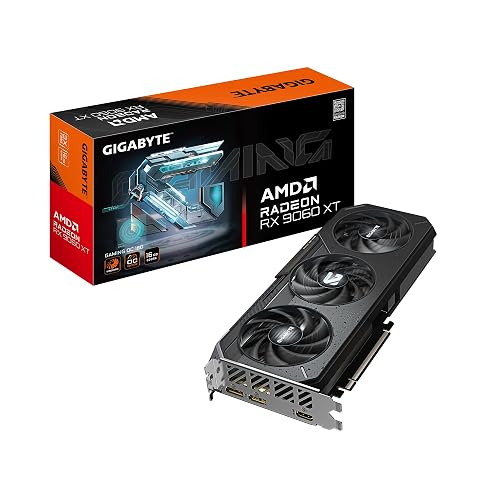
GIGABYTE Radeon RX 9060 XT Gaming OC 16G Graphics Card
If you need a SolidWorks-ready graphics card that provides plenty of headroom for demanding assemblies, the GIGABYTE Radeon RX 9060 XT Gaming OC 16G is a strong choice. It features AMD RDNA 4-based Radeon RX 9060 XT GPU, 16 GB of GDDR6 memory, and a 2,700 MHz boost clock so you can handle complex 3D models smoothly. PCIe 5.0 support and DisplayPort plus HDMI outputs provide flexible desktop connectivity. GIGABYTE WINDFORCE cooling, a Hawk fan, and thermal gel help keep temperatures in check. The 11.06-inch card fits many builds.
- GPU Brand:AMD Radeon
- Memory:16 GB GDDR6
- PCIe:PCIe 5.0
- Max Resolution:7680 x 4320
- Cooling:WINDFORCE
- Form Factor:Standard
- Additional Feature:WINDFORCE cooling system
- Additional Feature:RGB lighting
- Additional Feature:3-year warranty
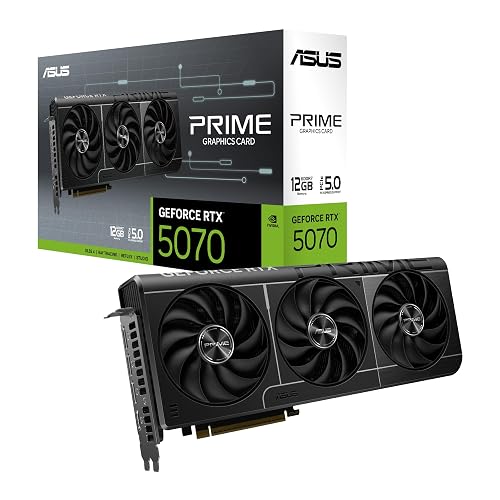
ASUS Prime GeForce RTX 5070 Graphics Card
The ASUS Prime GeForce RTX 5070 is well suited for SolidWorks users seeking strong performance in a compact, small-form-factor build. It uses NVIDIA Blackwell architecture, includes 12 GB of GDDR7 memory, and supports PCIe 5.0 for modern responsiveness. HDMI and DisplayPort 2.1 provide flexible display options. Its 2.5-slot design fits small cases while still aiding cooling. Axial-tech fans push air efficiently, and a phase-change GPU thermal pad helps lower temperatures and maintain reliability. With DLSS 4 and enthusiast-grade tuning, it handles demanding modeling and content creation smoothly.
- GPU Brand:NVIDIA GeForce
- Memory:12 GB GDDR7
- PCIe:PCIe 5.0
- Max Resolution:7680 x 4320
- Cooling:Axial-tech fans
- Form Factor:2.5-slot
- Additional Feature:DLSS 4 support
- Additional Feature:Phase-change thermal pad
- Additional Feature:SFF-ready design
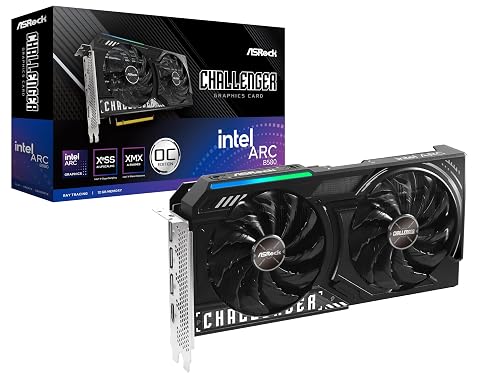
ASRock Intel Arc B580 Challenger 12GB Graphics Card
With 12GB of GDDR6 memory, a 192-bit bus, and a 12nm-efficient dual-fan design, the ASRock Intel Arc B580 Challenger 12GB Graphics Card suits SolidWorks users who need a capable midrange GPU for 3D modeling, viewport work, and AI-accelerated tasks without upgrading to a much pricier workstation card. It uses Intel’s Xe2-HPG architecture, 160 XMX engines, and a 2740 MHz boost for responsive performance. The card connects via PCIe 4.0 x8, requires one 8-pin power connector, and is recommended for systems with a 650W PSU. Check your case space, then enjoy quiet 0 dB cooling, DisplayPort 2.1, HDMI 2.1a, and XeSS 2 support.
- GPU Brand:Intel Arc
- Memory:12 GB GDDR6
- PCIe:PCIe 4.0 x8
- Max Resolution:7680 x 4320
- Cooling:Dual axial fans
- Form Factor:2-slot
- Additional Feature:XeSS 2 support
- Additional Feature:0 dB silent cooling
- Additional Feature:Metal backplate
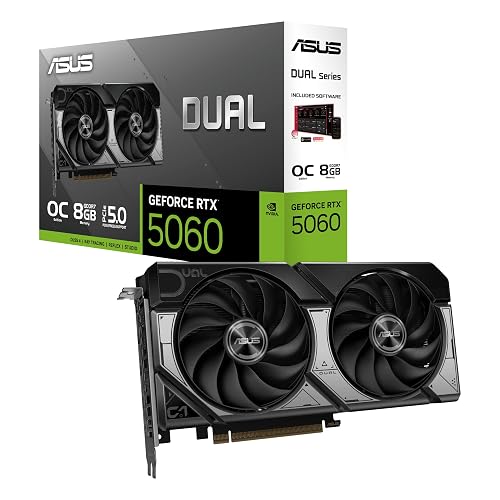
ASUS Dual GeForce RTX 5060 8GB GDDR7 OC
The ASUS Dual GeForce RTX 5060 8GB GDDR7 OC Edition is well suited for SolidWorks users who need a compact, SFF-ready GPU with modern NVIDIA Blackwell performance and efficient operation for everyday CAD tasks. It includes 8 GB of GDDR7 memory, 623 AI TOPS, and DLSS 4 support for responsive modeling and smooth viewports. The OC boost reaches 2565 MHz. PCIe 5.0 compatibility helps you stay current. Dual Axial-tech fans and a 0 dB mode keep noise low. The 2.5-slot, 9 inch design fits tighter builds. You also get three DisplayPort 2.1b ports, one HDMI 2.1b port, and a three year warranty.
- GPU Brand:NVIDIA GeForce
- Memory:8 GB GDDR7
- PCIe:PCIe 5.0
- Max Resolution:7680 x 4320
- Cooling:Axial-tech fans
- Form Factor:2.5-slot
- Additional Feature:623 AI TOPS
- Additional Feature:DLSS 4 support
- Additional Feature:0dB Technology
GeForce GT 610 2GB Low Profile Graphics Card
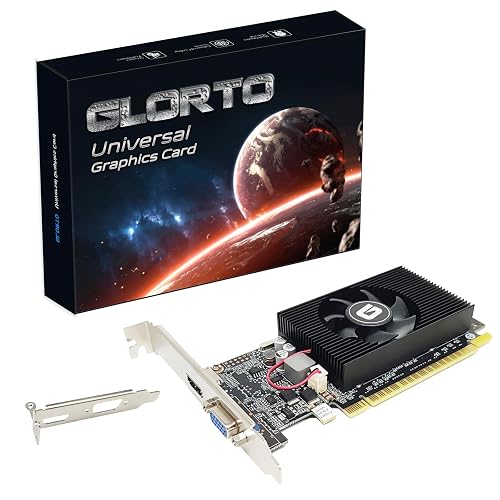
If you are building a budget SolidWorks workstation for a desktop tower, small form factor PC, or HTPC, the GeForce GT 610 2GB low profile card is a basic fit that keeps things simple. You get 2 GB of DDR3 memory, a 64-bit bus, HDMI and VGA outputs, and low-profile brackets for tighter cases. It supports Windows 11, DirectX 11, CUDA, OpenCL, and DirectCompute 5.0, so you can launch older SolidWorks tasks without fuss. Do not expect heavy modeling speed. This entry-level GPU suits light assemblies, simple sketches, and basic display work best.
- GPU Brand:NVIDIA GeForce
- Memory:2 GB DDR3
- PCIe:PCIe 1.1 x16
- Max Resolution:2560 x 1600
- Cooling:Single-fan
- Form Factor:Low-profile
- Additional Feature:Windows 11 compatible
- Additional Feature:DirectX 11 support
- Additional Feature:Low-profile bracket
ASUS Dual GeForce RTX 5060 Ti 16GB Graphics Card
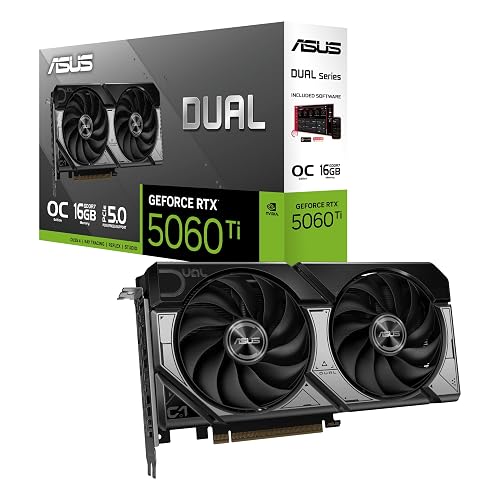
The ASUS Dual GeForce RTX 5060 Ti 16GB GDDR7 OC Edition is well suited for SolidWorks users who need a compact, PCIe 5.0 ready GPU with ample VRAM for demanding 3D models and viewport work. It provides 16GB of GDDR7, Blackwell-based performance, and up to 2632 MHz in OC mode for responsive scenes. Dual Axial-tech fans and a 0dB mode help keep noise low. The 2.5-slot, SFF-ready card fits tighter cases. DisplayPort 2.1b and HDMI 2.1b support modern displays.
- GPU Brand:NVIDIA GeForce
- Memory:16 GB GDDR7
- PCIe:PCIe 5.0
- Max Resolution:7680 x 4320
- Cooling:Axial-tech fans
- Form Factor:2.5-slot
- Additional Feature:767 AI TOPS
- Additional Feature:DLSS 4 support
- Additional Feature:Dual ball bearings
ASUS Dual Radeon RX 9060 XT 16GB Graphics Card
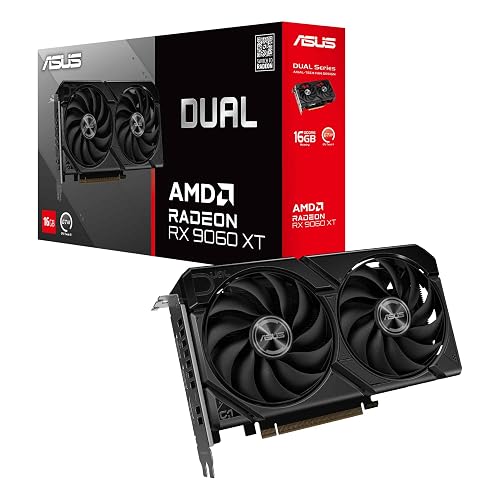
With 16GB of GDDR6 memory, PCIe 5.0 support, and a compact 2.5-slot design, the ASUS Dual Radeon RX 9060 XT is a strong fit if you want a SolidWorks-friendly card that balances performance, space efficiency, and broad chassis compatibility. It runs at a 3250 MHz clock and uses dual Axial-tech fans, with 0dB operation for quiet light use. Dual BIOS lets you choose Quiet or Performance mode, and dual ball bearings should outlast sleeve designs. Its HDMI 2.1b and dual DisplayPort 2.1a outputs support high-resolution workflows.
- GPU Brand:AMD Radeon
- Memory:16 GB GDDR6
- PCIe:PCIe 5.0
- Max Resolution:7680 x 4320
- Cooling:Dual Axial-tech fans
- Form Factor:2.5-slot
- Additional Feature:Dual BIOS profiles
- Additional Feature:Dual ball fan bearings
- Additional Feature:2x lifespan
Factors to Consider When Choosing Graphics Cards GPUs for SolidWorks
When choosing a GPU for SolidWorks, verify SolidWorks certification first because it improves compatibility and reliability. Also ensure the card has sufficient VRAM, stable drivers, and strong viewport performance so models remain smooth and responsive. Do not overlook cooling design, as a card that runs too hot can throttle performance and disrupt your workflow.
Solidworks Certification
Even with a strong GPU, SolidWorks certification still matters because it demonstrates you can use the software efficiently and correctly. When comparing graphics cards for SolidWorks, remember employers often look for CSWA, CSWP, or CSWE credentials to evaluate CAD skills. These exams test part modeling, assemblies, drawing creation, and accurate feature control under time pressure. Higher certifications indicate you can handle multi body parts, configurations, and complex assembly problems, which can improve hiring prospects and pay. To prepare, practice real tasks on a timer, learn SolidWorks design intent, and use official study guides and sample tests. Certification will not replace good hardware, but it can strengthen your profile and reduce onboarding time in team based workflows.
VRAM Capacity
VRAM capacity plays a major role in how smoothly SolidWorks handles large assemblies, high-resolution textures, and GPU-heavy visual effects. Aim for at least 8 GB for moderate models. Sixteen GB or more is wiser for complex assemblies, large textures, and high-resolution rendering. VRAM holds geometry, textures, and GPU buffers, so if you run out SolidWorks may fall back to slower system RAM or the viewport can stutter. When you work with photorealistic renders, GPU ray tracing, or 4K and higher displays, add 25 to 40% extra headroom beyond your usual needs. Multi-monitor setups and effects like RealView or SSAO also consume memory, so count them. For GPU rendering, choose a card with a consistent margin above your peak usage.
Driver Stability
Driver stability matters just as much as raw performance, because a fast GPU is little help if its drivers cause crashes, display glitches, or corrupted views in SolidWorks. Favor workstation-certified drivers, especially ISV-certified or CAD-optimized releases, since they are validated more thoroughly for SolidWorks reliability. Always review release notes and version history so you can spot regressions, CAD-specific fixes, and version compatibility before you install anything. When possible, choose long-term support or enterprise branches; they limit disruptive feature churn while still delivering security and stability updates. Test new drivers on a noncritical machine first, and confirm that files open, save, and display correctly. Keep a rollback plan ready with older installers and restore points in case an update triggers hangs or corruption.
Viewport Performance
Viewport performance in SolidWorks depends on more than raw GPU speed. A workstation card with well-optimized OpenGL or DirectX drivers usually gives smoother model rotation, faster selection, and more responsive shading than a consumer GPU. You also want sufficient shader throughput; more cores and stronger single-precision performance speed up real-time shading and hidden-line removal when manipulating complex parts. Do not overlook memory bandwidth, because if it is too low, large assemblies and texture maps can stutter or redraw slowly when you pan, zoom, or section models. Plenty of VRAM helps you keep large scene caches in place so you avoid swapping and frame drops. Finally, check refresh rate support, multi-display output, and hardware acceleration for anti-aliasing and other visual effects to keep the viewport fluid.
Cooling Design
When you choose a GPU for SolidWorks, cooling design matters as much as raw performance, because long modeling sessions and large assemblies can push the card hard enough to trigger thermal throttling. Pick models with robust multi-fan or vapor-chamber coolers, plus heatpipes and large heatsinks, so the card can spread heat efficiently and hold steady clocks during long sessions. Quiet 0 dB or semi-passive modes can help in an office, but you will want fans that ramp up quickly once workloads intensify. Check that the cooler fits your chassis and that your case has solid intake and exhaust airflow, as poor airflow can raise temperatures sharply. Dual BIOS or adjustable fan curves also let you favor quieter behavior or stronger cooling when you need it.
Power And Fit
Power and fit can make or break a SolidWorks GPU choice, because even a fast card will not help if your PSU cannot supply enough wattage or the correct PCIe power connectors. Check the card’s TDP, then add about 20 to 30 percent headroom for your system and future upgrades. Next, verify your chassis can handle the GPU’s length, height, and slot width, especially for 2.5 or 3 slot models. Make sure your motherboard has an open PCIe x16 slot with the appropriate generation and sufficient lanes. Also leave room for airflow, dual or triple fan coolers, and any low profile or single slot workstation limits. If you use risers or adapters, confirm they preserve power delivery and cooling.
Frequently Asked Questions
What Driver Type Works Best for Solidworks Stability?
You’ll get the best SolidWorks stability with certified workstation drivers, typically from NVIDIA Quadro/RTX or AMD Radeon Pro. Avoid generic gaming drivers, as certified releases reduce crashes, glitches, and compatibility issues.
Does Solidworks Benefit More From VRAM or Core Count?
You will usually benefit more from strong single-core speed and certified drivers than from extra VRAM or a higher core count. VRAM does help with very large assemblies, detailed textures, and high-resolution views when you work with complex models.
How Important Is Certification for Solidworks GPUS?
If you are running a $50,000 assembly, certification matters a lot. You will get fewer glitches, better driver stability, and official support. For lighter work, you can skip certification, but you are taking some risk.
Can Gaming GPUS Handle Large Solidworks Assemblies Reliably?
Yes, you can use gaming GPUs for large SolidWorks assemblies, but you may encounter viewport glitches, driver quirks, and reduced stability under heavy loads. You will usually get decent performance. Certified cards offer better reliability.
Is 8GB VRAM Enough for Most Solidworks Projects?
Yes, 8GB VRAM is enough for most SolidWorks projects. Think of it as a roomy workbench, not a warehouse. You can handle parts, drawings, and moderate assemblies smoothly, but huge models, heavy textures, or complex simulations can still push you past it.




