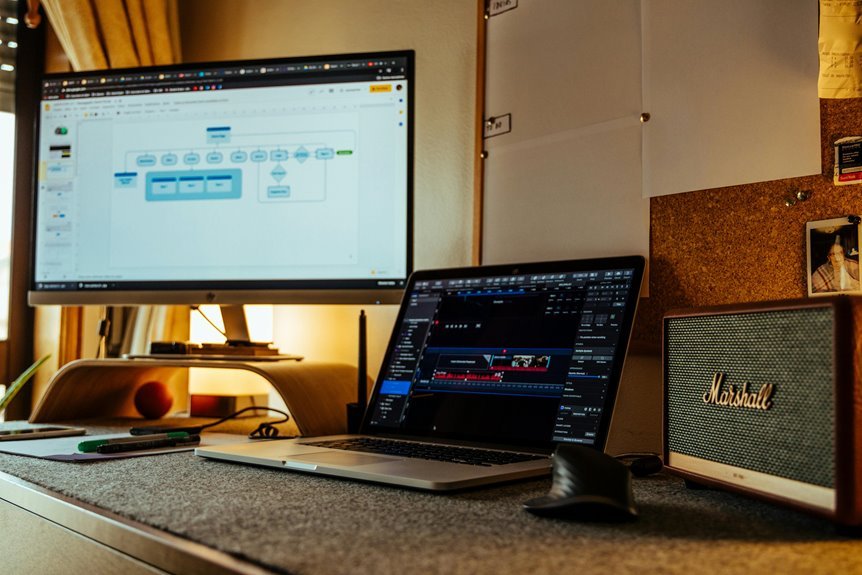

Yes, a triple monitor setup can boost productivity by giving each task its own space. One screen can hold your main work, while the others stay open for email, chat, notes, or research. That means less tab switching, fewer interruptions, and a smoother workflow. For many people, it turns a busy desk into a setup that feels faster, cleaner, and easier to use.
What Is a Triple Monitor Setup?
Next, you choose from connectivity options such as HDMI, DisplayPort, USB-C, or adapters, depending on your device. Some people place one screen in the center and two on the sides so the whole desk feels balanced. Whenever you set it up well, you create a space that feels organized, familiar, and easy to settle into, like your own little command center.
How a Triple Monitor Setup Improves Productivity
When you spread your work across three screens, you cut down on the constant shuffle of opening, closing, and resizing windows, and that alone can make your day feel much lighter.
You can keep one screen for your main task, one for support material, and one for messages, which gives you clear monitor task separation. This setup supports cognitive load reduction because your brain no longer has to recall where each piece of information lives. Instead, you see it at a glance and stay in the flow.
As a result, you move faster, make fewer small mistakes, and feel less drained by the end of the day. It can also help you feel more settled and in control, like your workspace finally fits the way you believe.
Which Tasks Benefit Most From Three Screens
Three screens help most whenever your work depends on moving fast between different kinds of information. You fit best with this setup once you do data analysis, project coordination, coding, editing, or trading. One screen can hold your main task, another can show references, and the third can keep chats or tools open, so you’re not always hunting tabs.
| Task | Best screen use | Why it helps |
|---|---|---|
| Data analysis | Charts | Spot trends fast |
| Project coordination | Calendar | Track everyone |
| Writing | Draft and notes | Keep flow steady |
| Editing | Timeline and preview | Catch mistakes |
That layout feels calm because everything stays visible. You spend less energy switching, and your team rhythm feels smoother too.
Why Remote Workers Use Triple Monitor Setups
Remote work often asks you to juggle chats, calls, documents, and research all at once, so a triple monitor setup can make your day feel far less cramped.
You can keep your main task centered, your messages nearby, and your references open without constant tab hunting. That steady layout helps your remote meeting flow because you can watch faces, notes, and shared files at the same time.
- One screen holds your call.
- One screen keeps your work front and center.
- One screen stays ready for tools, files, or quick checks.
This setup also supports digital wellbeing balance because you spend less time switching and more time settling in. So you feel part of the work, not buried under it, and your space starts to work with you.
Why Creators Need More Screen Space
Should you create for a livelihood, extra screen space can feel like a deep breath for your brain. You can stretch your artistic canvas expansion across one screen, keep your timeline on another, and reserve a third for notes, palettes, or feedback.
That setup helps you stay in the flow because you’re not hiding windows every few seconds. It also supports an asset comparison workflow, so you can check colors, crops, and versions side by side without losing your place.
Once you edit, sketch, or polish a video, you move with more ease and less stress. You’ll feel like your tools finally have room to breathe, and that sense of space can make long creative sessions feel a lot more welcoming.
Why Developers Use Three Monitors
With three monitors, you can code on one screen, test on another, and keep your notes or docs open on the third, so you waste less time switching tabs.
That setup helps you spot bugs faster and keeps your workflow smooth whenever you’re moving between code, logs, and references.
You also get more room to spread out your tools, which makes busy dev work feel a lot less cramped.
Faster Code And Debugging
Should you code for long stretches, three monitors can make your day feel a lot smoother, because you spend less time hunting for windows and more time solving problems.
You can keep your editor center stage, tests on one side, and output on the other, so your eyes stay with the work and your mind stays calm. That setup helps you move faster and catch issues sooner.
- You compare code profiling speed without swapping tabs.
- You read logs while you edit the fix.
- You use debugging trace comparison to spot the exact break.
As you work this way, you feel less alone in the grind, because your screens act like a small team around you. The result is cleaner focus, quicker checks, and fewer missed details.
Simultaneous Documentation Access
Once you’ve got your code, logs, and test results spread across three monitors, the next big win is keeping your documentation right there too. You don’t have to break your flow or hunt for tabs, so you stay with the same problem and feel part of your own rhythm. With documentation overlays on one screen and live annotation tracking on another, you can compare steps while you work.
| Screen | Purpose | Result |
|---|---|---|
| Left | Docs | Fast lookup |
| Center | Code | Clear focus |
| Right | Notes | Quick checks |
| Side | Updates | Fewer pauses |
That setup helps you read, test, and adjust without losing your place. You’re not working alone in a messy scramble. You’ve got a clean setup that keeps help visible when you need it most.
Expanded Workspace Efficiency
When your screen space stops fighting you, coding starts to feel a lot lighter. You can give each monitor a clear job, and that simple split supports workspace organization without clutter. One screen holds your editor, another keeps docs or tests open, and the third stays ready for chat or logs. That layout cuts tab swapping and helps you stay with your team, even when you’re working solo.
- You glance less and build more.
- You keep tools visible, so nothing slips away.
- You tune display ergonomics by placing screens where your neck and eyes relax.
Because everything sits where you expect it, your workflow feels calmer and faster. You don’t just get more room; you get a setup that makes daily coding feel shared, steady, and sane.
How to Arrange a Triple Monitor Desk
A well-arranged triple monitor desk can make your work feel calmer and more in control, because each screen gets a clear job instead of fighting for space. Put your main screen in front of you, then angle the side monitors slightly inward so your neck stays relaxed and your desk ergonomics stay friendly all day.
Next, assign roles that fit your routine: keep your main task in the center, references on one side, and chat or tools on the other. That setup helps you feel part of a smooth, shared workflow.
After that, tighten cable management so cords stay tucked away and your desk feels open, not crowded. Finally, match monitor height and distance, so your eyes move easily and your workspace supports you instead of slowing you down.
Common Triple Monitor Setup Mistakes
Even a great triple monitor layout can fall flat whenever a few setup mistakes get in the way, so it helps to spot them soon and fix them before they turn into daily frustration.
You could crowd screens too close, ignore monitor calibration, or skip cable management, and then the whole desk feels messy and tiring.
You’re not alone whenever that happens; many people rush the setup and miss the small details that make it feel right.
- Keep the center screen straight ahead.
- Match brightness and color across all three.
- Route cords cleanly so nothing snags.
Whenever you correct these issues, your setup feels calmer, and you can settle into work with more ease and confidence.
What to Consider Before Buying a Third Monitor
Before you buy a third monitor, it helps to look past the excitement and consider about what your setup really needs. You’ll want to check monitor compatibility first, because size, resolution, and refresh rate should play nicely with your current screens. Next, look at your desk space so the new display doesn’t crowd your work area.
Then review power and ports on your computer or dock. If you only have one free connection, you may need an adapter or upgrade. Also, think about the stand or arm you’ll use, since a shaky screen can feel like a bad teammate. Finally, choose a monitor that fits your daily tasks, so your setup feels natural, connected, and ready for real work.
Is a Triple Monitor Setup Worth It?
A triple monitor setup can be worth it provided you want more productivity, smoother multitasking, and less time shuffling windows around.
You’ll also want to consider your desk space and budget, because three screens only feel smart provided they fit your setup.
In the event that your work, like coding, trading, editing, or heavy research, keeps you switching tasks all day, the extra screen can feel like a small upgrade with a big payoff.
Productivity Gains
Triple monitor setups can deliver real productivity gains, and for many people, they’re more than just a flashy desk upgrade. When you track your productivity benchmarks, you’ll often see faster task shifts and better focus retention because your tools stay in view.
- Keep email on one screen.
- Put your main work in the center.
- Use the third for chat or research.
That split helps you stay in the zone, since you’re not hunting through tabs every minute. Studies show bigger setups can lift output, and you might feel that in smoother work and fewer mental resets.
Should you work with code, data, or documents, the extra screen gives you room to move with your team and stay on task without the usual scramble.
Space and Cost
On the space side, a triple monitor setup can feel both exciting and a little intimidating, because it asks for more desk room, more planning, and a bit more cable wrangling than a single screen. You’ll want a larger desk footprint, a sturdy stand, and enough room to sit comfortably without feeling boxed in.
That’s where budget planning matters, since the extra monitors, arms, and cables can add up faster than you’d expect. Still, you don’t need to overspend to belong in the multi-screen crowd. Many people start with used displays or mix sizes and upgrade slowly.
Should your desk stays tidy and your spending stays realistic, the setup can feel worth it. The key is matching your space, your goals, and your wallet without pressure.
Best Use Cases
When you’re trying to decide whether three screens are worth the hype, the answer usually depends on what you do every day. If your work or play needs many windows open, a triple setup can feel like finding your people. You’ll switch less and stay in the flow.
- Gaming immersion gets deeper when one game fills your view.
- Financial trading feels easier when charts, news, and orders stay visible.
- Coding, editing, and design all benefit from extra room.
You may not need all three for light browsing. Still, if you juggle chat, research, and tasks, the third screen can calm the chaos. Your desk starts working with you, not against you.
Frequently Asked Questions
How Does Monitor Size Affect Triple Monitor Productivity?
Bigger screens show more at once, which cuts window switching and keeps key documents in view. Very large displays can increase side to side eye movement, so choose a size that fits your desk depth and sitting distance.
Do Curved Monitors Work Better in Triple Screen Setups?
Yes, curved monitors often work better in triple screen setups because they create a more natural viewing angle and make the transition between screens feel smoother. They can reduce the need to turn your head as much and help the full setup feel more unified and immersive.
What Desk Depth Is Ideal for Three Monitors?
A desk depth of 30 to 36 inches works well for three monitors, giving you enough clearance for proper viewing distance and a more comfortable setup. This amount of space helps keep the screens from feeling too close while leaving room to work efficiently.
How Much GPU Power Do Triple Monitors Require?
Running three monitors usually calls for only a modest increase in GPU power, since extra screens do not automatically triple gaming demand. Research has found productivity gains of 35.5% with a third display. Review GPU load fundamentals and display port bandwidth so your setup works smoothly.
Can Mixed Monitor Resolutions Cause Workflow Issues?
Yes, mixed monitor resolutions can create workflow problems. Common issues include mismatched image size, uneven scaling, and inconsistent window snapping. With the right display adjustments, you can make the setup feel smooth and easier to use.