
A smart workstation setup helps you work faster, stay focused, and feel less drained by the end of the day. Small changes like better monitor placement, cleaner cables, and easy-to-reach tools can cut distractions right away. A messy desk slows tasks and adds frustration, while a well-planned space supports a smoother workflow. Here are 12 simple ways to set up your workstation so every work session feels easier and more efficient.
Choose the Right Workstation Layout
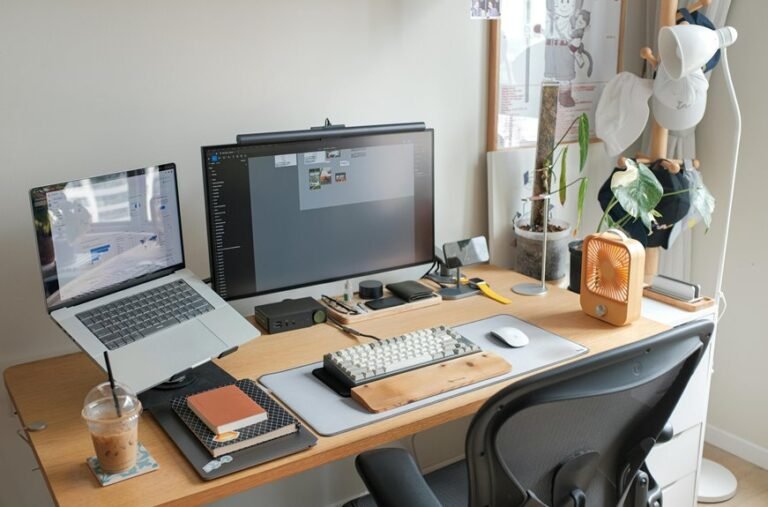
A smart workstation layout starts with how you actually work, not just how the desk looks. You deserve a setup that feels natural, calm, and easy to use. Start by matching your desk position to your daily tasks, then leave enough space for quick movement and clear traffic flow.
Provided that you switch between notes, calls, and hands-on work, choose layout flexibility so you can shift items without a full reset. Keep your keyboard, mouse, and most-used tools within easy reach, because small reaches add stress fast. Also, place shared items where teammates can access them without crowding you.
Upon the moment your space fits your rhythm, you stay focused, feel more at home, and work with less friction every day.
Set Up Your Monitors Properly
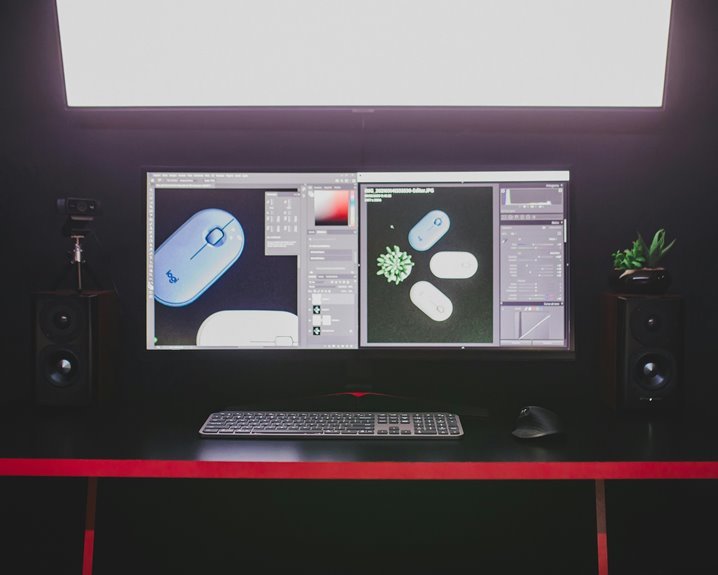
Place your main monitor straight in front of you at eye level, so your neck and shoulders can stay relaxed.
If you use two screens, line them up evenly and keep the seam between them centered with your chair.
When both monitors sit at the right height and distance, you’ll move your eyes less and switch tasks with less strain.
Optimal Monitor Placement
How you set up your monitors can shape how smoothly your workday runs. You deserve a calm view that helps you settle in and stay focused. Keep monitor height so the top of each screen sits near eye level, and hold screen distance about an arm’s length away. That way, your neck and eyes won’t fight you all day.
| Check | Feeling |
|---|---|
| Neck relaxed | Relief |
| Eyes steady | Ease |
| Shoulders loose | Comfort |
| Text clear | Confidence |
| Workspace feels right | Belonging |
When your screen fits your body, you feel part of a workday that supports you, not one that drains you. Small shifts can make your desk feel like yours, and that can change everything.
Dual Screen Alignment
With your screens already sitting at a comfortable height, the next step is to line them up so they work as one smooth workspace. Keep the bezels close and level, so your eyes don’t keep hopping around like they’re late for a meeting. Match the top edges, then check the angle so screen symmetry feels natural. Whenever one display tilts more than the other, your neck will notice before you do.
Next, use display calibration to match brightness, color, and contrast, because mixed tones can make your desk feel a little off. Then test your cursor movement across both screens and adjust until it flows easily. Once everything lines up, you’ll feel more settled, more connected, and ready to move through tasks with less strain.
Adjust Chair Height and Posture
You can start by setting your seat height so your feet rest flat and your knees stay at a comfortable bend.
Then align your spine naturally against the backrest so you’re not slouching or reaching forward all day.
When you support a neutral posture, you give your body a steadier position and make long work sessions feel a lot less tiring.
Set Seat Height
A proper seat height can make a surprising difference in how your body feels after a long workday.
With the right seat adjustment, you let your feet rest flat and your knees stay easy, so ergonomic sitting feels natural instead of forced. You’ll notice that your chair supports you better as you sit close enough to your desk without reaching. Try raising or lowering the seat in small steps until your hips feel relaxed and your thighs don’t press too hard. Then check your posture while typing and mousing, because comfort should feel steady, not shaky. Should you share this setup with teammates, you’re not being picky. You’re building a space where everyone can work well together and feel at home.
Align Spine Naturally
Keeping your spine in a natural line starts with chair height, because small changes can ease a lot of strain fast. Whenever you sit, let your feet rest flat and your knees stay relaxed, so your spine alignment feels steady instead of crowded.
Then adjust the chair until your hips feel level and your lower back can meet the backrest with easy lumbar support. Next, sit tall without stiffening up. Your shoulders should stay loose, and your head should stack over your torso, not drift forward.
Should you feel yourself slumping, pause and reset your posture before tension builds. These small checks help you feel part of a workspace that fits you, not fights you. With practice, your body settles in, and your focus stays on the work, not the ache.
Support Neutral Posture
Once your spine feels lined up, the next step is to support that balance with a chair setup that works with your body, not against it. Raise or lower your seat until your feet rest flat and your knees sit level with, or a little below, your hips. That gives you balanced foot placement and helps keep pressure off your lower back.
Next, slide close to your desk so your elbows stay near your sides and your shoulders relax. Keep your keyboard and mouse within easy reach, and use neutral wrist support so your hands stay straight, not bent. Should your chair have lumbar support, let it meet the curve of your back.
Small tweaks like these help you feel steady, comfortable, and part of a workspace that truly fits you.
Keep Daily Tools Within Reach
Right at your desk, the tools you use every day should sit close enough to grab without a break in focus. Whenever you protect tool accessibility, you protect your rhythm too. Keep your daily essentials, like a pen, notepad, charger, and headset, in the same spots each day so your hands learn the pattern.
You’ll waste less time searching, and your mind can stay on the task in front of you. Try placing the items you touch most on the side of your dominant hand, then leave lighter-use tools just behind them. This simple setup helps you feel ready, settled, and part of a smooth working flow.
Should your team shares a space, steady placement also makes your desk feel more familiar and welcoming.
Cut Clutter With Smart Storage
As papers, cords, and spare gear start to crowd your desk, smart storage gives you room to reconsider again. You can create a calmer setup with vertical storage solutions that lift supplies off the surface, and labeled drawer systems that help you grab what you need fast. As everything has a home, you feel less like you’re fighting clutter and more like you belong in your space.
- Use wall shelves for items you reach often.
- Keep small tools in clear, labeled bins.
- Store backup supplies in one tidy drawer.
Next, group similar items together, then place them where your hand naturally goes. This keeps your workstation neat without making you work harder, and it leaves you with a desk that feels ready for real work.
Organize Workstation Cables
Tame those cable tangles before they take over your desk. You deserve a setup that feels calm and ready, not one that fights you every morning.
Start with cable routing: guide each cord along the desk edge, then use clips or sleeves to keep lines neat and out of the way. Next, do cord labeling so you can spot the right plug fast when you add gear or clean up. A few simple ties help, but leave a little slack so nothing pulls tight.
Also group power cords and data cables separately, since that keeps your space easier to manage. Whenever you can see what connects where, you waste less time and feel more in control. With a tidy base, your workstation starts to feel like your own.
Improve Lighting at Your Desk
Whenever your desk lighting feels off, the whole workday can feel harder than it should. You deserve a setup that helps you feel calm, focused, and part of your own space. Start with natural light benefits using placing your desk near a window, but keep glare off your screen with a sheer shade.
Then shape the rest with thoughtful desk lamp placement. Put the lamp on the side opposite your writing hand, so shadows stay low and your work stays clear.
- Use a warm bulb for comfort
- Aim light at your task, not your eyes
- Mix window light with lamp light for balance
If your space feels uneven, adjust little by little. A better glow can make your desk feel welcoming, and that small shift can help you settle in and work with more ease.
Organize Digital Files and Shortcuts
You can make your workspace feel calmer by setting up a clear folder structure that keeps files easy to spot and even easier to save.
Place the shortcuts you use most right on your desktop or taskbar so you don’t waste time hunting for them.
Then keep file names consistent, because a simple pattern helps you find the right version fast and avoids that annoying “final_final2” mess.
Folder Structure Basics
Whenever your digital files and shortcuts have a clear home, your whole workstation feels calmer and faster to use. You can build a simple tree that groups work per project, client, or task type, so you don’t hunt through a messy pile.
Start with a main folder, then add neat subfolders for drafts, final files, and reference items. This helps you and your team feel in sync.
- Keep names short and specific.
- Set access permissions so the right people can open the right folders.
- Use a backup hierarchy that protects your newest work initially.
Next, match each folder to how you actually work, not how you hope to work. That small habit makes your space feel welcoming and keeps stress from sneaking in.
Shortcut Placement Strategy
When your shortcuts sit where your hands naturally expect them, daily work feels a lot less tiring. You can build that comfort by placing the files and apps you open most on the first screen, along the left edge, or in a neat top row.
That shortcut icon placement helps your eyes and mouse move with less effort, so you stay in rhythm with your team. Next, keep work groups close together, like design tools, chat, and reports, so you don’t hunt across the desktop.
Then make a simple workflow hotkeys map and keep it nearby. Pair each shortcut with one key combo, and use the same spots every day.
Soon, your setup starts feeling familiar, and that little boost can make busy hours feel calmer, faster, and oddly friendlier too.
File Naming Consistency
File names may seem small, but they shape how fast you can find the right work later. While you use naming templates, you and your team stay in sync, even on hectic days. Try a simple order: project, date, topic, then version. That pattern makes version control habits easier, because you can spot the newest draft without guessing.
- Keep dates in one format.
- Use short, clear words.
- Add version numbers at the end.
This also helps your shortcuts point to the right file every time. Should you save reports, notes, and images the same way, your folder feels calmer and your next step feels obvious. You won’t waste energy hunting through mystery labels, and that’s a relief we can all appreciate.
Position Your Keyboard and Mouse Comfortably
A comfortable keyboard and mouse setup can make a bigger difference than most people expect, because your hands, wrists, and shoulders all work better whenever they stay in a natural position.
You should keep your keyboard close enough that your elbows rest near your sides, then match your chair height so your forearms stay level. Next, add keyboard wrist support in case you need a softer edge, but don’t press into it while typing. Your mouse should sit right beside the keyboard, so you don’t reach and strain. Then adjust mouse sensitivity settings until the pointer moves smoothly with small, calm motions. Small changes like these help you feel settled at your desk and ready to work with less tension.
Reduce Noise and Visual Distractions
Even with your keyboard and mouse placed just right, a noisy or cluttered space can still pull your focus apart, so it helps to calm the room around you next.
You’re not trying to build a silent cave; you’re making a place where your mind can settle in with the team around you. Try simple sound masking with a fan, white noise, or soft music.
- Close extra tabs and mute alerts.
- Keep only today’s tools in sight.
- Use a tidy background for visual calm.
When you cut down on stray sounds and busy visuals, your workspace feels friendlier and less tiring. That ease helps you stay present, finish tasks with less strain, and feel more at home in your flow.
Small changes can make your desk feel like it belongs to you.
Automate Repetitive Tasks
Upon you automate repetitive tasks, you give your brain room to do better work instead of wasting energy on tiny chores. You start feeling lighter, and your team feels it too. Use task automation tools for email sorting, file naming, and reminder sends. Then build a simple workflow trigger setup so one action starts the next, like saving notes once you close a call.
| Task | Tool | Result |
|---|---|---|
| Sort mail | Rules | Faster inbox |
| Rename files | Scripts | Cleaner folders |
| Send reminders | Triggers | Fewer misses |
Once you remove busywork, you protect your focus and keep your day calm. That makes it easier to show up, stay steady, and do work your people can count on.
Reassess Your Setup Regularly
Whenever your automations start saving you time, it’s easy to assume your setup will keep working well on its own, but that’s rarely true for long. You need to check it regularly so your gear still fits the way you work now, not last quarter. That’s how you stay in sync with your team and avoid tiny problems that slow everyone down.
Try a simple review:
- note what feels clunky
- compare tools with your hardware refresh cycles
- run software update audits before bugs pile up
If your mouse lags or your apps feel crowded, adjust fast. Small changes keep your space calm and useful, and they help you feel like you belong in a setup that supports you, not fights you.
Frequently Asked Questions
How Often Should Workstation Hardware Be Audited for Performance Issues?
Audit workstation hardware every quarter. If users report slow response times or repeated lag, review it monthly instead. Check system health, component wear, and performance limits on a set schedule so problems are found early and do not interrupt daily work.
Which Collaboration Tools Best Fit Remote and Hybrid Teams?
Remote and hybrid teams work best with a mix of video meetings, shared documents, team messaging, and task management tools such as Zoom, Microsoft Teams, Slack, and Asana. These tools support real time communication, shared visibility, and smoother coordination across different locations.
What’s the Best Way to Sync Work Schedules Across Devices?
Keep one shared cloud calendar for all work events, then turn on notifications across your phone, laptop, and tablet. Every update appears in each place, so meetings, deadlines, and team plans stay current wherever you check.
How Can Plants Improve Productivity in a Workspace?
Plants can boost workspace productivity by up to 15% while adding biophilic design that helps lower stress and creates a more comfortable environment. Cleaner air and a calmer atmosphere can support focus, improve mood, and make the space feel more inviting.
When Should Quiet Time Blocks Be Scheduled During the Day?
Schedule quiet time blocks during the parts of the day when your concentration is strongest, such as midmorning and late afternoon, especially if interruptions tend to break your momentum. These blocks can help you work with more clarity and feel steadier and better supported.