
A productive laptop setup starts with a clean screen, fewer distractions, and a desk that feels good to use. Keep your tools simple, your files tidy, and your alerts quiet. Small tweaks like better folder names and useful shortcuts can save time every day. A steady setup helps work feel smoother, faster, and less stressful.
Create a Distraction-Free Laptop Setup
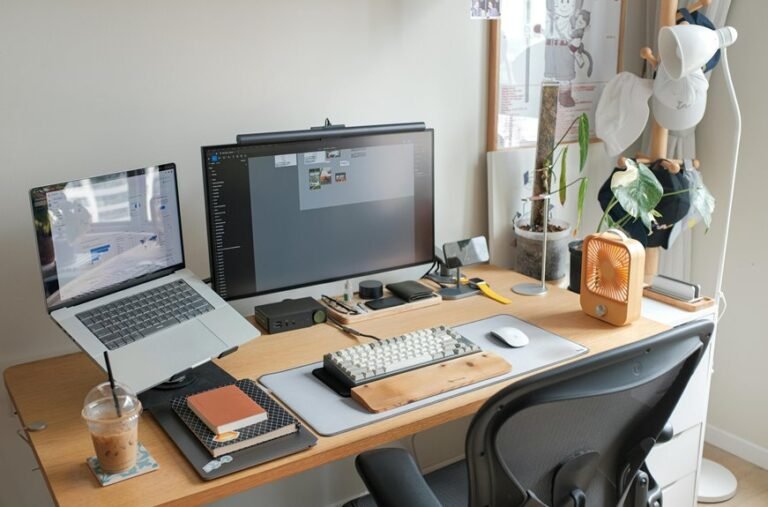
If your desk feels busy before you even start working, you’re not alone, and the fix often starts with the setup itself. You can build a mindful ambient setup by lowering visual noise, keeping only the tools you use today, and choosing one calm spot for your laptop.
Then, adjust your screen so your eyes meet the top edge naturally, which helps you stay relaxed and focused. Add soft, even light, because harsh glare can pull your attention away fast. Whenever your space feels quiet to the eye, your mind can follow.
That’s how you create a visual calm workflow that supports steady focus, smooth task changes, and a little more peace during long work sessions.
Organize Your Desktop for Daily Work
You can make daily work feel easier by giving every file a clear place and every project a smart folder path.
Keep your desktop clean by pinning only the essential shortcuts you use all day, so you spend less time hunting and more time working.
A simple layout like this helps your mind stay calm and your next task feel close at hand.
Clear File Layout
A clear file layout makes daily work feel much lighter, because whenever your desktop stays clean, your brain doesn’t have to waste energy hunting for the right folder or document. You feel more settled whenever every project has a home and every file follows the same file naming pattern.
That simple habit also supports version control, so you can tell which draft is current without opening five copies and guessing. Next, place active work near the top of your desktop and move finished items into a neat archive area.
Then, keep shared resources in one spot, so you and your team can find them fast. With that flow, you spend less time sorting and more time doing real work, and that’s a pretty good trade.
Smart Folder Structure
Next, give downloads, drafts, and final versions their own spots, since that tiny habit cuts stress fast. Then use a simple archive naming system with dates and short labels, so older files still feel easy to find whenever you need them.
Whenever you share a laptop with teammates, this setup helps everyone stay in sync and feel at home in the same workflow. A tidy folder tree isn’t fancy, but it does make your daily work feel calmer and much more ready.
Essential Desktop Shortcuts
Whenever your desktop is crowded, even simple work can feel harder than it should, so the right shortcuts can save time and protect your focus.
You don’t need a perfect screen, just a few habits that help you move like the rest of your crew. Start with these:
- Pin your daily apps for quick launch commands.
- Use Alt plus Tab to switch without breaking momentum.
- Keep files you touch often in one clean folder.
- Practice window management with snap views and full screen modes.
Next, pair those moves with a tidy desktop background and fewer icons. That small change makes your laptop feel calmer, and you’ll spot what matters faster.
Whenever everything has a place, you spend less energy hunting and more energy doing.
Choose Productivity Apps for Your Laptop
As your laptop feels like the center of your workday, the right apps can make it feel lighter, faster, and far less chaotic. Start with smart app selection that matches your real tasks, not every shiny tool online. Use a memo app, a task manager, and a timer so your day stays steady. Then add workflow tracking to see where time slips away and where you shine. That clarity helps you work with your own pace, and it makes you feel less alone in the grind.
| App type | What it helps with |
|---|---|
| Notes | Quick ideas |
| Tasks | Clear priorities |
| Timer | Focus blocks |
| Tracker | Habit checks |
Pick a few, learn them well, and let them support your rhythm.
Tame Notifications and Email Alerts
- Silence low-priority apps.
- Keep urgent contacts on.
- Group email checks morning, lunch, and late afternoon.
- Review alert settings weekly.
This setup helps you stay in the flow with your team, because you answer faster on the things that count.
And whenever your inbox stops barking every few minutes, your focus finally gets room to breathe.
Set Up an Ergonomic Laptop Workspace
Start at raising your laptop screen until the top sits at eye level, so you can keep your neck relaxed and your eyes steady.
Then place an external keyboard where your elbows stay close to your sides and your wrists feel neutral, which helps you type with less strain.
With these two changes, you’ll make your workspace feel more natural and a lot easier to work in.
Proper Screen Height
Raising your laptop screen to eye level is one of the simplest ways to make your workspace feel easier on your body and your mind. Whenever you keep eye level alignment, you stop hunching and start feeling more settled at work. A small stand or stack of books can do the trick, and a slight monitor tilt adjustment helps you see the screen without straining.
- Lift the screen so your gaze lands near the top third.
- Keep the display centered in front of you.
- Angle it to cut glare from lamps or windows.
- Check your posture after a few minutes.
This setup helps you join the workday with less neck tension and more focus, so you can stay comfortable with the rest of your team.
Comfortable Keyboard Position
With your laptop at the right height, the keyboard should sit low enough that your shoulders can stay relaxed and your elbows can bend close to 90 degrees. That keeps you in the group of people who finish the day without stiff arms or a cranky neck. Aim for gentle wrist alignment, not bent wrists, and use a light touch so your hands can float instead of press.
| Check | Good feel | Quick fix |
|---|---|---|
| Hand height | Even with elbows | Lower the laptop |
| Wrist angle | Straight and calm | Add a keyboard tray |
| Key travel | Smooth, not mushy | Try an external keyboard |
| Shoulder load | Loose and easy | Move closer to the desk |
| Typing rhythm | Steady and relaxed | Pause, then reset |
When key travel feels comfortable, you’ll type more naturally and stay focused together.
Use Keyboard Shortcuts to Work Faster
Why keep clicking through menus while your keyboard can do the heavy lifting? You’ll feel faster, calmer, and more in control once you build shortcut workflows that fit your day. Command mastery isn’t about memorizing everything. It’s about learning the moves that save time and reduce friction.
- Use Ctrl or Command plus C, V, and Z to copy, paste, and undo fast.
- Switch apps with Alt plus Tab or Command plus Tab.
- Save your work with Ctrl or Command plus S before trouble starts.
- Open search with Ctrl or Command plus F to find details quickly.
As you practice, these keys start to feel like a shared language. That sense of flow can make you feel right at home at your desk.
Keep Your Laptop Setup Consistent
Once your shortcuts start saving time, your setup should support that same smooth flow every day. You’ll feel calmer when setup consistency keeps your desk, screen, and tools in the same place. Keep your laptop at eye level, use the same keyboard and mouse, and leave your charger docked so you don’t hunt for cords.
Then add routine maintenance to protect that rhythm. Wipe the screen, clear dust, and check cables once a week. Whenever you use a stand, monitor, or tray, return each item after work so tomorrow starts easy.
Small habits like these help you settle in fast and stay focused. Whenever your space feels familiar, you belong in it, and your mind can get to work without a cold start.
Frequently Asked Questions
What Monitor Setup Works Best for Coding and Research?
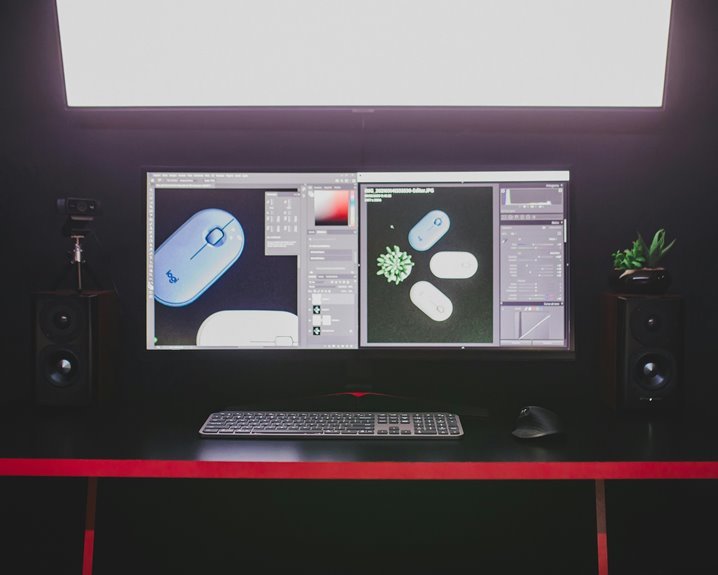
For coding and research, an ultrawide display or a pair of monitors often works well. A calibrated screen helps with accurate visuals, and having references visible beside your main workspace can make reading, comparing, and writing easier.
Which Accessories Help Reduce Desk Clutter in Small Spaces?
Drawer dividers, modular trays, a vertical laptop stand, and under monitor storage help keep small desks organized. Cable clips and compact storage boxes clear loose items and free up working space so the desk feels more open and easier to use.
How Can I Improve Lighting for Long Laptop Work Sessions?
Place a soft desk lamp to the side of your workspace and set your laptop next to a window instead of directly in front of it. Choose an adjustable LED lamp, match screen brightness to the room, and reduce reflections on the display to make long work sessions easier on your eyes.
What Hardware Upgrades Support Better Virtual Meetings?
Upgrade to a 5MP webcam and add an external microphone. You will appear sharper, sound fuller, and join meetings with greater confidence, making it easier to stay present and contribute clearly when each discussion matters.
How Do I Choose a Standing Desk for My Workspace?
Pick a standing desk that adjusts so your elbows rest at a natural height and has a solid frame that stays steady while you work. A stable desk helps you stay comfortable and change positions easily without noticeable wobble.