

You want an Animation Pcs setup that matches the way you actually create, whether that means sketching frame by frame, rigging characters, or running a desktop that can keep a scene timeline open without dragging. The right pick depends on your workflow, your desk space, and how much control you want in the pen, screen, or software layer.
This roundup keeps the focus on practical fit. A compact pen display suits daily drawing, while animation software matters more if your pipeline is already built around vectors, bones, and imported artwork.
The Shortlist At A Glance

HUION Kamvas 13 (Gen 3) Drawing Tablet (Black)

HUION Kamvas 13 (Gen 3) Drawing Tablet (Pink)
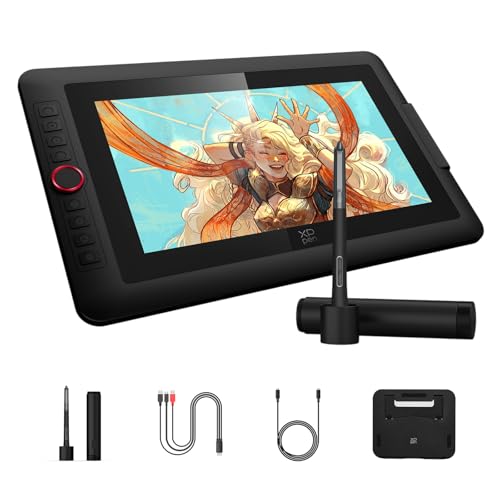
XPPen Artist 13.3 Pro V2 Drawing Tablet (Red Dial)

XP-PEN Artist 13.3 Pro V2 Drawing Tablet


suevery Gaming PC Desktop, Ryzen 7 5700X, RTX 3050 6GB
More Details On Our Top Picks
The Kamvas 13 (Gen 3) in black suits you if your desk already has a computer and you want a screen-based drawing surface without moving up to a huge panel. The 13.3-inch format keeps it compact, and the dual dial layout gives you a more hands-on way to adjust tools than a plain button-only shell.
The trade-off is simple, you still need to connect it to a computer or laptop, so it’s not a self-contained sketch pad. For home studios, art students, and hobbyists with limited space, that dependency is manageable and often worth it for the direct pen-on-screen feel.
Strong Points
- 13.3-inch screen keeps the footprint manageable on a smaller desk.
- Dual dials support faster adjustments during drawing or layout work.
- Fits a computer-based workflow, which helps you keep files and tools in one place.
Things To Consider
- Needs a connected computer or laptop to function.
- Smaller screen space can feel tight for wide timelines or detailed interfaces.
Feature Snapshot
Who It Suits Best
Art students and home illustrators who want a compact pen display with physical controls will get the most out of it.
A Better Fit Elsewhere
XPPen Artist 13.3 Pro V2 suits you better if you want a denser shortcut layout and a more performance-focused drawing surface.
The pink version carries the same drawing-tablet layout as the black model, so the decision here is mostly about look and desk personality. That makes it a neat fit for a studio corner where you want hardware that feels a little less plain without giving up the familiar 13.3-inch working size.
One thing worth considering is that the style choice won’t change the basic setup requirement, since it still depends on a computer or laptop. For most casual artists, that’s fine, and the softer finish may make the setup feel a bit more personal than a standard dark device.
Highlights
- Distinct pink finish gives your workspace a cleaner visual accent.
- Same compact 13.3-inch format as the black version.
- Dual dials support quick adjustments while you work.
Small Caveats
- Style changes the look, not the operating requirement.
- Smaller display area still asks you to manage dense art software carefully.
Details At A Glance
Who Will Love This
You’ll like this most if your setup needs a more expressive look without moving away from a compact pen display.
Another Choice May Suit
HUION Kamvas 13 (Gen 3) Drawing Tablet (Black) makes more sense for a neutral studio or office space.
This XPPen option leans harder into control density than the HUION pair, thanks to the red dial and eight shortcut keys. That matters in animation-heavy or illustration-heavy sessions, because you can keep more commands under your hand instead of reaching for menus all the time.
The fully laminated panel and AG glass, short for anti-glare glass, are the sort of details that help the screen feel more direct and easier on the eyes in bright rooms. For beginners moving into a more serious drawing workflow, that combination usually feels like a clear step up without going giant.
Upsides
- 16K pressure levels give you very fine pen response on the page.
- Eight keys and a red dial make common commands quicker to reach.
- Full lamination reduces the gap between pen tip and image, which helps line placement feel more natural.
- Includes a stand, useful for longer sessions at a desk.
Areas To Watch
- Shortcut-heavy layouts take a little setup time before they feel automatic.
- The compact size is friendly for travel, but less roomy for sprawling timelines.
Core Details
Perfect Match For
You’ll get the most from this pick if you want a compact pen display with more shortcut control for art, animation, or multi-app work.
Look Elsewhere When
Moho Pro 13.5 suits you better if your main task is rigging and timeline-based animation rather than direct drawing.
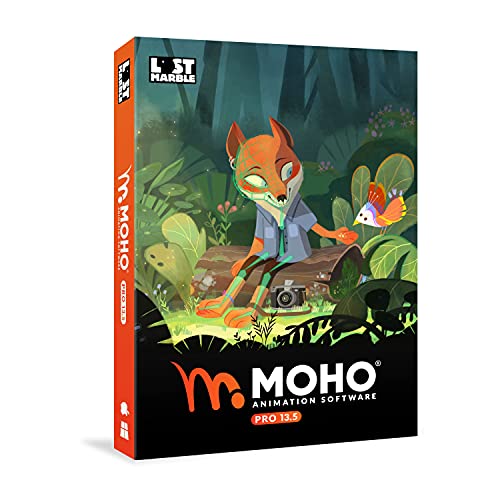
Moho Pro 13.5 shifts the list from hardware into software, and that matters because a strong animation setup is only half pen display. The vector drawing tools are built for animation work, while Photoshop PSD import support helps you bring in layered art and keep moving instead of rebuilding assets from scratch.
The rigging system is the real draw here. Smart Bones, Vitruvian Bones, FK, which means forward kinematics, and IK, which means inverse kinematics, all point to a toolset that suits character animation with a lot of motion control. The honest read is that this is more demanding than beginner software, but it rewards people who want serious 2D control.
What We Like
- Vector tools suit clean, editable animation paths.
- PSD import helps you reuse layered artwork from other design work.
- Bone and constraint tools support character rigging with more control points.
- Good fit for users who already think in timelines, layers, and reusable assets.
Points To Note
- Better suited to users comfortable with layered animation logic.
- Software depth can feel like a lot for casual frame-by-frame doodling.
Right Fit For
You’re in the sweet spot here if you animate characters, build rigs, or work from existing PSD artwork on a PC or Mac.
Swap It Out When
Moho Debut 14 is the easier route for first-time animators who want a gentler start.
This XP-PEN model targets the practical side of a drawing desk, especially since it supports a single-cable USB-C connection on compatible devices. That cleaner hookup is useful in a shared office, dorm, or compact studio where cable clutter gets old fast.
The included foldable stand adds another layer of convenience, and the broad compatibility list covers Mac, Windows PC, Chromebook, and Android devices. The catch is that the cleaner connection depends on device support, so you need the right port setup before you can enjoy the tidy cable path.
Bright Spots
- USB-C support can reduce desk clutter on compatible systems.
- Works across several device families, which helps a mixed-home setup.
- Foldable stand makes it easier to angle the screen for long sessions.
- Fully laminated display helps the pen feel more directly aligned with the image.
Worth Noting
- Single-cable use depends on device capability, so port matching matters.
- Legacy setup options can still mean a more involved install for some desks.
Feature Card
Who Should Grab It
You’ll benefit most if you move between devices and want a compact pen display that doesn’t clutter the desk.
Where A Sibling Pick Shines
XPPen Artist 13.3 Pro V2 Drawing Tablet (Red Dial) is the better match if shortcut controls matter more than cable flexibility.
Moho Debut 14 is the gentler software choice in this roundup, and that makes sense from the name onward. Beginner’s Mode lowers the learning curve, while the vector draw, paint, and fill tools let you make your own assets instead of relying only on imports.
It also supports artwork brought in from popular graphics programs, so you can start from existing files rather than building every frame from scratch. For first-time animators and hobbyists, that mix feels approachable without stripping away the basic building blocks you need to learn the process.
Positives
- Beginner’s Mode gives you a friendlier entry into animation software.
- Vector draw, paint, and fill tools help you build original artwork inside the app.
- Import support makes it easier to reuse art you already have.
Minor Gripes
- Less specialized than Moho Pro 13.5 for advanced rigging work.
- Serious character animation workflows may outgrow it over time.
Built With In Mind
You’re the best match here if you’re new to animation and want software that teaches the process without overwhelming you.
Reach For A Different Pick When
Moho Pro 13.5 is the smarter step up for professional rigs, bone controls, and deeper animation control.
This desktop is the list’s general-purpose anchor, and that matters if your animation setup also needs room for gaming, editing, or a stack of open apps. The Ryzen 7 5700X, with 8 cores and 16 threads, gives you a strong multi-tasking base, while the RTX 3050 6GB adds a graphics card layer that helps round out the machine.
For most studios, the 16GB DDR4 memory and 512GB SSD are workable starting points, though heavy project libraries can fill storage faster than you’d like. The honest read is that it fits a practical home workstation better than a high-end production tower, but it gives you a straightforward path into a ready-made desktop.
Reasons To Buy
- Ryzen 7 5700X gives you an 8-core, 16-thread processing base.
- RTX 3050 6GB helps the system feel more capable for creative and gaming work.
- 16GB memory and a 512GB SSD create a usable out-of-box starting point.
Room For Improvement
- Storage capacity may feel modest once project files and media assets pile up.
- It’s a desktop tower, so it won’t suit tight mobile workflows.
Core Details
Whose Shelf It Belongs On
You should look at this desktop if you want a ready-built PC for animation, editing, and everyday computing in one tower.
Skip It When
Moho Debut 14 or a pen display like HUION Kamvas 13 (Gen 3) makes more sense when your budget and workspace are tighter.
What Matters Most Before Choosing Animation Pcs
Workflow First, Hardware Second
Start with the task, not the spec sheet. Pen displays suit sketching and layout work, while software like Moho Pro 13.5 matters more for rigs, bones, and reusable character systems.
Screen Size And Desk Space
A 13.3-inch display works well on smaller desks and portable setups. Bigger screens help with timeline-heavy layouts, but they also ask for more room and a steadier posture.
Compatibility Saves Time
Check whether the device needs a computer, a direct USB-C path, or a legacy HDMI setup. Port support sounds minor until the cable box starts spreading across your desk.
A Quick Reality Check
Hidden Buying Traps
Don’t confuse style changes with capability changes, since the pink and black HUION models work the same way. Also, a compact display can feel cramped once you stack toolbars, layers, and animation timelines.
The Upgrade Payoff
Higher-tier picks cost more because they add shortcut controls, stronger pen response, better screen lamination, or deeper rigging tools. That extra spend matters most when animation is a regular part of your week, not just an occasional hobby.
Frequently Asked Questions
Do Animation Pcs always need a computer?
No, but many pen displays in this list do, including the HUION Kamvas models. Software picks like Moho run on their own within a compatible computer system.
What matters more, the tablet or the software?
For drawing comfort, the tablet matters more. For rigging, bone control, and animation structure, the software matters more.
Is 13.3 inches too small for animation work?
Not necessarily, especially on a tidy desk or in a portable setup. It can feel tight for crowded interfaces, though, so your software layout matters.
Who should choose beginner software?
New animators and hobbyists usually benefit most from starter tools like Moho Debut 14. Beginner’s Mode helps you learn without loading up too many advanced controls at once.
What kind of desktop helps with animation?
A desktop with a multi-core processor, enough memory, and solid graphics support gives you a steadier base. The suevery Gaming PC Desktop fits that role better than a basic office tower.
